
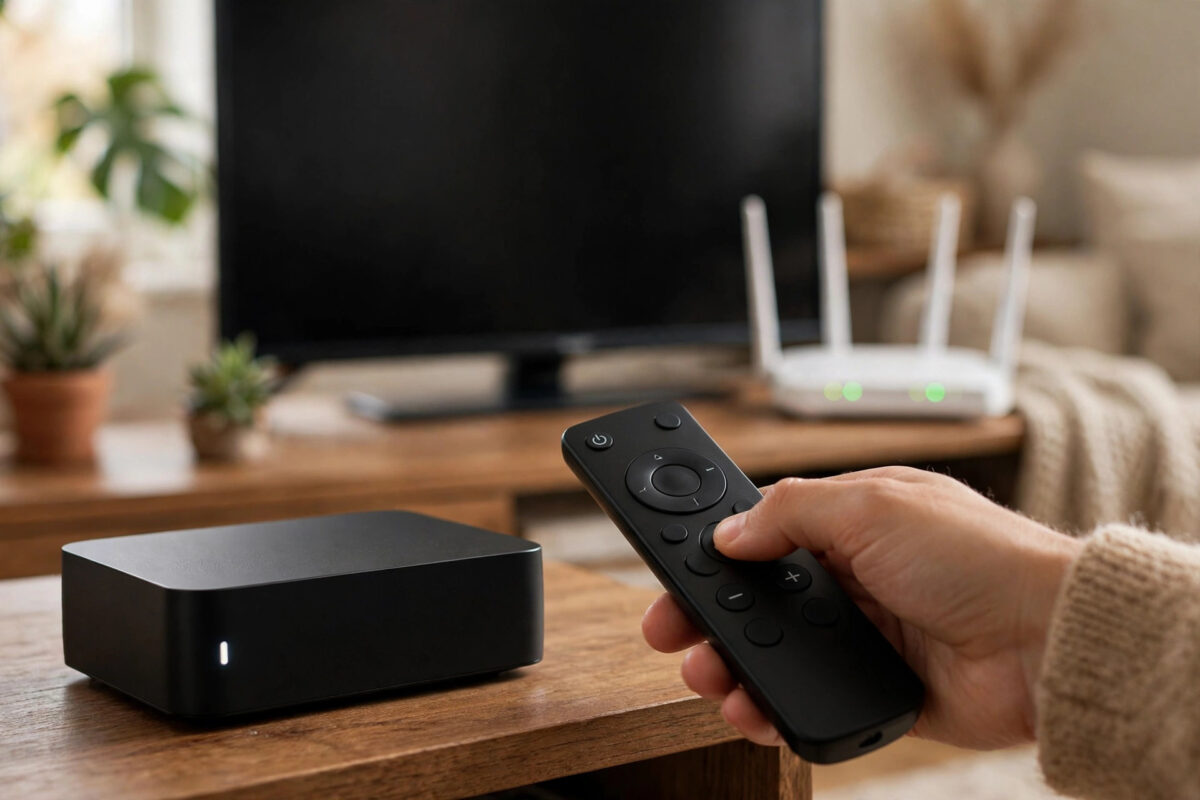
Hulu error code P-DEV320 usually appears at the worst moment: you sit down, choose a show, and playback stops before it even starts. The code looks technical, but it simply means the Hulu app on your device could not communicate properly with Hulu’s servers. It is common on Firestick, Roku, smart TVs, game consoles, and streaming boxes.
The cause is often something small, such as an unstable internet connection, an outdated Hulu app, corrupted temporary data, or a device that has not been restarted in weeks. This guide takes you through the fixes in a sensible order, so you can get Hulu playing again without guessing or resetting your whole device.
Quick Answer
To fix Hulu error code P-DEV320, fully restart your streaming device and router by unplugging them for 60 seconds, then check that your internet connection is stable and fast enough for streaming. Update the Hulu app and your device software, and clear the app cache or reinstall Hulu if the error continues. P-DEV320 is a communication error, so a fresh connection and an up-to-date app solve it in most cases.
What Hulu Error P-DEV320 Means
The P-DEV part of the code points to a playback and device communication problem. Hulu’s app regularly checks in with its servers while you browse and stream. If that connection is interrupted, too slow, or blocked by old data in the app, Hulu shows P-DEV320 instead of playing the video.
Several situations can trigger it. Your Wi-Fi signal may be weak where the TV sits. The Hulu app may be several versions behind. Your device may hold a corrupted cache after an update. Or Hulu’s service itself may be briefly unavailable. According to the Hulu Help Center, playback errors in the P-DEV family are generally handled with connection checks, app updates, and device restarts, which is exactly the order this guide follows.
A Quick Test That Saves Time
Before you change anything, open Hulu on your phone or a computer browser, ideally on the same home Wi-Fi. If Hulu fails there too, the problem is your network or a Hulu outage, so restart the router and wait a little. If Hulu works fine on the phone, your account is healthy and the fault is inside the streaming device, so focus on the app and device steps below.
Step 1: Restart the Device and Router Properly
- Exit Hulu completely. Do not leave it running in the background.
- Turn off your Firestick, Roku, TV, or console and unplug it from power for at least 60 seconds.
- Unplug your router and modem for 60 seconds too.
- Plug the modem and router back in first, and wait until the internet connection is fully restored.
- Plug the streaming device back in, let it load completely, open Hulu, and test the same show.
This matters because streaming devices rarely get a true fresh start. They sleep, they do not shut down, so errors in memory can survive for weeks. Unplugging clears that memory and forces Hulu to build a clean connection. Many people find P-DEV320 disappears at this point and never returns.
Step 2: Check and Improve Your Internet Connection
Hulu needs steady speed, not just a good result on a one-off test. A connection that dips every few minutes can trigger P-DEV320 repeatedly, especially in the evening when the household is busy.
- Hulu recommends roughly 3 Mbps for its standard library, 8 Mbps for live TV, and about 16 Mbps for 4K content. Aim higher than the minimum at the device itself.
- Run a speed test on the streaming device or on a phone placed right next to the TV, not beside the router.
- Move the router closer to the TV, raise it, and keep it out of closed cabinets.
- If you have dual-band Wi-Fi, try 5 GHz for speed at short range or 2.4 GHz for better reach through walls.
- Pause big downloads, updates, and video calls on other devices while you test.
- Turn off any VPN or proxy, because Hulu is only licensed for use inside the United States and location tools can break its checks.
If every app struggles in that room, the network is the real problem. Our guide on how to improve Wi-Fi signal for streaming at home covers router placement, channels, and extenders that fix weak-room problems for good.
Step 3: Update Hulu and Your Device Software
An old Hulu app trying to talk to current Hulu servers is a very common cause of P-DEV errors. Updates also fix bugs Hulu already knows about, so check both layers.
- Open your device’s app store, find Hulu, and install any pending update.
- On Firestick, go to Settings, My Fire TV, About, and check for system updates.
- On Roku, go to Settings, System, System Update, and check now.
- On a smart TV, look in Support or About for a software update option.
- On a console, check for both the Hulu app update and the console system update.
- Restart the device after updating, then test Hulu again.
Turning on automatic app updates afterwards prevents this cause from coming back. Most devices have that option in their app store settings.
Step 4: Clear Cache or Reinstall the Hulu App
If Hulu is up to date and still shows P-DEV320, its saved temporary data is likely damaged. Clearing it gives the app a clean slate.
On Firestick and Android TV
- Go to Settings, Applications, Manage Installed Applications, and choose Hulu.
- Select Force Stop, then Clear Cache, and reopen Hulu.
- If the error remains, select Clear Data as well. You will need to sign in again.
On Roku, TVs, and Consoles
Some platforms do not offer a cache button. On Roku, remove the Hulu channel, restart the Roku from its System settings, then add the channel again; restarting between removal and re-adding is important. On smart TVs and consoles, uninstall Hulu, restart the device, and reinstall it from the official store. After reinstalling, sign in and test with a popular show rather than a download or a saved offline title.
Also check free storage. A device with almost no free space can fail to store the data streaming needs. Remove apps you never use and delete old downloads to make room.
Step 5: Check Date, Account, and Hulu’s Service
If the error survives a reinstall, check the basics people often miss. Make sure your device date and time are set automatically, because a wrong clock can break the secure connection Hulu uses. Confirm your subscription is active by signing in through a browser. Sign out of Hulu on very old devices you no longer use. Then try a completely different show or film, because a single title can occasionally be faulty while the rest of the service works. If Hulu fails on every device in the house at the same time, it is probably a service outage, and the only fix is to wait and try again later.
Common Mistakes to Avoid
- Restarting only the app: P-DEV320 often lives in the device or router session, so unplug both.
- Testing on a different network without realising: Your phone may be on mobile data, which proves nothing about your home Wi-Fi.
- Reinstalling without restarting in between: Old data can survive a quick reinstall. Restart the device during the process.
- Using a VPN with Hulu: Hulu blocks or errors on many VPN connections.
- Ignoring system updates: Updating only the app leaves a common cause untouched.
- Assuming the device is broken: This error is almost always software or network related, not failed hardware.
Conclusion
Hulu error code P-DEV320 means the app on your device lost a proper connection with Hulu, and the fix is usually straightforward. Restart the device and router by unplugging them, confirm your connection is strong and stable at the TV, update Hulu and the device software, and clear the cache or reinstall the app if needed. Work through the steps in order and test after each one, so you learn what solved it. In the rare case that Hulu fails on every device at once, the problem is on Hulu’s side and will normally clear on its own.
Frequently Asked Questions
Why does Hulu keep showing P-DEV320 on my Firestick?
On Firestick, the usual causes are a weak Wi-Fi signal, an outdated Hulu app, or a corrupted cache. Unplug the Firestick and router for a minute, update Hulu and the Fire TV software, then clear the Hulu cache in Settings under Manage Installed Applications.
Is P-DEV320 caused by my internet or by Hulu?
It can be either, which is why the phone test helps. If Hulu fails on several devices on your home Wi-Fi, suspect your connection or a Hulu outage and restart the router. If it only fails on one device, the problem is that device’s app, software, or stored data.
Will reinstalling Hulu delete my profiles and watch history?
No. Profiles, watch history, and your list are stored in your Hulu account online. Reinstalling removes the local app and its temporary files. You sign in again afterwards and everything returns, although downloads on that device will need downloading again.
How fast should my internet be for Hulu?
Plan for at least 3 Mbps for standard streaming, 8 Mbps for Hulu Live TV, and around 16 Mbps for 4K, measured at the device. In a busy home, having extra headroom matters, because dips below those levels can trigger playback errors.
What if P-DEV320 appears on only one show?
That suggests a problem with that specific title rather than your setup. Try another popular show to confirm, check for an app update, and try the faulty title again later. If only one title ever fails, reporting it through Hulu’s help channels is the best next step.



Leave a Reply