
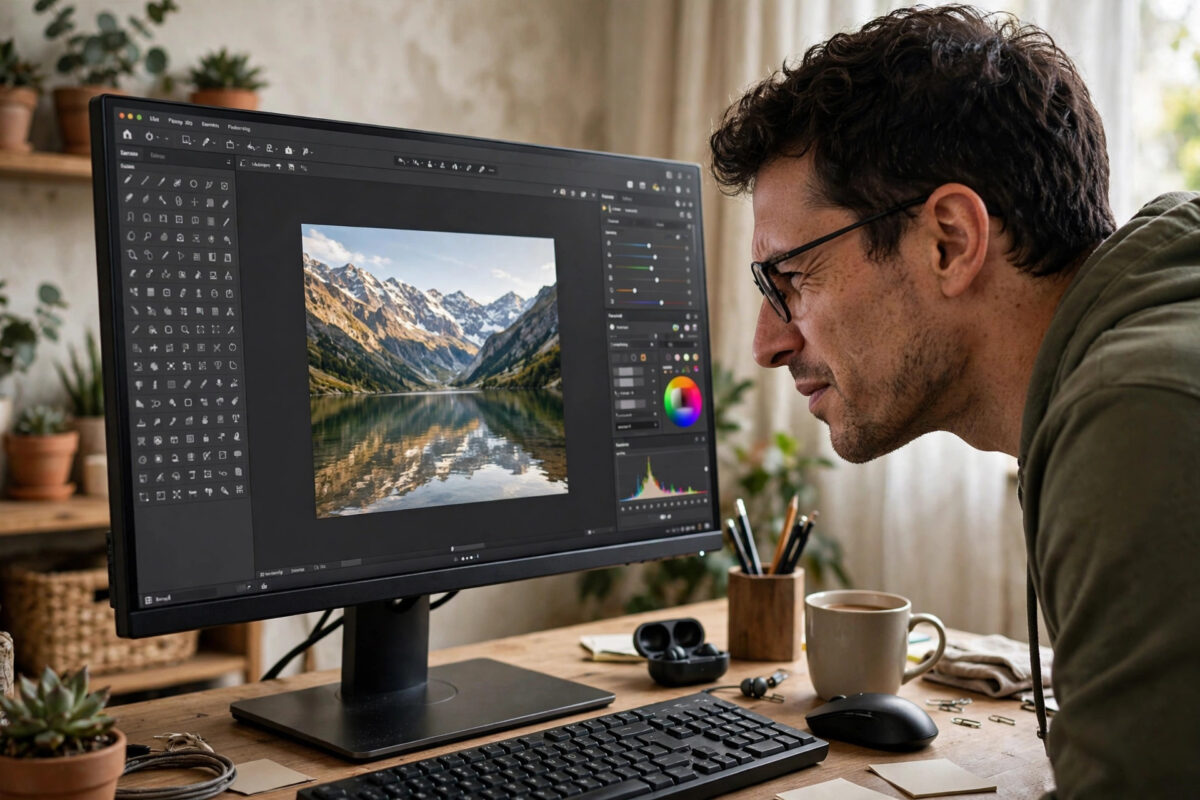
A 4K monitor makes photos look stunning, but the first time you open GIMP 2.10 on one, the program itself can be almost unusable. Tool labels are tiny, icons are the size of pinheads, menus need squinting, and clicking the right brush option feels like a precision exercise. The image area is fine. It is everything around it that has shrunk.
This is a scaling problem. GIMP 2.10 was built before high-density displays became common, and it does not always follow Ubuntu’s display scaling the way newer programs do. The good news is that there are several reliable workarounds, from a simple icon setting inside GIMP to a proper scaling fix for the whole application. Work through them in order and stop when the interface feels comfortable.
Quick Answer
First increase the icon and font size inside GIMP under Edit > Preferences > Interface. If text is still tiny, launch GIMP with environment scaling by running GDK_SCALE=2 gimp in a terminal, or set Ubuntu’s display scaling to 200 percent and enable the GIMP GTK theme scaling workarounds described below. GIMP 2.10 cannot scale perfectly, but these steps make it fully usable on a 4K screen.
Why GIMP 2.10 Struggles on 4K Displays
A 4K screen packs roughly four times as many pixels as a traditional full HD screen of the same size. Modern systems handle this by scaling the interface, drawing text and buttons using more pixels so they stay the same physical size but look sharper. Applications need to support that scaling, and support varies a lot.
GIMP 2.10 is based on the older GTK2 toolkit. GTK2 was designed long before high-density screens were a consideration, so it largely assumes one pixel in the program equals one pixel on the screen. On a 4K monitor, that assumption makes every label, icon, and menu half the expected size, or even smaller. Ubuntu can scale the whole desktop, but GIMP may ignore that instruction or apply it inconsistently.
GIMP 3, built on a newer toolkit, handles scaling far better. But many Ubuntu versions still ship or offer GIMP 2.10, and many users prefer its familiar layout and plugins. Until you choose to upgrade, the fixes below bridge the gap.
Fix 1: Enlarge Icons and Text Inside GIMP
Start with the options GIMP itself provides. These will not solve everything, but for many users at 1440p or moderate 4K scaling, they make a real difference.
- Open Edit > Preferences and select Interface.
- Under the Theme and Icon Theme sections, find the icon size control in versions that offer it, and set icons to Large or Huge.
- Restart GIMP and check the toolbox. Larger icons are easier to see and to click.
- In the same preferences window, explore the font size setting if present under Interface, and increase it by a couple of points.
Use a custom font setting for menus
If your version has no font size control, you can set one through a theme tweak. GIMP reads a file called gtkrc inside its configuration folder at ~/.config/GIMP/2.10/. Adding a larger default font there affects menus and labels across the program. Because editing configuration files is not for everyone, treat this as an optional step and try the scaling fixes first, since they enlarge everything at once rather than only the text.
Fix 2: Launch GIMP With GDK Scaling
The most effective single fix is to tell the graphics toolkit to draw GIMP at double size. You can test this in seconds from a terminal.
- Close GIMP completely.
- Open a terminal with
Ctrl+Alt+T. - Run
GDK_SCALE=2 GDK_DPI_SCALE=0.5 gimpand press Enter. - Check the interface when GIMP opens. Text and controls should be much larger and readable.
The first variable doubles the overall scale. The second keeps font rendering balanced so text does not become oversized relative to the rest of the interface. If scale 2 feels too big on a large 32-inch screen, experiment with leaving out the variables and using Ubuntu’s fractional scaling instead, as described in the next fix.
Make the scaling permanent in the launcher
Typing the command every time is tedious, so save it into the app launcher once you know it works.
- Copy the system launcher with
cp /usr/share/applications/gimp.desktop ~/.local/share/applications/. - Open the copy in a text editor and find the line beginning with
Exec=. - Change it to
Exec=env GDK_SCALE=2 GDK_DPI_SCALE=0.5 gimp %U, keeping any existing ending such as%U. - Save the file, then sign out and back in, or wait a moment for the applications menu to refresh.
- Launch GIMP from the menu as usual and confirm it opens at the larger scale.
The official GIMP 2.10 documentation covers the preferences and interface options available in this version if you want to explore related settings.
Fix 3: Use Ubuntu’s Display Scaling Settings
Ubuntu has its own scaling controls, and getting them right helps GIMP and every other older program at the same time.
- Open Settings > Displays.
- Select your 4K monitor and look for the Scale option.
- Choose 200 percent for a clean doubling, which older applications handle best.
- If 200 percent feels too large, enable Fractional Scaling and try 150 percent, accepting that some older apps may look slightly soft.
- Apply the change, then restart GIMP to pick up the new setting.
Whole-number scaling such as 200 percent gives the sharpest results and the fewest surprises with GTK2 programs. Fractional values work well for modern apps but can leave GIMP slightly blurry, because the system has to stretch its window. If GIMP is your main creative tool, choosing the scale that suits GIMP first is often the sensible trade-off.
Note also whether you sign in to an Xorg or a Wayland session on the login screen. Some scaling behaviour differs between them, and GIMP 2.10 historically behaves more predictably under Xorg. If scaling is chaotic on Wayland, try an Ubuntu on Xorg session as a test. The official Ubuntu help on display resolution and scaling explains these display settings step by step.
Fix 4: Lower the Resolution While Editing (Simple Fallback)
It sounds like a step backwards, but temporarily setting the 4K screen to 1920 by 1080 while you edit makes GIMP 2.10 behave exactly as it did on older monitors. Everything becomes a comfortable size with no tweaks at all.
- Change the resolution in Settings > Displays before your editing session.
- Modern screens upscale 1080p cleanly, so photos still look good, just not at full 4K sharpness.
- Switch back to 4K afterwards for films and other uses.
This is a fallback, not the best long-term answer, but for an occasional user who opens GIMP once a month, it may honestly be the easiest solution of all.
Fix 5: Consider GIMP 3 or a Larger Interface Theme
If you use GIMP weekly, weigh up upgrading. GIMP 3 uses the GTK3 toolkit, follows system scaling properly, and looks correct on high-density displays without environment variables or launcher edits. Check your software centre or the official site for availability on your Ubuntu version, and back up your brushes and settings first.
Alternatively, community themes for GIMP 2.10 with bigger icons and fonts can soften the problem. Only download themes from trusted sources, and remember a theme cannot fix toolkit-level scaling on its own. For related Linux display guidance, see our guide on fixing tiny text across Ubuntu on a 4K monitor, which covers system-wide settings beyond GIMP.
Common Mistakes
- Changing only the canvas zoom. Zooming the image does nothing for menus and tool labels. The fixes must target the interface, not the picture.
- Editing the wrong launcher file. Edit the copy in your home folder, not the system file, or your change will be lost on the next update and may need administrator rights.
- Expecting fractional scaling to be sharp in GTK2 apps. A slight softness at 150 percent is normal for GIMP 2.10. Use 200 percent if sharpness matters more than screen space.
- Forgetting to restart GIMP. Scaling and font changes only apply at launch. A running instance keeps its old size until fully closed.
- Mixing several fixes blindly. Change one thing at a time and check the result, or you will not know which fix helped and may double-scale the interface.
Conclusion
Tiny UI text in GIMP 2.10 on a 4K Ubuntu display is a known limitation of its older toolkit, not a fault with your monitor or your installation. Enlarge the icons first, then use GDK scaling in the launcher for a proper full-interface fix, and keep Ubuntu’s own scaling at a clean 200 percent where you can. With those settings in place, GIMP becomes comfortable again, and if you later move to GIMP 3, the problem disappears altogether.
Frequently Asked Questions
Why is only GIMP tiny when other Ubuntu apps look fine?
Most modern Ubuntu apps use newer toolkits that follow system scaling automatically. GIMP 2.10 uses GTK2, which predates high-density display support, so it draws its interface at raw pixel size and appears much smaller than everything else on a 4K screen.
Does GDK_SCALE make GIMP blurry?
At a scale of 2, GIMP’s interface is enlarged cleanly and text remains readable, though icons were not designed for that size and can look slightly soft. Most users find this a small price for a usable interface, and your actual image editing is not affected at all.
Will these fixes affect my edited photos?
No. Scaling settings change only how the program’s windows, menus, and icons are drawn. Your images, their resolution, and their exported quality are completely untouched by any of the fixes in this guide.
How do I undo the launcher change?
Delete the copied launcher file in ~/.local/share/applications/ and GIMP returns to using the system launcher exactly as before. Nothing else on your system is affected by removing that one file.
Is upgrading to GIMP 3 the real solution?
For most people, yes. GIMP 3 follows modern display scaling properly, so a 4K screen needs no workarounds. If you depend on specific 2.10 plugins or habits, the scaling fixes here keep 2.10 comfortable until you are ready to move.



Leave a Reply