
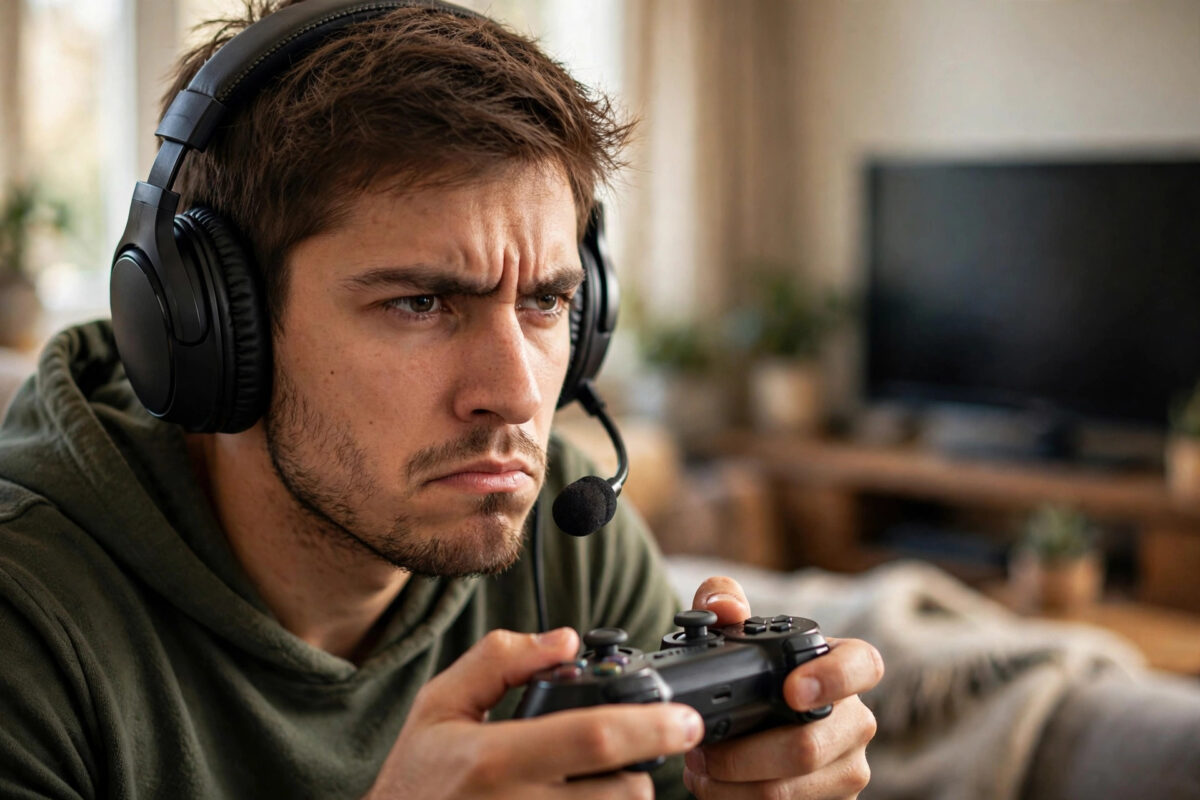
You plug in your headset, sit down to play, and the game sound still blasts out of the TV. Everyone in the room hears your game, and you hear it twice.
This is one of the most common console audio problems, and it is almost never a broken headset. It is usually one setting on the console, one setting on the TV, or a controller that needs a reset.
This guide covers wired and wireless headsets on PlayStation, Xbox, and Nintendo Switch. Follow the steps in order and test after each fix.
Quick Answer
Go to your console audio settings and set the output device to your headset instead of TV or HDMI. On PS5, go to Settings, Sound, Audio Output, choose your headset, and set Output to Headphones to All Audio. On Xbox, set Headset Audio correctly and tick Mute Speaker Audio When Headset Attached. If sound still comes from the TV, mute the TV and restart both devices.
Why Game Audio Goes to the TV Instead
A console can send sound to several places: the TV over HDMI, a controller jack, a USB dongle, or a supported Bluetooth adapter. You need to tell it which one is the main output.
When you plug in a headset, most consoles try to switch automatically. That switch often fails after an update, with a second controller signed in, or when a soundbar sits in the chain.
- The console still has HDMI or TV selected as the output
- Chat audio is set to headset, but game audio is set to TV
- The headset is set for voice only, not all audio
- The controller did not detect the plug or dongle properly
- The TV is routing sound back to its own speakers or a soundbar
Remember that chat audio and game audio are controlled separately on PlayStation and Xbox. Hearing friends in your headset does not mean game sound will follow. You need to set both.
Fixes for PlayStation 5 and PS4
Set the Correct Output Device on PS5
- Press the PS button to open the control centre and select Sound.
- Under Output Device, choose your headset by name. Do not leave it on TV.
- Open Settings, then Sound, then Audio Output for the full menu.
- Set Output to Headphones to All Audio. If it says Chat Audio Only, game sound will stay on the TV by design.
- Adjust headphone volume here, because it is separate from TV volume.
That All Audio setting is the top cause on PS5. If you want game sound quieter under chat instead of removed, use the Game and Chat balance slider instead of switching to chat only.
The official PlayStation support guide for headset audio on PS5 also covers supported USB devices if your headset does not appear in the list.
Check the Controller and Wireless Dongle
The DualSense mute button sits under the PS button. An orange light means your microphone is muted. Tap it so the light is off while you test voice.
For a wired headset, push the plug in until it clicks. Remove dust from the port, plug it back in, and restart the controller. A controller that connected before the headset was plugged in sometimes misses it completely.
For USB dongle headsets, plug the dongle directly into a front USB port on the console, not a hub or the TV. Then select the dongle name as the output device. Standard Bluetooth earbuds do not work for game audio on PS5 without a supported adapter or official link device, so the console will never list them.
Fixes for Xbox Series X, Series S, and Xbox One
Set Headset Audio Correctly
- Press the Xbox button and go to Profile and System, then Settings.
- Open General, then Volume and Audio Output.
- Under Headset Audio, set Headset Format to Stereo Uncompressed for a basic test.
- In Additional Options, tick Mute Speaker Audio When Headset Attached.
- Open the guide Audio section and check headset volume and chat mixer.
- Restart the game fully, as some games only read audio settings at launch.
That mute speakers option is key. Without it, Xbox plays through both headset and TV. Some TVs ignore the mute signal over HDMI, so lower the TV volume to zero as a test. Headset volume is controlled on the console and headset, not the TV remote.
Microsoft documents these menus in its Xbox support page for troubleshooting sound on Xbox consoles, including headsets that are not detected at all.
Reassign the Headset to Your Profile
- Go to Settings, then Devices and Connections, then Accessories.
- Select your controller and the headset if listed.
- Choose Assign to a User and pick the profile you are playing on.
- Sign out any guest or second profile on another controller for testing.
Families hit this often. A child signs in first, the headset binds to that account, and the adult playing second gets TV sound. Our guide to fixing a microphone that is not working on Xbox goes deeper on assignment and privacy if your mic also fails.
Fixes for Nintendo Switch
In handheld mode, plugging in a wired headset or connecting Bluetooth audio usually mutes the console speakers right away. Docked mode has more traps.
- Make sure the headset is paired to the Switch, not to the TV itself.
- For Bluetooth, open System Settings, Bluetooth Audio, and pair the headset directly. Disconnect it from your phone and TV first.
- Lower the TV volume to zero to test. The Switch can send sound over HDMI even with a headset connected in some setups, so muting the TV is a normal fix for late-night docked play.
- Remove and reinsert the dock HDMI cable to force a fresh handshake if the TV keeps taking over.
Bluetooth audio on Switch is mainly for listening. Microphone support is very limited, so a wired headset is more reliable for voice chat.
TV and Soundbar Settings That Steal Sound Back
Sometimes the console is correct and the TV undoes your work by switching to its speakers or a soundbar when it detects a new HDMI signal.
- Turn off HDMI CEC features such as Anynet+, Bravia Sync, or Simplink for a test. If the problem stops, re-enable CEC but disable its audio switching if possible.
- If you have a soundbar, mute it or turn it off while testing a headset. It can keep playing even when the headset works.
- Update TV firmware. Several brands fixed eARC and headset routing bugs in recent updates.
- Test on a different TV or monitor. If the headset works there, your main TV chain is the cause.
Quick Tests to Pin Down the Fault
- Try a simple wired pair of earbuds in the controller. If they work, your main headset or dongle is the issue.
- Try your headset on a phone or PC. If it is silent there too, the headset itself is faulty.
- Start a game and a voice party. Note whether you hear game, chat, both, or neither. That pattern shows which setting is split.
- Unplug HDMI for ten seconds and reconnect it to force a new audio handshake.
- Try a fresh test profile. If the headset works there, your main profile has a saved setting blocking it.
Common Mistakes to Avoid
- Turning up the wrong volume: TV volume, console headset volume, and the dial on the headset are three separate controls.
- Using chat-only mode without knowing: Chat Audio Only on PlayStation sends game sound to speakers on purpose.
- Pairing the headset to the TV: Pair gaming headsets to the console or its dongle, not the TV.
- Testing only in the home menu: Always test inside a real game with constant sound.
- Forgetting in-game menus: Many games have an output option like Headphones or TV. Set it to Headphones.
- Skipping a full restart: After big audio changes, restart console and TV from power off, not rest mode.
Conclusion
When game audio comes from the TV instead of your headset, check output device, all-audio mode, and the mute-speakers option first. Those three settings solve the problem for most PlayStation and Xbox players in under five minutes.
If the basics are right, look at profile assignment, dongles, and the TV chain, and test with a second simple headset. Once you find the split between chat and game audio, the fix is usually a single toggle.
Frequently Asked Questions
Why can I hear friends but game sound comes from the TV?
Your console is in split mode. On PS5, Output to Headphones is set to Chat Audio Only instead of All Audio. On Xbox, check the chat mixer. Change the setting to send all audio to headphones and restart the game.
How do I stop sound from both the TV and headset at once?
On Xbox, tick Mute Speaker Audio When Headset Attached. On PlayStation, set output to the headset only. If the TV still plays, mute the TV or turn off its speakers, because some TVs ignore the console mute over HDMI.
My wired headset works on my phone but not on my controller. What should I do?
Clean the controller jack, push the plug in fully, update controller firmware, and try another controller. Check the headset uses a standard plug for chat headsets. PC splitters that separate mic and audio will not work in a single controller jack.
Can I use normal Bluetooth earbuds on PS5 and Switch?
On Switch, yes for listening through Bluetooth Audio, though mic support is limited. On PS5, normal Bluetooth earbuds are not supported for game audio without an official link device or a USB adapter made for the console.
Do I need to change settings every time I plug in my headset?
No. Once saved, the console should remember your output and switch automatically. If it forgets, a system update, a new controller, or a different profile signing in first is usually the reason.



Leave a Reply