
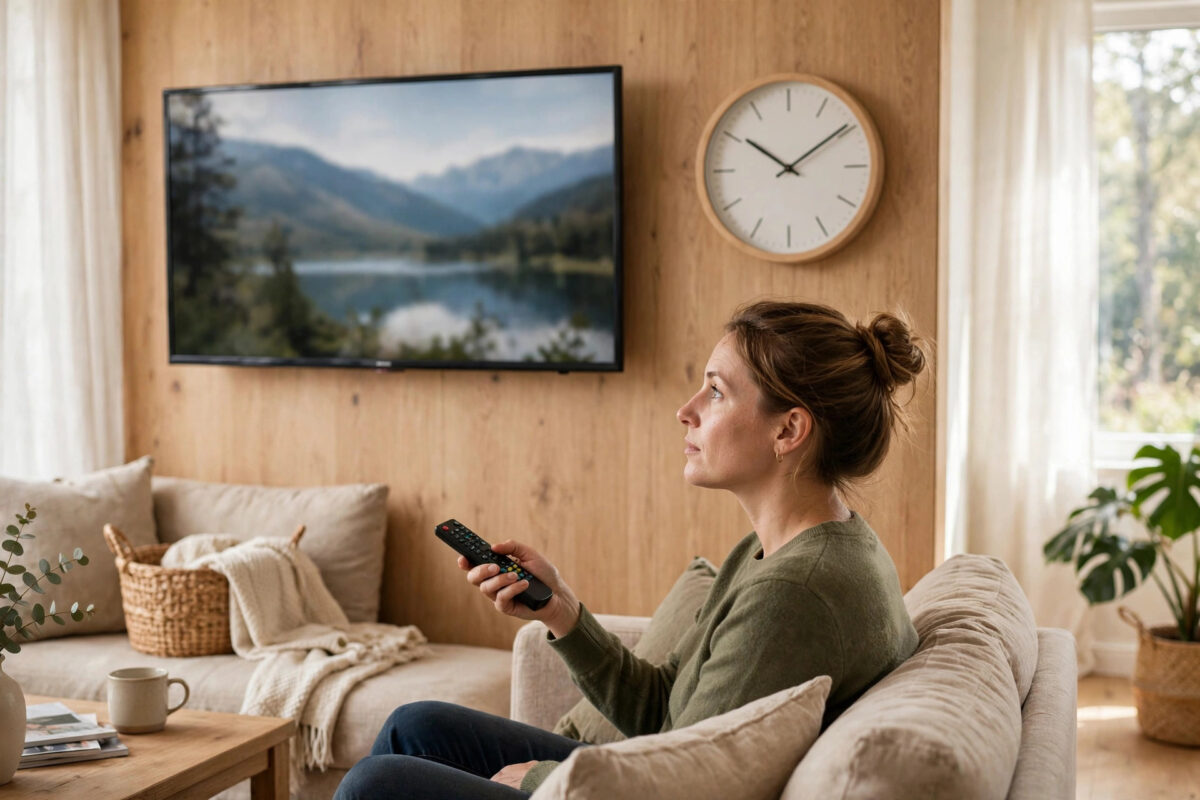
Your TV says it is 3 a.m. on a date from two years ago, and suddenly Netflix, Disney+, and YouTube refuse to load. You might see errors about a secure connection, a sign-in failure, or a message saying content is not available. The internet is working, so what is going on?
Surprisingly often, the answer is the clock. Streaming services rely on your TV having the correct time and date to verify secure connections. When the clock is wrong, those checks fail and the apps break.
This guide explains why the time matters, how to fix it on every major TV brand, and how to stop it drifting again.
Quick Answer
To fix wrong time and date errors that break streaming apps on TV, open Settings, find Date and Time under General or System, and turn on automatic date and time, or set the correct time, date, and time zone manually. Then restart the TV and reopen the app. Streaming services use your clock to verify secure connections, so a wrong date causes sign-in and playback errors.
Why a Wrong Clock Breaks Streaming Apps
Every streaming service connects to your TV over an encrypted connection. Part of that security check involves certificates, which are digital documents that are only valid between two dates. Your TV compares those dates against its own clock.
If your TV thinks it is 2019 or 2035, the certificate looks expired or not yet valid. The TV refuses the connection, and the app shows a confusing error or simply fails to load. The same check protects your sign-in, your payment details, and updates, which is why several apps can break at the same time.
A wrong clock also causes smaller annoyances:
- The programme guide shows the wrong schedule.
- Recordings and reminders fire at the wrong time.
- Apps sign you out repeatedly.
- Software updates fail their security check and will not install.
The fix is quick, and once the clock is right, the apps usually start working immediately after a restart.
How to Fix the Time and Date on Samsung TVs
- Press the Home button and open Settings.
- Go to General, then System Manager, then Time.
- Select Clock Mode and set it to Auto if it is not already.
- If you set it manually, enter the correct time and date and check the time zone.
- Press the power button, then unplug the TV for 30 seconds to restart it fully.
- Open a streaming app and test it.
Samsung Support provides model-specific menu paths if your TV uses slightly different wording, as older Samsung models place the clock under System instead of General.
How to Fix the Time and Date on LG TVs
- Press the Settings button on the remote.
- Choose All Settings, then General, then Time and Date on newer models, or Date and Time on older ones.
- Turn on the Set Automatically option.
- If you prefer manual setting, enter the correct time, date, and time zone yourself.
- Restart the TV and test a streaming app.
If the automatic option keeps showing the wrong time, your TV may not be reaching the time server through your network. Set the time manually as a workaround and check your router settings later.
How to Fix the Time and Date on Android TV and Google TV
- Open Settings from the home screen.
- Go to Device Preferences or System, then Date and Time.
- Turn on Automatic Date and Time and choose the network-provided option.
- Confirm the time zone is correct under Set Time Zone.
- Restart the TV from the About menu, then test your apps.
Google TV Help notes that the automatic setting depends on a working internet connection. If the TV was offline when it started, the clock may stay wrong until it reconnects and syncs again.
How to Fix the Time and Date on Roku and Fire TV
Roku TVs and players
- Go to Settings, then System, then Time.
- Choose Clock Format if you only need to change between 12-hour and 24-hour display.
- Roku sets the actual time automatically from the internet. If it is wrong, restart the device from Settings, System, Power, System Restart, and make sure it is connected to the internet.
- Check that your time zone is correct in the same Time menu.
Amazon Fire TV
- Go to Settings, Preferences, then Time Zone.
- Select your region and the correct time zone for where you live.
- Fire TV syncs the clock itself over the internet, so reconnect to Wi-Fi and restart the device if the time still looks wrong.
On these platforms the clock itself cannot be typed in by hand, so a wrong time almost always means a connection problem or the wrong time zone.
Why Your TV Clock Keeps Going Wrong
If you fix the time and it drifts again a few days later, something is causing it. Common reasons include:
- The TV loses power often: If you switch the TV off at the wall every night, some models slowly lose their clock settings, especially older ones with a weak internal battery.
- The TV starts before the internet connects: Automatic sync fails, and the TV keeps its last saved time.
- The wrong time zone is selected: The hour is off by a fixed amount even though the minutes look right.
- A software bug: Outdated TV software can mishandle time sync. Keeping the system current, as shown in our guide on how to update smart TV software step by step, prevents many of these glitches.
- Router or network blocking time servers: Some strict network settings block the time service your TV uses.
A simple habit helps a lot: leave the TV plugged in on standby instead of cutting power at the wall, so it can keep its clock and sync quietly in the background.
What to Do If Apps Still Show Errors After Fixing the Clock
Occasionally an app holds on to the failed connection even after the clock is corrected. Clear it out with these steps:
- Restart the TV fully by unplugging it for 60 seconds.
- Sign out of the problem app and sign back in, so it builds a fresh secure session.
- Clear the app cache in the Apps settings, if your TV offers that option.
- Delete and reinstall the app if the error continues.
- Check the date again after each step to confirm it has stayed correct.
Common Mistakes to Avoid
- Fixing only the hour: A wrong year or month breaks certificates just as easily as a wrong hour. Check the full date.
- Ignoring the time zone: Automatic time with the wrong zone still leaves you hours off.
- Setting the time while the TV is offline: Automatic sync needs the internet. Connect first, then set the clock.
- Blaming the streaming service: If several apps fail together with connection or sign-in errors, check the clock before reinstalling anything.
- Skipping the restart: Apps may not re-check the time until the TV restarts and they load again.
Conclusion
A wrong time and date is one of the strangest but easiest TV faults to fix. Because streaming apps use your clock for their security checks, even a small error can lock you out of every service at once. Set the date, time, and time zone correctly, preferably on automatic, restart the TV, and your apps should connect normally again. If the clock keeps drifting, look at power habits, time zone settings, and software updates to stop it returning.
Frequently Asked Questions
Can a wrong date really stop Netflix from working?
Yes. Netflix and other services verify secure connection certificates against your TV clock. If the date is far wrong, the certificate appears invalid and the connection is refused. You may see a connection or sign-in error, or the app may not load at all.
Should I set the time automatically or manually?
Automatic is best for most people because the TV keeps itself accurate by syncing over the internet. Use manual setting only if automatic sync does not work on your network, and remember to correct it after clocks change in spring and autumn.
Why is my TV time wrong by exactly one hour?
That is almost always a time zone or daylight saving issue. The TV is syncing correctly but applying the wrong zone. Open the time settings, choose the correct zone for your location, and the hour will correct itself.
My TV clock resets every time I unplug it. Is it broken?
Not necessarily. Some TVs, especially older models, rely on standby power or a small internal battery to keep time. If the clock resets after every power cut, leave the TV on standby when possible and set the time to automatic so it re-syncs quickly.
The time is correct but apps still show errors. What else could it be?
The app may be holding a failed session. Restart the TV, sign out and back in, and clear the app cache. If errors continue across several apps with a correct clock, check your internet connection and update the TV software.



Leave a Reply