
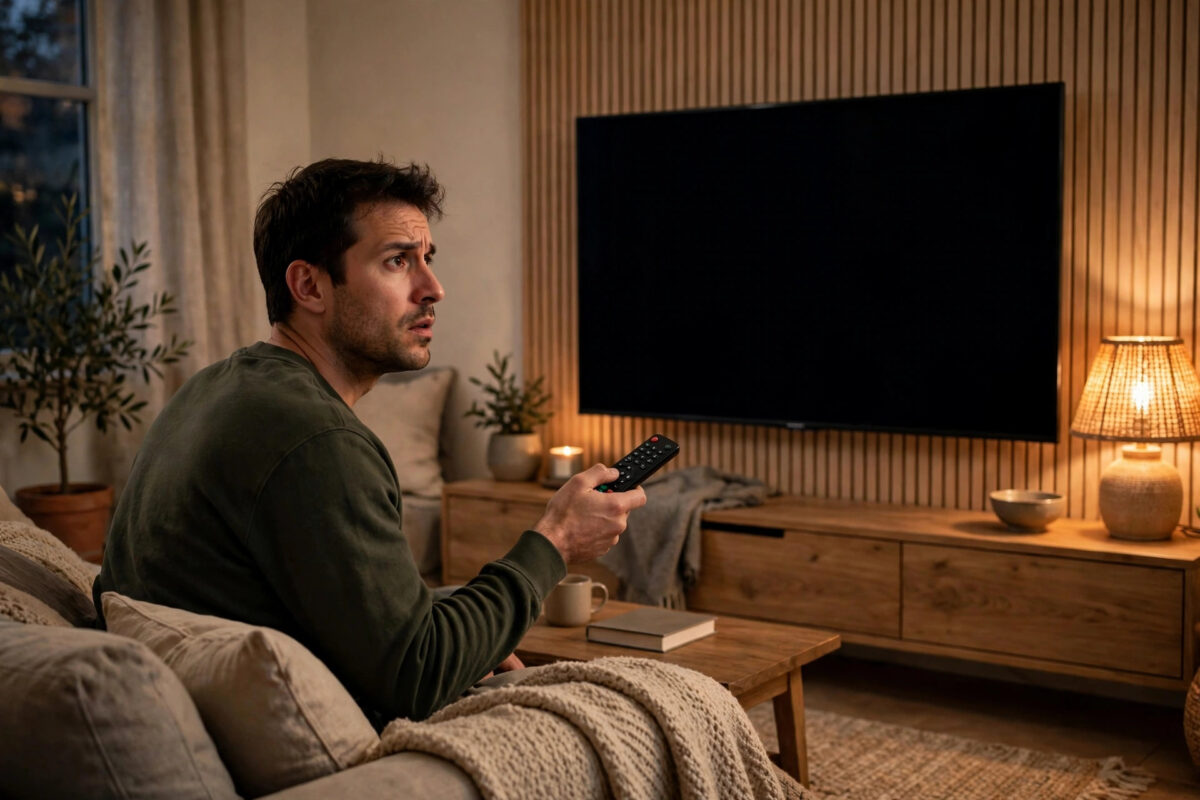
Few viewing problems are more annoying than a TV that switches itself off in the middle of a film or a crucial match moment. You restart it, it works for a while, then it happens again — sometimes after an hour, sometimes after five minutes. The good news is that this fault is rarely a sign that your TV is dying.
In most cases the cause is a setting doing exactly what it was told to do, a connected device sending a stray command, overheating, or buggy software. This guide works through the causes in order, from the quick two-minute checks to the deeper fixes, so you can find the one that applies to your TV and stop the shutdowns for good.
Quick Answer
If your TV keeps turning itself off during streaming, first turn off sleep timers, auto power-off, and eco idle settings, then disable HDMI-CEC control from connected devices. Next, check the TV is not overheating, update its software, and test with a different power socket and streaming app — these steps fix the problem for most owners without any repair.
First, Notice the Pattern
Before changing anything, note when the shutdowns happen. A shutdown after almost exactly the same time points to a timer. One that happens only in a single app suggests an app fault. Shutdowns on hot days suggest heat, and shutdowns when another device sleeps suggest an HDMI control problem.
Cause One: Timers and Auto Power-Off Settings
This is by far the most common cause. Modern TVs carry several separate power-saving timers, and any one of them can switch the TV off.
- Sleep timer: Open Settings, then Timers or System, and make sure the Sleep Timer is set to Off. It is easy to activate accidentally from a remote shortcut.
- Auto power-off or idle TV standby: Look in Eco, Power, or Device Preferences settings for options such as Auto Power Off, Idle TV Power Off, or Turn Off After 4 Hours, and disable them or extend the time.
- No-signal shutdown: Some TVs switch off after 10–15 minutes with no signal. During streaming pauses or app loading screens this can rarely mis-trigger — turn it off for testing if your model has it.
Cause Two: HDMI-CEC Commands From Other Devices
HDMI-CEC lets devices control each other — it is why your streaming stick remote can turn the TV on. The flip side is that when a connected device goes to sleep, crashes, or updates, it can tell the TV to switch off too. The feature has a different name on each brand: Anynet+ on Samsung, Simplink on LG, BRAVIA Sync on Sony, and CEC or HDMI Control elsewhere.
- Open Settings, then External Inputs, Connection, or General, and find the HDMI-CEC option.
- Turn off the part that lets other devices power the TV off, if your TV separates the controls — often called Device Auto Power Off or similar.
- If the menu only offers one master switch, turn CEC off completely for a few days as a test.
- Disconnect connected devices one at a time — streaming sticks, soundbars, games consoles, and recorders — to find which one triggers the shutdowns.
- Check the suspect device’s own settings for sleep timers and auto-off features, and update its software too.
The LG Support pages on Simplink and power settings explain these controls for LG models, and every major brand publishes an equivalent guide for its own CEC brand name.
Cause Three: Overheating
Streaming in high resolution makes a TV work hard, and a TV that gets too hot will protect itself by shutting down. Warning signs include shutdowns that come sooner each time, a very warm back panel, and the problem being worse in summer or in a cabinet.
- Make sure the vents along the back and top of the TV are clear, with at least a hand’s width of space around them.
- Move the TV out of enclosed cabinets, or leave cabinet doors open during long viewing sessions.
- Keep it away from radiators, direct sunlight, and other heat sources such as amplifiers stacked beneath it.
- Carefully vacuum dust from the vents with a soft brush attachment while the TV is unplugged and cool.
- After cleaning, test the TV in the open. If shutdowns stop, heat was your culprit — improve the ventilation permanently.
Cause Four: Software and App Problems
A bug in the TV’s software or in a single streaming app can crash the system and force a restart or shutdown.
- Update the TV software. Open Settings, then Support or About, then Software Update, and install anything available. A systematic walkthrough is in our guide on how to update smart TV software step by step.
- If shutdowns happen in only one app, update that app from the TV’s app store, or uninstall and reinstall it.
- Clear the app’s cache if your TV offers the option under Apps settings.
- Unplug the TV from the wall for a full 60 seconds. This power cycle clears temporary faults that a normal restart leaves behind.
- Test a different app for an evening. If the TV behaves perfectly elsewhere, the original app — not the TV — needs the fix or a future update.
Cause Five: Power Supply Problems
Unstable power can make a TV cut out under load, and streaming at high brightness draws more power than menus or quiet scenes.
- Plug the TV directly into a wall socket for testing, bypassing extension leads, smart plugs, and multi-way adapters, any of which can fail or be switched off by their own timers.
- Check that no smart plug schedule or energy-saving plug is set to cut power in the evening.
- Inspect the power cable for damage and make sure it is pushed firmly into the TV — a loose connection can break when the TV warms up and parts expand slightly.
- Look at the standby light during a shutdown. If it disappears completely, power is being lost. If it stays lit, the TV is switching itself off through a setting or command instead.
If the TV cuts out on a direct wall socket with a healthy cable, and the standby light vanishes, a failing internal power board becomes more likely. That is a job for a qualified repairer — do not open the TV yourself, because internal components can hold a dangerous charge.
When to Reset the TV
If you have worked through the causes above and the shutdowns continue, a factory reset clears out every stray setting at once, including hidden timers. Note your picture settings and app sign-ins first, because a reset removes them. The Samsung Support guide to resetting a TV to factory settings shows the process for Samsung models, and other brands use a similar option under General or System settings. Only install your essential apps afterwards, adding others back gradually, so if the fault returns you can identify a troublesome app.
Common Mistakes and Helpful Tips
- Checking only the sleep timer: Most TVs have two or three separate auto-off features. Search the whole settings menu for “power”, “timer”, “eco”, and “idle”.
- Blaming the TV before the accessories: A faulty smart plug or a sleeping streaming stick causes a large share of these faults. Test with a direct wall socket and no HDMI devices.
- Skipping the power cycle: Unplugging for 60 seconds genuinely fixes many crash-style shutdowns. It should be an early step, not a last resort.
- Ignoring the standby light: Whether the light stays on during a shutdown tells you if it is a command or a power loss — a vital clue.
- Resetting before noting the pattern: A reset wipes evidence along with settings. Note timings and triggers first.
- Blocking vents with decorations or consoles: Keep the space around the TV clear as a permanent habit, not just during testing.
Conclusion
A TV that turns itself off during streaming is almost always obeying a timer, obeying another device, overheating, or tripping over a software bug — all fixable at home. Work through the settings first, then CEC, ventilation, updates, and power, testing after each change so you know which fix worked. If the shutdowns continue on a direct wall socket with everything disconnected and updated, contact the manufacturer or a repairer with your notes on the pattern — that information will make their job, and your repair, much faster.
Frequently Asked Questions
Why does my TV turn off after exactly four hours?
That almost perfectly regular timing is the signature of an auto power-off or idle standby feature, often set to four hours by default in eco settings. Open the power or eco section of the settings menu and disable the auto-off timer or set it to a much longer period.
Why does my TV only turn off when using one streaming app?
A single-app shutdown usually means that app is crashing the TV’s system, often after an app or TV update created a conflict. Update both the app and the TV software, clear the app’s cache, or reinstall the app. If the problem persists, report it and use the service through another device temporarily.
Can a soundbar or streaming stick turn my TV off?
Yes, through HDMI-CEC. When a connected device sleeps, updates, or crashes, it can send a power-off command to the TV. Disable the device power-off part of CEC in the TV settings, or disconnect devices one by one to find the culprit, then adjust that device’s own sleep settings.
Is a TV that turns itself off dangerous?
Setting and software shutdowns are not dangerous. However, if the TV smells of burning, makes buzzing or clicking sounds, shows a flickering standby light, or the plug and cable feel hot, unplug it and do not use it until a qualified repairer has checked it.
Will a factory reset definitely fix the problem?
A reset fixes anything caused by settings or corrupted software choices, which covers most cases, so it is a worthwhile step after you have tried the simpler fixes. It cannot fix overheating caused by blocked vents or a failing power board, which is why working through the physical checks first matters.



Leave a Reply