
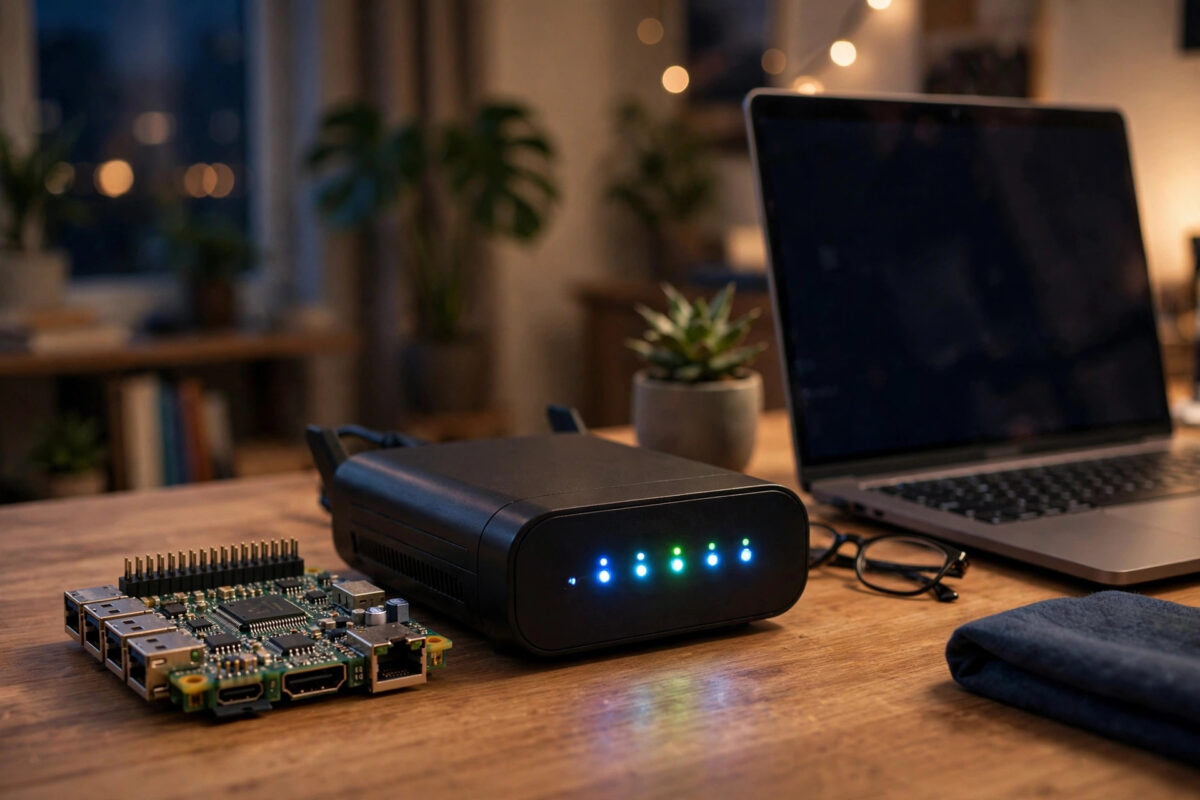
Your Raspberry Pi was working yesterday, and today every SSH attempt hangs and times out. The board is still beside the router with its lights on, and it is almost never broken. In most cases the Pi has changed its IP address, dropped off Wi-Fi, suffered from a weak power supply, or the SSH service has stopped. This guide walks you through finding the real cause in order, so you can log in again without wiping the card.
Quick Answer
First, find the Pi’s current IP address in your router’s connected devices list, then test it with ping. If ping fails, reconnect the Pi to power and Wi-Fi or use a wired cable. If ping works but SSH times out, restart the SSH service or reboot the Pi, check that SSH is enabled, and confirm no firewall or wrong port is blocking port 22.
What a Timeout Actually Means
A timeout is different from a refused connection or a wrong password message. Refused means a machine answered and said no, and permission denied means you reached the Pi. A timeout means nothing answered at all. Your computer sent packets and heard silence back.
That silence points to a short list of causes. The Pi may be off or crashed, on a different IP address, on a guest network that cannot see your main network, struggling with weak Wi-Fi, or blocked by a firewall, VPN, or router isolation. Work from the network inward, and only then worry about SSH settings.
Step 1: Confirm You Have the Right IP Address
Most home routers give out addresses automatically using DHCP, and those addresses can change after a reboot or power cut. If your Pi was on 192.168.1.42 last week, it might be on 192.168.1.57 today, and SSH to the old address will time out.
- Open your router admin page, usually at 192.168.1.1 or 192.168.0.1, and look for connected devices, DHCP clients, or attached devices.
- Find the entry named raspberrypi or with a hostname you set, and note its current IP address and whether it is on Wi-Fi or wired.
- On your computer, try to reach it by name first with
ping raspberrypi.local. - Then try the exact address with
ping 192.168.1.57, using your own address from the router list. - If the name works but the old IP did not, update your SSH command to
ssh pi@raspberrypi.localor use the new address.
If the Pi does not appear in the router list at all, it is not on the network. Skip ahead to the power and Wi-Fi checks, because no SSH setting can fix a device that is offline.
Step 2: Test Basic Connectivity Before SSH
Do not keep retrying SSH blindly. Run a few simple tests that tell you where the break is.
- Run
ping -c 4 192.168.1.57on Linux or macOS, orping 192.168.1.57on Windows, and watch for replies and packet loss. - Run SSH with extra detail using
ssh -v pi@192.168.1.57. The verbose output shows whether it connects, stalls at the handshake, or never reaches the host. - Try a quick port check with
nc -vz 192.168.1.57 22on Linux or macOS, or test from another device on the same network if you can. - Make sure your computer is on the same main Wi-Fi network, not a guest network, a VPN, or mobile data through tethering.
- Temporarily turn off your computer’s VPN and local firewall and test again, then turn protection back on.
If ping shows high loss, you have a signal or power problem, not an SSH problem. If ping is solid but port 22 does not answer, the SSH service is the likely issue. For more help, see our guide on how to find your Raspberry Pi IP address on your home network.
Step 3: Check Power, Cables, and Wi-Fi at the Pi
The Pi is sensitive to weak power. A phone charger that lights the board up can still cause random Wi-Fi drops, freezes, and reboots under load.
Power and board checks
- Use the official power supply for your model, or one rated for the full current your Pi needs.
- Look at the lights. A steady red light means power is present, blinking green means card activity, and no lights means no power.
- Remove power-hungry USB devices for a test, and try a different cable and socket.
- Connect a monitor and keyboard if you can. If a login prompt appears, the Pi is alive and you can fix settings locally.
Wi-Fi checks
- Move the Pi closer to the router for a test, away from metal cases and thick walls.
- Try a wired Ethernet cable for ten minutes. If SSH works instantly on a cable, Wi-Fi was the problem.
- Check whether your router split 2.4 GHz and 5 GHz bands or changed the password during an update. Many Pi models connect more reliably on 2.4 GHz.
- On a local keyboard, run
ip ato see if the wireless interface has an address, andsudo iwgetidto confirm which network it joined.
Step 4: Make Sure SSH Is Enabled and Running
SSH is not always on by default, especially on a fresh image. If you have local access with a monitor, you can turn it back on in minutes.
- On the Pi itself, open a terminal and run
sudo systemctl status ssh. - If the service is inactive, start it with
sudo systemctl start ssh. - Enable it at boot with
sudo systemctl enable ssh. - Alternatively, run
sudo raspi-config, open Interface Options, choose SSH, and select Yes. - Check it is listening with
ss -tlnp | grep 22. You should see port 22 in the list. - Try SSH again from your computer using the confirmed IP address.
The official steps are also covered in the Raspberry Pi documentation on remote access and SSH. If the service fails to start, read the error with sudo journalctl -u ssh -n 50. A bad config edit, a missing host key, or a full disk can all stop it.
Step 5: Rule Out Firewalls, Ports, and Router Isolation
If ping works, SSH is running, and you still time out, look for something actively blocking port 22.
- On the Pi, check the local firewall with
sudo ufw status. If it is active and SSH is not allowed, runsudo ufw allow ssh. - Confirm you did not change the SSH port in
/etc/ssh/sshd_config. If you set a custom port such as 2222, connect withssh -p 2222 pi@192.168.1.57. - In your router, turn off AP isolation, client isolation, or guest network separation for a test. Those features are designed to stop devices seeing each other.
- Check that both devices are on the same subnet. An address starting 192.168.1.x cannot normally talk directly to one starting 192.168.2.x without routing help.
- Remove old host entries on your computer if you get a warning, using
ssh-keygen -R 192.168.1.57, then reconnect and accept the new key.
Do not open port forwarding to the internet just to fix a home network timeout. That creates a security risk and does not fix a local problem.
Step 6: Stop the Address Changing Again
Once you are back in, make the fix last with a DHCP reservation in the router. The router will always give the same address to the Pi, so it never drifts.
- Find the Pi’s MAC address with
ip linkor from the router device list. - In the router, open DHCP reservation settings, select the Pi, and save its current address as reserved.
- Reboot the Pi with
sudo rebootand confirm it comes back on the same address. - Update your bookmarks and SSH config so they use the reserved address or the .local hostname.
Setting a static address on the Pi itself also works, but a router reservation is easier to undo and avoids address clashes if you later change routers.
Common Mistakes and Useful Tips
- Trying the old IP for days: Always check the router list first.
- Using a weak charger: Random dropouts are often power, not software.
- Testing from a guest network or VPN: Your laptop can browse the web on those networks and still be blocked from local devices by design.
- Tip — keep a spare way in: Leave a monitor cable handy and note the hostname. A second way in turns a crisis into a five-minute fix.
- Tip — test with a cable first: If cable works, fix Wi-Fi. If cable also fails, fix the Pi or SSH service.
Conclusion
An SSH timeout usually means the Pi is offline, on a new address, struggling with Wi-Fi or power, or not running SSH at all. Confirm the current IP in your router, test with ping and verbose SSH, check power and a wired cable, then verify the SSH service and firewall. Once you are back in, reserve the address in your router so the same timeout does not return next week.
Frequently Asked Questions
Why does SSH say connection timed out but the Pi lights are on?
Lights only show power and activity. The Pi can be powered but disconnected from Wi-Fi, frozen, or on a different IP address. Check the router device list and, if you can, connect a monitor to see if it has booted and joined the network.
Should I set a static IP on the Pi or reserve one in the router?
For most home users, a router reservation is simpler and safer. The Pi keeps using DHCP, the router always gives it the same address, and there is less risk of two devices claiming the same address by mistake.
What if ping works but SSH still times out?
Then the network path is open but port 22 is not answering properly. Check that the SSH service is running, confirm the port has not been changed, and look at local firewall rules on the Pi and client isolation settings on the router.
Is it safe to enable SSH on my home Pi?
Yes, for local use, if you use a strong password or key login and keep the system updated. Do not forward SSH from the internet unless you understand key-only login. For remote access away from home, a VPN is safer.



Leave a Reply