
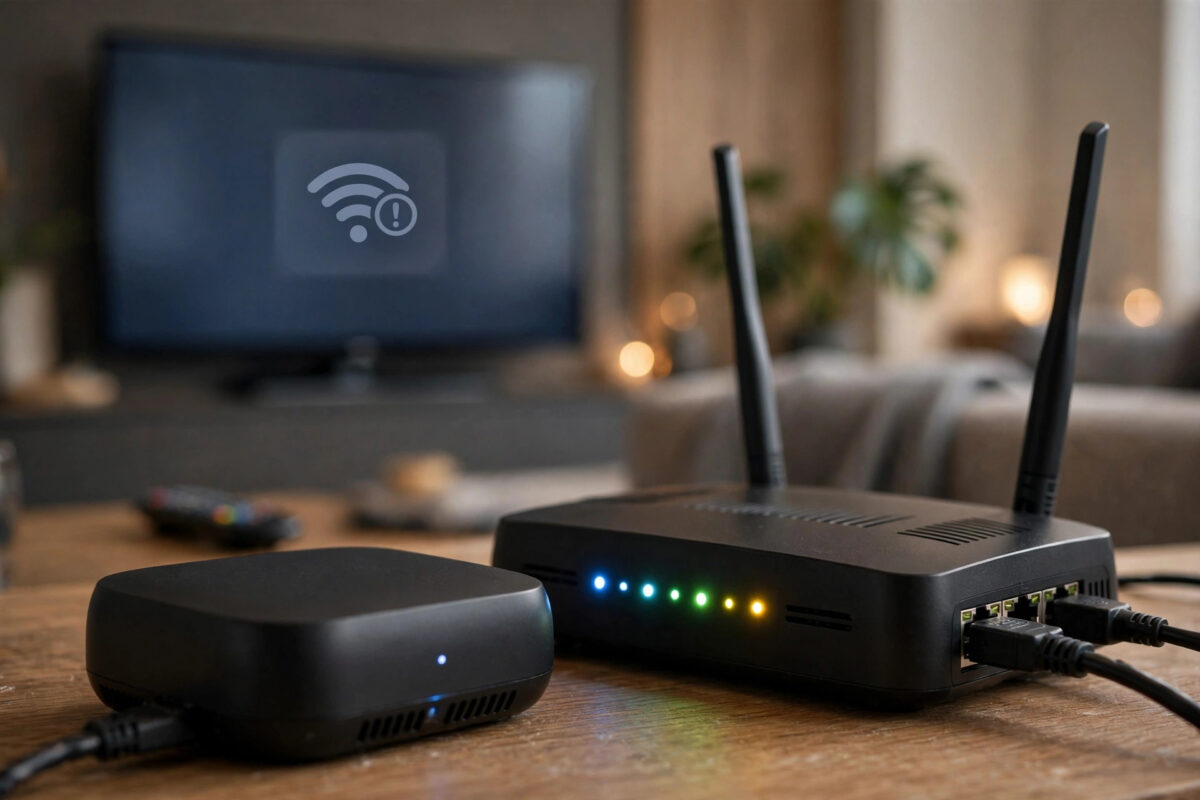
You sit down to watch a film, your Roku connects to Wi-Fi like it always does, and then you get an error message: Error Code 14.30. Your phone and laptop may work perfectly on the same network, so what is your Roku complaining about?
This common error is rarely serious. It usually comes down to a weak wireless signal or a router setting. This guide explains what the code means and the steps that fix it, starting with the easiest.
Quick Answer
Roku Error Code 14.30 means your Roku has connected to your router but the wireless signal is too weak or unstable to reach the internet properly. Restart your Roku and your router first, then move the Roku closer to the router or reduce interference between them. If the error keeps appearing, check that your router is using a compatible Wi-Fi band and security setting, and run Roku’s connection check in Settings, then Network.
What Error Code 14.30 Actually Means
Codes in Roku’s 14 family are about the wireless connection between your Roku and your router. Error 14.30 points to a signal problem: your Roku can join your Wi-Fi, but the connection is not strong or stable enough for streaming.
Think of it like a phone call on a bad line: you are connected, but the sound keeps breaking up, so you cannot hold a conversation.
Common Causes of Error 14.30
- Distance from the router: The Roku is in a room far from the router, or separated by several walls, floors, or a large metal appliance.
- Weak signal on the 5GHz band: The 5GHz band is fast but has a shorter range than 2.4GHz. A Roku at the edge of 5GHz coverage often drops to an unstable connection.
- Interference: Microwave ovens, baby monitors, cordless phones, Bluetooth devices, and neighbouring Wi-Fi networks can all crowd the airwaves.
- Router or Roku glitches: Both devices run software that occasionally gets stuck. A temporary fault after a power cut or an update is very common.
- Router security or band settings: Some newer router settings, such as certain WPA3-only modes or smart band steering, do not always agree with older Roku models.
Step 1: Restart Your Roku and Your Router
Restarting clears the temporary faults behind many of these errors. Do it in the right order.
- Unplug your router and, if you have one, your modem from the power socket.
- On your Roku, go to Settings, then System, then Power, then System Restart. On a Roku TV you will find the restart option in the same System menu. If the screen is unresponsive, simply unplug the Roku’s power cable.
- Wait at least 30 seconds with everything unplugged.
- Plug the modem and router back in first, and wait two to three minutes until their lights show a normal, steady connection.
- Plug the Roku back in or let it finish restarting, then try to connect again from Settings, then Network, then Set Up Connection.
Step 2: Check Your Signal Strength in Roku Settings
Roku can tell you how strong it thinks your wireless signal is, which helps you decide whether distance is the real problem.
- Press Home on your remote and open Settings.
- Select Network, then About, or run Check Connection on some models.
- Look at the signal strength reading. Roku describes it as Excellent, Good, Fair, or Poor.
- If it says Fair or Poor, your Roku is struggling to hear the router clearly, and moving things around is likely to fix error 14.30.
Step 3: Improve the Signal Between Router and Roku
- Move the router: Place it higher up, out in the open, and as central in your home as you can. Routers hidden in cupboards, behind TVs, or on the floor behind furniture lose a lot of range.
- Move the Roku: A streaming stick plugged into the back of a TV sits behind a big slab of metal and electronics that blocks signal. Use a short HDMI extender cable — Roku has historically offered one free for stick owners — so the stick hangs in the open air away from the TV’s back panel.
- Reduce obstacles: Brick walls, metal doors, fish tanks, and large mirrors all weaken Wi-Fi. Even changing the angle of the TV or the router can help.
- Cut interference: Keep the router away from microwaves and cordless phone bases, and avoid placing the Roku right next to other wireless gadgets.
- Consider a wired connection: If your Roku model has an Ethernet port, or supports a USB Ethernet adapter, a cable removes the wireless problem completely. Roku’s own guidance on improving connection quality appears in the Roku support guide to improving your wireless connection.
If your home is large, a Wi-Fi extender or mesh system placed halfway between router and Roku can help. Our guide to placing a Wi-Fi extender for the best signal explains where to put one.
Step 4: Try the Other Wi-Fi Band
Most routers broadcast two bands: 5GHz is faster but fades quickly through walls, while 2.4GHz travels much further and is fast enough for HD and most 4K streaming.
- On your Roku, go to Settings, then Network, then Set Up Connection, then Wireless.
- Look at the list of networks. If your router shows the two bands as separate names, choose the 2.4GHz one.
- Enter your Wi-Fi password and let the Roku run its connection test.
If your router combines both bands under one name with band steering, you may need to log in to the router’s settings page and temporarily separate the bands, or turn off band steering, so the Roku can stay on the steadier 2.4GHz signal. Some older Roku models only support 2.4GHz at all, and they can behave oddly when a router pushes them towards 5GHz settings they do not fully support.
Step 5: Check Router Security and Settings
If the signal is strong but 14.30 keeps appearing, look at the router’s wireless security mode. Roku devices work best with WPA2 or a mixed WPA2/WPA3 mode. A router set to WPA3-only can cause connection failures on older Roku hardware. Changing the security setting to WPA2 or mixed mode in your router’s admin page, then reconnecting the Roku, fixes this stubborn version of the error for many people.
Step 6: Reset Network Settings on the Roku
If nothing above works, clear the Roku’s saved network information and start the connection from scratch. This does not delete your channels or accounts — it only forgets network settings.
- Go to Settings, then System, then Advanced System Settings.
- Select Network Connection Reset, then Reset Connection.
- Your Roku will restart. Afterwards, go to Settings, then Network, then Set Up Connection, and join your Wi-Fi again by entering the password carefully.
Enter the password slowly — passwords are case-sensitive, and one wrong character can look like the same error returning.
Common Mistakes to Avoid
- Restarting only the Roku: The router is half of the connection. Restart both, router first, or you may miss the fix entirely.
- Factory resetting as a first step: A full factory reset wipes your channels and sign-ins and usually does not fix a signal problem. Try it only as a last resort.
- Judging by your phone’s signal: Your phone may show full bars in the same room while the small Roku stick behind the TV struggles. Check the signal reading inside Roku’s own settings instead.
- Putting an extender right next to the Roku: An extender placed where the signal is already poor just repeats a poor signal. It belongs halfway between the router and the Roku.
- Ignoring the 5GHz range limit: A fast band is useless if it barely reaches. Switching a distant Roku to 2.4GHz is a fix, not a downgrade.
Conclusion
Error Code 14.30 is your Roku telling you the wireless link to your router is too weak or unstable, even though it can join the network. Restart both devices in the right order, check the signal strength in Roku’s Network settings, and improve that signal by repositioning the router or Roku, reducing interference, or switching to the 2.4GHz band. If the error survives all of that, check your router’s security mode and firmware, and reset the Roku’s network settings. Work through the steps in order and, in most homes, the error disappears and stays gone.
Frequently Asked Questions
Why does error 14.30 keep coming back after I fix it?
It usually returns when the signal is right on the edge of usable — good enough in the morning, too weak in the evening when neighbours’ networks and household devices are busy. A permanent fix means improving the signal itself with better placement, the 2.4GHz band, an extender, or a wired connection.
Is error 14.30 a problem with Roku’s servers?
Almost never. The 14 family of codes describes the local connection between your Roku and your router. If Roku’s services were down, you would typically see different behaviour, and other checks on the Roku support site would confirm a wider outage.
Will a factory reset fix error 14.30?
Only if the cause is corrupted settings on the Roku itself, which is uncommon. Since a factory reset deletes your channels and accounts, use the network connection reset first and treat the full reset as a last resort.
How strong does my signal need to be for streaming?
Roku’s own reading of Good or Excellent is what you want. For speed, standard HD streaming needs roughly 5 Mbps to the device, while 4K needs around 15 to 25 Mbps. A strong signal with low speed suggests an internet plan or provider issue instead.
My Roku is the only device with this problem. What does that mean?
It usually means placement. The Roku is often tucked behind a TV, inside a cabinet, or at the far end of the house — the worst spot in the room for Wi-Fi. Moving it into the open with an HDMI extender, or switching bands, typically confirms this within minutes.



Leave a Reply