
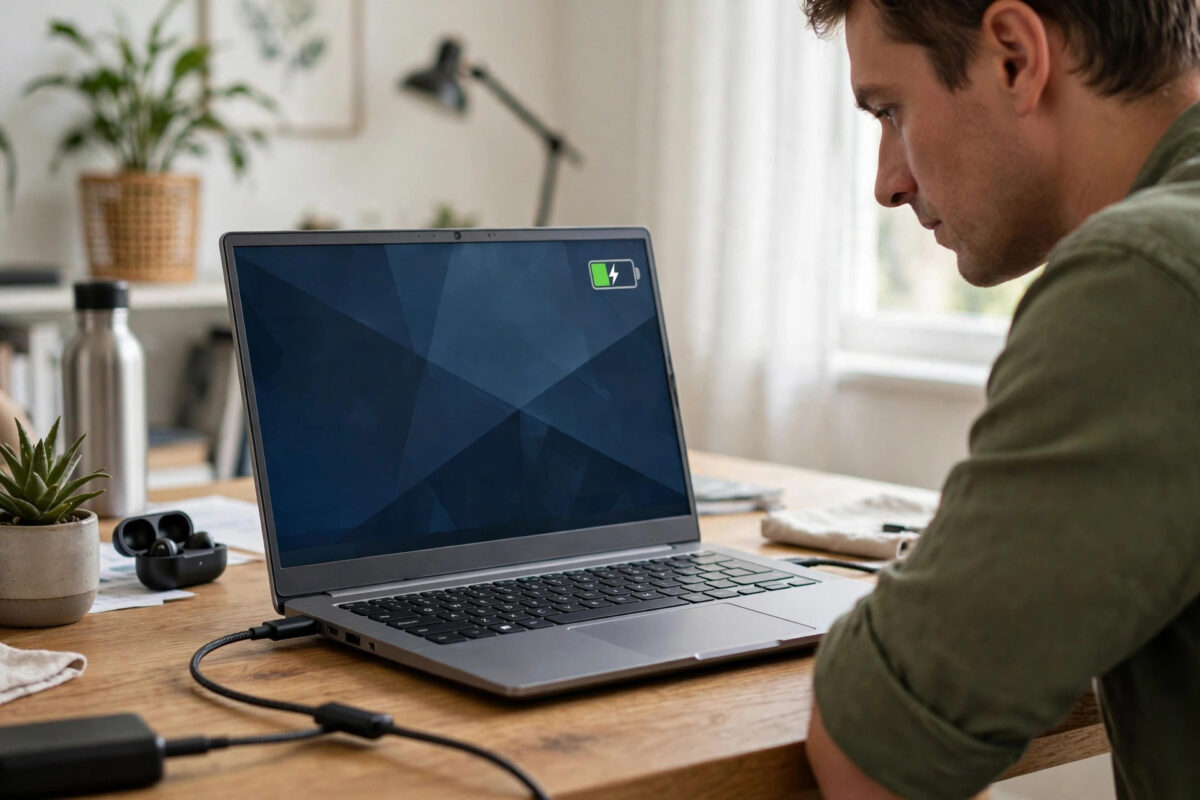
Your Linux laptop says 100 percent for two hours, then suddenly drops to 60 percent, or it falls from 40 percent to 5 percent in a few minutes. The battery itself is often fine. The problem is usually the estimate. Linux reads charge data from the battery controller, and when that data becomes stale or poorly calibrated, the percentage you see stops matching the real energy left inside the cells.
This guide explains why the percentage sticks or jumps, how to check what your battery is really reporting, and how to recalibrate it safely. The steps work on Ubuntu, Fedora, Debian, and most other distributions, and on most laptop brands.
Quick Answer
Let the laptop discharge normally until it warns you it is low, then charge it uninterrupted to 100 percent and leave it plugged in for an extra hour. This full cycle teaches the battery controller its real empty and full points again. Before you do that, check the reported capacity with upower and compare design capacity with full capacity to rule out a worn-out battery.
Why the Battery Percentage Gets Stuck or Jumps
A laptop battery is not a fuel tank with a simple float inside. The controller inside the battery pack estimates charge by tracking current flowing in and out, cell voltage, and temperature. Over weeks of short charges, partial discharges, and suspend cycles, small measurement errors add up. The controller still knows the voltage, but its idea of what percentage that voltage means drifts away from reality.
That drift explains the classic pattern. The display sits at 100 percent for a long time because the controller overestimates how much energy is stored. Then, once voltage falls faster than expected, the estimate corrects itself all at once and the percentage appears to plunge. The same thing happens near empty, where a laptop can jump from 30 percent to critical in minutes.
There are other causes too. A battery that has lost much of its original capacity will discharge faster than the system expects. A faulty charger or a loose connection can interrupt charging without you noticing. Firmware bugs, an old kernel, or a conflict between desktop power tools can also freeze the reading. That is why diagnosis comes before calibration.
Check What Your Battery Is Really Reporting
Start by reading the raw values Linux receives from the hardware. These numbers tell you whether you have a calibration problem, a worn battery, or a reporting bug.
- Open a terminal and run
upower -eto list power devices. You will see a path that ends inBAT0orBAT1. - Run
upower -i /org/freedesktop/UPower/devices/battery_BAT0and look atenergy-full,energy-full-design,capacity,percentage, andstate. - Check the same data directly from the kernel with
cat /sys/class/power_supply/BAT0/capacityandcat /sys/class/power_supply/BAT0/uevent. - Note the health figure. If
capacityin the upower output is below 70 percent, the pack has worn significantly and calibration will only help a little. - Watch the values live while you unplug the charger. Run
watch -n 5 cat /sys/class/power_supply/BAT0/capacityand see whether the number moves at all over ten minutes of use.
If the percentage in your desktop panel and the value in /sys/class/power_supply/ disagree, the problem is in the desktop layer, not the battery. Restarting the power service with sudo systemctl restart upower often clears that kind of mismatch. If both agree but both are wrong compared with how long the laptop actually runs, calibration is the right next step.
How to Recalibrate the Battery Safely
Calibration means giving the controller one clean, complete cycle so it can relearn its limits. It does not repair worn cells, and you should not do it every week. Once every few months, or when symptoms appear, is enough.
Step-by-Step Calibration
- Save all work and back up anything important. A laptop that misjudges its charge can shut down without warning during this process.
- Charge the laptop to 100 percent. Keep using it normally while it charges if you like, but do not unplug it early.
- Once it reaches 100 percent, leave it plugged in for at least one extra hour. This top-up period lets the controller settle on a true full reading.
- Unplug the charger and use the laptop normally. Avoid heavy gaming or video rendering, which drain the pack unevenly, and avoid leaving it idle in suspend, which confuses the measurement.
- Let it discharge until the system gives a low-battery warning, usually around 10 to 15 percent. Do not force it to run until it dies suddenly if you can avoid it.
- When the warning appears, plug the charger back in and charge straight back to 100 percent without interruption. Do not use the laptop heavily during this charge.
- Restart the laptop and check
upower -i /org/freedesktop/UPower/devices/battery_BAT0again. The percentage curve should now fall more evenly over the next few days of use.
Some manufacturers provide a calibration tool in the BIOS or UEFI setup. If yours offers one, use it with the charger connected.
If the Percentage Still Freezes at 100 Percent
A reading stuck at exactly 100 percent even after hours unplugged usually means the system is not receiving updates. Try these checks in order.
- Test a different kernel from your boot menu. A regression in ACPI handling can freeze battery reporting, and an older or newer kernel often fixes it.
- Remove conflicting power tools. If you run both TLP and another tuning daemon, keep only one, because overlapping tools can fight over power state reporting.
- Update your system fully with
sudo apt update && sudo apt upgradeon Debian-based systems, then reboot. - Shut the laptop down fully, remove the charger, and if the battery is removable, take it out for one minute. On sealed models, hold the power button for 20 seconds while unplugged to reset the embedded controller.
- Check for a BIOS update from your laptop manufacturer. Release notes that mention battery, EC, or power fixes are a strong sign the update is relevant.
Understanding Battery Health and When to Replace
Calibration fixes estimates, not chemistry. Every rechargeable battery loses capacity with age and charge cycles. Once the full charge capacity falls below about 70 percent of the design capacity, run time drops sharply and sudden shutdowns become more common, because the cells cannot hold voltage under load.
Every few months, note the energy-full and energy-full-design values from upower. The ratio between them is your battery health. A slow decline is normal.
For daily plugged-in use, limiting the maximum charge can help, and our companion guide explains related power settings in the wider context of practical ways to extend laptop battery life on Linux.
According to the Linux kernel power supply class documentation, applications should read battery data through the standard sysfs interface, which is why checking those files is the most reliable way to separate a hardware issue from a desktop display bug.
Common Mistakes and Useful Tips
- Draining to zero every day: Deep discharges wear lithium cells faster. Calibrate occasionally, but live between roughly 20 and 90 percent day to day.
- Calibrating a failing battery repeatedly: If health is already below 70 percent, repeated full cycles add stress without fixing sudden drops. Plan a replacement instead.
- Trusting one percentage reading: Judge the fix over several days of normal use. One cycle teaches the controller, but the estimate settles across the next few charges.
- Ignoring suspend drain: A laptop that loses 15 percent overnight in suspend may look miscalibrated. Check suspend drain separately before blaming the gauge.
- Using random battery apps: Stick to built-in tools like upower, the kernel sysfs files, and your desktop settings. Unknown utilities rarely know more than the system itself.
- Forgetting the charger: Always rule out a weak or incorrect charger first. Low wattage adapters are a very common hidden cause of odd readings.
Conclusion
A battery percentage stuck at 100 percent or falling off a cliff is usually a tired estimate, not a dead battery. Read the real values with upower, check the health ratio, and run one careful full charge and discharge cycle to recalibrate the controller. If the numbers still freeze or the health is very low, look at firmware, kernel, and charger issues next, and accept that a worn pack eventually needs replacing. With honest data and occasional calibration, the gauge on Linux is dependable again.
Frequently Asked Questions
How often should I calibrate my laptop battery on Linux?
Once every two to three months is plenty, or when you notice the percentage sticking or jumping. Calibrating more often adds unnecessary wear because each calibration is a full charge cycle.
Will calibration restore lost battery capacity?
No. Calibration only corrects the percentage estimate. If upower shows your full capacity is far below the design capacity, that loss is physical wear and cannot be reversed by software.
Why does my laptop shut down at 20 percent?
The controller believes 20 percent remains, but the cells can no longer hold voltage under load, so the machine cuts power to protect itself. Recalibrate once. If it keeps happening, the battery is near the end of its life.
Is it safe to let the battery drain completely during calibration?
One controlled discharge down to the low-battery warning is safe. Avoid leaving the laptop sitting fully empty for days, because a deeply empty lithium battery can become difficult or impossible to recharge.
Does the desktop environment affect battery readings?
Yes, it can display stale data even when the kernel values are correct. Comparing the panel reading with cat /sys/class/power_supply/BAT0/capacity tells you whether the fault is in the display layer or deeper in the system.



Leave a Reply