
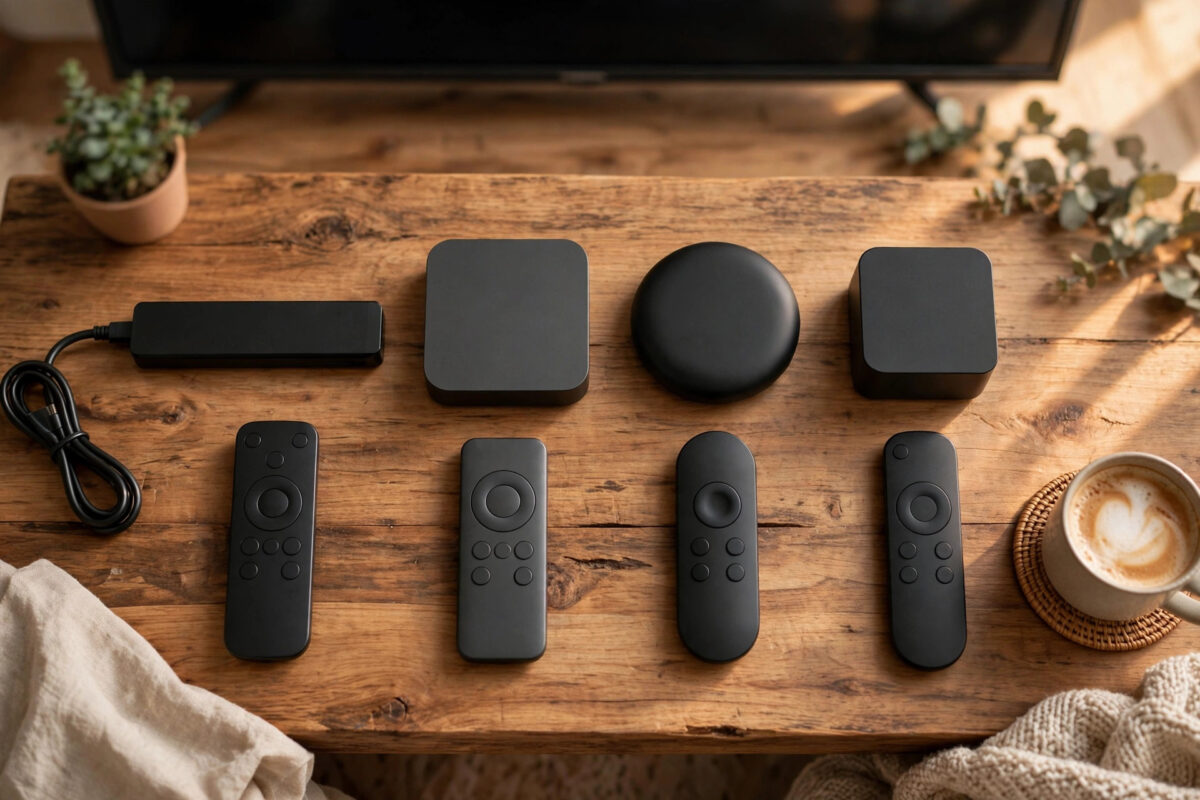
Four names dominate streaming devices: Fire TV Stick, Roku, Chromecast with Google TV, and Apple TV. All four plug into your TV, all four run Netflix and YouTube, and all four promise an easy life. So why do their prices range from the cost of a pizza to well over a hundred pounds or dollars?
The differences are in the home screen, the remote, how each one works with your phone, and what other devices you already own. Picking the right one is less about raw power and more about fit.
This guide compares the four fairly, explains who each one suits best, and gives you a simple way to decide.
Quick Answer
Choose a Fire TV Stick for the lowest price and Alexa voice control, Roku for the simplest home screen and widest app choice, Chromecast with Google TV for smart recommendations and casting from your phone, and Apple TV 4K for the fastest, advert-free experience in an Apple household. All four stream the major apps in HD or 4K, so decide based on your phone, budget, and how simple you want the menus.
The Four Contenders at a Glance
Amazon Fire TV Stick
Amazon range runs from a basic HD stick to the faster Fire TV Stick 4K and 4K Max. The home screen leans heavily toward Prime Video and Amazon content. Alexa voice search is built into the remote, and prices are frequently discounted, which makes this the value pick for many homes.
Roku
Roku offers sticks and small boxes, plus TVs with Roku built in. Its home screen is a neutral grid of apps with no service pushed harder than another. The range includes cheap HD models and 4K models with better remotes, and its app store is one of the largest anywhere.
Chromecast with Google TV
Google device runs the Google TV interface, which gathers recommendations from all your services into one set of rows. It works especially well with Android phones, Google Photos, and Google Assistant voice search, and you can cast content from a phone or Chrome browser with one tap.
Apple TV 4K
Apple box costs several times more than the sticks, and in return it is noticeably faster, has a clean home screen without adverts, and connects smoothly with iPhone, iPad, AirPods, and HomeKit smart home gear. It is a box only, so it needs a little shelf space.
Comparing the Things That Matter Daily
Ease of use
Roku wins for pure simplicity. Its grid of app tiles is easy for children and grandparents alike, which is why Roku Support and its setup guides are aimed at first-time users. Fire TV and Google TV show busier recommendation rows. Apple TV sits in between: clean and fast, but tied to an Apple account.
App choice
All four carry Netflix, YouTube, Disney+, Prime Video, and the main catch-up services in most countries. Roku historically has the widest catalogue of smaller and niche apps. Before buying, check the one or two less common apps you care about on the maker store listing.
Voice control and search
- Fire TV Stick: Alexa. Great for Amazon shopping households and smart lights on the Alexa platform.
- Roku: Roku Voice. Good basic search across apps; higher models support hands-free commands.
- Chromecast: Google Assistant. The strongest general knowledge answers and tight Android integration.
- Apple TV: Siri. Excellent inside Apple services and for controlling HomeKit devices.
Working with your phone
Chromecast casting is the standout here: almost any Android app, and many iPhone apps, can send video to the TV. Apple TV mirrors the same trick for Apple users with AirPlay. Fire TV and Roku support casting too, but more narrowly. If casting from your phone is how you like to watch, our guide on how to mirror your phone screen on a non-smart TV explains how each platform handles it.
Performance and picture quality
All four offer 4K HDR models that look identical on the same TV for normal streaming. The difference is speed: Apple TV opens apps and switches between them fastest, followed by the top Fire TV and Roku models. Cheapest sticks from any brand feel slower in menus, though video plays smoothly once it starts. Apple TV Support documents the latest model formats, including Dolby Vision and high frame rate support.
Price: What You Actually Get for the Money
Think of the market in three tiers:
- Budget tier: Basic Fire TV Stick and entry Roku models. HD or basic 4K, simple remotes, perfect for a bedroom TV or a first streaming device.
- Mid tier: Fire TV Stick 4K Max, Roku Streaming Stick 4K, and Chromecast with Google TV 4K. Faster processors, better Wi-Fi, and voice remotes. This is the sweet spot for a main TV.
- Premium tier: Apple TV 4K. You pay for speed, storage, polish, and the Apple ecosystem, not for extra streaming apps.
None of the four needs a subscription for the device itself. You only pay for the streaming services you choose, exactly as before.
How to Choose in Five Questions
- What phone do you use? iPhone points toward Apple TV or Chromecast for casting. Android points toward Chromecast first.
- Who will use it? For the least technical viewer in the house, choose Roku simple grid.
- What smart assistant runs your home? Alexa means Fire TV, Google Assistant means Chromecast, HomeKit means Apple TV.
- Is this the main TV or a spare? Spend mid-tier money on the main TV; a budget stick is fine elsewhere.
- Do you hate adverts on the home screen? Apple TV is the cleanest. Roku shows one modest advert panel; Fire TV and Google TV promote content the most.
If you answered with two different platforms, do not worry. All four run the core apps well, so a split answer simply means either choice will serve you fine.
Common Mistakes and Buying Tips
- Paying for 4K on an HD TV: A 4K device works, but you gain nothing until the TV is upgraded. Save the money or future-proof only if a new TV is coming soon.
- Ignoring Wi-Fi: Streaming quality depends more on your home Wi-Fi than on which of these four you buy. Higher models with newer Wi-Fi standards help in busy homes.
- Buying old stock: These devices update yearly. Check the model year, as an old bargain stick can be painfully slow.
- Forgetting the ecosystem: Your existing accounts, voice assistant, and phone matter more day to day than small spec differences.
- Overlooking the remote: Look for TV power and volume buttons on the remote. All four offer them on most models, and they turn two remotes into one.
Conclusion
There is no single winner here, only a best fit. Fire TV Stick is the value and Alexa choice, Roku is the simple and neutral choice, Chromecast with Google TV is the Android and casting choice, and Apple TV 4K is the premium Apple choice. Match the device to your phone, your household, and your budget, and any of the four will stream happily for years.
Frequently Asked Questions
Which streaming device is best overall?
For most people, a mid-range Fire TV Stick 4K, Roku Streaming Stick, or Chromecast with Google TV offers the best balance of price, speed, and apps. Apple TV 4K is the best performer outright, but its higher price only makes sense if you use Apple devices and services.
Do I need a subscription for any of these devices?
No. The devices themselves have no monthly fee. You sign in to free apps like YouTube at no cost, and you pay only for paid services such as Netflix or Disney+ if you want them, using your existing accounts.
Which device has the most apps?
Roku generally offers the largest app catalogue, including many smaller and international services. In practice, all four platforms carry every major app most households need, so check any unusual must-have app before you buy.
Can I use these devices on more than one TV?
Yes. Each device plugs into one TV at a time, but you can move a stick between TVs freely. Most households simply buy one device per TV, since budget models are cheap, and use the same accounts on all of them.
Which is best for an older person who is not technical?
Roku is usually the kindest choice. Its home screen is a simple grid with big tiles, the remote has few buttons, and nothing rearranges itself. Set up the apps once, and the viewer only ever needs the arrow keys and the OK button.



Leave a Reply