
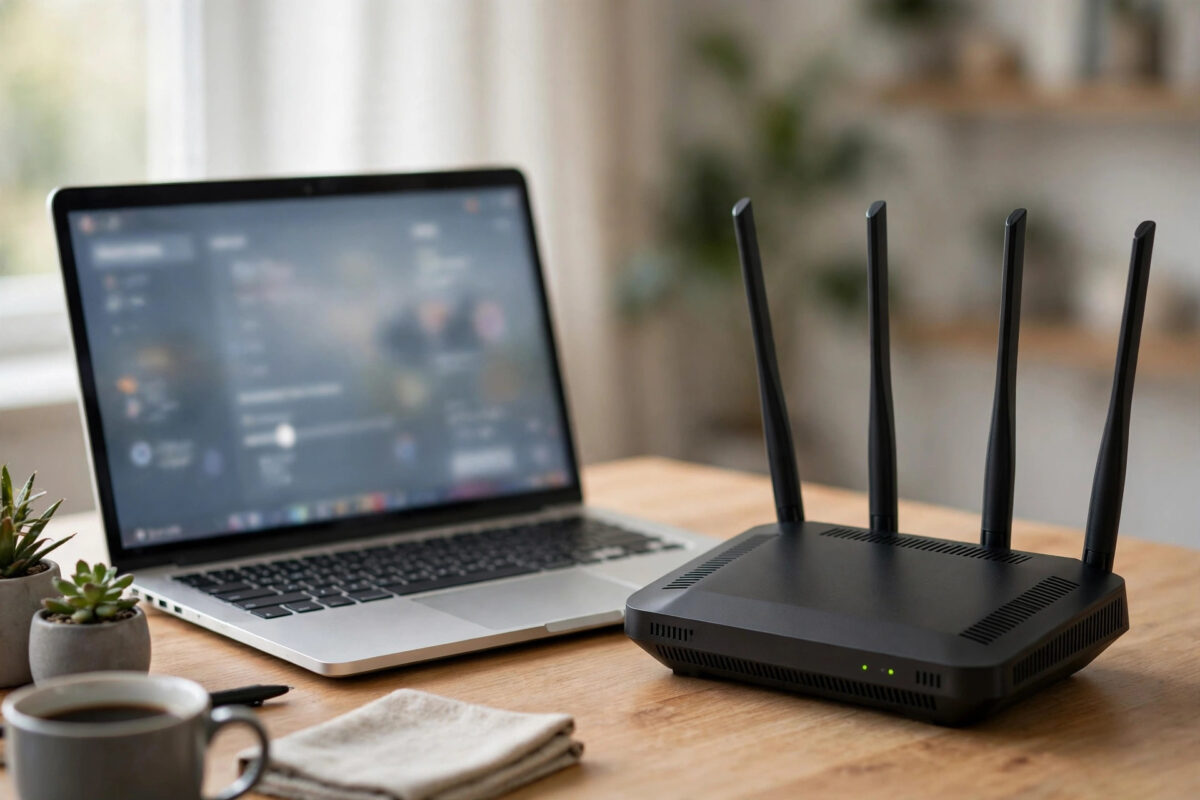
Smart devices are picky eaters. Most plugs, bulbs, cameras, and sensors speak only 2.4GHz Wi-Fi, struggle with clever modern features, and get confused when one network name covers two bands. Your ASUS router can give them a home of their own: a dedicated 2.4GHz network with its own name, simple security, and no surprises.
A separate IoT network does three jobs at once. It gives weak devices a long-range band they can actually use. It keeps dozens of chatty gadgets away from your phones and laptops. And it adds a layer of safety, because cheap devices with rare updates sit apart from the computers that hold your files and banking. This guide walks through the setup on a typical ASUS router, step by step.
Quick Answer
Log in to your ASUS router, open Wireless settings, and create a guest network or a second SSID that broadcasts only on 2.4GHz with WPA2 security. Give it its own name and password, disable band-merging features for it, then join each smart device to the new network name. Devices already working can stay put, or you can move them over one by one and restart them.
Why a Dedicated 2.4GHz Network Helps
The 2.4GHz band travels further through walls than 5GHz and suits low-data devices perfectly. A camera sending a modest video stream or a plug sending a few bytes does not need speed — it needs reach and stability. That is exactly what 2.4GHz offers.
The problem is the modern default: one network name for both bands, called Smart Connect on ASUS routers. Your router then decides which band each device gets. Phones love this. Many smart devices do not. During setup, a device may be pushed to 5GHz by your phone’s connection, fail to join, or join and then drop when the router tries to move it. A separate 2.4GHz-only SSID removes the guesswork entirely. The device sees one band, one name, one simple choice.
There is also a security argument. Smart devices are rarely updated and sometimes ship with weak protection. On their own network, ideally with access to your main network blocked, a compromised gadget cannot wander over to your laptop or NAS drive. It is the same thinking covered in our guide to securing your home Wi-Fi network, applied in a practical, ten-minute form.
Before You Start: Plan the Move
A little planning prevents a messy evening of reconnecting things.
- Pick a name: Choose a clear SSID such as “Home-IoT” that you will recognise in device apps. Avoid spaces and special characters, which some cheap devices handle badly.
- Pick a password: Use a strong password of at least 12 characters. You will type it into many devices, so keep it in a password manager.
- List your devices: Write down every plug, bulb, camera, and hub you plan to move, room by room, so none get forgotten.
- Note your router login: You need the admin address, usually router.asus.com or 192.168.1.1, and the admin username and password.
Method 1: Use a Guest Network as the IoT Network
The guest network is the fastest route on most ASUS models, because it is designed to be separate.
- Open a browser, go to your router’s admin page, and log in.
- Click Guest Network in the left menu.
- Choose the 2.4GHz section and click Enable.
- Set the network name to your planned IoT name.
- Set security to WPA2-Personal and enter your new password.
- Set “Access Intranet” to Disable, so IoT devices cannot reach your main network devices. Note that some hubs and casting features need local access; if a device later refuses to work with your phone, this toggle is the first thing to test.
- Leave the time limit disabled or set to unlimited, so the network never expires.
- Click Apply and wait for the router to restart the wireless radios.
Method 2: Create a Separate SSID Without Smart Connect
If your router model allows multiple SSIDs, or you prefer not to use the guest feature, use the main wireless settings instead.
- Log in to the router and open Wireless, then General.
- If Smart Connect is on, understand what changing it does: turning it off splits your main network into separate 2.4GHz and 5GHz names for all devices, not just IoT. Only choose this route if you are happy managing band names yourself.
- Alternatively, on models with a Professional or additional SSID tab, add a new SSID bound to the 2.4GHz radio only.
- Set WPA2-Personal security and AES encryption. Avoid mixed WPA/WPA2 modes and never pick WEP.
- Set the channel width for 2.4GHz to 20 MHz for the most stable behaviour with old and cheap devices.
- Apply the settings and confirm the new name appears on your phone’s Wi-Fi list.
Menu names differ slightly between models and firmware versions. If your screens do not match, ASUS’s official support pages have a manual for your exact model with the same steps and screenshots.
Settings That Make IoT Devices Behave
Once the network exists, a few advanced settings decide whether devices stay connected happily:
- Airtime Fairness: Turn it off on the 2.4GHz band. It can starve slow devices.
- 802.11ax / Wi-Fi 6 features on 2.4GHz: If your router is a Wi-Fi 6 model and devices fail to connect, look for an IoT compatibility option, or test with OFDMA disabled on 2.4GHz. Most modern firmware handles mixed devices well, but stubborn gadgets exist.
- Channel choice: Set the 2.4GHz channel manually to 1, 6, or 11 — whichever is quietest in your area. Auto can cause channel hops that drop devices.
- Roaming assistant: If enabled, set its threshold sensibly or disable it for the IoT SSID, so the router does not kick weak-signal devices that have nowhere better to go.
Move Your Devices Over
Now the steady part: joining each device to the new network.
- Start with the hub or bridge devices, if you use any, then work room by room.
- In each device’s app, use the “change Wi-Fi network” option if it exists. Many apps hide it under device settings.
- If there is no such option, reset the device and set it up fresh, choosing the IoT SSID during setup. Keep your phone connected to the same IoT network during setup if the app demands it.
- After each device joins, test it: turn the plug on, view the camera, trigger the sensor.
- Tick devices off your list as you go. Expect roughly five minutes per device, less once you find your rhythm.
You do not have to move everything in one night. Devices that work fine on the main network can stay there. Move the troublemakers first — in most homes that alone fixes the daily dropouts.
Mistakes to Avoid
- Using WPA3-only security. Many smart devices cannot join WPA3 or mixed WPA2/WPA3 networks. Use WPA2-Personal with AES for the IoT network.
- Leaving the guest network on a timer. A guest SSID that expires after a few hours takes every device offline with it. Set it to unlimited.
- Blocking intranet access without testing. Some voice assistants, hubs, and casting setups need local network access to reach devices. If control from your phone breaks, revisit that toggle.
- Special characters in the SSID or password. Symbols that your phone handles fine can break setup on a cheap bulb. Keep names simple letters and numbers.
- Deleting the old network too early. Keep the old setup working until every device is moved and tested, so you always have a way back.
Conclusion
A dedicated 2.4GHz IoT network on your ASUS router is one of the highest-value changes a smart home owner can make. One separate SSID, WPA2 security, a fixed clear channel, and a patient room-by-room move gives every plug, bulb, and camera a stable home — and keeps them politely away from your main devices. Set it up once, and most “device offline” headaches simply stop.
Frequently Asked Questions
Will a separate IoT network slow down my main Wi-Fi?
No. The IoT devices use small amounts of data on a band your fast devices mostly ignore. If anything, your main network feels cleaner because dozens of slow gadgets no longer share it.
Can smart devices on the IoT network still talk to Alexa or Google Home?
Usually yes, because voice assistants reach most devices through the cloud. Devices that need direct local control may need intranet access allowed, or the assistant placed on the same network. Test after setup and adjust the one toggle if needed.
Should I hide the IoT network name?
No. Hidden SSIDs cause setup failures on many smart devices and add no real security. A strong WPA2 password is what protects the network.
What if my ASUS router has no guest network option?
Use the additional SSID feature if your model has one, or split Smart Connect into separate band names and dedicate the 2.4GHz name to smart devices. Older models can also gain features from a firmware update, so check for updates first.
Do I need to move devices that already work fine?
Not urgently. Move the devices that drop or fail first. You can migrate the rest gradually, or leave stable devices where they are — the network does its main job either way.



Leave a Reply