
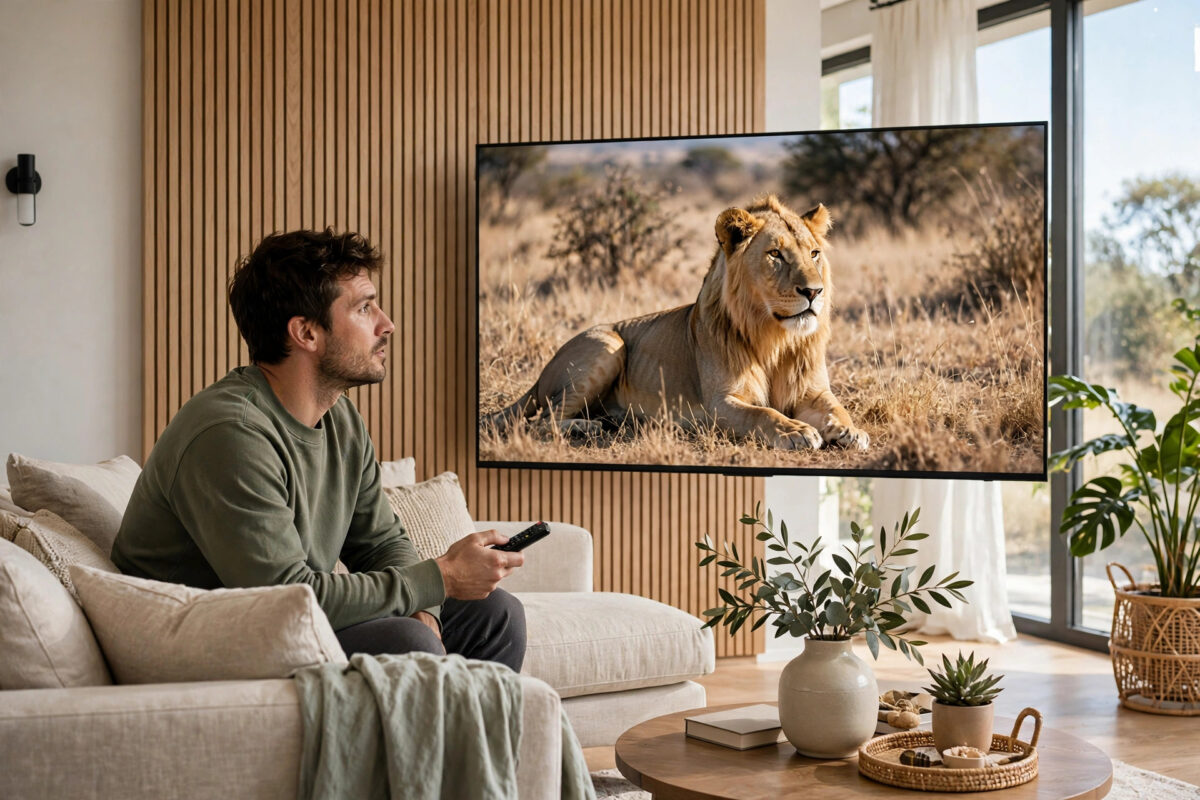
Plenty of people pay for a 4K television and a premium streaming plan, then quietly watch in HD for months without realising it. Others buy a 4K TV and assume every app will suddenly look sharper, only to discover their subscription, their broadband, or even the film itself does not support 4K at all. Checking where you stand takes about ten minutes, and it can save you money or unlock picture quality you have already paid for.
This guide shows you how to confirm your TV’s real resolution, how to check what each streaming plan includes, how to verify what is actually playing on screen, and which other links in the chain, from cables to broadband speed, can quietly hold you back.
Quick Answer
To check if your TV and streaming plan support 4K, find your TV’s model resolution in its settings or manual (true 4K means 3840 by 2160 pixels), then open your streaming account and confirm your plan tier includes Ultra HD, because most services reserve 4K for their top plans. Finally, play a title labelled 4K or Ultra HD and use the TV or app info display to confirm the stream is actually reaching 2160p, with a broadband connection of at least 25 Mbps for a reliable result.
Step 1: Confirm Your TV Is Really a 4K TV
Marketing labels can mislead. Phrases like HD Ready, Crystal Clear, and 4K Compatible do not all mean the panel itself displays a full 4K picture.
Check the model number
The most reliable method is the model number, found on a sticker on the back of the TV, in the settings under About or Support, or on your original receipt. Search that exact model on the manufacturer’s website and look for the display resolution. A true 4K or Ultra HD panel lists 3840 x 2160 pixels. A figure of 1920 x 1080 means a Full HD panel, no matter what the box suggested.
Check inside the TV settings
Many TVs show their model and sometimes their resolution under Settings, then Support, About, or Device Information. While you are there, note the software version too, because outdated software can affect which apps offer 4K.
Beware of almost-4K descriptions
- “Supports 4K input” can mean the TV accepts a 4K signal but downscales it to a lower-resolution panel.
- “4K upscaling” means the TV sharpens HD content to fill the screen. It can look good, but it is not native 4K.
- HDR labels describe colour and contrast, not resolution. An HD TV can still carry an HDR badge.
Step 2: Check What Your Streaming Plan Actually Includes
Even with a genuine 4K TV, most major services only include 4K streaming on selected subscription tiers.
- Sign in to your streaming account on a phone or computer and open the account or membership page.
- Find your current plan name and its listed video quality. Look for the words Ultra HD, 4K, or UHD in the plan details.
- If your plan lists only HD or 1080p, the service will never send you 4K, regardless of your TV.
- Repeat for each service you use. One provider’s top tier including 4K says nothing about another provider’s rules.
- Check how many devices can stream in top quality at once if your household shares the account.
The plan comparison pages in the Netflix Help Centre guide to plans and streaming quality show how one major service structures this, and other services follow a similar pattern of reserving Ultra HD for premium tiers. Free and advert-supported tiers on several platforms are often limited to HD, and sometimes lower, even for titles that exist in 4K for paying members.
Step 3: Verify What Is Actually Playing on Screen
Having the right TV and plan is not proof. The final check is seeing the live resolution while something plays.
Use the TV or app information display
- Many TVs show resolution when you press an info, display, or settings button during playback.
- Some streaming apps show quality information in the playback menu or when you pause.
- External devices such as Apple TV, Fire TV, and consoles often have a developer or stats display, or show the output resolution in their own video settings screens.
Understand the numbers you might see
- 2160p means full 4K. This is what you want to see.
- 1080p means Full HD. The stream, the plan, or a setting is limiting you.
- 720p or lower suggests a slow connection, a data-saving setting, or a very restricted plan tier.
Give a title a minute or two before judging. Most services start at a lower quality and step up as they measure your connection, so the resolution in the first seconds is not the final result.
If the figure refuses to rise, work through the later steps in this guide before assuming the worst. And if your TV is brand new, our walkthrough on how to set up a smart TV for the first time and check its settings covers the initial picture and network options that affect streaming quality.
Step 4: Check Your Broadband Speed and App Settings
4K streaming is demanding. As a working guide, plan on at least 15 to 25 Mbps of real, sustained speed for one 4K stream, with more if other people in the house are online at the same time.
- Run a speed test on the TV itself if it has a browser or test app, or on a phone standing next to it, at the time of day you normally watch.
- Set app quality to high or auto. Data-saving modes in apps and in TV settings cap resolution below 4K without making the limit obvious.
- Prefer a wired connection or 5 GHz Wi-Fi for the TV where possible, especially if the router is in another room.
- Restart older network equipment if real speeds fall far below what your broadband package promises.
Step 5: Check Cables and Ports for External Devices
If you watch through a streaming stick, box, console, or soundbar, the connections between devices must all support 4K.
- Use high-speed or ultra high-speed HDMI cables. Very old cables may only carry HD reliably.
- Plug into an HDMI port that supports full 4K. On some TVs only certain ports offer the full specification, and the port labels or manual say which.
- Enable the enhanced format setting for that port in the TV’s HDMI settings, so 4K and HDR signals pass at full quality.
- In the external device’s own display settings, confirm its output is set to 4K or automatic, not locked to 1080p.
- If a soundbar or receiver sits between the device and the TV, it must also support 4K pass-through, or it becomes the bottleneck.
Quick Checklist: The Whole 4K Chain
For a true 4K picture, every link below must say yes. One no anywhere in the chain limits everything.
- TV panel resolution is 3840 x 2160.
- Streaming plan tier includes Ultra HD or 4K.
- The specific title is offered in 4K.
- The app and TV software are up to date.
- Playback quality is set to high or auto, not data saving.
- Broadband delivers at least 25 Mbps to the TV.
- HDMI cables and ports support 4K at full quality, if you use external devices.
- The on-screen info display confirms 2160p during playback.
Common Mistakes to Avoid
- Assuming a 4K TV means everything is 4K. The TV can only display what it is sent. HD channels and HD plan tiers stay HD.
- Testing with an old title. Many older films and series simply have no 4K version. Test with a clearly labelled modern release.
- Judging in the first ten seconds. Streams ramp up. Check the resolution after a couple of minutes of steady playback.
- Paying for a premium tier you cannot use. If your TV is HD only, or your broadband cannot sustain 4K, the top plan may be wasted money until the rest of the chain improves.
- Forgetting games consoles and sticks have their own settings. A device locked to 1080p output will hold back a fully capable TV.
Conclusion
Checking 4K support means verifying three separate things: the TV panel is genuinely 3840 by 2160, your streaming plan tier actually includes Ultra HD, and the live playback display confirms 2160p once a labelled title has had a minute to settle. Add healthy broadband, correct app quality settings, and capable HDMI connections, and every link in the chain is proven. Anything less is guesswork, and now you know how to test each part properly.
Frequently Asked Questions
What is the difference between 4K and Ultra HD?
For home televisions, the two terms describe the same thing: a resolution of 3840 by 2160 pixels. You may also see it written as 2160p or UHD. All of them mean your TV has roughly four times the pixels of a 1080p Full HD screen.
My TV says 4K but Netflix only shows HD. Why?
The most likely cause is your plan tier, because the biggest services reserve 4K for premium plans. Other causes include the specific title having no 4K version, a data-saving quality setting in the app, or a connection too slow for the service to offer its top quality.
How fast does my broadband need to be for 4K streaming?
Around 25 Mbps of real speed at the TV is a sensible minimum for one reliable 4K stream. Busy households should allow more, since other devices gaming, downloading, and video calling at the same time all share the same connection.
Can a TV upscale HD to look like 4K?
Upscaling fills the 4K screen intelligently and can look noticeably sharper than plain HD, but it cannot create real detail that was never in the original picture. A native 4K stream of the same title will still look clearer, especially in fine textures and small text.
Do I need special HDMI cables for 4K?
For external devices, yes, in practice. Use certified high-speed cables for 4K at normal frame rates and ultra high-speed cables for the most demanding uses such as high frame rate gaming. Very old cables often cause a device to fall back to 1080p without any clear warning.



Leave a Reply