
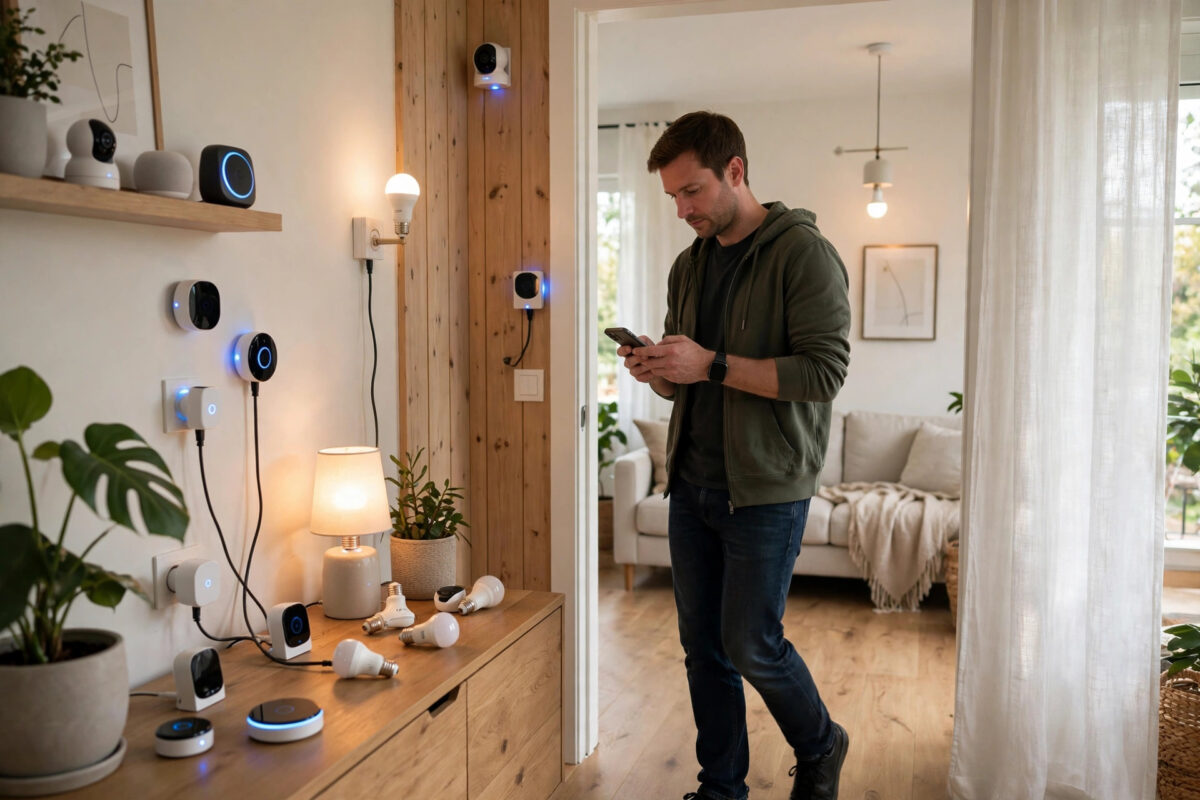
You changed your Wi-Fi name to something better. The new router is in, or the old joke SSID is finally gone — and now thirty smart devices are blinking at you, offline. Plugs, bulbs, cameras, sensors, speakers: every one of them still believes in the old network name, and none of them will reconnect themselves.
Before you resign yourself to a weekend of factory resets, stop. There is a shortcut that fixes most homes in ten minutes, and even when the shortcut is closed to you, there is a calm order to work in that turns a chaotic job into a steady hour. This guide covers both.
Quick Answer
The fastest bulk fix is to set your router’s Wi-Fi name and password back to the exact old SSID and password — nearly all 30 devices will rejoin on their own within minutes, with no resets. If you must keep the new name, connect the new network alongside the old one temporarily if your router allows two SSIDs, then move devices in batches by room, starting with hubs, using each app’s “change network” option before resorting to factory resets.
The Golden Shortcut: Reuse the Old Name and Password
Smart devices do not know your router changed. They know a name and a password. If a network appears with the exact same name (SSID) and the exact same password, with the same security type, the device simply joins it. It does not care that the router is a different box, a different brand, or in a different room.
That gives you the single most useful trick in home networking:
- Log in to your new router or your existing router’s settings.
- Set the 2.4GHz network name to your old SSID, spelled exactly — capitals, spaces, and symbols all matter.
- Set the password to the old password, again exactly.
- Set the security to WPA2-Personal if your old network used it, which most did.
- Save, let the router restart, and wait five to ten minutes.
- Walk the house. Most devices will already be back online in their apps.
You can keep your shiny new SSID too: many routers support a second SSID or a guest network. Run the old name as the secondary network purely for smart devices, and the new name for phones and laptops. That is not a compromise — it is actually the setup many smart home owners choose on purpose, because it separates gadgets from personal devices.
If you are renaming again in future, our guide to changing your Wi-Fi name and password covers how to plan the change so this problem never happens in the first place.
When You Cannot Reuse the Old Name
Sometimes the old name is gone for good reason: it contained a personal name, it was the default router name tied to a returned unit, or you have already told every phone and laptop in the house the new one. Fair enough. Then the job is a proper migration, and order matters more than speed.
Step 1: Prepare Before Touching Any Device
- Make a list of every smart device, room by room. Check behind TVs, in lofts, and outside for cameras.
- Group them by app: all the devices in one brand’s app will be handled together.
- Make sure you know the login for each app and where each device’s reset button or pairing method is.
- Connect your phone to the new Wi-Fi network and keep it there during setups.
- Start in the morning, not at midnight. Some devices will fight you; you want patience in reserve.
Step 2: Move Hubs and Bridges First
Hubs multiply your work if you do them last. A lighting bridge, a smart home hub, or a camera base station reconnected first brings all its child devices back with it — that can be ten devices fixed in one step. Reconnect every hub, bridge, and base station before touching a single bulb or sensor.
Step 3: Use “Change Network” Before Resetting
Many apps now offer a way to move a device to a new network without wiping it. Look in device settings for “Wi-Fi”, “Network”, or “Reconnect”. Voice assistant apps are a common place to find this: Google Nest’s official support pages document how their speakers and displays change networks, and most major brands offer something similar in their own help sections. A device moved this way keeps its name, routines, and automations. A factory-reset device loses them all.
Step 4: Batch the Rest by Room and by App
Work one room at a time, and within the room, one app at a time:
- Open the app, and put the first device into pairing mode.
- Join it to the new SSID. Most devices need the 2.4GHz band — if your router merges bands under one name, temporarily split the bands or enable the router’s IoT or compatibility mode during setup.
- Rename the device in the app exactly as before, so your routines and voice commands keep working.
- Test it once: switch it, view it, or trigger it.
- Tick it off the list and move to the next.
Expect about three to five minutes per device once you are in rhythm. Thirty devices is roughly ninety minutes of steady work — with the hubs-first order, usually much less.
Devices That Commonly Resist
A few categories cause most of the swearing:
- Cameras: Often need a QR code shown to the lens or a full reset with a pin. Do outdoor ones in daylight, ladder-safe conditions.
- Cheap bulbs and plugs: Pairing usually means switching them off and on in a pattern until they blink. Have the app open and ready before you start the pattern.
- Devices with no screen on a merged-band router: The classic failure is your phone sitting on 5GHz while the device needs 2.4GHz setup. Walk away from the router to force your phone onto 2.4GHz, or split the bands for the setup session.
- Battery sensors: Wake them first — open the door, press the button — or they will miss the setup window entirely.
After the Reconnect: Rebuild and Verify
Once everything shows online, spend ten minutes checking the layer above the devices. Routines and automations usually survive if device names stayed identical. Voice control is the fragile part: re-discover devices in your voice assistant app, and remove any greyed-out duplicates of the same plug or bulb, or you will hear “there are two devices with that name” for weeks.
Finally, reboot the router once more. A clean start after thirty joins clears stale address assignments, and every device comes up in an orderly way. Then update your password manager with the new network details, so future-you has the shortcut information if it is ever needed again.
Mistakes to Avoid
- Factory resetting everything on day one. The old-name shortcut and the change-network options exist precisely to avoid this. Resets are the last tool, not the first.
- Changing the SSID slightly. “HomeWiFi” and “Home WiFi” are different networks to a device. If you reuse a name, copy it character for character, capitals included.
- Also changing the password “while you are at it”. The shortcut needs name and password both unchanged. Change one thing at a time.
- Renaming devices during setup. New names break routines and voice commands. Keep the old names now; rename later, one at a time, if you still want to.
- Forgetting outdoor and hidden devices. The video doorbell, the garage sensor, and the plug behind the sofa are the ones discovered offline a week later. The room-by-room list prevents it.
Conclusion
Thirty offline devices feel like a disaster, but the fix is mostly one decision. If you can, restore the old SSID and password and watch the house reconnect itself — it is the closest thing networking has to magic. If you cannot, migrate calmly: list everything, hubs first, change-network options before resets, one room and one app at a time. Either way, keep device names identical, verify your routines at the end, and write the details down. The next name change will take ten minutes, not a weekend.
Frequently Asked Questions
If I reuse my old SSID and password on a new router, will all devices reconnect?
Almost all of them, yes — provided the name and password match exactly and the security type is the same, usually WPA2. A few devices may need a power cycle. Hubs and cameras occasionally need a nudge in their app, but full resets are rare.
My router only allows one network name. What should I do?
Use the old name as your one name if smart devices outnumber everything else, or use the guest network for the old SSID if your router offers one. As a last resort, do the full migration with the new name using the room-by-room method.
Why do devices fail setup even on the correct new network?
The usual cause is band confusion: your phone is on 5GHz while the device sets up on 2.4GHz. Splitting the bands temporarily, or moving away from the router so your phone drops to 2.4GHz, fixes most setup failures.
Will my automations and routines survive the move?
If devices keep the same names and are moved with the change-network option or the SSID shortcut, most routines survive untouched. Factory resets are what break them, because the device returns as a brand-new item.
How long should reconnecting 30 devices take?
With the old-name shortcut, about ten minutes plus waiting time. With a full migration, plan for one to two hours — hubs first, then steady batches by room and app.



Leave a Reply