
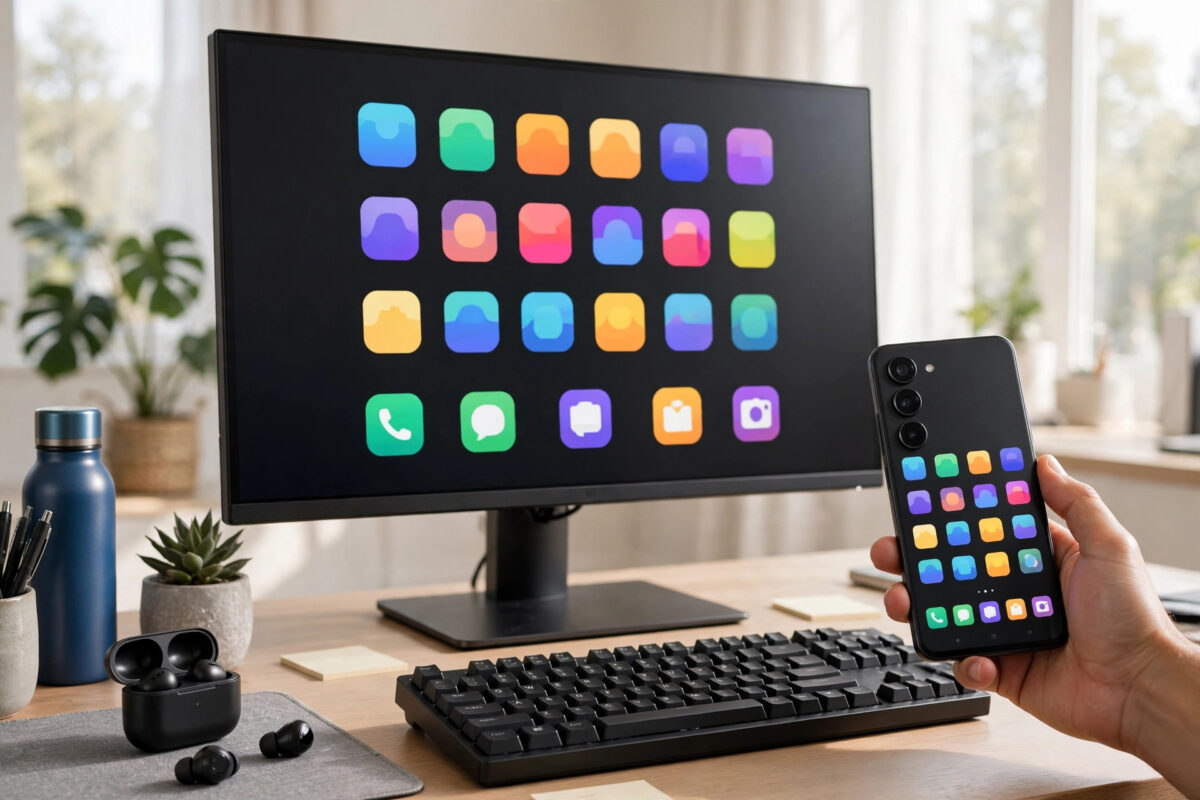
Showing your Android phone’s screen on a big PC monitor is useful more often than you might think: presenting photos to the family, demonstrating an app, playing mobile games on a bigger display, or recording a tutorial. You do not need to buy anything to do it. Several free tools mirror Android to a PC over Wi-Fi or USB, and one brilliant open-source option even lets you control the phone with your mouse and keyboard.
Quick Answer
The best free screen mirroring tool for Android to PC is scrcpy. It is free, open-source, has almost no lag, needs no account and no app installed on the phone, and works over USB or Wi-Fi. If you want something simpler with a normal point-and-click interface, Microsoft Phone Link (on Samsung and select phones) and AirDroid Cast’s free tier are good alternatives, and Windows’ built-in Wireless Display feature works with phones that support Miracast-style casting.
What Makes a Good Mirroring Tool?
- Low delay: The gap between touching your phone and seeing it on the PC should be barely noticeable.
- Picture quality: Sharp enough to read text, with a frame rate that does not stutter during video.
- Control: Some tools only show the screen; others let you click and type from the PC, which transforms the experience.
- Audio: Newer tools can send the phone’s sound to the PC too — handy for videos and games.
- No watermarks or time limits on the free plan.
1. scrcpy – The Best Free Tool Overall
scrcpy (short for “screen copy”) comes from the Genymobile team and is loved by developers and power users for good reason. It mirrors over a USB cable for the lowest delay, or over Wi-Fi once you pair it once with the cable. There is no sign-up, no ads, and no root needed. You can also control the phone completely with your PC’s mouse and keyboard, drag files onto the window to install apps, and even record the mirrored screen.
- Download scrcpy for Windows from its official GitHub page and extract the ZIP anywhere.
- On your phone, open Settings → About phone and tap “Build number” seven times to unlock Developer options.
- In Developer options, turn on USB debugging.
- Connect the phone by USB, tap “Allow” on the debugging prompt, then double-click scrcpy.exe. Your phone screen appears on the PC within seconds.
- For wireless use, run the tool once over USB, enable its TCP/IP mode as the documentation describes, unplug, and connect over your Wi-Fi network.
The only downside: it launches from a folder of files with a small command window, which can look technical the first time. After the first run it becomes a two-click habit.
2. Microsoft Phone Link – Best for Samsung Owners
Phone Link is built into Windows 11 and pairs with the Link to Windows app on your phone. On supported Samsung, HONOR, and some other phones, the “Apps” feature effectively mirrors the phone screen and lets you open Android apps in windows on your PC. It is polished and free, but screen mirroring is not available on every Android brand, so check your phone is on Microsoft’s supported list before relying on it.
3. Built-In Casting to Windows Wireless Display
Many Android phones have a Cast, Smart View, or Screen Mirroring toggle in quick settings. If your phone and PC both support the same standard, you can mirror without any third-party app:
- On the PC, open Settings → Apps → Optional features and install the Wireless Display feature if it is not present.
- Open the “Connect” / Wireless Display app on the PC so it is ready to receive.
- On the phone, open quick settings, tap Cast (or Smart View on Samsung), and choose your PC.
This route is fine for slideshows and photos, but delay is higher than scrcpy, so it is not ideal for games.
4. AirDroid Cast and Similar Apps – Easiest Interface
Apps like AirDroid Cast focus on simplicity: install on both devices, scan a QR code or type a code, and the screen appears. The free versions usually include basic mirroring with some limits (for example, lower resolution or local-network-only casting), which is acceptable for occasional use. They are a sensible middle ground if scrcpy looks too technical — and the same family of apps also appears in our roundup of the best free apps to transfer files from Android to PC wirelessly.
Common Mistakes to Avoid
- Expecting game-level performance over Wi-Fi. For games, use scrcpy over USB; wireless adds delay no app can fully remove.
- Forgetting USB debugging security. Only allow debugging connections from your own PC, and turn the setting off when you no longer need it.
- Downloading scrcpy from random sites. Modified copies circulate. Always use the official GitHub releases.
- Mirroring on a congested network. A busy 2.4 GHz network stutters; connect the PC by cable and the phone to 5 GHz Wi-Fi for the smoothest result.
- Showing private content in meetings. Notifications appear on the big screen too — turn on Do Not Disturb before presenting.
Troubleshooting: When Mirroring Stutters, Freezes, or Will Not Connect
- The picture lags a second behind the phone. Almost always the network. Move the phone closer to the router, switch it to the 5 GHz band, plug the PC in by cable, or drop to USB mirroring with scrcpy for an instant fix.
- scrcpy says “no devices found.” USB debugging is off, the phone’s prompt was not approved, or the cable is charge-only. Unlock the phone, re-plug, tap Allow, and try a known data cable.
- The image is sharp but the frame rate is low. Lower the mirrored resolution. In scrcpy, launching with a max-size option (for example limiting the long side to 1024 pixels) massively improves smoothness on weaker hardware and Wi-Fi.
- No sound on the PC. Check your tool supports audio forwarding (scrcpy 2+ on Android 11+ does), that the phone is not in silent/vibrate mode suppressing media volume, and that the PC’s playback device is the one you think it is.
- Windows casting cannot see the phone (or vice versa). Both devices must be on the same network, the Wireless Display feature must be installed, and some phones simply do not speak the same casting dialect as Windows — in that case use one of the app-based methods instead of fighting it.
- The connection drops after a few minutes. The phone’s battery saver is killing the app or the Wi-Fi radio is sleeping. Exclude the mirroring app from battery optimisation and keep the phone plugged in during long sessions.
One last use case worth calling out: recording. If you mirror to demonstrate an app or record a tutorial, scrcpy’s built-in recording (or simply recording the PC window with a screen recorder) produces clean footage without any app on the phone at all — one of the reasons it remains the enthusiast favourite years after release.
Conclusion
For most people, scrcpy is the clear winner: completely free, fast, sharp, and it lets you control the phone from your PC. Phone Link is the neat built-in option for supported Samsung phones, Windows’ Wireless Display covers quick photo sharing, and apps like AirDroid Cast trade a little performance for a friendlier interface. Pick based on how often you will mirror — set up scrcpy once and you will wonder how you managed without it.
Frequently Asked Questions
Is scrcpy safe to use?
Yes. It is a well-known open-source project, installs nothing permanent on the phone, and communicates only between your phone and your PC. Download it only from the official GitHub page to avoid tampered copies.
Can I mirror Android to PC without Wi-Fi?
Yes — scrcpy over a USB cable needs no network at all and gives the lowest delay. It is the best option for gaming and recording tutorials.
Does mirroring also send the phone’s sound to the PC?
scrcpy version 2 and later forwards audio on Android 11 and newer. The built-in Windows casting route usually plays sound on the PC too, depending on the phone model.
Why is my mirrored screen laggy?
Usually the network: a weak Wi-Fi signal, a crowded 2.4 GHz band, or the router being far away. Move closer, use 5 GHz, plug the PC in with a cable, or switch to USB mirroring.
Can I mirror an Android phone to a PC for free with no watermark?
Yes. scrcpy has no watermark, no time limit, and no ads. Some commercial apps add watermarks or resolution caps to their free tiers, which is another reason scrcpy tops this list.



Leave a Reply