
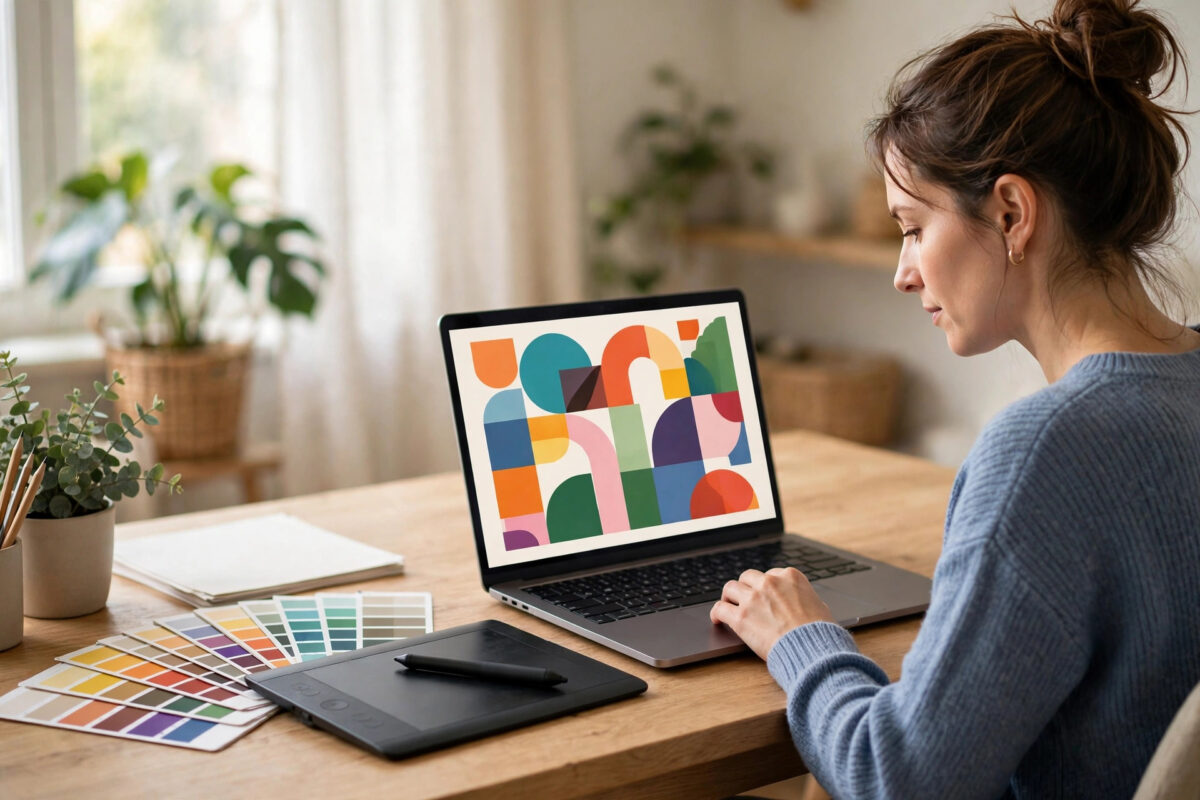
Graphic design used to mean an expensive software subscription, a powerful computer, and years of training before you could produce anything that looked professional. AI has changed that equation completely, especially for freelancers, students, and small business owners working with tight budgets.
The challenge now is not finding AI tools. It is choosing the right ones without wasting money on features you will never use. This guide walks through the most practical budget-friendly options, what each one does best, and how to combine them into a workflow that costs very little.
Quick Answer
The best budget approach is to start with a free all-in-one design platform, add a free AI image generator for custom visuals, and use a free background remover and upscaler for finishing touches. Most designers can cover 90 percent of client work this way before they ever need a paid plan.
Start With an All-in-One Design Platform
Your core tool should handle layouts, social media graphics, presentations, and simple branding in one place. Browser-based platforms are ideal for budget work because they run on almost any computer and include large template libraries.
What to Look for in Your Main Tool
Look for drag-and-drop editing, thousands of free templates, brand kit features on the free tier, and export options without watermarks. Canva’s free design platform is the most common starting point because its free tier is genuinely usable for professional work.
Before committing, test the tool with a real project. Create a social media post, a flyer, and a simple logo concept. If you can finish all three without hitting a paywall every five minutes, the free tier will likely serve you for months.
How to Set Up Your Workspace
- Create a free account and set up folders for each client or project type.
- Save your brand colours, fonts, and logo in one folder so every design stays consistent.
- Bookmark ten templates you like and customise them instead of starting from blank pages.
- Download finished work in the highest resolution the free tier allows and store backups locally.
This simple organisation step saves hours later. Many beginners waste their budget not on software, but on time lost searching for files and redoing work.
Use AI Image Generators for Custom Visuals
Stock photos are useful, but clients increasingly want visuals that competitors do not have. AI image generation lets you create original backgrounds, product mockup scenes, and illustration-style artwork from a text description.
Getting Good Results From Prompts
Weak prompts produce generic images. A strong prompt describes the subject, style, lighting, colours, and intended use in one clear sentence.
- Start with the subject, for example a coffee cup on a wooden cafe table.
- Add a style such as flat illustration, watercolour, or photorealistic product photo.
- Specify colours that match the client’s brand palette.
- Mention composition, such as copy space on the left for headline text.
- Generate four variations, pick the strongest, and refine from there.
Free tiers usually limit daily generations or resolution. Work around this by planning your images in batches. Write all your prompts first, generate them in one session, and save every usable result, even ones you might need later.
Know the Licensing Rules
Always check whether images from a free tier can be used commercially. Rules differ between tools and change over time. Keep a simple note for each project recording which tool made each image and under what terms, so you can answer client questions confidently.
Add Free Finishing Tools to Your Workflow
Professional results often come from small finishing steps rather than one expensive program. Three categories of free tools make the biggest difference for budget designers.
Background Removal
Cutting a product or person cleanly from a photo used to take twenty minutes of careful manual work. AI background removers now do it in seconds. Use them for product listings, profile graphics, and promotional images where a clean subject on a new background looks far more polished.
Image Upscaling
Clients often supply small, low-resolution images and expect large, sharp results. AI upscalers rebuild detail as they enlarge, which works well for print flyers and banners. Test the output at full size before promising a client a specific print dimension.
Colour Palette and Font Pairing Helpers
AI palette generators build harmonious colour schemes from a single photo or keyword. Font pairing suggestions prevent the amateur look that comes from mixing random typefaces. These small tools cost nothing and quietly raise the quality of everything you produce.
For more workflow ideas like these, our guide to practical AI tools and technology tips collects beginner-friendly tutorials in one place.
Build a Complete Budget Workflow
Individual tools matter less than how they connect. Here is a workflow that handles a typical small business project, such as a week of social media content, from start to finish.
- Plan the content in a simple document, listing each post, its message, and its size.
- Generate any custom images you need with your AI image tool and save them in one folder.
- Clean up client photos with the background remover and upscaler as needed.
- Build each design in your main platform using a saved template set for consistency.
- Apply the client’s palette and fonts, add text, and check alignment carefully.
- Export in the correct format for each platform and name files clearly.
- Review everything on your phone before delivery, because most audiences view designs on mobile.
When a Paid Plan Actually Makes Sense
Upgrade only when a specific paid feature will save you paid hours or win you work. Common triggers include needing transparent exports, team collaboration, larger storage, or commercial licences that the free tier excludes. If a paid plan costs less than one hour of your working time each month and saves you several hours, it is a business decision, not an indulgence.
Compare plans carefully using the official pricing pages, because features move between tiers regularly. Never pay annually until you have used the monthly option long enough to know the tool is essential to your workflow.
Common Mistakes Budget Designers Make
The most common mistake is collecting tools instead of learning one properly. Ten half-understood apps produce worse work than two tools you know deeply. Master your main platform first, then add one specialist tool at a time.
A second mistake is ignoring file organisation and backups. Free accounts can change terms, and losing client work because everything lived in one online account is an avoidable disaster. Download and back up finished projects weekly.
Many beginners also over-rely on AI output without editing. AI images can contain odd hands, misspelled text, and distorted logos. Zoom in and inspect every detail before delivery. Clients forgive a simple design, but they rarely forgive an obvious AI error in their branding.
Finally, avoid using AI to copy another designer’s distinctive style for commercial work. Use AI for original concepts, backgrounds, and efficiency, and keep your creative direction your own. That protects both your reputation and your client.
Conclusion
You do not need an expensive software stack to produce professional graphic design today. A free all-in-one platform, a free AI image generator, and a few finishing tools cover the vast majority of freelance and small business work when you use them with care and organisation.
Start free, build real projects, and let actual client needs tell you when an upgrade is worth it. Skill, consistency, and attention to detail will always matter more than the price of your tools.
Frequently Asked Questions
Can I really do professional client work with free AI tools?
Yes, for most social media, marketing, and small branding projects. The limits appear with advanced print work, large team collaboration, and certain commercial licences, so check terms for each project and upgrade only when a job requires it.
Which tool should a complete beginner learn first?
Start with one all-in-one browser-based design platform. Learn templates, text, images, and exporting properly before adding image generators or specialist tools. Depth in one tool beats shallow knowledge of many.
Are AI-generated images safe to use for clients?
They can be, but you must check the licence terms of the tool and tier you used, avoid prompts that copy living artists or brands, and inspect every image for errors before delivery.
How much should I expect to spend when I do upgrade?
Most designers upgrade one tool at a time to a standard paid tier rather than buying everything at once. Compare current plans on official websites, start monthly, and cancel anything you stop using.
What computer do I need for budget AI design tools?
Browser-based tools run well on modest laptops and even Chromebooks because the heavy processing happens online. A stable internet connection and a reasonably modern browser matter more than expensive hardware.


Leave a Reply