
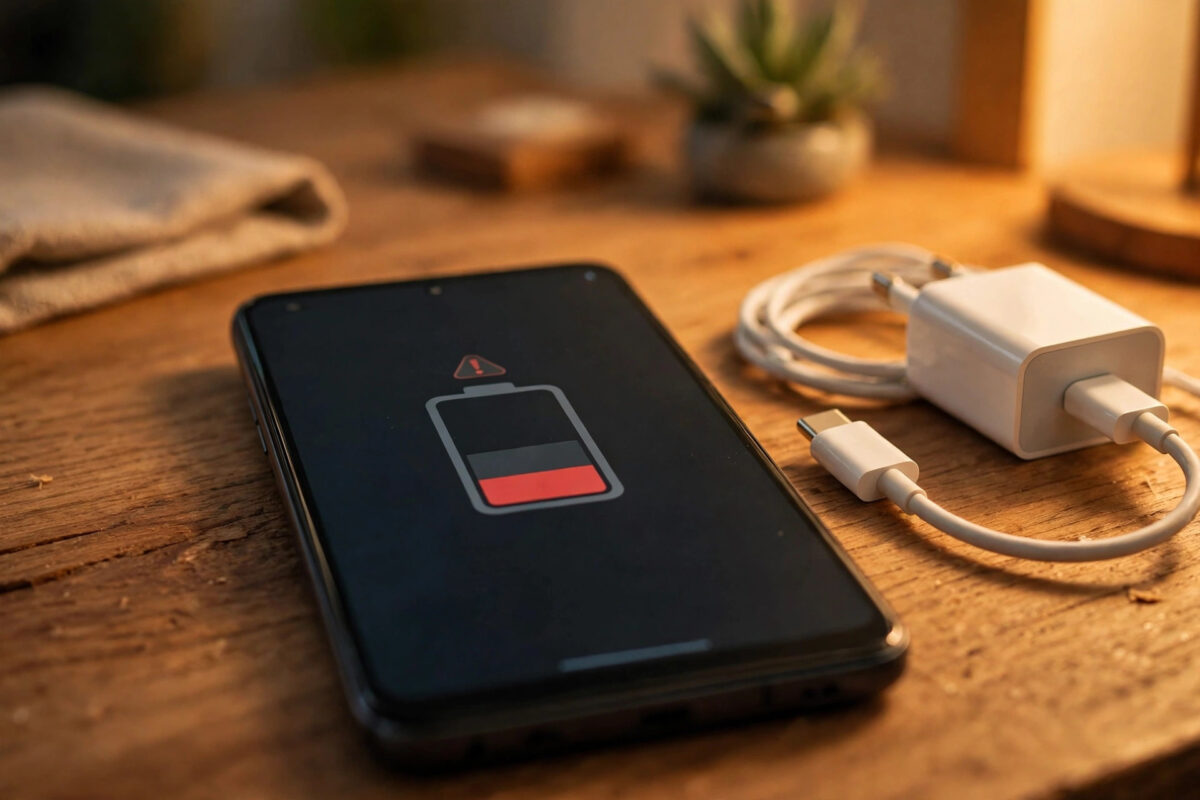
Your Android phone used to last all day. Now it barely makes it to the afternoon, even though you have not changed how you use it.
Battery drain is frustrating because the cause is rarely obvious. It could be one misbehaving app, a weak signal, a screen setting, or a battery that is wearing out.
Quick Answer
Check Settings > Battery > Battery usage first to find the top drainer. Then restrict that app, lower brightness, turn off always-on display, and limit location access. Most phones improve the same day.
How to Find What Is Draining Your Battery
Do not guess. Spend two minutes checking the usage screen and you will know exactly where to focus.
- On most phones, go to Settings > Battery > Battery usage.
- On Samsung One UI, go to Settings > Battery and device care > Battery > View details.
- On Xiaomi MIUI or HyperOS, go to Settings > Battery and tap the usage graph.
- On Pixel, go to Settings > Battery > Battery usage and view by app or by system.
If an app you barely use sits at the top with 25 percent, that app is the problem. If Screen is at the top, your display settings are the issue.
If Android System or Mobile Network is unusually high, the cause is more likely signal, software, or a stuck background process.
Also check battery health where available. Samsung users can run Settings > Battery and device care > Diagnostics.
On Pixel 8 and newer, health appears under Settings > Battery > Battery health. Below 80 percent health, software fixes will only help a little.
15 Proven Fixes for Fast Battery Drain
1. Restart Your Phone Properly
A full restart clears stuck processes that keep your processor awake for hours. This is especially common after an app freezes while syncing.
- Hold the power button.
- Tap Restart.
- Wait a full minute after the phone boots before judging battery use.
If you have not restarted in weeks, do this before anything else.
2. Update Your Apps and System Software
Developers regularly fix battery bugs. One bad app update can explain drain that started overnight.
- Open Play Store, tap your profile, then Manage apps and device > Updates available.
- Update all apps, especially social and navigation apps.
- Check for system updates at Settings > System > System update on Pixel, Settings > Software update on Samsung, or Settings > About phone > HyperOS version on Xiaomi.
3. Lower Brightness and Shorten Screen Timeout
The display is almost always the biggest power user. Maximum brightness all day will cancel out every other saving.
- Turn on Adaptive brightness at Settings > Display.
- Lower manual brightness when indoors.
- Set Settings > Display > Screen timeout to 30 seconds or 1 minute.
4. Limit the Always-On Display
Always-on display can cost 5 to 10 percent per day. It looks good, but it is not free.
On Samsung, go to Settings > Lock screen and AOD and choose Tap to show or set a schedule. On Pixel, use Settings > Display > Lock screen > Always show time and info.
5. Reduce the Screen Refresh Rate
A 90Hz or 120Hz screen feels smoother but uses more power. Switching to 60Hz helps immediately.
On Samsung, choose Standard at Settings > Display > Motion smoothness. On Pixel, turn off Smooth Display under Settings > Display.
On Xiaomi, go to Settings > Display > Refresh rate. Many people cannot tell the difference in normal use.
6. Restrict Background Battery Use for Hungry Apps
You can limit an app without uninstalling it. This works best for shopping and travel apps you open rarely.
- Go to Settings > Apps and pick the app.
- Tap App battery usage or Battery.
- Choose Restricted.
Do not restrict messaging, email, or alarm apps. Android will delay their notifications.
On Samsung, you can also add apps to Sleeping or Deep sleeping under Settings > Battery and device care > Battery > Background usage limits.
7. Control Location, Bluetooth, and Scanning
Location is a silent killer when many apps request it constantly. Tighten it up in one pass.
- Go to Settings > Location > App permissions.
- Change most apps to Allow only while using the app.
- Turn off Wi-Fi scanning and Bluetooth scanning under Settings > Location > Location services.
Only maps, ride-hailing, weather, and fitness apps need frequent location access.
8. Fix Weak Signal Drain
With poor signal, your phone boosts power and keeps searching for a better tower. One bar all day can drain a battery by lunchtime.
Connect to Wi-Fi where possible and enable Wi-Fi calling. In a dead zone with no coverage, Airplane mode saves far more than any saver setting.
If Battery usage shows Mobile Network at the top, signal is almost certainly your main issue.
9. Use Dark Mode on OLED Screens
On OLED and AMOLED screens, black pixels switch off, so dark mode genuinely saves power. This covers most Samsung, Pixel, and mid-range Xiaomi phones.
Enable it at Settings > Display > Dark theme. You can schedule it if you prefer light mode during the day.
On LCD screens the saving is negligible, so do not expect the same result there.
10. Remove or Replace the Worst App
Sometimes one app is simply badly built. Social, short-video, and free cleaner apps are frequent offenders.
Uninstall the suspect app for one day and compare. You can often use the mobile website instead, or switch to a lighter alternative.
If battery life returns to normal without it, you have found your answer. For more fixes like this, see our Android tips and guides at Network Ustad.
11. Turn On Adaptive Battery and Use Battery Saver Wisely
Adaptive Battery learns which apps you use rarely and limits them automatically. Make sure it is on at Settings > Battery > Adaptive preferences on Pixel.
Battery Saver is more aggressive. Turn it on at 20 or 30 percent via Settings > Battery > Battery Saver. On Samsung it is called Power saving.
Treat Battery Saver as a rescue tool, not a permanent mode. Left on, it delays notifications and slows the phone.
12. Cut Unnecessary Sync, Widgets, and Live Wallpapers
Every syncing account costs power. Review them at Settings > Passwords and accounts, or Settings > Accounts and backup on Samsung.
Remove home screen widgets you never look at, especially news and weather widgets that refresh constantly. Avoid animated live wallpapers too.
13. Clear a Bad App Cache and Scan for Malware
A corrupted cache can make an app loop endlessly. Clearing it is safe and quick.
- Go to Settings > Apps and select the app.
- Tap Storage and cache > Clear cache.
- Do not tap Clear storage unless you are happy to sign in again.
If drain started after installing an app from outside Play Store, remove it and run Play Store > Profile > Play Protect > Scan. Google covers long-term battery care in its official guide to getting the most life from your Pixel battery.
14. Avoid Heat and Cheap Chargers
Heat damages lithium batteries permanently. Do not leave your phone on a car dashboard or charge it under a pillow.
Avoid heavy gaming while fast charging if the phone gets hot. Use the charger that came with the phone, or a reputable replacement.
15. Reset as a Last Resort
If drain began after a major update, try a network reset before a full reset.
- Go to Settings > System > Reset options > Reset Wi-Fi, mobile and Bluetooth.
- Reconnect to your Wi-Fi networks afterwards.
- Only factory reset after a full backup, and only if nothing else works.
If a freshly reset phone still drains fast with almost nothing installed, the battery is worn. Samsung details its own checks in its Galaxy battery draining support guide.
Common Mistakes That Make Drain Worse
Force-closing all apps all day is the biggest mistake. Android keeps apps in memory by design, and relaunching them uses more power than leaving them alone.
Installing battery saver, cleaner, or RAM booster apps is another error. Most run constantly, show ads, and fight Android’s own power management.
Do not judge battery life in the first two days after a big update. The phone re-indexes files and relearns your habits, so temporary drain is normal.
If the phone is hot at rest, the back is bulging, or the percentage jumps from 30 to 10, stop troubleshooting software. A swollen battery needs a service centre, not a setting.
Conclusion
Fast drain is rarely a mystery once you check Battery usage. Usually it is one hungry app, a bright screen, constant location access, or weak signal.
If the battery itself is worn, no setting will restore it — but a replacement is far cheaper than a new phone.
Frequently Asked Questions
Why is my Android battery draining so fast overnight?
Overnight drain usually comes from background sync, weak signal, or an app waking the phone. Check Battery usage in the morning, restrict the top app, and try Airplane mode or Bedtime mode overnight.
Does 5G drain the battery faster than 4G?
Yes, especially where 5G is patchy and the phone keeps switching networks. Try setting the preferred network to 4G/LTE under Settings > Network and internet > SIMs for a day and compare.
How long should an Android battery last before replacing it?
Most batteries keep about 80 percent capacity after 500 full cycles, roughly two years of daily charging. If software fixes do not help and runtime is much shorter, a replacement is likely due.
Is it bad to charge my phone to 100 percent every night?
It will not ruin the battery quickly, but holding 100 percent while warm ages it faster. If your phone offers an 80 or 85 percent limit or adaptive charging, using it helps long-term health.
Why does my battery percentage drop quickly then slow down?
Uneven drops often mean the gauge needs recalibrating or the battery is ageing. Use the phone until it shuts down, charge uninterrupted to 100 percent once, and if it continues, get the battery tested.



Leave a Reply