
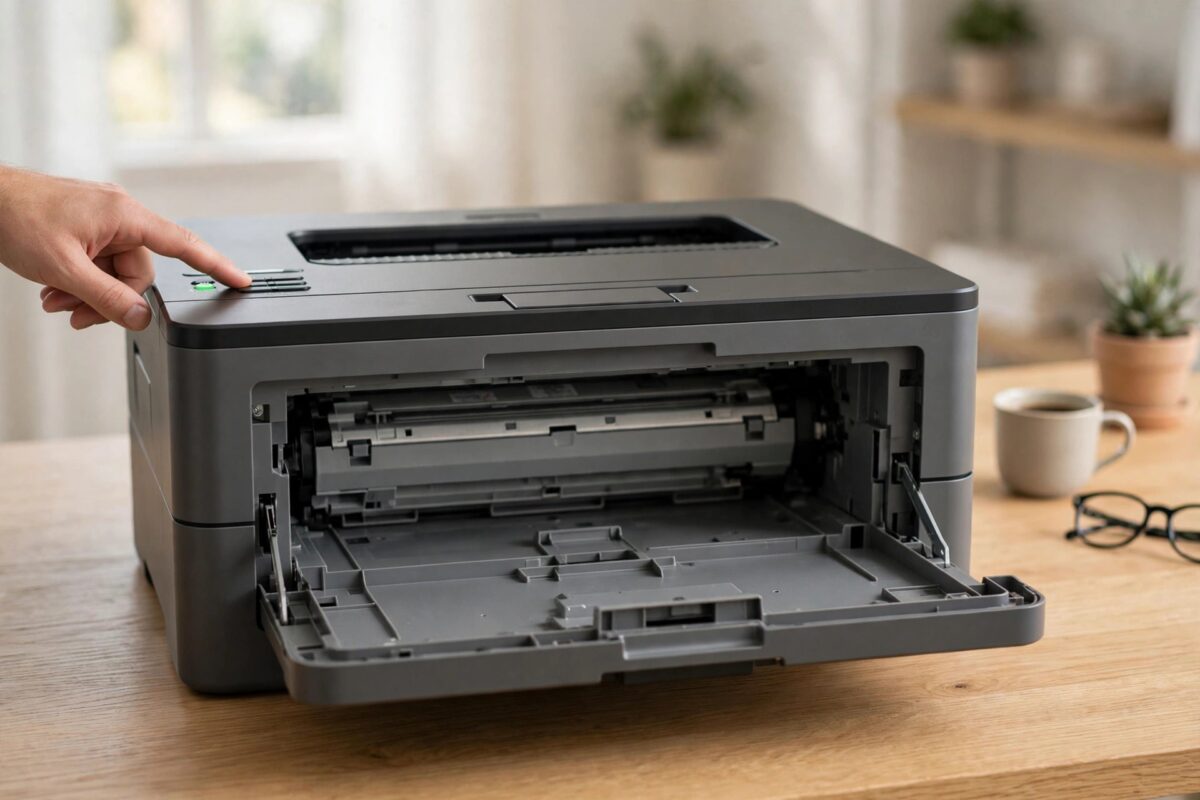
The Brother HL-L2370DW is a fast and reliable monochrome laser printer, but it can stop printing when it decides the toner has reached the end of its counted life. If you have fitted a new cartridge and the Toner light or Replace Toner message is still showing, the toner counter may need a manual reset.
This guide explains the exact front-cover reset sequence for the HL-L2370DW, how to choose the right cartridge capacity, and what to check if the reset does not hold.
Quick Answer
With the printer on, open the front cover, press and hold Secure and X Cancel together, then use the arrow keys to select the toner capacity you installed and press OK. Wait for Accepted to appear, close the cover, and check that the Ready light is on. The whole reset takes less than two minutes when the cartridge is seated correctly.
How the Toner Counter Works on the HL-L2370DW
The HL-L2370DW does not weigh the toner left in the cartridge. It counts pages, drum rotations, and toner coverage to estimate when the cartridge should be empty. When that estimate reaches the limit for a standard or high-capacity cartridge, the printer stops and asks for a replacement.
A new genuine cartridge should trigger a reset through its reset gear when it is first installed. If the cover was closed too fast, the cartridge was not fully clicked in, or a compatible cartridge has a slightly different gear, the automatic reset can be missed. A manual reset tells the printer directly that a new cartridge of a known capacity is now fitted.
Before You Start
- Confirm the new cartridge is actually installed. A manual reset will not add toner to an empty cartridge.
- Know your cartridge code and capacity. The HL-L2370DW commonly uses TN-730 as standard capacity and TN-760 as high capacity in North America, with different TN codes in other regions.
- Keep the printer turned on during the reset. Turning it off mid-sequence cancels the process.
- Close any error screens on your computer, but do not delete print jobs you still need until you have tested the reset.
Step-by-Step: Manual Toner Reset for HL-L2370DW
Follow these steps exactly and in order. The timing of the button press matters, so read the full list once before you begin.
- Turn the printer on and wait until it finishes its warm-up sounds.
- Open the front cover and leave it open. You should see the Toner or error indication change.
- Press and hold the Secure button and the X Cancel button at the same time.
- The toner reset menu will appear on the small display or through the LED pattern for this model. Release both buttons when the menu shows.
- Press the up or down arrow key to select the toner you installed. Choose Std for a standard-capacity cartridge or HC or High for a high-capacity cartridge, as shown on your display.
- Press OK to confirm. The display should show Accepted.
- Close the front cover firmly.
- Wait for the green Ready light to stay solid and for the Toner light to go off.
- Print a test page from the printer menu or from your computer to confirm normal printing.
If Accepted does not appear, repeat the sequence more slowly. Many failed attempts happen because the two buttons were not pressed at exactly the same time, or because the wrong capacity was selected and then cancelled.
Choosing the Correct Capacity Option
Selecting the right capacity is not a small detail. The printer uses your choice to set the new page limit. If you tell it a high-capacity cartridge is fitted when you installed a standard one, the printer will expect far more pages than the cartridge can give. Print will fade badly before the next warning, and toner may run completely dry.
If you do the opposite and set a high-capacity cartridge as standard, you will get an early Replace Toner warning and waste usable toner. Check the cartridge box, not just the label on the old cartridge you removed. Starter cartridges supplied with a new printer often have a lower yield than both standard and high-capacity replacements, so do not copy the starter setting for a new cartridge.
Regional codes can also confuse users. A cartridge bought in another country may fit the printer but carry a different TN number. In that case, match by stated page yield and capacity type rather than by code alone, and keep the packaging in case you need to return it.
What to Do If the Reset Does Not Work
Reseat the Cartridge and Clean the Corona Wire
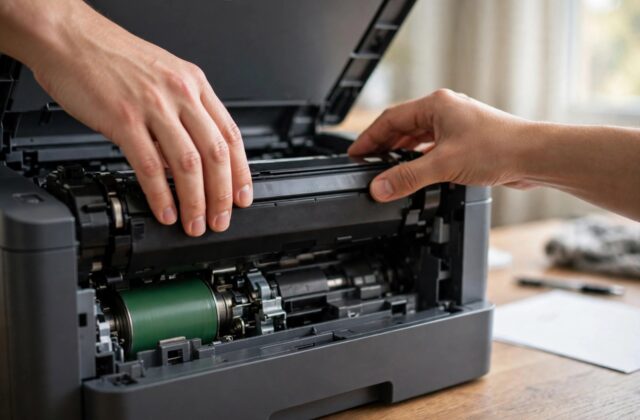
- Open the front cover and pull out the drum and toner assembly.
- Press the green lock lever and remove the toner from the drum.
- Rock the toner gently side to side to distribute toner evenly.
- Slide the green tab on the drum from side to side several times to clean the corona wire, then return it to the triangle mark.
- Click the toner back into the drum, reinstall the assembly, and repeat the manual reset.
Check for Protective Material and Damage
Look for any tape, paper, or plastic still covering the cartridge openings or electrical contacts. Check that the cartridge is not leaking toner powder and that the small chip or contacts are not scratched. A damaged contact can prevent the printer from saving the reset even when Accepted appears briefly.
Power Cycle Correctly
Turn the printer off, unplug it for sixty seconds, then plug it directly into a wall socket rather than a worn extension lead. Turn it on, wait for warm-up to finish fully, and try the reset once more before sending a print job. Rushing a print job during warm-up can bring the old error back to the computer screen even when the printer itself has cleared.
For the official steps and diagrams for this model, use the Brother online user guide and manual library and select the HL-L2370DW exactly, rather than a similar HL model.
Printing a Settings Page to Confirm the Reset
After a successful reset, printing the Printer Settings page is a good check. It shows toner life as a full bar or near one hundred percent for a new cartridge.
- Make sure paper is loaded and the printer shows Ready.
- Press Menu, go to Print Reports, and select Printer Settings.
- Press OK or Start to print the report.
- Check the toner remaining section and the total page count.
If the report shows full toner but the computer still shows a low toner warning, restart the print spooler or remove and re-add the printer on the computer. Old status messages on the computer can linger after the printer itself is fixed. Our walkthrough on fixing a Brother printer that shows offline on Windows covers those computer-side status checks in detail.
Common Mistakes and Useful Tips
- Resetting an empty cartridge: The counter will reset, but print quality will stay pale and streaky. A reset is not a refill.
- Pressing the wrong button pair: On this model the Secure and X Cancel combination opens the reset menu. Random combinations from other Brother models will not work.
- Selecting capacity from memory: Always read the new box. Standard and high-capacity cartridges look almost identical.
- Closing the cover before Accepted: Wait for the confirmation word on the display before you close the cover.
- Using a cartridge without a reset gear: Some budget compatibles cannot reset automatically and may need the manual sequence every time, or may never clear fully.
A helpful habit is to write the install date and cartridge type on a small label on the box and keep the box until the next change. When a warning appears months later, you will know exactly what is fitted.
Conclusion
Resetting the toner counter manually on a Brother HL-L2370DW is simple once you know the Secure plus X Cancel sequence and choose the correct capacity. Reseat the cartridge, clean the corona wire, complete the reset with the front cover open, and confirm with a settings page. If the Toner light still stays on after a careful repeat, the cartridge or drum needs closer inspection rather than more button presses.
Frequently Asked Questions
Will resetting the counter harm my HL-L2370DW?
No, using the built-in reset for a new cartridge you have actually installed is safe and is the method Brother designs for this situation. Harm only risks occurring if you keep resetting a truly empty cartridge and run the printer completely dry.
What is the difference between TN-730 and TN-760?
TN-730 is the standard-capacity cartridge and TN-760 is the high-capacity version for this printer family in North America, giving more pages per cartridge. Always select the matching standard or high option during the manual reset.
Why does Accepted appear but the Toner light stays on?
The cartridge may not be clicked in, the contacts may be dirty, or the drum may have reached the end of its life at the same time. Reseat the assembly, clean the corona wire, and print a settings page to separate a toner warning from a drum warning.
Can I reset the drum counter with the same steps?
No, the drum counter has a different reset procedure and should only be reset when you fit a new drum unit. Resetting the drum count without changing the drum hides real wear and leads to poor print quality.
Do I need to reinstall the driver after a toner reset?
Normally no. A toner reset is handled inside the printer. If your computer still shows the old warning after the printer shows Ready, restart the computer or remove and re-add the printer queue instead of reinstalling everything at once.
Leave a Reply