
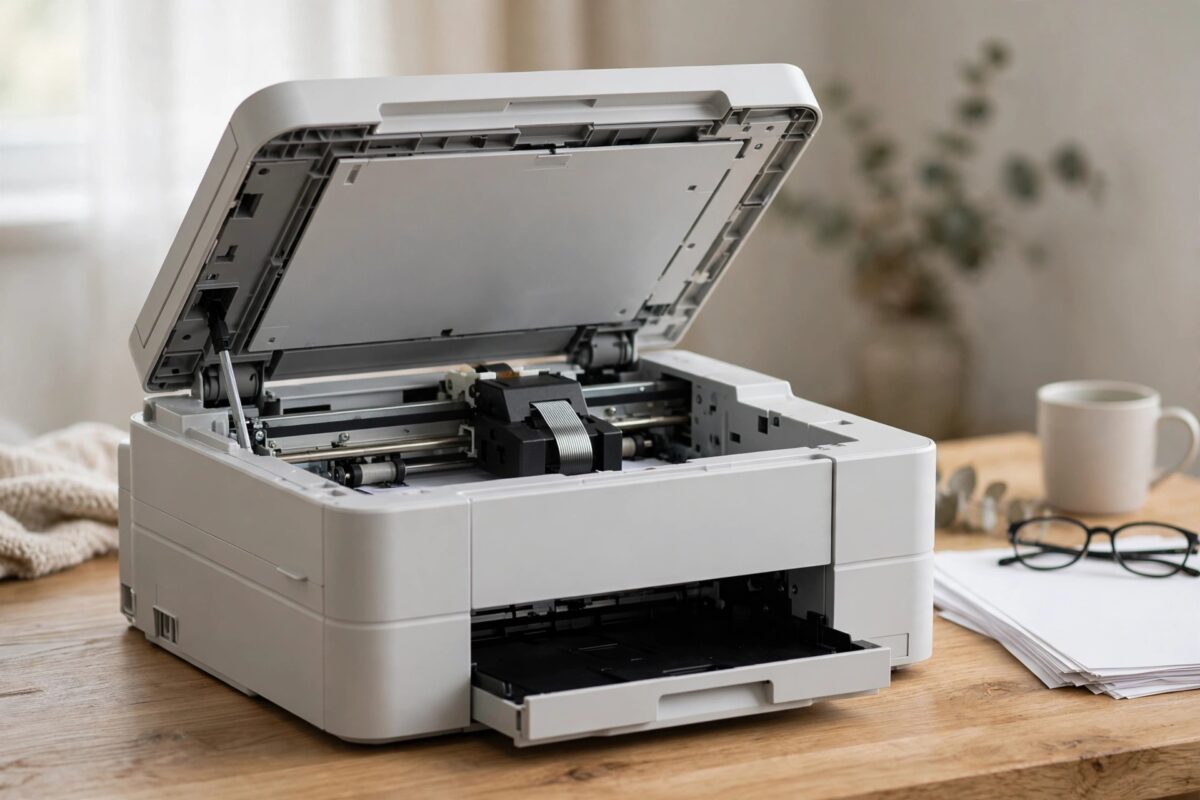
Your Brother MFC-J497DW is a compact inkjet all-in-one made for home and small office use, so a sudden “Print Unable 02” message can stop everything at once: printing, copying, and scanning. The printer may make a short mechanical noise on start-up and then stop, or it may work for one page and fail on the next. Either way, the message sounds like a major failure.
In many cases, though, the cause is something you can find yourself: a jammed sheet, a scrap in the carriage path, or an encoder problem caused by ink and dust. This guide takes you through the checks in the right order and helps you decide when the printer needs professional repair.
Quick Answer
“Print Unable 02” on a Brother MFC-J497DW means the printer has detected a problem with the movement of the print head carriage or the paper feed system. Turn the printer off, unplug it, and check the full carriage path, the paper tray, and the jam clear cover at the back for paper, scraps, or objects. If the carriage moves freely by hand when unplugged, the path is fully clear, and the error still returns on start-up, the fault is likely the encoder strip, a motor, or the main board and needs Brother service.
What Print Unable 02 Means on an Inkjet Model
The MFC-J497DW is an inkjet printer, not a laser printer. It prints by moving a print head carriage left and right across the page while rollers advance the paper in small steps. For this to work, the printer must know exactly where the carriage is at all times. It tracks position using a clear plastic encoder strip that runs across the printer behind the carriage, passing through a small sensor on the carriage itself.
Code 02 is raised when that movement system reports an abnormal result. The carriage may have hit an obstruction, the encoder strip may be dirty or displaced so the sensor cannot read it, the paper feed may have jammed, or a motor or board fault may have stopped movement altogether. The printer then locks itself to avoid damaging the head or tearing the paper.
How This Differs From a Normal Paper Jam Message
A normal jam message names the location and clears once you remove the sheet. Print Unable 02 appears when the machine’s self-check fails, even if no jam is visible. That is why simply opening and closing the covers rarely clears it. You have to find and remove the cause, then let the printer run a clean start-up check.
Safety and Preparation
- Turn the printer off and unplug the power cord. Never move the carriage by hand while the printer is powered.
- Use a torch to inspect inside. Inkjet interiors are dark and the encoder strip is almost transparent.
- Never use sharp tools inside the printer. Paper is removed with your fingers, pulling gently and evenly.
- Keep liquids away from the interior. The only cleaning described here is a barely damp lint-free cloth on the encoder strip.
Step-by-Step Checks for Print Unable 02
Step 1: Perform a Full Power Reset
- With the printer on, press the power button to turn it off.
- Unplug the power cord from the printer and the wall.
- Wait at least 60 seconds.
- Plug the cord back into a wall socket directly and turn the printer on.
- Watch during start-up. Note whether the carriage attempts to move and whether the code appears before or after that movement.
Step 2: Remove All Paper and Check the Tray Area
- Pull the paper tray out completely and remove all paper from it.
- Look inside the tray slot with a torch for torn pieces or curled sheets stuck at the feed rollers.
- Remove any damaged, damp, folded, or mixed-size sheets from the stack.
- Fan a small stack of fresh plain paper, reload it, and adjust the guides so they rest lightly against the stack.
- Leave the tray out for the next step so you can see the feed area clearly.
Step 3: Check Inside the Printer and the Carriage Path
- With the printer unplugged, look along the full width of the carriage path for paper, tissue, or packing material.
- If the carriage stops or grinds at one point, look closely at that exact spot for a scrap or object.
- Look under the carriage where it stopped. Small pieces often hide beneath the head.
- Remove any jammed sheet by pulling it gently towards the front, keeping both hands even so it does not tear.
- Close the scanner cover carefully when finished.
For more detail on safe access points, see our guide to Brother inkjet maintenance and jam prevention basics for cover locations and handling tips.
Step 4: Check the Jam Clear Cover at the Back
- Turn the printer around so the back faces you.
- Open the jam clear cover by its tabs and lower it fully.
- Remove any paper inside, pulling slowly towards you.
- Look deep inside with a torch for small torn pieces near the rollers.
Step 5: Inspect and Clean the Encoder Strip
- Unplug the printer and open the scanner cover.
- Locate the clear plastic strip running horizontally across the printer, just behind the carriage rail.
- Look for ink smears, grey film, or a section where the strip has slipped out of the carriage sensor.
- If the strip is in place but dirty, lightly dampen a lint-free cloth with distilled water and wring it almost dry.
- Pinch the strip very gently through the cloth and wipe along a short section. Do not pull the strip sideways or stretch it.
- Repeat along the full length, then let it dry for five minutes before testing.
Brother’s guidance for carriage problems is covered in the official MFC-J497DW support and manual pages. If the strip is torn, creased, or detached from its mount, cleaning will not fix it and the printer needs a technician.
Step 6: Check Ink Cartridges
A cartridge that is not fully clicked in can sit slightly high and obstruct the carriage. Press each cartridge in until it clicks and check none are swollen or leaking. Close all covers firmly, then plug the printer in and test.
Testing After the Fix
- Print a Print Quality Check Sheet from the maintenance menu and confirm all colours appear.
- Run a head cleaning only if the quality sheet shows gaps. Do not run repeated cleanings.
- Print a single plain document from your computer.
- Copy one page using the scanner glass to test the feed and carriage together.
- If all tests pass, return to normal use and watch the next few jobs.
Common Mistakes to Avoid
- Forcing the carriage while powered: Always unplug the printer before moving the carriage by hand, or you can damage the motor drive.
- Pulling jammed paper backwards: Pull in the direction of normal travel for that area unless the manual says otherwise, and never yank.
- Touching the print head nozzles: The underside of the head is delicate and easily damaged.
- Updating firmware during an error: Never start a firmware update while a Print Unable code is active.
When the Printer Needs Professional Repair
Arrange service if the carriage will not move by hand when unplugged, if the encoder strip is damaged or detached, if you hear loud grinding during start-up, or if code 02 returns immediately after all the checks above. These signs point to a failed carriage motor, a broken belt, a faulty sensor, or a main board problem. Information on warranty and repair is available via Brother’s official support portal. If the printer is out of warranty, request a fixed quote first, as a board repair can cost more than a modern replacement.
Conclusion
“Print Unable 02” on the Brother MFC-J497DW means the carriage or feed movement check has failed, most often because of a hidden jam, an obstruction in the carriage path, or a dirty encoder strip. A full power reset, careful checks of the tray, interior, and rear jam clear cover, gentle carriage movement by hand, and a cautious encoder strip clean resolve the recoverable cases. If the error survives those checks, the printer needs Brother support or a qualified repairer rather than being forced.
Frequently Asked Questions
Can a paper jam really cause Print Unable 02 instead of a jam message?
Yes. If paper blocks the carriage or loads the feed motor during the start-up self-check, the printer reports a machine error rather than a simple jam location. Removing every scrap, including from the back cover, and restarting cleanly is therefore the first fix to try.
Where is the encoder strip on the MFC-J497DW?
It is the thin, clear plastic strip that runs across the full width of the printer behind the carriage rail, visible when you open the scanner cover. It passes through a sensor slot on the carriage so the printer can track carriage position.
My carriage is stuck on the right side and will not move. What should I do?
Unplug the printer and check for paper or an object locking it in place. Do not force it hard. If it still will not slide gently after the path is clear, the parking lock or motor may have failed and the printer needs service.
Will replacing the ink cartridges clear Print Unable 02?
Only if a badly seated or wrong-shaped cartridge was obstructing the carriage. The code is a movement error, not an ink level error. Reseating your current cartridges is worth doing, but buying new cartridges is not a fix for this code by itself.
How can I prevent Print Unable 02 from coming back?
Use flat, good quality paper, keep the paper guides snug, remove jammed sheets whole and gently, and keep the printer closed when not in use to reduce dust on the encoder strip. Print at least once every week or two so the carriage stays in regular use.
Leave a Reply