
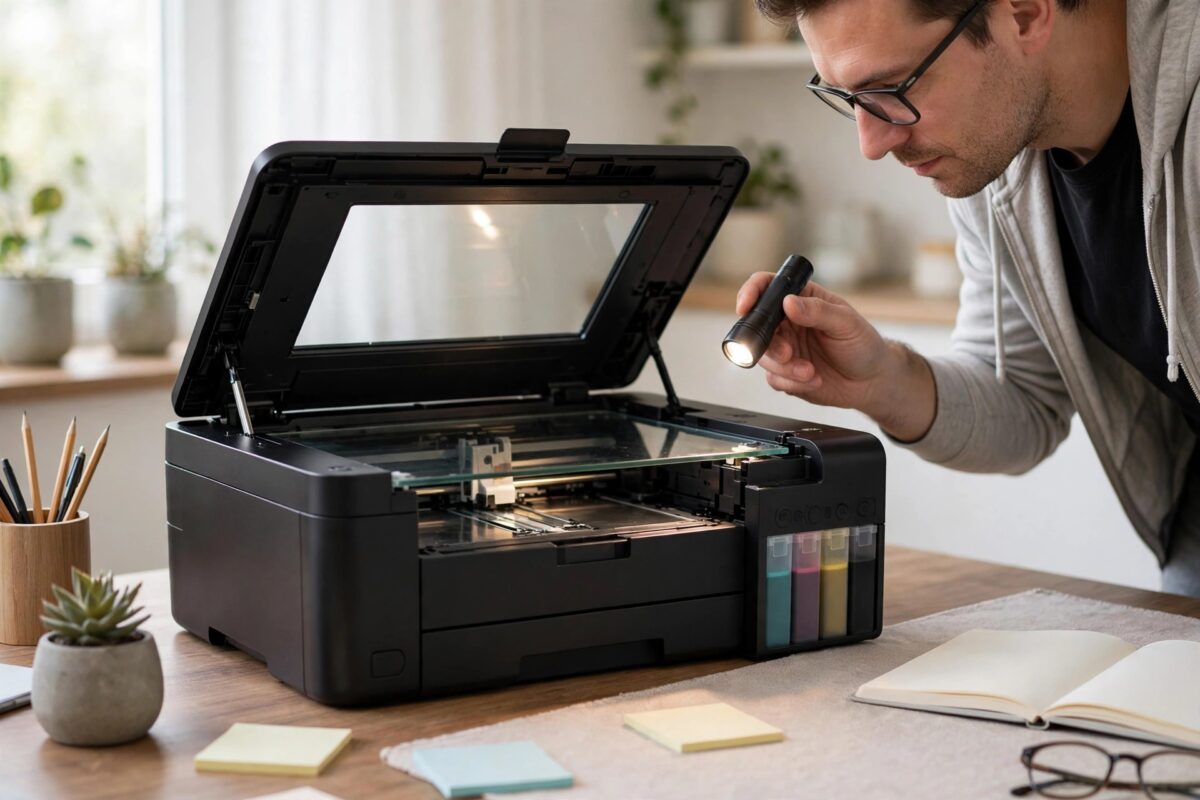
You press the scan button on your EcoTank ET-4760 and instead of a quiet scan, the screen shows error code 0x10. Sometimes the scanner makes a grinding or clicking sound first. Sometimes it appears right at start-up, before you touch anything. Either way, scanning stops completely until the fault is cleared.
Error 0x10 is a scanner unit error, but it does not always mean the scanner is dead. On the ET-4760 it often comes from the scanner carriage being stuck, the scanner lock being left on after moving the printer, a dirty or fogged calibration area, or a simple start-up glitch. Work through the checks below in order before you think about repairs.
Quick Answer
Epson error code 0x10 on the EcoTank ET-4760 means the scanner carriage cannot move or cannot find its home position during start-up. Turn the printer off, open the scanner lid, make sure the transportation lock is released and nothing is blocking the carriage, then restart the printer. If the error stays, gently check the carriage path, clean the glass and the white calibration strip area, update the firmware, and contact Epson if the code returns after every restart.
What Error Code 0x10 Actually Means
Every time the ET-4760 starts, the scanner runs a short self-test. The scan head, called the carriage, slides along a metal rail under the glass, reads a white reference strip, and settles at its home position. The printer expects this whole routine to finish within a set time and with the right signals from the scanner sensor.
Error 0x10 appears when that routine fails. The carriage may be physically blocked, the motor may be struggling, the lock may be holding the carriage in place, or the sensor may not be able to read the reference strip. The code is a starting point for checks, not a final verdict on the hardware. Epson describes scanner errors and their first checks in the Epson support documentation for EcoTank scanner errors, and the ET-4760 manual follows the same order of checks used here.
Typical triggers for the 0x10 error
- The scanner transportation lock was left engaged after moving the printer
- A small object, paper clip, or packing material is under the glass area blocking the carriage
- The carriage is stuck at one end of its rail after a power cut during scanning
- Dust, haze, or marks on the glass or reference strip confuse the scanner sensor
- The flat ribbon cable to the scanner has worked loose
- A firmware glitch interrupted the start-up self-test
- A worn or failed scanner motor or sensor, which is the least common cause
Step 1: Power Reset the Printer Properly
Start with a full power reset, not just the power button. Electronic glitches during the scanner self-test often clear once the printer has fully discharged.
- Turn the printer off with the power button and wait for the screen to go dark.
- Unplug the power cable from the back of the printer.
- Wait at least sixty seconds. This lets the internal power fully drain.
- While you wait, open the scanner lid and look along the glass for anything unusual.
- Plug the cable back in, turn the printer on, and watch the scanner area as it starts.
- Listen for the carriage. It should glide smoothly and settle quietly at one end.
If the error has gone and a test scan works, the fault was a temporary start-up glitch. If 0x10 comes straight back, keep going with the physical checks.
Step 2: Check the Scanner Lock and Carriage
The ET-4760 has a transportation lock that holds the scanner carriage still while the printer is being moved. It protects the scanner in transit, but the printer cannot scan at all while it is engaged, and the self-test fails with a scanner error.
How to check the lock and free the carriage
- Turn the printer off and unplug it again before touching anything inside.
- Open the scanner lid fully and locate the lock switch near the scanner hinge area, following the markings in your manual.
- Make sure the lock is in the unlocked position. If you recently moved or stored the printer, this is the most likely cause.
- Shine a light under the glass edges and look for paper clips, labels, staples, or torn paper near the carriage rail.
- If the carriage is sitting in the middle of the glass, slide it very gently toward the end of its travel with even pressure. Never force it if it resists.
- Check the white plastic strip at the far edge under the glass. It should be clean and seated flat, because the scanner reads it during start-up.
- Close the lid, plug in, and restart the printer.
Our related guide on fixing an Epson scanner that is not working or not detected covers connection and software faults if your scanner starts fine but will not communicate with the computer.
Step 3: Clean the Glass and Reference Area
The scanner sensor is picky about its reference point. A fingerprint, sticker residue, or a film of dust near the calibration strip can make the carriage hunt back and forth and then give up with error 0x10.
- Use a soft microfibre cloth, very slightly damp with water, on the scanner glass.
- Pay special attention to the strip of glass above the white reference bar at the end of the scan bed.
- Wipe the white plastic bar on the underside of the lid as well, since dirt there also affects readings.
- Dry the glass with a second clean cloth so no streaks or moisture remain.
- Never spray cleaner directly onto the glass, because liquid can seep under the edges into the scanner unit.
Step 4: Rule Out Cables, Firmware, and Software
If the mechanics look fine, work through the support side. A carriage that moves normally during start-up but still triggers 0x10 can be suffering from a communication or firmware problem rather than a jam.
- Disconnect the USB cable if you use one, and start the printer on its own. A faulty cable or computer should not be able to confuse the self-test, but this rules it out.
- Copy a page using only the printer screen. If copying works, the scanner hardware is fine and the problem is on the computer side.
- Download and install the latest ET-4760 drivers and firmware from the official Epson drivers and support downloads page for your model.
- Remove and reinstall the Epson Scan 2 software if scans fail from the computer but copies work.
- Restart the computer after reinstalling, then test a scan at a low resolution first.
When the Error Points to a Hardware Fault
Sometimes 0x10 survives every reset and check. That pattern usually means a part inside the scanner unit has failed or a cable has come loose in a place users should not open.
Warning signs of a real hardware failure
- The carriage never moves at all and the printer is silent during start-up
- There is a loud grinding or repeated clicking from the scanner area
- The carriage slams to one end and the error appears at once
- The code returns after every single restart, even with the lid open checks done
- The fault began right after the printer was dropped or heavily knocked
Do not open the sealed scanner unit yourself. The ET-4760 scanner assembly is not a user-serviceable part, and opening it can void the warranty and disturb the carriage alignment. If the printer is in warranty, contact Epson for a repair or exchange. If it is out of warranty, weigh the service cost against the price of the printer, since scanner unit replacement can approach the cost of a new machine.
Mistakes and Tips to Remember
- Do not keep restarting endlessly: repeated power cycles with a stuck carriage can strain the motor. Do the checks between restarts.
- Do not force the carriage: gentle pressure only. A carriage that will not move by hand has a lock, a blockage, or a failed mechanism.
- Check the lock after any move: even a move across the room can leave you chasing this error if the lock was switched on for safety.
- Keep the area above the printer clear: heavy boxes on the lid are an overlooked cause of slow carriage movement.
- Update firmware while things work: doing updates during a healthy period avoids being forced into them mid-fault.
Conclusion
Error code 0x10 on the ET-4760 means the scanner carriage failed its start-up self-test, and the most common reasons are simple: the transportation lock left on, a small blockage, a stuck carriage after a power cut, or a dirty reference area. A full power reset, a careful lock and carriage check, a glass clean, and up-to-date firmware clear the error in many cases. If the code returns after every restart with grinding noises or a carriage that never moves, stop there and arrange service, because that pattern points to a hardware fault inside the scanner unit.
Frequently Asked Questions
Does error 0x10 mean my scanner is broken for good?
Not usually. The code only says the carriage self-test failed. Locks, blockages, dirty glass, and start-up glitches all trigger the same code, and those are all fixable without parts.
Can I still print when error 0x10 is showing?
On most units the error blocks the whole machine until it is cleared, because the fault appears during start-up. Clear the scanner issue first, then printing will normally return.
Where is the scanner lock on the ET-4760?
The lock switch sits by the scanner unit near the hinge area and is marked with lock and unlock symbols. Your model manual shows its exact position, so check the diagram before moving it.
Why did 0x10 appear after I moved house?
Moving is the classic trigger. The lock may have been switched on for transport and left on, or the carriage shifted during the journey. Check the lock first, then do a power reset.
Will a firmware update really fix a scanner error?
It can, when the fault is a start-up routine glitch rather than a mechanical problem. It will not fix a jammed or failed carriage, which is why the physical checks come first.


Leave a Reply