
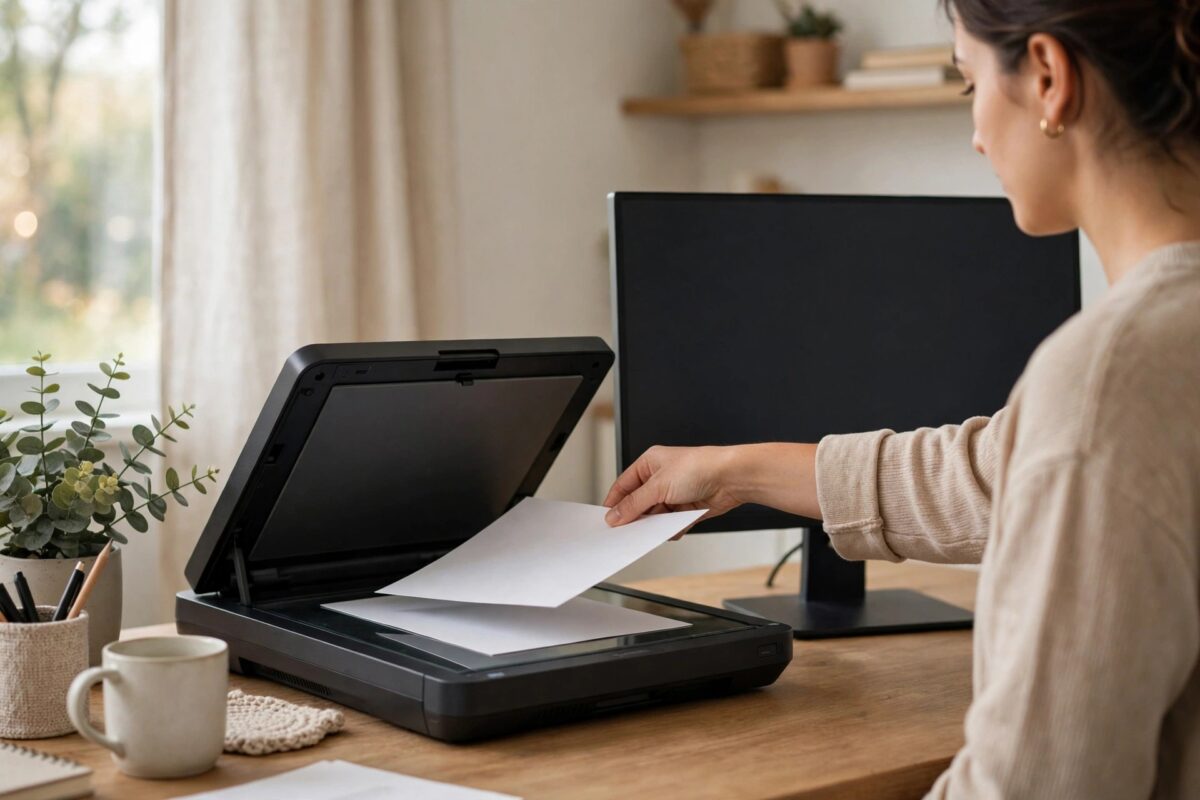
You place a document on the scanner, press Scan to Computer on the HP printer’s screen, and it answers with “No Computer Found” — even though your PC is on, connected, and prints to this very printer without trouble. Scanning to a computer needs more than printing does: the printer must be able to discover the PC and talk to the HP scan software on it, and that feature has to be switched on. When any link in that chain breaks, you get this message. This guide rebuilds the chain step by step.
Quick Answer
“No computer found” on an HP scanner means the Scan to Computer feature is not active or the printer cannot reach the HP software on your PC. Open HP Smart or the HP printer software on the computer, find Manage Scan to Computer, and make sure it is enabled. Confirm the PC and printer are on the same network, restart both, and check that your firewall or antivirus is not blocking the HP scan software. Then try the scan again from the printer panel.
How Scan to Computer Actually Works
Printing is one-way: the PC sends, the printer receives. Scan to Computer is two-way — the printer reaches out to find registered computers on the network and pushes the scan to the HP software listening there. That means it fails when:
- The Scan to Computer feature was never enabled, or a software reinstall switched it off.
- The HP software on the PC is not running or its background service is stopped.
- The PC and printer are on different networks or bands that the router keeps separated, or the PC is on a VPN.
- A firewall blocks the printer from contacting the PC.
- The PC’s network profile is set to Public, which makes Windows hide the computer from other devices.
Step 1: Enable Scan to Computer on the PC
- On the computer, open the HP printer software (the full-feature program installed with the driver, not just HP Smart). Search your Start menu for your printer model name.
- Open the Scan section and look for Manage Scan to Computer.
- If it shows as disabled, enable it and tick the option to activate automatically when the computer starts, if offered.
- Leave the software as it is — the background component now listens for the printer.
- Go back to the printer and try Scan to Computer again; your PC’s name should now appear in the list.
HP covers this activation in its scan to computer setup guidance, and notes that a computer restart may be needed the first time you enable it.
Step 2: Put the PC and Printer on the Same, Visible Network
- Confirm both are connected to the same network name. If the PC is wired and the printer is on Wi-Fi that is fine, as long as it is the same router and network — guest networks are the exception, since they isolate devices.
- Disconnect any VPN on the PC; VPNs routinely hide the PC from local devices.
- On Windows, open Settings, Network & Internet, your connection’s properties, and set the network profile to Private. On a Public profile, Windows blocks the discovery the printer needs.
- Restart the printer and the PC so both re-register on the network cleanly.
Step 3: Check Firewall and Services
If the feature is enabled and the network is right but the printer still finds nothing:
- Temporarily allow the HP software through the firewall: in Windows Defender Firewall, check that your HP printer software entries are allowed on Private networks. Third-party antivirus suites have similar app rules.
- Open Services and confirm the WIA (Windows Image Acquisition) service is running and set to Automatic — HP scanning depends on it.
- Also confirm the Print Spooler is running; HP’s scan components share some plumbing with printing.
- Test once with the antivirus real-time shield briefly paused. If scanning works then, add a permanent exception for the HP software rather than leaving protection off.
Step 4: Use the Workarounds While You Fix It
If you need the scan now, scan the other way round: open HP Smart or Windows Scan on the PC and start the scan from there — PC-initiated scanning uses a different path and often works while Scan to Computer is broken. You can also scan to email or to a USB drive on models that support it. But do finish the fix; our guide to scanning from a printer to a computer walks through both directions if you want the full picture.
Common Mistakes to Avoid
- Reinstalling the driver without enabling the feature afterwards — a fresh install often leaves Scan to Computer off, so the fault survives the reinstall.
- Testing while the PC is asleep — a sleeping PC cannot be found, full stop. Wake it and disable sleep during testing.
- Assuming printing success proves scanning should work — they use different directions of communication and different software components.
- Forgetting the Public network profile — laptops that travel often get switched to Public and quietly break home scanning.
A Note About “Scan to Computer” After Moving House or Changing Routers
This feature is unusually sensitive to network changes, and a router swap is its most common breaking point. The new router may place the printer and PC on different subnets if one is wired to an extender, may enable client isolation by default, or may assign the PC a network profile of Public the first time it joins. After any network change, treat Scan to Computer as needing re-registration: open the HP software on the PC, disable and re-enable Manage Scan to Computer, and reboot both devices so the printer learns the PC’s new address. If you use more than one PC, repeat the re-enable on each. It also helps to give the printer a reserved IP address in the new router, so the PC’s HP software always looks in the right place. Five minutes of this housekeeping after a router change saves the confusing situation where printing works beautifully — printing is far more forgiving — while scanning insists no computer exists.
Once it works, resist the urge to tidy up by uninstalling the extra HP software. The scanning components live inside the full package alongside the print driver, and removing pieces of it is a common way this feature silently breaks months later. Disk space is cheap; a working Scan to Computer setup is worth more.
Conclusion
“No Computer Found” is a discovery problem, not a scanner fault. Enable Scan to Computer in the HP software on the PC, make sure the PC and printer share a Private network without a VPN in the way, and check the firewall and WIA service. Work through those in order and your computer’s name will reappear on the printer’s scan screen.
Frequently Asked Questions
Scan to Computer worked yesterday and stopped today. What changed?
Common culprits: a Windows or antivirus update tightening firewall rules, the PC joining a different network, a VPN left connected, or the HP background component being disabled by a “startup optimiser”.
Can I scan to more than one computer?
Yes. Enable Scan to Computer on each PC; the printer lists every available computer it finds, and you pick the destination on the printer’s screen.
Does Scan to Computer work over USB?
Yes, when the printer is USB-connected the computer is found through the HP software directly — most of the network causes in this guide do not apply.
HP Smart scans fine from the PC, but the printer panel still says no computer. Why?
HP Smart scanning is PC-initiated, while the panel feature needs the separate Scan to Computer component enabled in the full HP software. Enable it as in Step 1.
Will a factory reset of the printer fix it?
Almost never — the missing piece is on the computer side. A printer reset just wipes your network settings and adds work.
Leave a Reply