
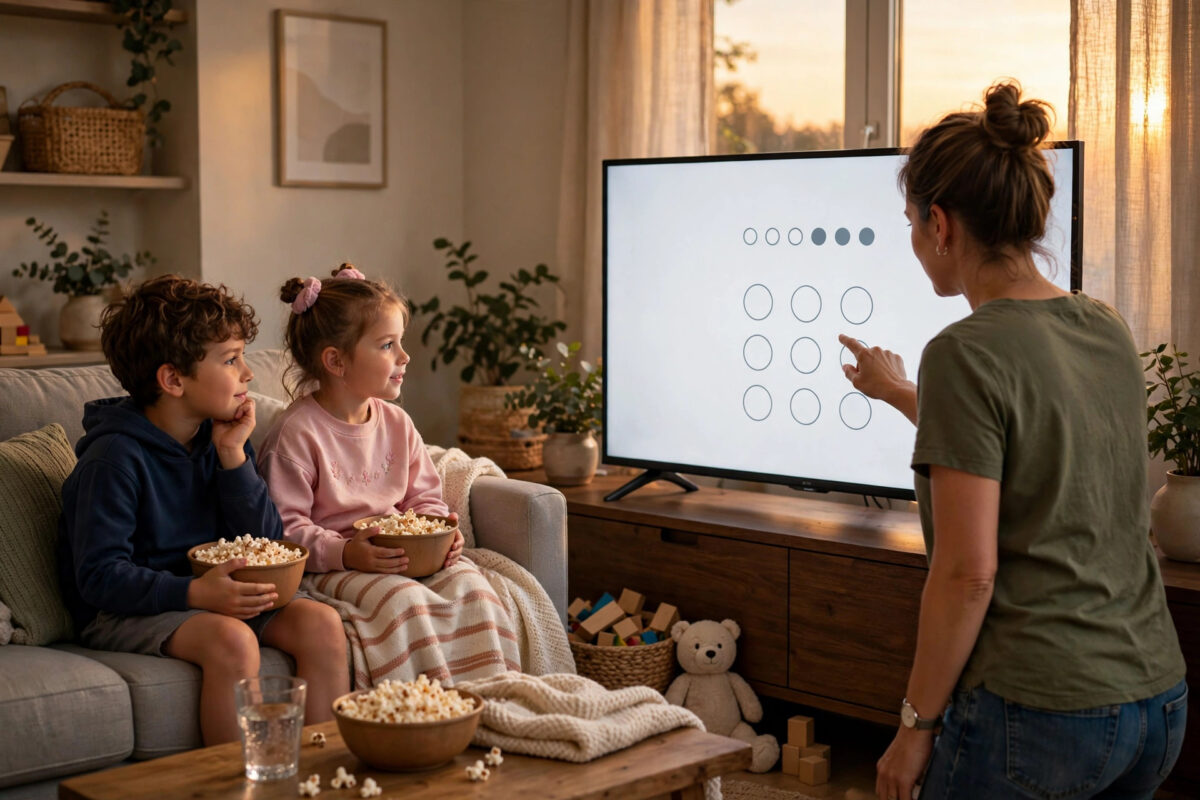
It takes a child about three button presses to rent a film. The Buy button is big, bright, and often sits exactly where the Play button was on the last screen. Many parents only discover the problem when an email receipt arrives for a movie nobody meant to purchase.
The reliable fix is a purchase PIN or password. Once it is switched on, nobody can rent, buy, or subscribe to anything on that device without entering the code first. This guide shows you where to find the setting on the main platforms, how to choose a PIN your children will not guess, and how to check the other sneaky spending routes, such as in-app purchases and voice buying.
Quick Answer
To stop kids buying movies on streaming devices with a PIN, open the device or app store settings, find Parental Controls, Purchases, or Store Settings, and turn on PIN or password protection for purchases. Create a four-digit PIN your children cannot guess, apply the same protection inside each streaming app that sells or rents content, and turn off one-click and voice purchasing. Test it by trying to rent a film yourself and confirming the PIN screen appears before any payment.
Why a Purchase PIN Works Better Than Rules Alone
Telling children not to press Buy works until the day it does not. A visiting friend, a sleepy evening, or a confusing screen can undo the best house rules. A PIN changes the rule into a lock. The device itself stops the purchase, calmly and every time, without an argument.
A PIN also protects adults. Many households discover accidental rentals bought by grandparents, guests, or even a pocket pressing remote buttons against the sofa. Once purchase protection is on, every intentional buy takes ten extra seconds, and every accidental one becomes impossible.
Set a PIN on the Main Streaming Platforms
Purchase protection lives in slightly different places depending on the device. Work through the platform you own, then repeat the idea inside individual apps later in this guide.
Roku
- From a computer or phone browser, sign in to your Roku account and open PIN Settings, or find the parental controls section on the device itself.
- Choose to require a PIN for purchases and for adding channels.
- Create a four-digit PIN and save the setting.
- On the TV, try opening the store and starting a rental to confirm the PIN prompt appears.
The official Roku Support pages on PIN and parental controls list the exact menu names for current models.
Fire TV and Amazon devices
- Open Settings, then Preferences, then Parental Controls, and turn them on.
- Set your PIN when asked, using a code the children do not know.
- Turn on PIN Protect Purchases so rentals, apps, and in-app items all ask first.
- Also check the separate setting for PIN protection when launching apps, if you want age-based limits too.
Apple TV
- Open Settings, then General, then Restrictions, and turn restrictions on with a passcode.
- Under the store section, set purchases and rentals to require the passcode every time.
- Set in-app purchases to blocked or passcode-protected as well.
Apple explains passcode options for its devices through Apple Support guidance on parental controls and restrictions, including how Screen Time settings interact on connected devices.
Google TV and Android TV
- Open Settings, then Accounts or Privacy, and look for Purchase Authentication or Play Store settings.
- Require authentication for all purchases, not just the first one in a time window.
- Set a PIN or password for the Google account used on the TV if the model offers one.
- Open the Play Store app itself and confirm purchase settings there too, because device and store menus can differ.
Lock Purchases Inside Individual Apps Too
Device-level protection does not always cover buying inside an app. Some streaming services rent films through their own store and their own checkout, which never asks your TV for permission. Check the big ones individually.
- Open each app’s account or settings area and look for Purchase PIN, Parental Controls, or Spending Limits.
- Turn on PIN protection for rentals and purchases wherever the app offers it.
- Remove saved payment cards from services the children use on their own, where the account allows it.
- Give children their own profile, because some services apply stricter purchase and content rules to kids’ profiles automatically.
For a wider setup that combines purchase locks with age ratings and viewing limits, read our complete guide to setting up parental controls on a smart TV after you finish the PIN steps here.
Close the Other Spending Routes
Determined children rarely stop at the front door, so check the side doors while you are in the settings.
Voice purchasing
Voice assistants can order or rent content after a spoken request. Open the assistant settings and turn off voice purchasing, or require a spoken confirmation code if the platform provides one. This matters most in rooms where a smart speaker and the TV share the same account.
One-click buying and time windows
Some stores ask for a password once, then allow further purchases for fifteen or thirty minutes without asking again. That window is designed for convenience and is exactly long enough for a second and third film. Set authentication to “always” or the shortest option available so every single purchase asks for the PIN.
Subscriptions and free trials
Children can also start paid subscriptions and free trials that quietly convert to paid plans. Apply the same PIN rule to subscriptions where possible, and set a monthly reminder to review active subscriptions in your account. An unexpected trial is easier to cancel in its first week than after three payments.
Choose a PIN Your Kids Cannot Guess
- Never use birth years, house numbers, the last digits of your phone number, or 1234 and 0000.
- Pick a number that means something to you but nothing to the children, such as a digit from an old workplace or a favourite sports score.
- Use a different PIN from your bank card and your phone unlock code, so one leaked code does not open everything.
- Never type the PIN slowly on screen while children watch; many TVs show the digits as you enter them.
- Share the PIN only with the adults who are allowed to approve purchases, and store it in your password manager, not on a note near the TV.
- Change it immediately if you suspect a child has worked it out, and check recent purchase history at the same time.
Test the Lock Before You Trust It
- Pick a paid film and press Rent or Buy exactly as a child would.
- Confirm the PIN or password screen appears before any confirmation or payment page.
- Enter a wrong code once to check the purchase is refused.
- Repeat the test inside each app that sells content, not just the main store.
- Try a voice purchase request if you use a voice assistant, and confirm that route is blocked too.
- Check your email for test receipts; there should be none, because nothing should have completed.
Common Mistakes to Avoid
- Protecting the TV but not the tablet: Children often switch devices. Apply purchase protection on phones, tablets, and games consoles linked to the same accounts.
- Using the same PIN everywhere: One guessed code should never unlock the TV, the tablet, and the store account at once.
- Leaving authentication windows open: Convenience settings that skip the PIN for a set time quietly defeat the whole system.
- Forgetting about subscriptions: A single film costs a few pounds; an forgotten monthly subscription costs far more over a year.
- Announcing the new PIN proudly: Set it quietly, test it yourself, and simply tell the children that purchases now need a grown-up.
Conclusion
A purchase PIN turns an expensive accident into a ten-second pause. Turn on PIN or password protection in the device settings, repeat it inside every app that rents or sells content, switch off voice and one-click buying, and test the lock yourself before trusting it. Choose a code your children cannot guess, keep it in your password manager, and review subscriptions now and then. After that, movie night can go back to being about the film, not the receipt.
Frequently Asked Questions
Is a purchase PIN the same as a parental control PIN?
They are related but not always identical. Parental controls usually cover age ratings and viewing limits, while purchase protection specifically blocks spending. Some devices use one PIN for both, so check both sections in settings to be sure each is switched on.
Can my child guess a four-digit PIN?
Children guess obvious codes first: birthdays, repeated digits, and simple sequences. Avoid anything connected to family dates or numbers visible around the home, change the PIN if they seem close, and never enter it in front of them.
What if I forget the purchase PIN?
Every platform offers a reset route, usually through the account website with your password or an email verification step. Follow the official reset process for your device, then set a new PIN and store it safely in a password manager this time.
Does a PIN stop free trials turning into paid subscriptions?
It helps if the same protection covers subscriptions and sign-ups, which you should check separately. Also review active subscriptions in your account each month, and cancel trials you do not want as soon as you start them.
Can I get a refund for a movie my child already bought?
Often yes, especially if it was bought recently and has not been watched. Contact the store or service that charged you, explain it was an accidental purchase by a child, and ask politely. Then set up the PIN straight away to prevent a repeat.

Leave a Reply