
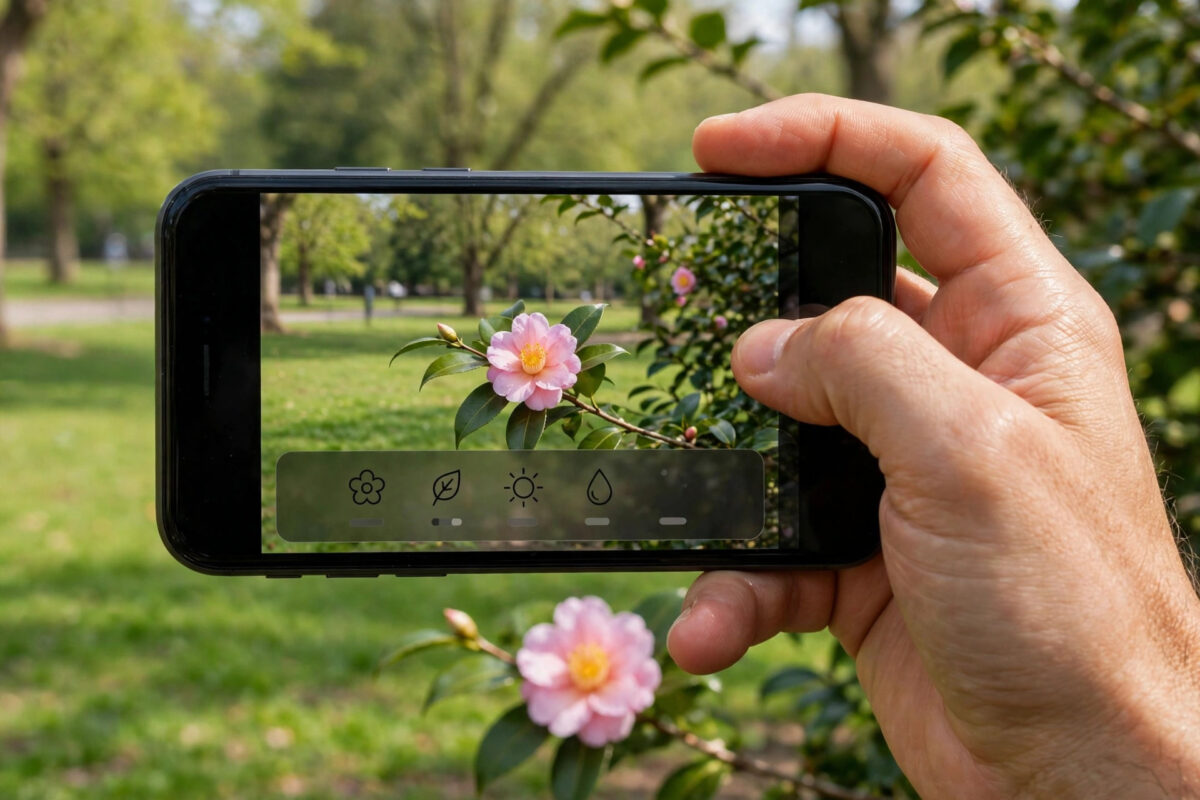
You are walking in a park and see a flower you cannot name. Later, a friend sends a holiday photo with a famous building in the background, and nobody can remember where it is. In the past, questions like these meant long web searches and guesswork.
Your iPhone already knows the answer surprisingly often. A built-in feature called Visual Look Up studies your photos and identifies plants, flowers, landmarks, animals, food, and works of art, then shows you useful information about them. This guide explains how to identify plants and landmarks with Visual Look Up on iPhone, step by step.
Quick Answer
Open a photo in the Photos app and look for the Info button with a sparkle or a small icon on the image, such as a leaf for a plant or a building for a landmark. Tap it, then tap Look Up to see the name and details. If the icon appears directly on the photo, tap that icon to jump straight to the result.
What Visual Look Up Can Identify
Visual Look Up is Apple’s visual search tool, built into the Photos app. It works quietly in the background, studying the content of your pictures. When it recognises something, it offers information about subjects such as:
- Plants, flowers, and trees, with species names and care-style background details
- Famous landmarks and buildings from cities around the world
- Dog and cat breeds, birds, and other common animals
- Dishes and food, with similar recipes suggested in some regions
- Books, artwork, statues, and other recognisable objects
The feature needs an internet connection, because the iPhone compares your photo with Apple’s online knowledge. It does not work on every picture, but on clear photos of well-known subjects it is fast and impressively accurate. Apple explains its scope in the support page on using Visual Look Up to identify objects in photos.
How to Identify a Plant With Visual Look Up
- Take a clear photo of the plant, flower, or tree, filling the frame with its leaves or blooms.
- Open the Photos app and open that photo full screen.
- Look at the bottom of the screen. If the Info button has a small sparkle, or a leaf icon appears on the photo itself, Visual Look Up has found something.
- Tap the Info button or the leaf icon.
- Tap Look Up Plant or the plant result at the top of the information panel.
- Read the species name, view similar web images, and browse knowledge results to confirm the match.
Always compare the suggested plant with your photo before trusting it, especially if you plan to eat anything or use a plant around pets. Some species look almost identical, and a few are poisonous. Treat the result as a strong starting point, then confirm with the similar images and descriptions provided.
How to Identify a Landmark With Visual Look Up
- Open the photo that contains the building, monument, or famous place.
- Tap the Info button if it shows a sparkle, or tap the landmark icon on the photo if one appears.
- Tap Look Up Landmark in the panel that opens.
- Read the name of the landmark and its background information.
- Tap the map or location result, where available, to see where in the world the landmark stands.
This works well on holiday photos, including older ones in your library. A tower, cathedral, bridge, or statue photographed years ago can still be identified today, which makes it a lovely way to organise travel albums and answer family arguments about where a picture was taken. The location view ties in neatly with the map features described in Apple’s iPhone Photos app user guide.
If you like discovering what your photos contain, you may also enjoy our related walkthrough on copying text from a photo on iPhone with Live Text, which covers signs, labels, and documents in your pictures.
Getting Better Photos for Identification
Visual Look Up can only work with what the camera gives it. A few simple habits improve your chances a great deal:
- Fill the frame with the subject. A flower photographed up close is far easier to identify than a whole garden.
- Photograph the most distinctive part. For plants, capture both the leaves and the flower if there is one. For buildings, include the tower, dome, or sign that makes it unique.
- Use daylight where possible. Natural light shows true colours, and colour is an important clue for plants and birds.
- Take two or three angles. If one photo fails, another angle of the same subject often succeeds.
- Avoid heavy filters. Strong colour filters change the look of a plant or building and can mislead the recognition.
What to Do When Visual Look Up Finds Nothing
Sometimes the sparkle never appears. That does not mean your photo is poor; the subject may simply be rare, local, or partly hidden.
First, check your connection, because the feature needs the internet. Next, try cropping the photo so the subject fills more of the frame, then open the cropped copy and check again. You can crop non-destructively in the Photos edit screen and revert later.
If it still fails, open the photo, tap the Share button, and consider a dedicated plant identifier app or a reverse image search in your browser as a backup. For landmarks, the photo’s location data, if it was saved, can also point you to the right area on a map.
Privacy and How the Feature Works
It is reasonable to ask what happens to your photos. Visual Look Up processes identification by comparing image information with Apple’s servers, and Apple states that this is done with privacy protections in place. The feature only runs when you open a photo and tap for results; it is not a live camera identification mode.
You can control related features in Settings. If you prefer, you can simply ignore Visual Look Up entirely, and your photos behave exactly as they always have, with the standard information panel showing dates, camera details, and location.
Common Mistakes to Avoid
The biggest mistake is treating every result as certain. Visual Look Up offers its best match, and common plants and landmarks are usually right, but similar-looking species and buildings exist everywhere. Never eat a plant or mushroom based only on a phone identification, and double-check results that matter for safety, work, or study.
Another mistake is using distant, cluttered photos. A landmark half-hidden behind trees, or a flower lost in a wide garden shot, gives the system too little to work with. Get closer, simplify the background, and try again before deciding the feature does not work.
Finally, remember that the feature depends on region and language settings as well as the photo itself. If results seem missing on a new iPhone, check that you are signed in, connected, and running an up-to-date version of iOS.
Conclusion
Visual Look Up turns your photo library into a pocket nature guide and travel companion. Take a clear photo, tap the sparkling Info button or the icon on the picture, and the iPhone names the plant, flower, landmark, or animal for you, with extra reading to explore. Use close, well-lit photos, sanity-check important results, and your everyday walks and old holiday albums both become far more interesting.
Frequently Asked Questions
Why does Visual Look Up not appear on my iPhone?
The feature needs a supported iPhone model, a recent version of iOS, an internet connection, and a region and language where it is offered. Update iOS and check the Info button on a clear photo of a common plant or landmark.
Does Visual Look Up work on photos sent to me by other people?
Yes. Save the picture to your Photos library, open it, and check the Info button. It works on received and downloaded images as long as the subject is clear enough to recognise.
Can Visual Look Up identify any plant in the world?
No. It recognises many common and popular plants, flowers, and trees, but rare, local, or very young plants may not be matched. Specialist plant apps hold larger databases for serious gardeners and botanists.
Is Visual Look Up free to use?
Yes. It is built into the Photos app at no extra cost, with no subscription and no separate download. You only need an internet connection for the identification itself.
Can I turn Visual Look Up off?
There is no single switch labelled for it in most versions of iOS, but the feature only acts when you tap the Info button or icon. If you never tap it, your photos simply show their normal details.



Leave a Reply