
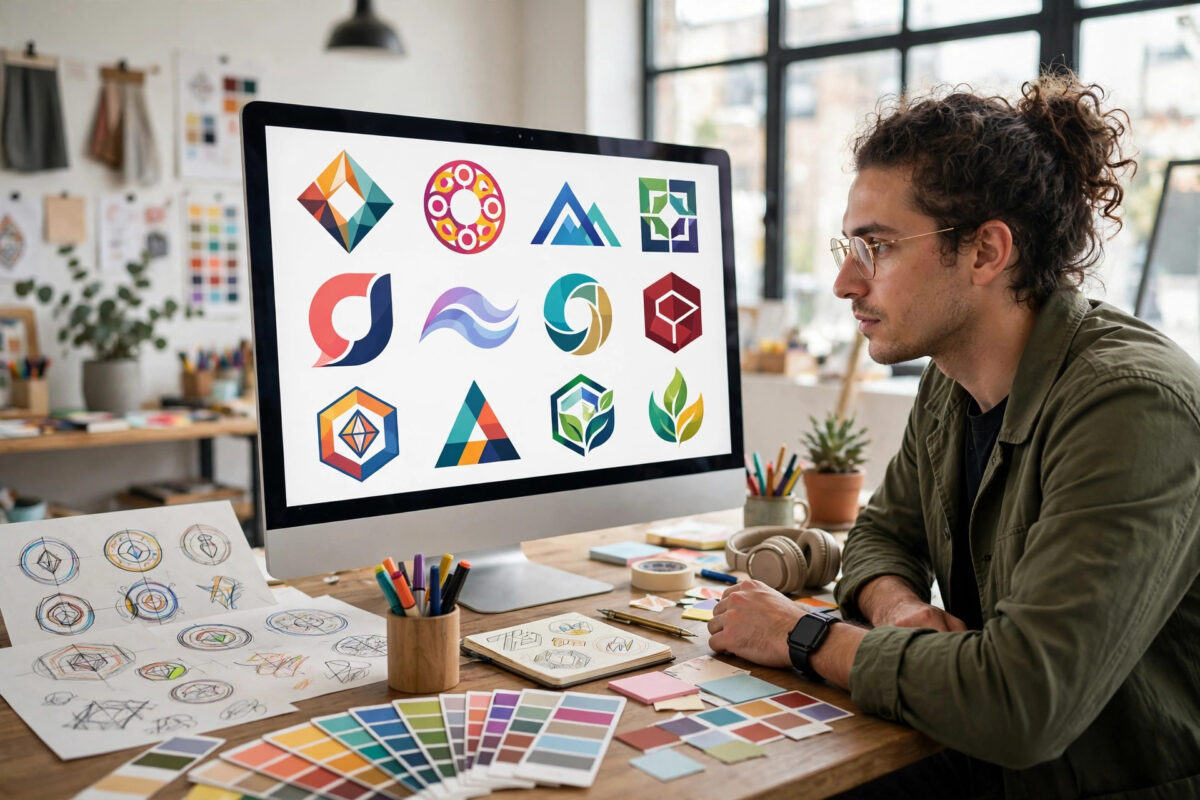
Creating a professional logo used to mean hiring a designer, waiting days for concepts, and paying for every revision. AI logo tools have changed that completely. Today you can describe your business in a few words and get dozens of polished options in under a minute.
That speed is useful, but it can also be confusing. With so many generators available, beginners often end up with generic designs that look nice on screen but fail on a business card, website, or shop sign. This guide walks you through the process step by step so you get a logo that actually works for your brand.
Quick Answer
To generate a logo with AI, choose a reputable logo maker, enter your business name and industry, describe your style and colors, review the generated concepts, customize the best option, and download it in vector and high-resolution formats for web and print use.
What AI Logo Generators Actually Do
AI logo tools combine machine learning models trained on design principles with large libraries of fonts, icons, and layouts. When you enter a prompt, the system does not copy an existing logo. It assembles shapes, typography, and color combinations that match your industry and preferences.
Most platforms work in a similar way. You provide basic brand information, and the AI produces variations. Some tools, like those covered in our guides to practical AI tools for everyday work, also let you start from a text description of the exact symbol you want.
Text-to-Logo vs Template-Based Tools
Text-to-logo tools let you type a description such as “minimal coffee cup logo, warm brown tones” and generate original artwork from scratch. Template-based tools start from proven layouts and let the AI rearrange them. Text-to-logo gives you more uniqueness, while template-based tools are often more reliable for clean, balanced results.
What You Get in a Download Package
A good download should include more than a single PNG. Look for SVG or EPS vector files for scaling, transparent PNGs for websites, a favicon version, and color variations for light and dark backgrounds. If a free tier only offers a small low-resolution file, you will likely need a paid plan for professional use.
Step-by-Step: Generate Your Logo
Follow this workflow whether you are branding a startup, a YouTube channel, or a local service business. The order matters because early decisions about style and audience shape everything the AI produces.
Step 1: Define Your Brand Basics First
- Write down your exact business name and, if you have one, your tagline.
- Note your industry in one or two words, such as bakery, fitness coaching, or software consulting.
- List three words that describe your brand personality, for example modern, friendly, and premium.
- Choose two or three colors you like and two you want to avoid.
- Find two or three logos you admire and note what you like about them.
This short preparation takes ten minutes but dramatically improves your results. Vague input produces vague logos, no matter how good the tool is.
Step 2: Choose the Right AI Tool
- Shortlist two or three well-known generators such as Canva, Looka, or Brandmark.
- Check what the free tier actually allows you to download before you invest time designing.
- Confirm the tool offers vector files if you plan to print signage, packaging, or merchandise.
- Read the commercial license terms so you know you can legally use the logo for business.
For example, Canva’s AI-powered logo maker is popular with beginners because the editor is simple and the design library is large. Other dedicated logo platforms focus more heavily on automated brand kits that include social media templates and brand colors.
Step 3: Enter Your Details and Generate Concepts
- Type your business name exactly as you want it to appear, checking spelling carefully.
- Select your industry category so the AI suggests relevant icons.
- Add your style keywords, preferred colors, and any symbol ideas in the prompt box.
- Generate the first batch and scroll through at least 30 to 50 options without judging too quickly.
- Save or favorite every design that feels close, even if it is not perfect yet.
Step 4: Customize the Best Concept
- Open your favorite concept in the editor.
- Try at least three different fonts for your business name and compare readability.
- Adjust spacing between the icon and text until the layout feels balanced.
- Test your color palette variations, including a black version and a white version.
- Resize the icon slightly larger and smaller to see which proportion looks strongest.
- Preview the logo at a very small size, similar to a browser favicon or app icon.
Small-size testing is the step most people skip. A logo that looks detailed and impressive when large can turn into an unreadable blob when small. Simple shapes and bold lettering survive shrinking far better than thin lines and intricate detail.
Step 5: Check Originality and Get Feedback
- Run a reverse image search on your icon to check it does not closely match an existing brand.
- Show the logo to three to five people in your target audience without explaining it first.
- Ask them what business they think it is and what feeling it gives them.
- Note any confusion about letters, symbols, or colors and fix those issues.
Step 6: Download the Right Files
- Download the SVG or EPS vector file as your master copy.
- Download transparent PNG files in large and medium sizes for your website and documents.
- Save the favicon and social profile versions if the tool generates them.
- Store all files in one clearly named folder with a backup in cloud storage.
How to Write a Better Prompt for Logo AI
If your first results look generic, the prompt is usually the problem. A weak prompt says “make a logo for my bakery.” A strong prompt gives the AI material to work with.
Elements of a Strong Prompt
Include the business type, the symbol you want, the style, and the colors in one clear sentence. For example: “Minimal line-art wheat stalk logo for an artisan bakery, elegant serif font, warm gold and charcoal palette, no gradients.” Specific constraints help the AI avoid cluttered, random combinations.
Iterate Instead of Starting Over
When a design is close, refine it rather than regenerating from zero. Ask for simpler versions, bolder versions, or the same icon with different typography. Iteration is how you move from a decent generated concept to a logo that feels intentionally designed.
Choosing Colors and Fonts That Work
Color creates the first emotional impression. Blue suggests trust and is common in finance and technology. Green signals health and nature. Black and gold suggest premium quality. Whatever you choose, limit yourself to two main colors so the logo stays clean and cheap to print.
For fonts, prioritize readability over decoration. A logo font should be clear at every size and match your brand personality. Avoid using more than two typefaces, and never use a highly decorative font for your main business name if customers need to read it quickly from a distance.
Common Mistakes When Using AI Logo Tools
The most common mistake is choosing a logo just because it looks trendy. Trends fade quickly, and a logo packed with fashionable effects can look dated within two years. Choose clarity and simplicity over whatever style is popular this month.
Another frequent error is ignoring the license. Free downloads do not always include full commercial rights, and some platforms restrict trademark use. Always read the terms before printing signage or packaging.
Many beginners also pick complex icons with fine detail that disappear at small sizes, use too many colors, or copy the first generated result without customization. Since thousands of people use the same tools, an unedited default design risks looking very similar to a competitor’s logo.
Finally, do not skip the black-and-white test. If your logo only works in full color, it will cause problems on invoices, engraving, embroidery, and single-color printing.
Conclusion
AI logo generators are a fast, affordable way to create a professional starting point for your brand. The key is to treat the AI as a design assistant, not a replacement for judgment. Prepare your brand basics, write specific prompts, customize carefully, test at small sizes, and download proper vector files. Follow those steps and you will end up with a logo that looks deliberate, works everywhere, and represents your business well.
Frequently Asked Questions
Can I legally use an AI-generated logo for my business?
In most cases yes, provided you follow the platform’s license terms. Paid plans usually include full commercial rights, while free tiers may have limits. Check whether trademark registration is allowed before you invest heavily in branding.
What file format is best for a logo?
SVG is the best master format because it scales to any size without losing quality. Keep transparent PNG files for everyday web and document use, and a PDF version for printers who request one.
How much does an AI logo maker cost?
Most tools offer a free tier for creating and previewing designs, with paid plans required for high-resolution and vector downloads and full brand kits. Dedicated logo platforms typically charge a one-time fee or a subscription depending on the package.
Can AI create a truly unique logo?
AI can produce original combinations, but because many users share the same tools, similar results are possible. Customizing fonts, colors, and layout, and checking with a reverse image search, greatly reduces the risk of duplication.
Should I still hire a designer after using AI?
For many small businesses, a well-customized AI logo is enough to launch. If you plan to register a trademark, build a large brand, or need a complete identity system, a professional designer review is a worthwhile next step.



Leave a Reply