
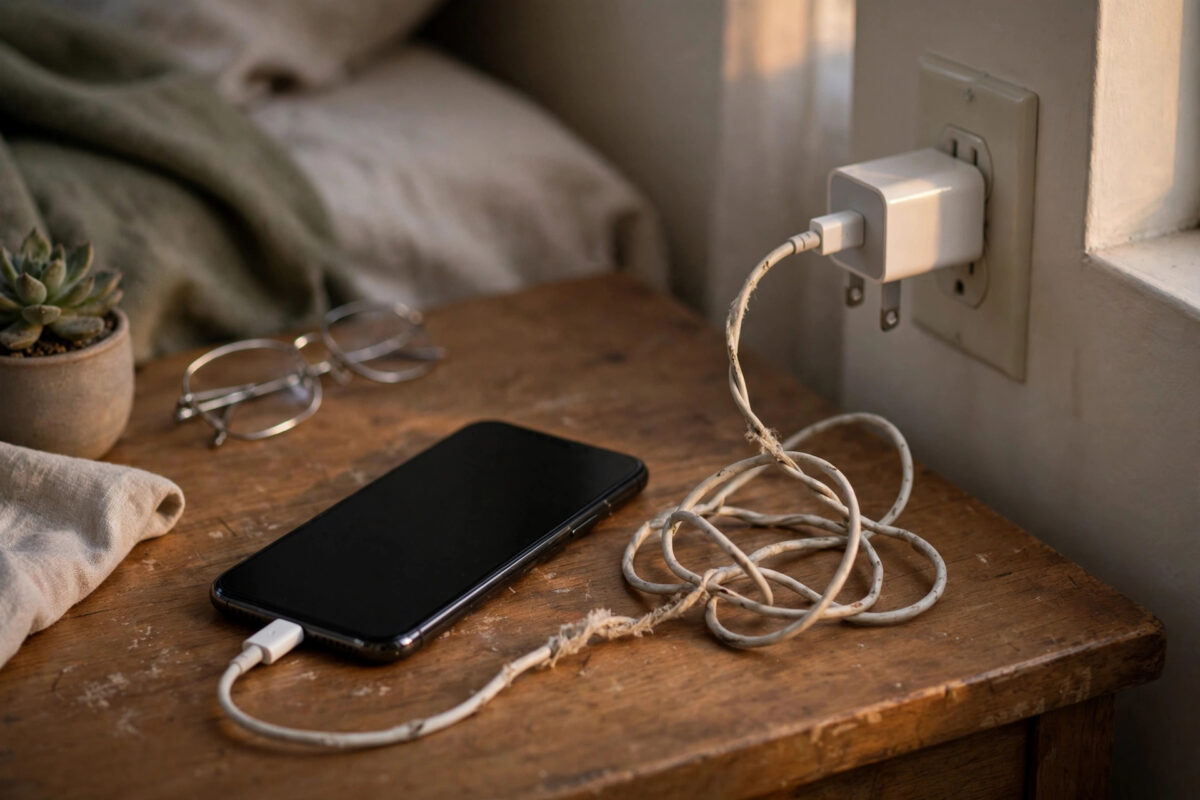
Your phone used to charge happily while you made tea, and now it crawls from 20 percent to 30 percent in the same time. Slow charging that appears suddenly is rarely a dying battery. In most cases something in the charging chain has changed: a different adapter, a worn cable, a dirty port, a software update, or heat building up while the phone works hard in the background.
This guide works through the causes in the order they actually happen, starting with the two-minute checks and ending with the settings most people never look at. By the end you will know whether the problem is your charger, your cable, your port, or the phone itself, and exactly what to do about each one.
The Most Common Reasons Charging Slows Down
A weaker charger than you think. Many people swap adapters without noticing. A laptop USB port or an old 5W plug may deliver a third of the power your phone expects, so charging drops dramatically even though the cable fits perfectly.
A damaged or low-quality cable. USB-C cables bend at the connector thousands of times. Internal wires break strand by strand, and the phone quietly falls back to the slowest charging rate instead of failing completely.
Heat while charging. Android phones protect the battery by reducing charging speed when the device gets warm. A thick case, direct sunlight, gaming while plugged in, or a hot room can all trigger this throttling.
Dirt in the charging port. Pocket lint packs into the bottom of the USB-C port. The plug then sits slightly proud, contacts are poor, and the phone may charge slowly or keep connecting and disconnecting.
Step-by-Step: How to Fix Slow Charging
Work through these steps in order and test the result after each one, so you know exactly which change made the difference.
Step 1: Check the charger wattage first
Look at what your adapter actually outputs; the rating is printed on the plug in small text. Most modern Android phones need at least 18W to 25W for fast charging. If your adapter says 5V/1A, that is only 5W, and no setting on the phone can make it charge faster.
Where to find it: Settings > Battery. Read any short on-screen note before confirming a change, then check that the toggle, status text or behaviour has actually changed — that is your confirmation the step worked before you move on.
Step 2: Watch the charging message on the lock screen
Plug in and read the exact wording. ‘Charging rapidly’ or a time estimate under two hours means fast charging is active. If it simply says ‘Charging’ or shows a very long estimate, the phone is negotiating a slow rate, which points at the adapter, cable, or port rather than the battery.
Where to find it: the lock screen while plugged in. Read any short on-screen note before confirming a change, then check that the toggle, status text or behaviour has actually changed — that is your confirmation the step worked before you move on.
Step 3: Swap the cable before anything else
Cables fail far more often than adapters or phones. Borrow a known-good, good-quality USB-C cable and test for ten minutes. If the percentage climbs noticeably faster, your old cable is the culprit. Replace it with a certified cable rated for your phone’s fast-charging standard.
Where to find it: your spare parts drawer. Read any short on-screen note before confirming a change, then check that the toggle, status text or behaviour has actually changed — that is your confirmation the step worked before you move on.
Step 4: Clean the USB-C port carefully
Power the phone off, shine a torch into the port, and tease out lint with a wooden toothpick or a plastic SIM tool, working gently around the central tongue. Never use a metal pin. You will be surprised how much compacted fluff comes out of a port that looked clean.
Where to find it: the charging port on the bottom edge. Read any short on-screen note before confirming a change, then check that the toggle, status text or behaviour has actually changed — that is your confirmation the step worked before you move on.
Step 5: Turn on fast charging in settings
Some phones let you toggle fast charging, and a software update or a child playing with settings can switch it off. Make sure ‘Fast charging’ and, if present, ‘Super fast charging’ are enabled. On Pixel phones the equivalent behaviour is automatic, so simply confirm no battery restriction is applied.
Where to find it: Settings > Battery > Charging settings (Samsung: Settings > Battery and device care > Battery > More battery settings). Read any short on-screen note before confirming a change, then check that the toggle, status text or behaviour has actually changed — that is your confirmation the step worked before you move on.
Step 6: Charge with the screen off and the case removed
Heat is the silent speed limit. Remove a thick case, move the phone off soft bedding onto a hard cool surface, and leave the screen off while it charges. Avoid gaming, video calls, and hotspot use during charging, because the processor’s heat adds directly to battery heat and triggers throttling.
Where to find it: your usual charging spot. Read any short on-screen note before confirming a change, then check that the toggle, status text or behaviour has actually changed — that is your confirmation the step worked before you move on.
Step 7: Test in Safe Mode to rule out a rogue app
Safe Mode disables third-party apps. If the phone charges at normal speed there, an app is working the processor hard in the background. Restart normally and uninstall recently added apps one at a time, starting with battery monitors, cleaners, and free VPNs, until charging speed returns to normal.
Where to find it: Power menu > press and hold Power off > Safe mode. Read any short on-screen note before confirming a change, then check that the toggle, status text or behaviour has actually changed — that is your confirmation the step worked before you move on.
How to Tell If the Battery Itself Is Wearing Out
If every charger and cable tests slowly, and the phone also drains unusually fast, the battery may simply be old. Lithium batteries lose capacity after roughly 500 full charge cycles, and a swollen or degraded cell accepts charge slowly as a safety behaviour. Some brands show battery health under Settings > Battery, and Samsung members can run a diagnostic in the Samsung Members app. Google’s own Android support pages explain how charging behaviour changes as batteries age.
Treat sudden slow charging after a drop or water exposure more seriously. Intermittent charging, a plug that wobbles, or a port that smells burnt means stop and get the phone inspected. Charging faults connected to physical damage do not fix themselves, and continuing to force a loose plug can damage the port beyond cheap repair.
Common Mistakes to Avoid
- Using any cable that fits, including ultra-cheap unbranded ones that cannot carry fast-charge current.
- Charging from a laptop or car USB port and expecting wall-charger speeds.
- Leaving a thick case on and charging on a bed or sofa, which traps heat.
- Pushing the plug in harder when it feels loose, instead of cleaning the port.
- Assuming the battery is dead before testing a different adapter and cable.
Practical Tips From Experience
Keep one known-good fast charger and cable in a fixed place and use them as your reference test kit. Charge little and often between roughly 20 and 80 percent when convenient, keep the phone out of hot cars, and replace cables at the first sign of fraying near the connector. A two-pound cable swap solves this problem more often than any settings change.
Conclusion
Slow charging that starts suddenly is almost always a chain problem, not a phone problem. Work from the wall outward: confirm the adapter’s wattage, test a different cable, clean the port, check the fast-charging toggle, and control heat. Only after those checks should you suspect the battery itself.
If the phone still charges slowly with a proven charger and cable, back up your data and have the battery and port inspected. You will find more practical phone and home tech walkthroughs in the Android and smartphone guides on NetworkUstad, written for real devices rather than lab conditions.
Frequently Asked Questions
Why does my phone say charging slowly?
Android shows that message when the charger, cable, and phone negotiate a low power rate. It usually means a weak adapter, a damaged cable, or a dirty port. Swap the cable first, then test a higher-wattage adapter, and the message normally disappears.
Can a software update make charging slower?
Yes, occasionally. An update can reset a fast-charging toggle, change thermal limits, or introduce a bug that Google or your manufacturer fixes in a later patch. Check your charging settings after big updates and keep the phone updated, rather than avoiding updates altogether.
Is it bad to use my phone while it charges?
Light use is fine, but gaming, video calls, and hotspots generate heat, and heat makes the phone throttle charging speed. If you need a fast top-up, leave the phone alone with the screen off. For overnight charging, normal slow charging is actually gentler on the battery.
How long should my phone take to charge?
With a suitable fast charger, most Android phones reach about 50 percent in 25 to 35 minutes and a full charge in one to two hours. A full charge taking three hours or more on a modern phone is a sign something in the chain is wrong.
When should I replace the battery?
Consider replacement when the phone drains quickly as well as charging slowly, shuts down before zero percent, or the back panel starts lifting from swelling. A swollen battery is a safety issue: stop using the phone and have it serviced promptly.



Leave a Reply