
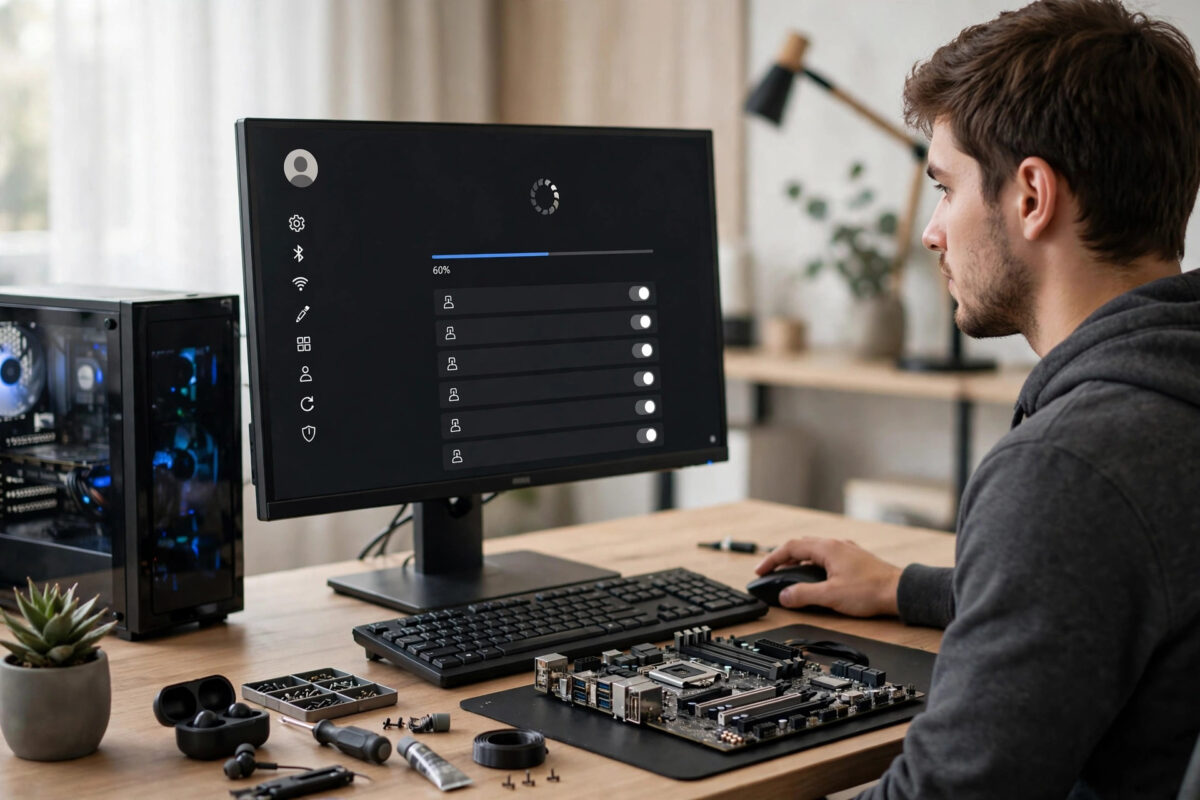
Outdated drivers are one of the most overlooked causes of a slow, unstable PC. A graphics driver that is two years old can cost you frames in games and cause crashes in creative apps. An old Wi-Fi driver can drop your connection every time the laptop wakes from sleep. Audio crackle, Bluetooth devices that refuse to pair, printers that vanish and blue screens often trace back to the same cause — the small pieces of software that let Windows talk to your hardware are out of date or corrupted.
Checking for driver updates is not difficult once you know where to look. Windows Update handles many drivers automatically, Device Manager lets you inspect individual devices, and makers like NVIDIA, AMD and Intel provide their own tools for graphics and chipset drivers that Windows sometimes lags behind on. The trick is knowing which method to trust for which device, and which driver sites to avoid completely.
This guide takes you through every safe method in order, from the simplest automatic check to manual updates. You will learn how to create a safety net before changing anything, and how to fix a bad update.
Why Driver Updates Matter
A driver is a translator. Windows speaks in general instructions, and each piece of hardware — graphics card, network adapter, sound chip, storage controller — speaks its own language. The driver makes that conversation reliable. When it is outdated, the translation can be incomplete. New Windows updates may introduce changes the old driver does not understand, new games may need graphics features it does not expose, and security flaws in old drivers can be exploited by malware.
That does not mean chasing every beta driver on release day. Stable, official updates from Windows Update or the hardware manufacturer improve performance, fix known bugs and patch security issues. Random updater utilities that promise to fix dozens of problems for a fee are a different story. If you want a wider maintenance routine, our collection of practical Windows maintenance guides covers updates, storage and startup management alongside drivers.
Before You Update: Create a Restore Point
Most driver updates install cleanly, but a restore point costs two minutes and can save hours. Type Create a restore point in the Windows search bar and open the result. In System Properties, on the System Protection tab, select your system drive, usually C, and click Create. Name it Before driver updates and click Create again. If a new driver causes a black screen or boot problem, you can roll the system back to this point.
Method 1: Check Through Windows Update
For most people, Windows Update is the safest first stop because Microsoft tests and signs the drivers it delivers. Many driver updates hide in the optional updates section, which many users never open.
Step-by-Step in Windows 11
Open Settings with Windows key plus I. Click Windows Update, then Check for updates, and install anything offered, restarting if asked. On the same page, click Advanced options, then Optional updates. Expand Driver updates, tick only drivers that match hardware you actually have, and click Download and install.
Step-by-Step in Windows 10
Open Settings, then Update and Security, then Windows Update. Click Check for updates and install the main updates first. Then click View optional updates, expand Driver updates, select drivers you recognise for graphics, network, audio and chipset hardware, and click Download and install. Do not tick every optional driver blindly. Prioritise graphics, network, audio, Bluetooth and chipset drivers, and restart after a batch of installs even if Windows does not insist.
Method 2: Update a Specific Driver in Device Manager
When one device misbehaves — a Wi-Fi adapter that keeps disconnecting, for example — Device Manager is the right tool. It shows every hardware category and the driver behind each item.
How to Use Device Manager
Press Windows key plus X and select Device Manager. Expand the relevant category: Display adapters for graphics, Network adapters for Wi-Fi and Ethernet, Sound, video and game controllers for audio, and Bluetooth for Bluetooth devices. Right-click the device and select Update driver. Choose Search automatically for drivers first. Windows will search your PC and Windows Update for a newer signed driver. If Windows says the best driver is already installed but you know a newer version exists on the manufacturer’s site, download the official package, choose Browse my computer for drivers, and point it to the extracted driver folder.
Check the Driver Version and Date
Right-click the device, select Properties, then open the Driver tab. You will see the provider, date and version. A driver dated several years ago for a key device is a strong sign an update is overdue. This tab also holds the Roll Back Driver button if a new driver causes trouble. Microsoft explains this workflow in its official guide to updating drivers manually in Windows.
Method 3: Get Graphics Drivers From NVIDIA, AMD or Intel
Graphics drivers are the exception to the Windows Update first rule. Gamers, streamers and video editors often benefit from the latest release weeks before it reaches Windows Update, because game-ready drivers include optimisations for new titles.
NVIDIA Graphics Cards
Open the NVIDIA App or GeForce Experience if installed, go to the Drivers tab, and click Check for updates. To install from scratch, download the NVIDIA App only from NVIDIA’s official site, never from a driver portal. Choose Express installation for simplicity and restart afterwards.
AMD Graphics and Chipsets
Open AMD Software: Adrenalin Edition from the Start menu, click the Settings gear, and under System look for Check for updates. AMD also offers an auto-detect tool on its support site that identifies your card and chipset and offers the correct combined package, ideal if you use an AMD processor with integrated graphics.
Intel Integrated Graphics and Wi-Fi
The Intel Driver and Support Assistant scans your system and lists which Intel graphics, wireless and Bluetooth drivers are outdated. Install it only from Intel, run the scan, and install what it offers. Laptop owners should note that if your laptop maker provides a customised graphics driver, Intel will warn you before overwriting it — for work laptops, the maker’s version is often wiser. The Intel Driver and Support Assistant download page is the only address you need for Intel hardware.
Method 4: Use Your PC Maker’s Support Page
Pre-built PCs and laptops from Dell, HP, Lenovo, ASUS, Acer and MSI have model-specific support pages, and for chipset, audio and touchpad drivers these are often the most compatible source. Find your exact model on the device sticker, then search the manufacturer’s support site for it. Download in this order: chipset first, then graphics, network and audio. Restart between chipset and graphics installs. Avoid a BIOS update as routine maintenance unless the release notes fix a problem you have — BIOS is firmware, not a normal driver.
How to Fix a Bad Driver Update
Occasionally a new driver causes a flickering screen, missing audio, or a device that stops working. Do not reinstall Windows. Open Device Manager, right-click the device, select Properties, open the Driver tab, and click Roll Back Driver if available. Restart after rolling back. If the PC will not boot normally, hold Shift while clicking Restart, then choose Troubleshoot, Advanced options, Startup Settings and Safe Mode. From Safe Mode you can roll back or uninstall the driver, restart, and let Windows load a basic driver while you download a known stable version.
Common Mistakes and Expert Tips
The biggest mistake is installing third-party driver updater programs that demand payment. At best they install the same free drivers available from official sources; at worst they bundle unwanted software or install mismatched drivers. Uninstall any such tool and rely on Windows Update, Device Manager and manufacturer sites.
Another error is updating on low battery or an unstable connection. Plug in the charger and use a strong connection for large graphics packages. People also forget the restart — a driver may not be active until you reboot, so restart before judging whether a problem is fixed.
Update in small groups: chipset and network first, restart and test, then graphics and audio. If something breaks, you will know which group caused it. Set a simple rhythm too: check Windows optional updates once a month, and check graphics drivers when a new game or major Windows update arrives.
Conclusion
Checking for driver updates comes down to three trusted routes: Windows Update and its optional list for general safety, Device Manager for individual problem devices, and official NVIDIA, AMD, Intel or PC maker pages for graphics and chipset drivers that need to be fully current. Create a restore point first, update in small groups, restart after each batch, and roll back calmly if a rare bad driver slips through. That routine keeps hardware running smoothly, crashing less and staying compatible with the Windows updates and games you care about.
Frequently Asked Questions
How often should I check for driver updates?
Once a month is enough for most PCs. Check Windows optional updates monthly, and check graphics drivers sooner when you install a new game, start seeing crashes, or apply a major Windows feature update.
Are automatic driver updater programs safe to use?
Most are unnecessary and some bundle unwanted software or charge for free drivers. Stick to Windows Update, Device Manager, and official tools from NVIDIA, AMD, Intel and your PC maker.
Why does Windows say the best driver is already installed?
That means Windows Update has no newer signed driver for that device. A newer version may still exist on the manufacturer’s website, especially for graphics cards, so check there if you are troubleshooting a specific problem.
Should I update my BIOS when I update drivers?
Not routinely. A BIOS update is firmware and carries more risk than a driver update. Only apply it if the release notes fix a problem you have or patch a serious security issue.
What should I do if a new driver breaks something?
Open Device Manager, right-click the device, open Properties and the Driver tab, and click Roll Back Driver. If the PC will not boot properly, use Safe Mode to roll back or uninstall the driver, then install a stable version.



Leave a Reply