
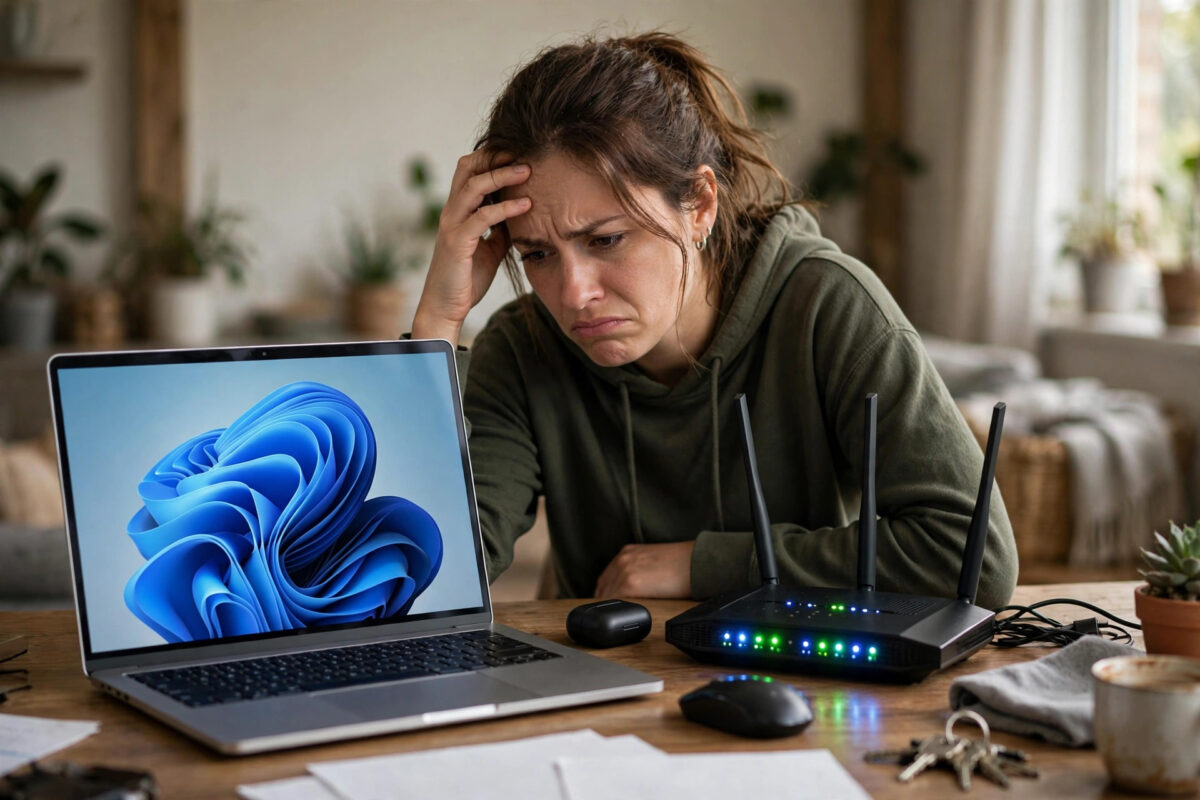
Few Windows problems are as disorientating as opening the Quick Settings panel and finding that the Wi-Fi button simply is not there. Ethernet may still work, Bluetooth may still work, but the wireless option has vanished from Settings, from the taskbar, and sometimes from Device Manager as well. It feels like the hardware has died, yet in most cases the adapter is fine — a driver, a disabled service, or a power setting has quietly removed it from view.
This guide walks through the fixes in the order a technician would try them, starting with the two-minute checks and ending with driver and BIOS steps. Work down the list and stop as soon as the Wi-Fi option returns; there is no need to complete every section.
First, Rule Out the Simple Causes
Before changing any settings, spend sixty seconds on the physical and obvious. Many laptops have a function-key combination such as Fn + F2 or Fn + F12 — the key usually carries a small antenna or aeroplane icon — that switches the wireless radio off at the hardware level. Some older models even have a physical slider on the side. Press the combination once and check the panel again.
Next, confirm Airplane mode is off. Press Windows key + A to open Quick Settings and make sure the Airplane mode tile is not highlighted. Also go to Settings > Network & internet and check the Airplane mode toggle there. Finally, restart the PC properly using Start > Power > Restart rather than shutting down and powering on, because a restart clears the fast-startup cache that can preserve a glitched driver state.
Check Whether Windows Sees the Adapter at All
Press Windows key + X and choose Device Manager. Expand Network adapters and look for an entry with “Wireless”, “Wi-Fi”, “802.11”, or a brand name such as Intel, Realtek, Qualcomm, or MediaTek in its name.
If the adapter is listed but has an icon on it
A downward arrow means the device is disabled: right-click it and choose Enable device. A yellow warning triangle means a driver problem, which the driver sections below will fix. After enabling, check Settings > Network & internet — the Wi-Fi page should reappear immediately.
If the adapter is missing entirely
In Device Manager, select View > Show hidden devices. If the adapter appears greyed out, Windows remembers it but is not detecting it right now, which points to a driver or power issue. Also check the Other devices category for a “Network Controller” with a warning icon — that is often your Wi-Fi adapter running without any driver at all, a common sight after a clean Windows installation or a major feature update.
Restart the WLAN AutoConfig Service
Windows relies on a background service called WLAN AutoConfig to manage wireless connections. If it has stopped or been set to manual by an optimisation tool, the Wi-Fi option can disappear even though the hardware is healthy.
- Press Windows key + R, type services.msc, and press Enter.
- Scroll down to WLAN AutoConfig and double-click it.
- Set Startup type to Automatic.
- If the service status is not Running, select Start, then choose Apply and OK.
- Restart the computer and check whether the Wi-Fi page has returned in Settings.
Run the Built-In Troubleshooter and Network Reset
Windows 11 includes a diagnostic route at Settings > System > Troubleshoot > Other troubleshooters. Run the Network and Internet troubleshooter and follow its prompts; it resets adapter bindings and restarts services automatically. It will not fix every case, but it takes two minutes and occasionally repairs exactly the broken binding that hides the option.
If that fails, escalate to a full network reset at Settings > Network & internet > Advanced network settings > Network reset > Reset now. This removes and reinstalls all network adapters and returns networking components to their defaults, then restarts the PC. Be aware that saved Wi-Fi passwords and VPN software may need attention afterwards, so treat this as a mid-level step rather than a first resort.
Fix the Driver: Update, Roll Back, or Reinstall
Driver trouble is the most common cause of a missing Wi-Fi option, especially right after a Windows update. In Device Manager, right-click your wireless adapter, choose Properties, and open the Driver tab. If the problem began immediately after an update, select Roll Back Driver if it is available. Otherwise choose Update driver > Search automatically for drivers, though Windows often reports that the best driver is already installed even when it is not.
The most reliable approach is a clean reinstall. Download the latest wireless driver for your exact laptop or motherboard model from the manufacturer’s support page — using a phone or another computer if this one has no connection — and copy it across. Then, in Device Manager, right-click the adapter, choose Uninstall device, tick Attempt to remove the driver for this device if offered, and restart. Install the downloaded driver after the restart. Microsoft’s official Windows support pages on fixing network connection problems walk through the same driver logic with screenshots for each Windows version.
Check Power Management and BIOS Settings
Windows can power down the wireless adapter to save energy, and occasionally it never wakes it up properly. In Device Manager, open the adapter’s Properties > Power Management tab and untick Allow the computer to turn off this device to save power. Also visit Settings > System > Power & battery and, while testing, avoid aggressive power-saving modes.
If the adapter is missing even from hidden devices, check the BIOS or UEFI setup. Restart and press the setup key shown on screen — commonly F2, Delete, or F10 — then look under Advanced or Devices for a wireless or WLAN option and make sure it is enabled. While you are there, loading the setup defaults once can clear a corrupted firmware setting. If you are still diagnosing, our collection of step-by-step Windows fixes and networking guides covers adapter errors and connection dropouts in more depth.
Common Mistakes and Useful Tips
- Downloading drivers from random driver sites: always use the laptop or adapter manufacturer’s own support page. Third-party driver packs frequently install the wrong or outdated version.
- Skipping the restart after driver changes: wireless drivers often only finish installing during a restart, so judging the fix before rebooting leads to false conclusions.
- Confusing a hidden adapter with dead hardware: an adapter missing from Device Manager is usually a driver, service, or BIOS issue. True hardware failure is comparatively rare.
- Using Shut down instead of Restart: with Fast Startup enabled, shut down preserves the kernel state. Restart is the option that gives drivers a genuinely fresh start.
- Forgetting the function-key radio switch: one accidental Fn key press can hide Wi-Fi for weeks. Check it before reinstalling anything.
- Testing on battery-saving mode: plug the laptop in while troubleshooting so power management does not interfere with your results.
Conclusion
A missing Wi-Fi option on Windows 11 almost always comes down to a short list: the radio switched off, the WLAN AutoConfig service stopped, a disabled adapter, or a broken driver. Work through those checks in order — physical switch, Device Manager, services, troubleshooter, then a clean driver reinstall — and the Wi-Fi page will return in the great majority of cases. Only when the adapter is absent from Device Manager, hidden devices, and the BIOS at the same time should you suspect genuine hardware failure.
Frequently Asked Questions
Why did my Wi-Fi disappear after a Windows 11 update?
Feature updates sometimes replace the wireless driver with a generic or incompatible version, or reset the WLAN AutoConfig service. Rolling back or cleanly reinstalling the manufacturer’s driver fixes most post-update cases.
Wi-Fi is missing but Ethernet works. What does that mean?
It means your network stack is broadly healthy and the fault is specific to the wireless adapter — its driver, its power state, the radio switch, or the WLAN service — rather than a general Windows networking failure.
Will a network reset delete my saved Wi-Fi passwords?
Yes, a network reset removes saved networks and their passwords, and VPN or virtual switch software may need reinstalling. Use it after basic checks, not as the very first step.
My adapter shows under hidden devices only. Is it broken?
Not necessarily. A greyed-out hidden entry means Windows is not currently detecting the device, which is usually caused by a corrupted driver or a BIOS setting. Reinstall the driver and check the BIOS wireless option before assuming hardware failure.
Can a virus remove the Wi-Fi option?
Malware can stop services and corrupt drivers, so it is possible. Once connectivity returns, run a full scan with Windows Security from Settings > Privacy & security > Windows Security > Virus & threat protection.


Leave a Reply