
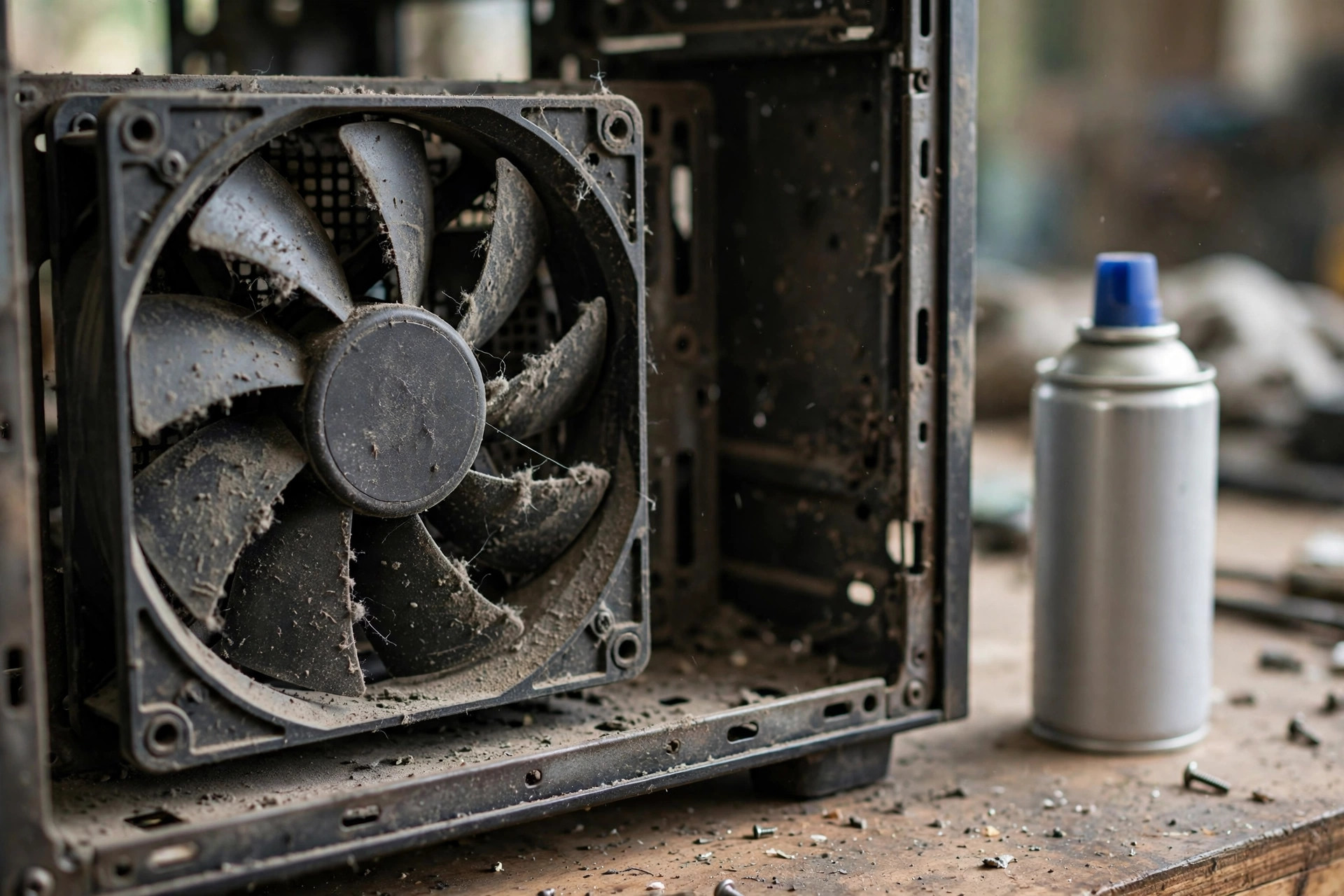
A computer fan that roars from the moment you switch on, during a simple web search, or even when you are doing nothing at all is more than an annoyance. It is your PC telling you something about heat, workload, dust, or a setting that has drifted out of place. Fans are supposed to speed up when the processor and graphics card work hard, then settle down again. When the noise never settles, something is keeping the machine hot or busy in the background.
The good news is that most loud-fan problems have ordinary causes you can work through at home, in order, without buying parts. Start with the free software checks, move on to cleaning and ventilation, and finish with settings and hardware. Change one thing at a time and listen after each step.
First, Decide Whether the Noise Is Normal or a Warning
Some fan noise is completely healthy. A gaming laptop launching a demanding title, a desktop exporting video, or a PC installing a large update will run its fans hard for a while, then quieten within a few minutes of finishing. Noise that starts at full speed on the desktop, or is joined by rattling, grinding, or clicking, is different — rattling usually means a worn bearing or a cable touching a blade.
Also notice when it happens. Loud fans only under load point to cooling or workload. Loud fans at idle point to background processes, dust, blocked vents, failing thermal paste, or a fan control problem. That distinction tells you whether to start inside Windows or with compressed air.
Step 1: Check What Is Making Your PC Work Hard
Before touching any hardware, find out whether Windows itself is asking for all that effort. A single stuck update, indexing job, or misbehaving app can hold a processor at high usage for hours.
Use Task Manager to Find the Culprit
Press Ctrl + Shift + Esc to open Task Manager. If you see a short list, select More details at the bottom. On the Processes tab, click the CPU heading to sort by processor usage, highest first. Leave the window open for two or three minutes on an idle desktop. A healthy idle PC usually sits in single figures. If one app is consistently taking 30, 50, or 80 percent, that is your starting point. Note its name, close it normally, and listen to whether the fans calm down.
Common offenders include browsers with dozens of tabs and heavy extensions, cloud sync tools catching up after a big upload, antivirus scans, Windows Update, and the Search indexing service after a large file move. Also open the Startup tab in Task Manager and review what launches with Windows. Disable non-essential startup items by right-clicking them and choosing Disable. This does not uninstall anything; it simply stops the program opening automatically, and you can re-enable it later if needed.
Check for Malware and Stuck Updates
Hidden coin-mining malware can also keep a processor busy deliberately. Go to Settings > Privacy & security > Windows Security > Virus & threat protection and run a Full scan. Then go to Settings > Windows Update, let pending updates finish, and restart.
Step 2: Improve Airflow and Clean Out Dust
Dust is the most common physical cause. It coats fan blades, clogs filters, and blankets heatsinks in a layer that traps heat. The fans then have to spin faster and longer to move the same air, which is exactly the noise you hear.
Position the PC Correctly
Check placement first. A tower pushed against a wall, hidden in a closed cabinet, or sitting on carpet can starve its own intakes, so leave clear space around the vents. For a laptop, always use a hard, flat surface — a bed or sofa blocks the underside vents almost completely, and no software fix can compensate for that.
Clean the Vents, Filters, and Fans Safely
Shut the PC down and unplug it. For a desktop, remove the side panel, take out any removable dust filters, and wash those filters in plain water, letting them dry fully before refitting. Use short bursts of compressed air on fans and heatsinks, holding each blade gently still so the air does not spin it at damaging speed. For a laptop you cannot easily open, blow short bursts through the external vents only.
Step 3: Check Temperatures Before You Change Settings
Guessing at temperature wastes time. Your BIOS or UEFI setup usually shows a basic processor temperature: restart the PC and enter setup with the key shown on screen, often Delete or F2, then look for a hardware monitor or PC health page. If the processor is already very hot in that simple screen, before Windows has even loaded, the problem is physical — dust, a failed fan, a loose cooler, or dried thermal paste — not software.
If temperatures climb very quickly under light work, the cooler may be loose, or the thermal paste between processor and cooler may have dried out after several years. Replacing it is inexpensive — remove the cooler, clean both surfaces with isopropyl alcohol, and apply a pea-sized amount of fresh paste — but if you are not confident, a repair shop can do it quickly. Our practical Windows and PC troubleshooting guides at NetworkUstad cover more maintenance like this.
Step 4: Adjust Power, Graphics, and Fan Settings
Choose a Sensible Power Mode
On Windows 11, go to Settings > System > Power & battery and set Power mode to Balanced rather than Best performance for everyday use. Best performance keeps clock speeds high even for light tasks, which creates heat without a visible benefit for browsing, writing, or office work. On a desktop using the older Control Panel power plans, open Control Panel > Hardware and Sound > Power Options and choose Balanced there instead.
Review Fan Curves and Manufacturer Tools
Many laptops and pre-built desktops include a manufacturer control app — names vary by brand — with Quiet, Balanced, and Performance profiles. If yours is set to Performance or Turbo permanently, switch it to Balanced or Quiet for daily work and listen again. In a desktop BIOS, fan control or Q-Fan style pages let you choose a silent or standard profile and, on advanced boards, a custom curve. Only change one profile at a time, save, and test. Avoid setting a fixed very low fan speed to force silence; that trades noise for overheating.
If a graphics card fan is the loud one, check its control software for a game or creative app still running in the background.
Step 5: Update Drivers, BIOS, and Windows — Carefully
Outdated chipset, graphics, and BIOS firmware can leave fan control behaving badly, particularly after a major Windows update. Download drivers from the PC or motherboard manufacturer’s support page for your exact model, not from random driver sites. Install chipset and graphics drivers first, restart, and test for a day before considering a BIOS update. A BIOS update can fix genuine fan-control bugs, but it should only be done following the manufacturer’s instructions exactly, with the machine on reliable power, because interrupting it can leave a PC unable to start. Microsoft’s official Windows support hub is the safest starting point for update problems, and background reading on how computer fans and cooling work helps explain why faster fans are a symptom, not the root cause.
Common Mistakes to Avoid
The biggest mistake is treating the fan as the fault and unplugging or blocking it to get quiet — that removes cooling the processor depends on. Other errors include spraying compressed air into a running PC, spinning fans freely with air, using a household vacuum inside the case where static is a risk, and downloading fan-control tools from unofficial sites. Do not ignore rattling or grinding for months either: a failing fan is cheap, while heat-damaged parts are not.
Conclusion
A loud fan all the time is usually the result of workload, dust, poor airflow, an aggressive performance setting, or ageing cooling parts — often a combination of two or three. Start in Task Manager, finish pending updates and scans, clean the vents and filters, confirm the temperatures, and then choose Balanced power and sensible fan profiles. Work in that order and you will find the cause in most cases without spending money. If the noise is mechanical, or the machine stays hot after a proper clean, get the fan or thermal paste checked professionally before heat causes bigger damage.
Frequently Asked Questions
Is it bad if my computer fan is loud?
Short bursts of loud fan noise during gaming, updates, or video work are normal. Constant loud noise at idle, or rattling and grinding, is a warning sign worth investigating because it usually means extra heat, dust, or a failing fan.
Can dust really make a fan that much louder?
Yes. Dust clogs filters and coats heatsinks, so the same cooling job needs much higher fan speeds. A careful clean of vents, filters, and heatsinks is one of the most effective fixes, especially on PCs older than a year that have never been cleaned.
Why is my laptop fan loud even when I am doing nothing?
Background work is the usual reason: Windows Update, antivirus scans, cloud sync, indexing, or a browser left open with heavy tabs. Open Task Manager with Ctrl + Shift + Esc and sort by CPU to see what is active on an otherwise idle desktop.
Should I use software to force my fan to run slower?
Only with care, and only after cleaning and checking temperatures. Forcing low speeds for silence can overheat the processor. Manufacturer Quiet or Balanced profiles are safer than aggressive manual settings, because they still raise fan speed when temperatures climb.
When should I replace a fan instead of cleaning it?
Replace a fan that rattles, grinds, clicks, wobbles, stops intermittently, or stays loud after a thorough clean and a check that no cable is touching it. Those are signs of a worn bearing or motor, which cleaning cannot repair.


Leave a Reply