
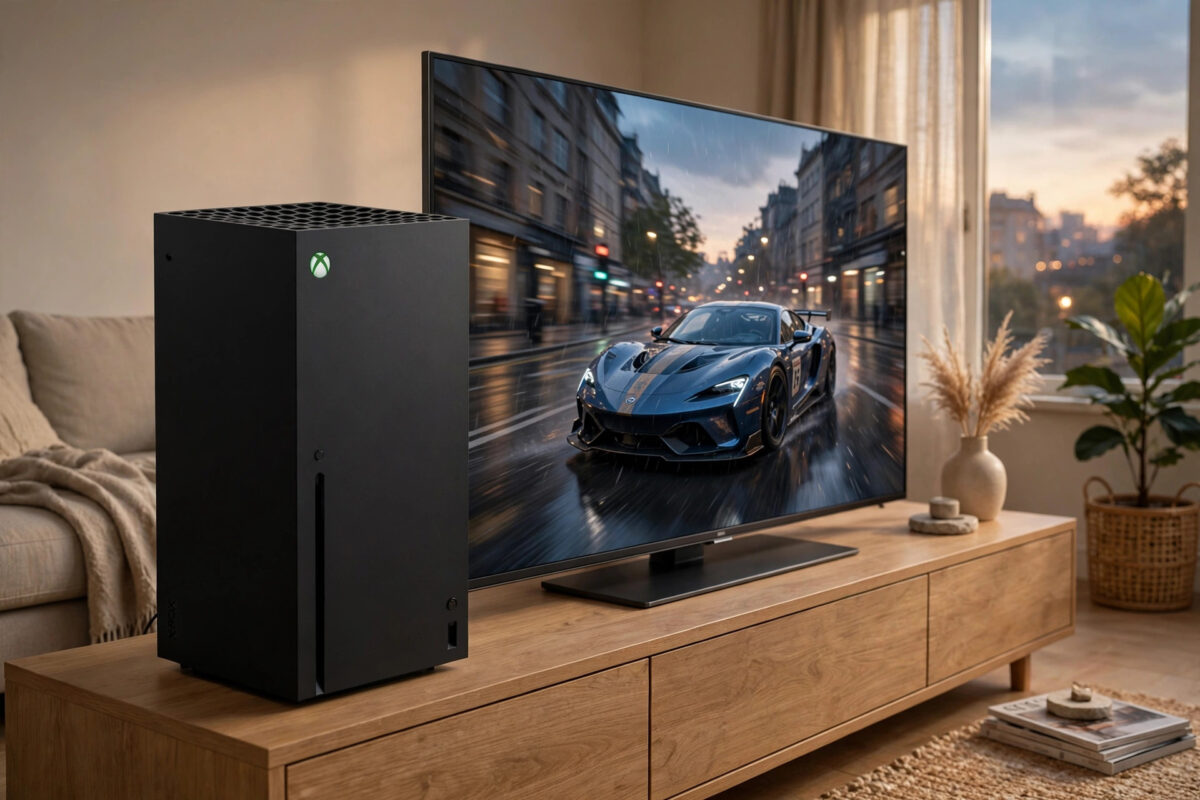
Few things are more frustrating than reaching an exciting part of a game and watching your console go dark without warning. If your Xbox Series X turns off by itself during games, the problem is usually heat, power, ventilation, or a software setting rather than a dead console. The good news is that most causes can be checked at home in less than an hour.
Quick Answer
An Xbox Series X usually turns off by itself because it is overheating, not getting stable power, or triggering its built-in safety shutdown. Clear space around the vents, plug the console directly into a wall socket, clean dust from the air vents, and check your auto-shutdown settings. If it still switches off in every game, test it in a cooler, open spot and contact Xbox Support, as the internal power supply or fan may be failing.
Why the Console Shuts Down to Protect Itself
The Series X is a powerful machine packed into a small tower. Its processor produces a lot of heat during demanding games, especially at 4K with high frame rates. To protect itself, the console monitors its temperature constantly.
When the inside gets too hot, the system does not wait for damage to happen. It shuts down straight away. That sudden switch-off can look like a power fault, but it is often the safety system doing its job.
The same protection can trigger if power drops for a split second, for example from a loose cable or overloaded extension lead.
Common Causes at a Glance
- Blocked vents or a console pushed into a tight TV cabinet
- Dust build-up inside the fan and air channels
- Power through a surge strip, extension lead, or loose cable
- Auto-shutdown or inactivity settings set too short
- A game crash or corrupted system software
- A failing fan, power supply, or overheating thermal paste on older units
Step 1: Check Ventilation and Placement
Placement is the first thing to check because it is the most common cause and the easiest to fix. The Series X pulls in cool air and pushes hot air out of the top vent. Anything covering that vent traps heat inside.
- Turn the console off and let it cool for 15 minutes.
- Move it into the open, standing upright if possible, with at least 10 to 15 centimetres of clear space on all sides and above the top vent.
- Take it out of closed cabinets, glass-front units, and tight shelves, at least for testing.
- Keep it away from radiators, heaters, direct sunlight, and other hot devices such as amplifiers.
- Start a demanding game and play for 30 minutes to see if the shutdown still happens.
If the console runs fine in the open but fails inside the cabinet, you have found your answer. Leave more space, open the cabinet door while gaming, or move the console permanently.
Step 2: Fix the Power Connection
Microsoft advises plugging the Series X directly into a wall socket. Power strips and extension leads can struggle with the quick changes in power the console needs during gaming, and a small dip can cause a shutdown.
- Shut the console down fully from the settings menu.
- Unplug the power cable from both the console and the wall.
- Check the cable for damage, bent pins, or a loose fit at the console end.
- Plug the cable firmly into the console, then directly into a wall socket with no strip or extension in between.
- Wait two minutes, turn the console on, and test again.
Also try a different wall socket in another room for testing. If the problem follows the console, power in your home is probably fine. If it only happens on one socket, ask an electrician to check that socket.
Step 3: Clean Dust From the Vents
Dust acts like a blanket. Over months, it collects on the fan blades and blocks the fine air channels inside. The fan then works harder, gets louder, and still cannot move enough air.
You do not need to open the console to do a useful clean. In fact, opening it can affect your warranty, so keep the cleaning external.
- Power the console off and unplug it completely.
- Use a soft, dry brush or a handheld vacuum on a low setting around the top vent and rear ports.
- Hold a can of compressed air a short distance away and use short bursts to blow dust out of the vents. Keep the can upright.
- Wipe the outside with a dry microfibre cloth.
- Plug it back in, in its new open position, and test a game.
A very loud fan before each shutdown is another sign of heat.
Step 4: Check Shutdown and Sleep Settings
Sometimes the console is not crashing at all. It is simply following a setting. The inactivity timer can turn the console off after a set period without controller input, which can happen during long cutscenes or paused games.
- Press the Xbox button and open Profile and system, then Settings.
- Go to General, then Power options.
- Open the shutdown and inactivity options and set the inactivity timer to a longer period, or turn it off while you test.
- Also check that Sleep mode is behaving normally and install any pending system updates.
While you are in settings, it is also worth checking for heat or performance issues after clearing old data. Our guide on how to clear the cache on Xbox Series X to fix stuttering games shows a safe way to refresh the system without deleting your games.
Step 5: Test With Different Games and a Full Restart
If only one game causes the shutdown, the console hardware is probably fine. That game may be crashing the system, or its files may be corrupted.
How to Isolate the Cause
- Play two or three different games, including one less demanding title, for at least 20 minutes each.
- Note whether the shutdown happens at the same point in one game or at random times in all games.
- If it is only one game, uninstall and reinstall that game, then test again.
- Do a full power cycle: hold the power button for 10 seconds, unplug for two minutes, then restart.
- If shutdowns happen in every game, try a system software check for updates under Settings, System, Updates.
For official troubleshooting steps for unexpected shutdowns, follow the guidance on Xbox Support for console power and startup problems, which covers power supply checks and when to request a repair.
When It Is Likely a Hardware Fault
Some signs point away from settings and towards hardware. Take note of them before you contact support, because clear details help you get the right repair faster.
- The console turns off within minutes, even on the home screen
- The fan does not spin up at all, or makes grinding noises
- The power button light flickers or the console will not restart straight away
- You smell burning, or one area of the case becomes extremely hot
- The shutdowns began after a power cut or a move to a new home
Stop using the console if you notice burning smells, smoke, or repeated instant shutdowns. Unplug it and contact support rather than opening the case yourself. Internal power supplies can hold charge and should only be handled by a trained technician.
Common Mistakes to Avoid
- Playing inside a closed cabinet: Heat builds up quickly behind a door, even if the cabinet feels cool outside.
- Using an extension lead permanently: It may work for weeks and then cause random drops under load.
- Covering the top vent: Never place controllers, discs, or cloths on top of a vertical Series X.
- Opening the console to clean it: External cleaning is safe. Opening the case risks damage and warranty problems.
- Ignoring the pattern: Note the game, time, and room temperature. Patterns point straight to the cause.
- Placing it flat against a wall: The rear needs space too, not just the top.
Conclusion
When an Xbox Series X turns off by itself, think heat and power first. Give it open space, plug it directly into the wall, clean the vents from the outside, and check the inactivity timer. Test across several games to separate a single faulty game from a system-wide fault. If the console still shuts down quickly in a cool, open position on direct wall power, it is time for a professional repair rather than more home fixes.
Frequently Asked Questions
Can overheating permanently damage my Xbox Series X?
Repeated overheating is not good for any console, but the safety shutdown is designed to prevent serious damage. If you fix the ventilation and the shutdowns stop, long-term harm is unlikely. Continued use in a hot, blocked position can shorten the life of the fan and internal parts.
Why does my Xbox only turn off in one game?
That game is probably pushing the console harder, or its files are corrupted. Demanding titles at 4K and 120 frames per second create the most heat. Reinstall the game, install its latest update, and test other demanding games to confirm.
Is it safe to use a surge protector with Xbox Series X?
The console already has built-in surge protection, and Microsoft recommends a direct wall connection. Some surge strips cause power dips under load. If you must use one for safety in your area, choose a high-quality model and test direct wall power first to rule it out.
How long should I leave the console unplugged after a shutdown?
Leave it unplugged for at least two minutes after a full shutdown. This clears the power supply state and lets hot components cool. For a clear overheat, wait 15 to 30 minutes before testing again in a better position.
Should I replace the thermal paste myself?
No. Thermal paste replacement means opening the console and working close to delicate parts. It is rarely needed on a Series X and is a job for a repair service. Try ventilation, cleaning, and power checks first, as they fix most cases.



[…] heat issue rather than cache. If your console also runs hot during those games, our explanation of why an Xbox Series X turns off by itself during games covers the cooling checks that go hand in hand with cache […]