
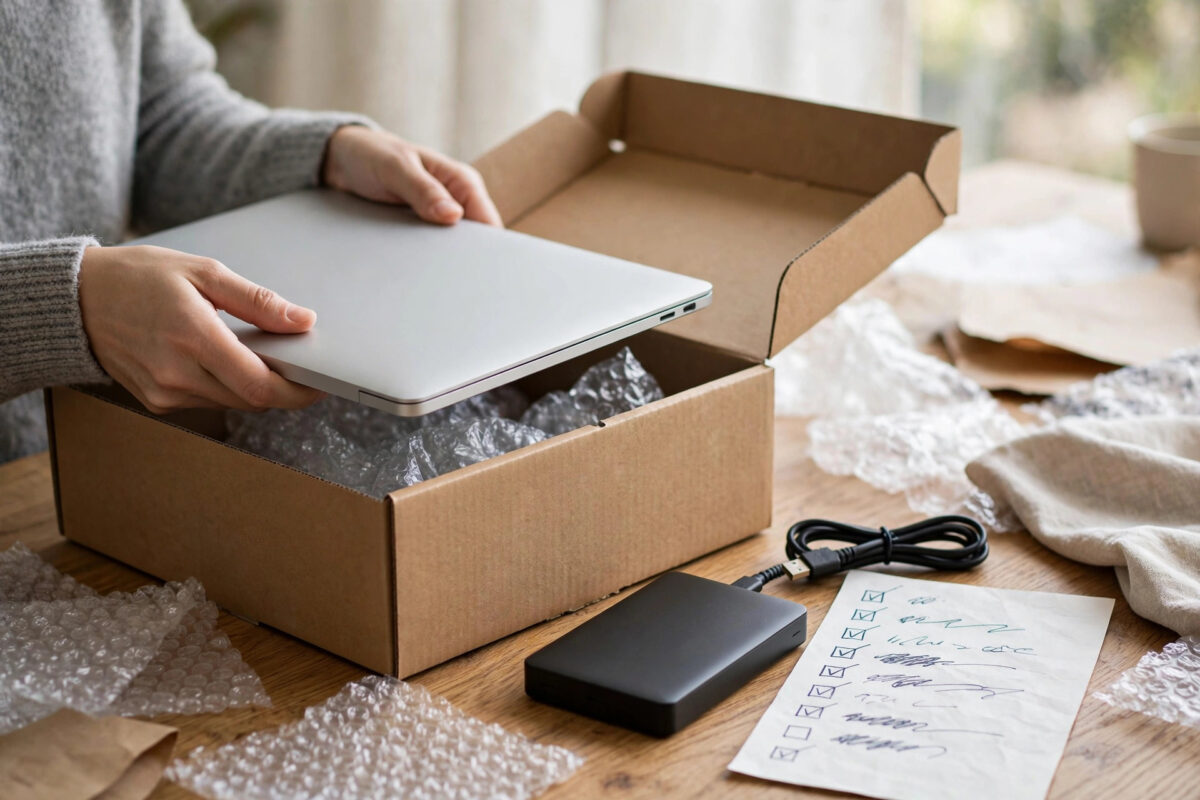
Repair shops and clean installs share one ruthless habit: they can wipe your drive without warning. A technician may replace the disk, reimage the machine, or simply decide a factory reset is the fastest fix. A reinstall you do yourself has the same effect by design. Anything you did not back up first is gone.
This guide gives you a complete checklist of what to copy before a laptop leaves your hands or gets wiped: the obvious files, the easy-to-forget data like browser passwords and licence keys, and the privacy steps to take before a stranger works on your machine. Work through it once, calmly, and the repair or reinstall becomes stress-free.
Quick Answer
Back up your Documents, Desktop, Downloads, Pictures, Music, and Videos folders, plus anything stored inside apps: browser bookmarks and saved passwords, email archives, accounting data, game saves, and software licence keys. Copy everything to an external drive or the cloud, open a few files from the backup to prove it works, then sign out of your accounts and remove sensitive files before the laptop goes anywhere.
Step 1: Back Up the Obvious Folders Properly
Start with the standard user folders, because that is where most personal data lives, but copy them completely rather than grabbing the few files you remember.
- Connect an external drive with enough free space, or open your cloud backup app.
- Copy Documents, Desktop, Downloads, Pictures, Music, and Videos from your user folder.
- Look inside any custom folders you created, such as Work, Scans, or Projects, which often hide outside the standard folders.
- Wait for the copy to finish fully; a progress bar that vanished does not guarantee completion.
- Open several copied files from the backup itself, including one photo, one document, and one spreadsheet.
If your laptop also holds your photo library, treat it with the same care as our guide on verifying photo backups are complete: counts and spot checks now prevent heartbreak later.
Step 2: Save the Data That Lives Inside Apps
Modern data hides inside applications, and a folder copy misses much of it. Go through this list for every app you use.
- Browser: export bookmarks and, if you do not use a browser account sync, export saved passwords to an encrypted file or make sure your browser account will restore them on the new setup.
- Email: if you use a desktop mail app with local folders, export or back up its data file; webmail needs nothing.
- Accounting and office apps: export company files, invoices, and templates from inside the app where it offers a backup function.
- Games: copy save folders or confirm cloud saves are enabled in Steam, Xbox, or your launcher.
- Chats: desktop messaging apps keep history locally in some cases; export important chats if the app allows it.
- Two-factor apps: note your recovery codes and how you will set up authenticator again after the wipe; being locked out of your own accounts is the classic post-repair disaster.
Step 3: Record Licence Keys, Settings, and Passwords
A smooth reinstall is much easier with a one-page recovery note. Write down your operating system licence situation (most modern laptops store the Windows key in the firmware, but note it if you have it), licence keys for paid software such as Office, antivirus, or creative tools, and the email addresses those licences are registered to.
Note your Wi-Fi password, your important account passwords stored safely in a password manager, and any custom settings you would struggle to recreate, such as printer setups or work VPN details. Photograph complicated settings screens with your phone; a picture of a network configuration page is faster than reconstructing it from memory. The Microsoft backup and restore guidance covers the built-in Windows tools that can capture much of this automatically if you prefer an image backup of the whole system.
Step 4: Protect Your Privacy Before the Repair Shop
A repair means a stranger may power on your machine. Backups protect your data from loss; a few extra steps protect it from eyes.
- Sign out of email, cloud storage, banking, and messaging apps, or remove those apps entirely once backed up.
- Delete or move highly sensitive files, such as ID scans and financial records, keeping only your backup copies.
- Clear saved passwords from browsers if you do not use account sync, after confirming your password manager has them.
- If the laptop supports it, create a separate guest or repair account with no access to your files for the technician to use.
- Remove SD cards, USB drives, and discs from the machine before it leaves; accessories get lost in workshops.
If the repair involves replacing the drive, ask whether you get the old drive back. If the answer is no, and the drive still works, your backups become the only copy, which is another reason to verify them before the laptop leaves.
Step 5: After the Repair or Reinstall
When the laptop returns, resist the urge to copy everything back blindly on day one. Set up the system, reinstall your main apps, sign in to your browser and cloud accounts so synced data returns by itself, and restore your folder backups into their proper places. Test printing, Wi-Fi, and your key programs. Keep the pre-repair backup untouched for at least a month; it is your safety net if you discover a missing file weeks later, and it costs nothing to keep.
Common Mistakes to Avoid
Post-repair data loss stories almost always feature one of these:
- Copying the Documents folder but forgetting the Desktop and Downloads, where half of daily life actually sits.
- Losing every account because two-factor recovery codes were stored only on the laptop being wiped.
- Assuming the repair shop will back up for you; most terms and conditions say the opposite.
- Handing over the laptop still signed in to banking, email, and cloud accounts.
- Deleting the backup a week after the repair, just before discovering the one missing folder.
Conclusion
Before a repair or reinstall, back up the standard folders completely, export the data that lives inside apps, note your licence keys and two-factor recovery codes, and sign out of everything before the machine leaves. Verify the backup by opening files from it, keep it for a month afterwards, and a wiped drive becomes a mild inconvenience instead of a personal disaster.
Frequently Asked Questions
Will the repair shop really wipe my drive?
It happens often enough that you must assume yes. Drive replacement, reimaging, and factory resets are standard repair steps, and most shops’ paperwork states that data loss is your responsibility. A verified backup removes the risk entirely.
Is a cloud backup enough, or do I need an external drive too?
Either works if it is complete and verified, but an external drive copy is faster to make for large libraries and works even if accounts misbehave during the reinstall. For a one-off event, the drive you already own is usually the simplest choice.
How do I back up if the laptop will not turn on?
If the drive itself is healthy, a technician or a friend with a USB drive adapter can often copy files from it directly. That is a rescue, not a plan, and it fails if the drive is the faulty part, which is why regular backups matter.
Should I remove my files after backing them up, before repair?
For privacy, yes for sensitive items: banking, ID scans, and personal records should not travel to a workshop if they do not need to. Your verified backup at home holds them safely while the machine is away.
What about my Windows or macOS licence after a reinstall?
Most modern laptops reactivate automatically because the licence is tied to the machine’s hardware or your Microsoft or Apple account. Still, note any separate software keys you own, because those are the ones people lose.



Leave a Reply