
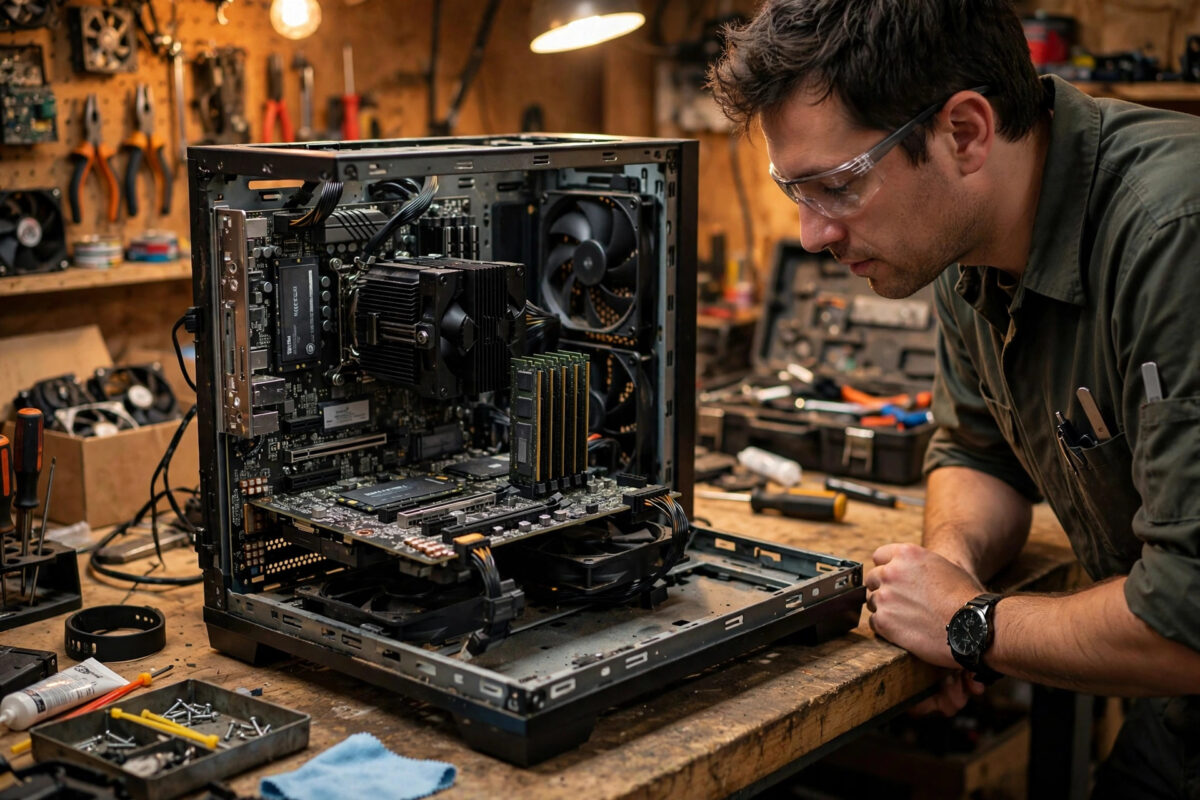
You press the power button, the fans spin up, and instead of the Windows logo you get a series of beeps — and a black screen. It is an alarming sound, but it is actually your computer trying to help you. Those beeps are an error code, sent before the screen can even switch on, and they point directly at the piece of hardware that is stopping your PC from starting.
This guide explains what the most common beep patterns mean, why the codes differ between brands, and the safe, practical steps you can take at home before you pay for a repair. In many cases the fix is as simple as pushing a memory stick back into its slot properly.
Why Your PC Beeps at Startup in the First Place
Every time your PC starts, the motherboard runs a self-check called the POST — Power-On Self-Test. It tests the processor, memory, graphics card, keyboard, and storage in a set order, in the first few seconds after you press power. If everything passes, most modern PCs give one short beep, or no beep at all, and carry on loading Windows.
If a critical part fails the test, the PC often cannot display anything on screen — especially if the failed part is the graphics card or memory itself. So the motherboard falls back on the one output it can always use: the small internal speaker. It beeps in a pattern — short beeps, long beeps, pauses — and that pattern is the error message. Counting the beeps is the first diagnostic step, which is why this old system is still used by Dell, HP, Lenovo, ASUS, Gigabyte, MSI, and others today.
First, Identify Which BIOS Your PC Uses
There is no single universal beep code. The same pattern can mean different things on different motherboards, because the code is set by the BIOS or UEFI firmware maker — commonly AMI, Award, Phoenix, or the PC brand itself. Before interpreting your beeps, check:
- The brand of the PC or motherboard, usually printed on the case, the startup screen, or the motherboard itself.
- The manual, or the support page for your exact model on the manufacturer’s website.
- Whether the beeps are short or long, how many there are, and whether the pattern repeats after a pause.
Record the pattern properly. Film the startup on your phone so you can count again calmly, instead of guessing whether it was three beeps or four.
Common Beep Codes and What They Usually Mean
One short beep
On most AMI and Award systems this is good news: POST passed and the PC is starting normally. If you hear one short beep but still see no picture, the problem is more likely your monitor, cable, or display output than the PC itself.
One long beep, or one long and two or three short beeps
This classic pattern usually points to the graphics card on Award and AMI systems — the card is faulty, not seated properly in its PCIe slot, or missing its extra power cable. On some systems one long beep followed by a pause and a repeat means a memory problem instead, which is why checking your brand’s table matters.
Two or three short beeps
On AMI BIOS systems, two or three short beeps commonly indicate a memory (RAM) error — a stick that has failed, is dirty, or is not fully seated. Phoenix BIOS uses sequences such as 1-1-3 or 1-3-1 style groups for similar memory and motherboard faults, counted as groups separated by pauses.
Four short beeps
On AMI systems four short beeps often mean a system timer or motherboard issue, though on some boards it can relate to a hardware component failing its test. This is less commonly a home fix if reseating components does not help.
Five short beeps
Five short beeps on AMI BIOS typically indicate a processor (CPU) error. Check that the CPU cooler is firmly attached and its fan cable is connected — an unseated cooler or a disconnected fan header can trigger startup failures.
Continuous beeping or a repeating loop
Endless beeps or a pattern that repeats without stopping usually means RAM is not detected at all, the power supply is delivering unstable power, or a key is stuck on the keyboard on older systems. It can also be an overheating alarm on some boards if it starts a short while after power-on.
Brand patterns worth knowing
Dell desktops use simple counts: two beeps often means no memory detected, four beeps a memory failure, and seven beeps a processor issue on many OptiPlex models. HP and Lenovo often combine beeps with flashing LEDs, where long and short blinks carry the code. Always confirm against your model’s manual, and our NetworkUstad PC hardware troubleshooting guides can help you work through the checks step by step.
Safe Fixes to Try at Home, in Order
1. Listen, count, and check the obvious
Disconnect USB drives and external devices except keyboard and monitor, then try again. Check the monitor cable is fully plugged in at both ends and the monitor is set to the correct input. A surprising number of “beeping PC” panics end here.
2. Reseat the RAM — the most common fix
Switch the PC off, unplug the power cable, and hold the power button for ten seconds to drain leftover charge. Open the case, push the clips at both ends of each memory stick, lift the sticks out, and reseat them firmly until both clips click back into place. Uneven seating is the number one cause of startup beeps, especially after a PC has been moved or cleaned. If you have two sticks, try booting with just one, then swap, to identify a faulty stick.
3. Reseat the graphics card and check its power cable
If your code points to video, remove and refit the graphics card in its PCIe slot, make sure the retaining clip engages, and confirm any 6-pin or 8-pin power connectors from the power supply are pushed fully home.
4. Check internal cables and clear CMOS if needed
Confirm the main 24-pin motherboard power cable and the CPU power cable near the processor are seated. If beeps began after you changed BIOS settings, resetting the BIOS to defaults — using the Clear CMOS jumper or button described in your manual, with the power unplugged — can undo a bad setting.
5. Test with the minimum hardware
Disconnect extra drives, add-in cards, and peripherals so only the motherboard, CPU, one RAM stick, graphics, and power supply remain. If the beeping stops, reconnect parts one at a time until it returns — the last part reconnected is your problem.
For the exact code table for your board, consult your manufacturer’s support site; for background, the Wikipedia explanation of the power-on self-test describes how POST and beep codes work across systems.
When to Stop and Get Help
Beep codes pointing at the motherboard or CPU, any smell of burning, visible damage, or a PC that beeps even with minimum hardware fitted are signs to stop. Laptop beep codes are trickier too, because most parts are not removable — for a laptop, note the pattern, check the brand’s support page, and use warranty support if you have it. Do not keep forcing restarts on a machine that smells hot or makes electrical noises.
Common Mistakes and Helpful Tips
- Guessing the code from a random chart: Codes vary by BIOS maker and brand. A chart for the wrong BIOS will send you replacing the wrong part.
- Working inside with the power plugged in: Always unplug the cable and drain the charge first. Touch a metal part of the case to discharge static before handling RAM.
- Forcing components: RAM and graphics cards only fit one way, but they need firm, even pressure — never force a stick that is the wrong way round; check the notch alignment.
- Ignoring the pattern details: Long versus short and the pauses between groups are part of the code. Write it down or record it.
- Buying parts before testing: Reseating and the one-stick RAM test are free. Do them before ordering replacements.
Conclusion
Beeps on startup are not random noise — they are your motherboard telling you, in code, which part failed its self-test. Count the pattern, match it to your own brand or BIOS maker’s table, and start with the free fixes: reseat the RAM, refit the graphics card, and check the power cables. Most beeping PCs are back in Windows within half an hour, with no new parts needed.
Frequently Asked Questions
Why does my PC beep three times on startup?
On many AMI BIOS systems, three short beeps indicate a memory error. On Dell systems, counts have their own meanings, so check your brand’s table — then reseat the RAM sticks, which fixes most memory-related beep codes.
Is one beep on startup normal?
Yes. On most desktops one short beep means the power-on self-test passed and the PC is booting normally. Many newer PCs and most laptops make no beep at all, which is also normal.
Why does my PC beep continuously and not start?
Continuous beeping usually means the memory is not detected, the power supply is unstable, or a critical component is missing or unseated. Unplug the power, reseat the RAM and graphics card, and check the internal power cables.
Can a dead CMOS battery cause beeping?
It more often causes lost date, time, and BIOS settings than beep codes, but a failing battery can contribute to odd startup behaviour on older boards. It is cheap and easy to replace on desktops if your settings keep resetting.
My laptop beeps but has no removable parts. What can I do?
Note the exact pattern, disconnect the charger and any peripherals, and hold the power button for 15–20 seconds to drain power before trying again. If the beeps continue, look up the code on the manufacturer’s support page and use your warranty if the machine is covered.


Leave a Reply