
A Mac that will not boot is stressful, especially when your photos, documents, and work are all on its internal drive. The screen may freeze on the Apple logo, show a flashing question mark, or loop through restarts. The good news is that a Mac that cannot start macOS can often still give up its files.
Modern Macs use the APFS file system, and most have FileVault encryption turned on. Both facts shape the recovery process: you need a method that understands APFS, and you need your password or recovery key.
This guide covers the safest routes, from using another Mac in Target Disk Mode to booting from external media and using recovery software.
Quick Answer
First try macOS Recovery: hold the power button on Apple silicon Macs, or Command plus R on Intel Macs, then use Disk Utility to check the drive and, if needed, reinstall macOS without erasing, which keeps your files. If the system still will not boot, connect the Mac to another Mac with Target Disk Mode or a Thunderbolt cable, or boot from an external drive, unlock the APFS volume with your FileVault password, and copy your files to another disk. APFS encryption means no password or recovery key usually means no recovery, so find those credentials before trying anything else.
Before You Touch Anything: Important Checks
- Find your login password and FileVault recovery key. On most modern Macs the internal drive is encrypted. Without the password of a user account, or the recovery key, or an iCloud unlock, the data cannot be read by any normal tool. This is by design.
- Keep the Mac plugged in. Recovery and large copies can take hours. A flat battery in the middle helps nobody.
- Prepare an external drive with at least as much free space as the data you hope to save, formatted as APFS or exFAT.
- Do not erase or reformat anything. Several tools offer an Erase button in places where a tired, worried person might click it. Read every dialog twice.
The official Apple Support guidance on starting up in macOS Recovery lists the exact key combinations for your model, and it is worth opening that page on your phone before you begin.
Route 1: Use macOS Recovery and Disk Utility
This is the safest first attempt because it uses Apple’s own tools and changes as little as possible.
- Shut the Mac down completely. Hold the power button until the screen goes dark if needed.
- On an Apple silicon Mac, press and hold the power button until “Loading startup options” appears, then choose Options and Continue. On an Intel Mac, turn it on and immediately hold Command plus R until the Apple logo appears.
- If asked, select a user and enter their password. This step unlocks the encrypted APFS volume.
- Open Disk Utility, choose View, then Show All Devices, so you see the physical drive and its containers and volumes.
- Select the data volume or container and run First Aid. Let it finish and note any errors it reports.
- If First Aid finds and fixes errors, restart the Mac normally and see if it boots.
If the Mac still will not boot but Disk Utility can see and mount the data volume, you can copy files from the Recovery environment using Terminal, or move to the reinstall option below.
Route 2: Reinstall macOS Without Erasing
Many boot failures are caused by a damaged system, not damaged personal files. APFS separates the system volume from your data volume, so reinstalling macOS normally replaces only the system.
- Boot into macOS Recovery as described above.
- Choose Reinstall macOS and follow the prompts, selecting your internal drive as the destination.
- Do not open Disk Utility to erase anything during this process. The standard reinstall keeps users, apps, and files in place.
- Wait for the install to finish. It may restart several times and can take an hour or more.
- Log in and immediately copy your most important files to an external drive before doing anything else.
This route fails if the drive itself is failing or the data volume is badly damaged, but when it works it is the simplest full recovery: your Mac simply comes back to life.
Route 3: Target Disk Mode With Another Mac
If a friend, family member, or workplace has a second Mac, you can treat the broken Mac like an external drive.
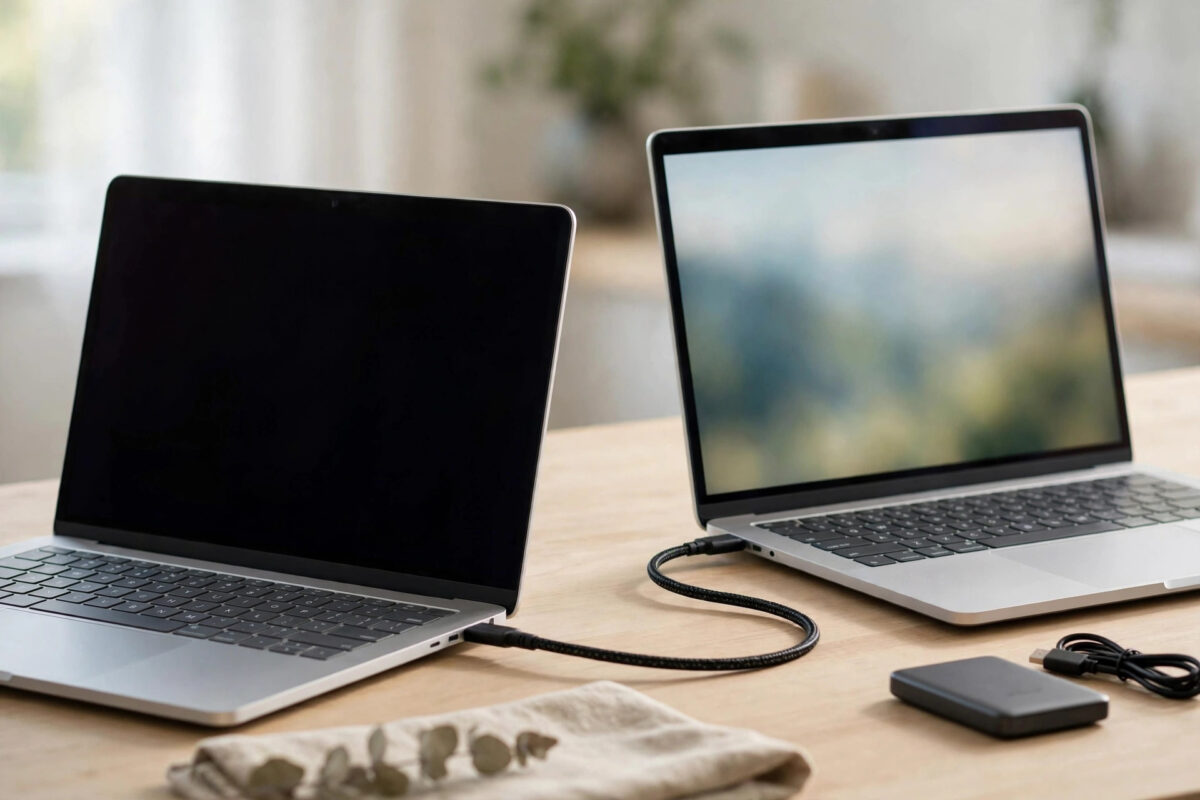
- Connect the two Macs with a USB-C or Thunderbolt cable. Avoid cheap charge-only cables, which cannot carry data.
- On an Intel Mac, start it while holding the T key to enter Target Disk Mode. On Apple silicon, use the Share Disk option inside macOS Recovery instead, which is Apple’s modern replacement.
- On the working Mac, the broken Mac’s drive should appear in Finder. Select it and enter the FileVault password when asked.
- Open the Users folder, find your home folder, and copy Documents, Desktop, Pictures, and any other folders you need to the working Mac or an attached external drive.
- Eject the drive properly before unplugging the cable.
If you also keep Windows machines at home, note that Windows cannot read APFS by itself. Our separate guide on how to read a Mac-formatted drive on a Windows PC explains the extra driver and reader tools involved for older Mac formats.
Route 4: Boot From an External Drive or Use Recovery Software
When there is no second Mac and reinstalling does not help, two options remain.
Boot from a bootable external macOS drive
- Create a bootable macOS installer or a full macOS installation on an external SSD using a working Mac.
- Connect it to the broken Mac, start from it using Startup Manager or startup options, and let the external system load.
- Mount the internal APFS volume, entering the FileVault password when prompted.
- Copy your files from the internal drive to another external drive. Never copy them onto the same internal drive.
Use APFS-aware recovery software
- Choose a reputable recovery program that explicitly supports APFS and your Mac model, and install it on a working Mac or a bootable external drive, never on the failing internal drive.
- Attach or target the broken Mac’s drive, unlock it with the password, and run a scan.
- Preview found files where the tool allows it, then recover selected files to a different drive.
- Expect partial results if the drive is physically failing. Recover the most important file types first.
Signs the Drive Itself Is Failing
Software routes assume the hardware can still read data. Watch for these warning signs:
- The internal drive does not appear in Disk Utility at all, even with Show All Devices selected.
- First Aid fails instantly or reports errors it cannot repair, again and again.
- The Mac makes clicking or beeping sounds, rare on modern SSD Macs but serious on older models with hard drives.
- Copying files repeatedly freezes at the same point or files arrive corrupted.
An SSD that has failed electronically is usually beyond home recovery. If the files are essential, stop trying repeated scans, which can stress a dying drive, and ask a professional lab what is possible.
Common Mistakes to Avoid
- Erasing the drive in Disk Utility. Erase destroys the APFS structure and encryption keys. Once erased and reused, recovery becomes extremely unlikely.
- Forgetting the FileVault password situation. No tool can honestly promise to bypass APFS encryption. Without a password, recovery key, or iCloud unlock, plan around that limit rather than paying for miracle claims.
- Recovering files onto the same drive. Always copy to a different physical drive, or you may overwrite the very data you are trying to save.
- Repeatedly forcing a failing Mac to restart. Endless restart loops stress the hardware and do not fix corruption. Move to Recovery mode methodically instead.
- Skipping the backup after a successful rescue. A drive that failed once can fail completely. Back up the moment your files are reachable.
Conclusion
A Mac that will not boot has not necessarily lost your files. Start with macOS Recovery and Disk Utility First Aid, try a non-erase reinstall, and if needed use Target Disk Mode, Share Disk, or an external boot drive to copy your data out, unlocking the APFS volume with your FileVault password along the way. Work calmly, never erase, always copy to another drive, and set up Time Machine once you are safe so the next failure is a small problem instead of a crisis.
Frequently Asked Questions
Can I recover files if I forgot my FileVault password?
Only if you have another way to unlock the volume: the personal recovery key shown when FileVault was enabled, an institutional key, or iCloud unlock if you chose it during setup. Without any of these, APFS encryption prevents recovery, and no legitimate software can change that.
Will reinstalling macOS delete my documents and photos?
A standard reinstall from macOS Recovery replaces the system volume and keeps your data volume, users, and files in place. It is different from erasing the drive first, which does delete everything. Always confirm you are choosing Reinstall, not Erase.
Why does my internal drive not show up in Disk Utility?
First choose View, then Show All Devices, because the default view hides the physical drive. If it still does not appear, the drive or its connection may have failed physically, which usually requires professional assessment, especially with soldered Apple silicon storage.
Can a Windows PC read my Mac’s APFS drive?
Not natively. Windows has no built-in APFS support, so you would need third-party APFS reader software, and FileVault encryption limits what those tools can open. A second Mac is by far the simplest host for this job.
How long does copying data from a non-booting Mac take?
It depends on how much data you have and the drive’s condition. A few gigabytes may take minutes over Thunderbolt, while a nearly full one-terabyte drive in poor health can take many hours. Prioritise documents and irreplaceable photos first.



Leave a Reply