
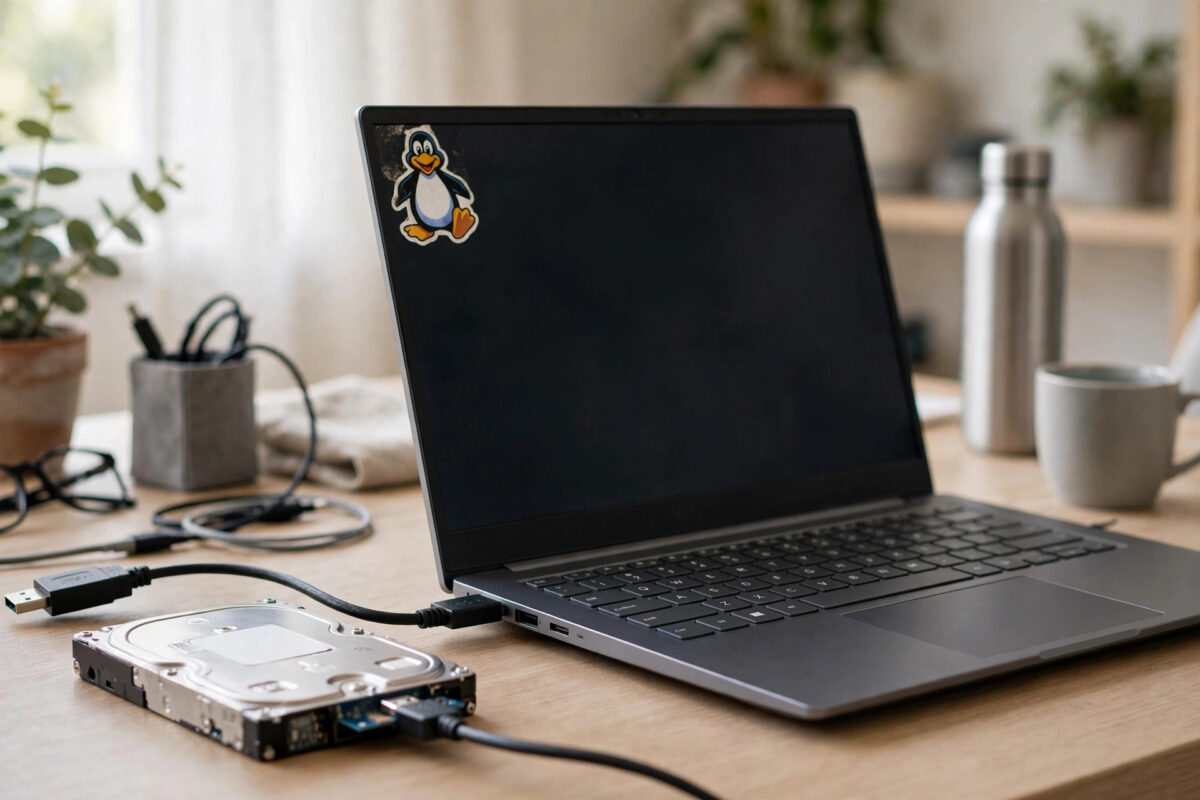
You plugged a Linux drive into your Windows 11 PC, and Windows either ignores it completely or offers to format it. Your files are still there. The drive is almost certainly formatted as ext4, the standard Linux file system, and Windows simply does not speak that language.
Do not click Format, and do not click Initialize Disk if Disk Management asks. Either action can destroy the partition information and turn a simple copy job into a real recovery problem. There are four safe ways to read the drive, and this guide walks through each one.
Quick Answer
The most reliable free method is WSL in Windows 11: open PowerShell as administrator, mount the drive with the wsl –mount command, and copy your files from inside Linux. If you only need a quick look, a free read-only tool such as DiskInternals Linux Reader is simpler. Never let Windows format or initialize the disk, and if the drive is failing or clicking, image it before you do anything else.
Why Windows 11 Cannot Open ext4 Drives
Windows ships with drivers for NTFS, FAT32 and exFAT only. When it meets an ext4 partition it sees an unknown layout, which is why File Explorer shows nothing and Disk Management labels the space as a healthy partition with no file system name. The data itself is untouched. You just need software that understands ext4 to stand between Windows and the drive.
Your main options, from most to least recommended, are:
- WSL (Windows Subsystem for Linux) — built into Windows 11, free, mounts the whole physical disk inside a real Linux environment.
- DiskInternals Linux Reader — a free Windows program that opens ext4 like a file browser and lets you save files out. Read-only, which makes it very safe.
- Paragon Linux File Systems for Windows — a paid driver that gives ext4 drives a normal drive letter, including write access.
- A Linux live USB — boot the PC from Ubuntu on a stick and copy files with the operating system that created them.
Method 1: Mount the Drive with WSL
WSL is the strongest option because a genuine Linux kernel reads the partition, so permissions, symbolic links and long filenames all behave correctly. Follow the official WSL documentation from Microsoft if you have never installed it.
- Install WSL. Open PowerShell as administrator, run
wsl --install, and restart when prompted. Ubuntu is installed by default. - Find the disk number. With the Linux drive connected, run
Get-Diskin PowerShell and note the number of the correct disk. Check the size and model carefully — mounting the wrong disk is a miserable mistake. - Mount it. Run
wsl --mount \\.\PHYSICALDRIVE2 --bare, replacing 2 with your disk number. Then open Ubuntu and runlsblkto find the ext4 partition, for example /dev/sdc2. - Mount the partition inside Ubuntu. Run
sudo mkdir -p /mnt/linuxdriveand thensudo mount /dev/sdc2 /mnt/linuxdrive. - Copy your files. In File Explorer, type
\\wsl$\Ubuntu\mnt\linuxdrivein the address bar, or copy from the Ubuntu terminal to a folder under /mnt/c/. Copy, do not move, so the original stays intact. - Unmount cleanly. When finished, run
wsl --unmount \\.\PHYSICALDRIVE2in PowerShell before unplugging the drive.
If the partition is part of an LVM volume or a software RAID, WSL can still handle it in most cases, but you may need to install the lvm2 package inside Ubuntu first. A LUKS-encrypted partition needs one extra step: install cryptsetup, unlock the volume, and then mount the unlocked mapper device instead of the raw partition.
Method 2: Use a Free Read-Only Reader
If mounting sounds like too much work for a one-off copy, install DiskInternals Linux Reader. It scans connected drives, shows ext4 partitions in an Explorer-style window, and lets you preview files and save them to a Windows folder. Because it never writes to the Linux partition, it is the lowest-risk option of all, and it is often the better choice for a drive you do not fully trust. The trade-off is speed: very large copies are slower than through WSL.
Before You Start: Protect the Data
If this drive came out of a dead machine, treat it gently. If it clicks, beeps, spins up and down, or disappears from the system, stop and image it first rather than browsing it live — our walkthrough on cloning a failing drive with ddrescue before attempting recovery explains the safest order of operations. Also work on a copy whenever you plan to edit files: read them out to a Windows folder first, then open the copies.
Common Mistakes to Avoid
- Clicking Format or Initialize. Windows offers both because it cannot read the disk. Accepting either one damages the partition layout.
- Installing old ext2 drivers on Windows 11. Legacy tools like Ext2Fsd were built for older Windows versions and can cause blue screens or corruption on modern systems. Avoid them.
- Mounting with write access casually. Writing to ext4 from Windows drivers can break Linux permissions and ownership. Read-only access is enough for copying files off.
- Pulling the cable without unmounting. Always unmount in WSL or eject properly, or the Linux file system may be left in a dirty state.
- Guessing the disk number. Double-check with Get-Disk using size and model. Mounting your Windows system disk by accident wastes time and can confuse WSL.
A Note on Permissions, Ownership and Big Archives
Files copied out of an ext4 partition sometimes arrive with odd behaviour: a document that opens read-only, or a folder Windows claims you have no permission to enter. That is Linux ownership information colliding with Windows’ simpler model. For ordinary documents and media it is harmless — open the file, save a working copy, and move on. If Windows refuses access to a copied folder, take ownership of the copy (right-click, Properties, Security, Advanced) rather than fighting the original.
If you need to preserve the Linux files exactly as they are — permissions, links and all, for example when rescuing a home directory you plan to restore to another Linux machine — do not copy file-by-file into Windows at all. Instead, while the drive is mounted in WSL, archive the folders into a single tar file stored on your Windows drive: sudo tar -czf /mnt/c/rescue/home-backup.tar.gz /mnt/linuxdrive/home/yourname. The tarball carries the Linux metadata inside it, immune to Windows’ opinions, and any Linux system can unpack it later with everything intact.
One more caution for dual-boot machines: if the ext4 drive is internal and its PC also runs Windows with Fast Startup enabled, Windows may leave the shared NTFS data partitions in a hibernated state that Linux sees as dirty. That does not affect reading the ext4 partition from WSL, but it explains mystery “read-only” behaviour if your rescue expands to the Windows side of the machine. Disable Fast Startup in Windows power settings before a big cross-platform rescue session and both systems will behave predictably.
Conclusion
An ext4 partition is not a lost cause on Windows 11; it just needs a translator. WSL gives you a full Linux environment for free and handles big copies best, while a read-only reader is perfect for a quick, safe rescue. Whichever route you choose, refuse every format and initialize prompt, copy files rather than moving them, and image the drive first if its health is in any doubt.
Frequently Asked Questions
Can Windows 11 read ext4 natively?
No. Windows 11 has no built-in ext4 driver, which is why the partition appears blank or triggers a format prompt. You need WSL, a third-party reader, a paid driver, or a Linux live USB to access the files.
Is it safe to use WSL to mount a Linux drive?
Yes, as long as you identify the correct physical disk and unmount it when you finish. WSL uses a real Linux kernel, so it reads ext4 exactly as a Linux PC would.
Windows keeps asking to format the drive. What should I do?
Always click Cancel. The prompt appears because Windows cannot identify the file system, not because the drive is empty or damaged. Formatting would erase the data you are trying to save.
Can I write files back to the ext4 partition from Windows?
Technically yes with a paid driver such as Paragon’s, but for a rescue job it is safer to copy files out, edit them on Windows storage, and let a Linux system write them back if needed.
What if the ext4 partition is encrypted with LUKS?
Mount the disk in WSL, install cryptsetup in Ubuntu, unlock the volume with your passphrase, and then mount the unlocked device. Read-only Windows reader tools cannot open LUKS volumes at all.



Leave a Reply