
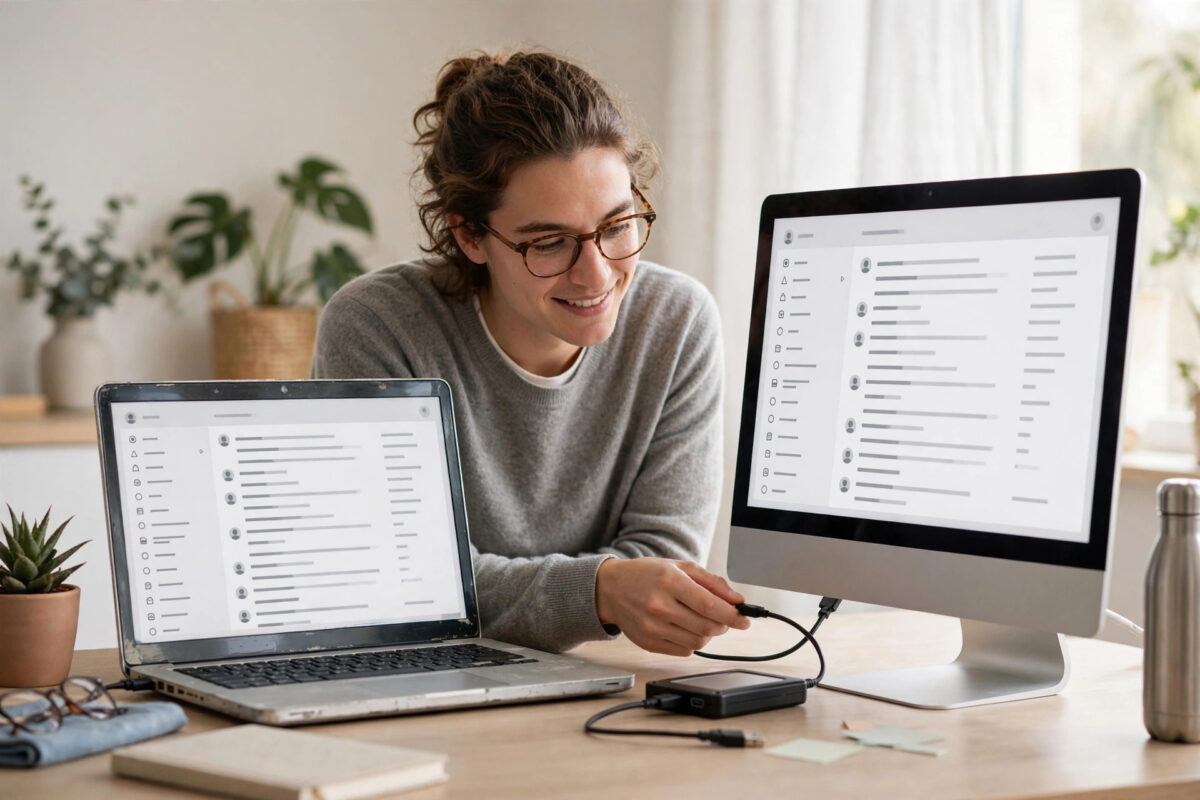
Getting a new computer is exciting until you realise all your email history, folders, address books, and settings live inside Thunderbird on the old machine. Re-adding accounts from scratch loses years of local mail, especially if you used POP or Local Folders.
The reliable way to move is not to export messages one by one. It is to move the entire Thunderbird profile. A profile contains everything in one place, and if you copy it correctly, the new computer opens with your mail exactly as you left it.
Quick Answer
To move a Thunderbird profile to a new computer with all emails intact, install Thunderbird on the new computer but do not set up accounts yet, then copy the entire Thunderbird profile folder from the old computer and replace the new profile contents with it. The fastest safe method is to use Help, More Troubleshooting Information, Open Profile Folder on both machines, close Thunderbird completely, and transfer the folder contents via an external drive. Start Thunderbird on the new computer and it will load your accounts, folders, and address books automatically.
What Is a Thunderbird Profile and What Does It Contain?
A profile is a folder with a random-looking name that ends in “.default” or “.default-release”, for example “abcd1234.default-release”. Inside it Thunderbird stores far more than settings.
- All POP and Local Folders messages stored on your computer
- Account settings for IMAP, POP, and outgoing servers
- Address books and collected addresses
- Message filters, folder structure, and saved searches
- Calendars, if you use Thunderbird calendars
- Add-ons and their settings, plus your custom preferences
For IMAP accounts, messages also exist on the server, so you could re-sync them. For POP accounts set to delete from the server, and for anything in Local Folders, the profile copy may be the only copy in the world. That is why this transfer deserves care and a backup.
Mozilla documents the profile system in detail in its support article on where Thunderbird stores user data and profiles, including the default locations on Windows, macOS, and Linux. Check that article if the folder paths below look different on your system version.
Before You Start: Preparation Checklist
- Update Thunderbird on the old computer: Note the version under Help, About Thunderbird. Install the same or a newer version on the new computer. Moving from a much newer version to a much older one can cause problems.
- Prepare a transfer method with enough space: Use an external hard drive or USB stick formatted so it can hold large files, or a secure local network transfer. Check your profile size first — many profiles are 2 to 10 GB, and some are much larger. Avoid emailing the profile or splitting it across small sticks.
- Close Thunderbird during copying: This is essential on both machines. If Thunderbird is running while you copy, some files will be locked or out of sync.
- Know your passwords: Most passwords transfer with the profile, but some systems protect them with the operating system keychain. Have your email passwords available in case the new computer asks you to enter them once.
Step-by-Step: Move the Profile Using an External Drive
On the old computer
- Open Thunderbird. Go to Help, More Troubleshooting Information.
- Find the row labelled “Profile Folder” and click Open Folder (or Show in Finder on macOS).
- A file manager window opens inside your profile. Go up one level so you can see the profile folder itself, for example the “.default-release” folder.
- Now close Thunderbird completely. Confirm it is not running in the background.
- Copy the entire profile folder to your external drive. Copy the folder, not just a few files inside it.
- Safely eject the drive when the copy finishes. Do not rush this if the profile is large.
On the new computer
- Install Thunderbird from the official Mozilla site and open it once, then close it again. This creates a fresh default profile.
- Open Thunderbird again, go to Help, More Troubleshooting Information, and click Open Folder for the Profile Folder, just as you did before.
- Go up one level, close Thunderbird completely, and note the name of the new profile folder.
- Open the new profile folder, select everything inside it, and delete those fresh contents. The folder itself should remain, empty.
- Open the profile folder you copied from the external drive, select everything inside it, and copy it into the now-empty new profile folder. You are copying the contents, so the new folder keeps its own name but gains your old data.
- Disconnect the external drive and start Thunderbird.
If everything copied correctly, Thunderbird opens with your accounts in the left pane, your folders and messages visible, and your address book present. Click Get Messages to test a fresh connection, and send a short test email to confirm the outgoing server works too.
An alternative official approach is to use Thunderbird’s built-in export and import tools for smaller profiles, which Mozilla covers in its guide on importing data into Thunderbird with the Import Tool. For large profiles with years of POP mail, the manual folder copy described above is usually more complete and reliable.
What to Check After the Move
Do not delete anything from the old computer until you have verified the new one thoroughly.
- Folders and counts: Open Inbox, Sent, and your largest Local Folders. Compare the message counts with the old computer if you can.
- Search: Search for a distinctive old email from a year ago. If global search finds it, the local data arrived.
- Address Book: Open the Address Book and confirm your personal contacts and lists are present.
- Filters: Open Tools, Message Filters, and skim the list. Filters travel with the profile, but a quick look prevents surprises.
- Add-ons: Some add-ons may need an update for the new Thunderbird version. Disable any that report as incompatible rather than forcing them.
- Signatures and templates: Create a new message and check that your signature appears correctly.
If you also plan to tidy your mailbox after the move, pair this transfer with the steps in our guide on how to back up Thunderbird emails and your full profile safely, so you keep a permanent backup copy separate from both computers.
Moving Between Different Operating Systems
You can move a profile from Windows to macOS, Windows to Linux, and most other combinations, because the mail data format is the same. The folder locations are different, which is why using “Open Profile Folder” inside Thunderbird is safer than memorising paths.
Two cautions apply to cross-system moves. First, file paths for things like message filters that point to a specific drive, or add-ons with system-specific components, may need a small adjustment. Second, never copy a profile while either copy of Thunderbird is running — this rule matters even more when you are switching systems and are tempted to check something mid-transfer.
Common Mistakes to Avoid
- Copying only the Mail folder: You will get some messages but lose account settings, address books, filters, and calendars. Always copy the entire profile contents.
- Copying while Thunderbird is open: Open database and index files may not copy correctly and can cause missing messages or a profile that will not load.
- Replacing the profile folder name instead of its contents: Thunderbird looks for the profile registered in its profiles.ini file. Keeping the new folder name and replacing only the contents avoids a “profile missing” error.
- Using a cloud sync folder as a live profile location: Letting two computers sync the same live profile at once can corrupt it. Copy the profile as a one-time transfer, do not run it from a synced folder on both machines.
- Deleting the old profile too soon: Keep the old computer and your external-drive copy untouched for at least a week of normal use on the new machine.
Conclusion
Moving Thunderbird to a new computer does not have to mean starting again or losing local email history. By copying the entire profile folder — with Thunderbird closed on both machines — and placing its contents into the new computer’s profile folder, you carry over accounts, messages, address books, filters, and settings in one reliable move. Verify folders, search, sending, and receiving on the new machine before you retire the old one, and keep your transfer copy as a backup. Done this way, your first morning on the new computer feels exactly like your last morning on the old one, only faster.
Frequently Asked Questions
Can I move only one account instead of the whole profile?
It is possible with export tools and manual folder copying, but it is much more error-prone. If the new computer is yours, moving the whole profile is simpler and preserves the relationships between accounts, filters, and Local Folders.
My profile is too large for my USB stick. What can I do?
Use a larger external drive, transfer over your home network, or first archive and compact old folders on the old computer to reduce the size. Do not split the profile arbitrarily or omit files to make it fit, because missing files can break the profile.
Will my passwords move to the new computer?
Usually yes, because they are stored inside the profile’s password files. In some cases, especially when changing operating systems, Thunderbird may ask you to enter each account password once and save it again. Keep your passwords handy during the move.
Thunderbird on the new computer says the profile is missing. What went wrong?
You probably replaced the folder name or copied the profile into the wrong location. Use Help, Troubleshooting Information, Open Profile Folder on the new computer to find the exact folder Thunderbird expects, close Thunderbird, and copy your old profile contents into that specific folder.
Should I use IMAP in future to make moving easier?
IMAP does make future moves easier because mail re-downloads from the server, but Local Folders archives and POP-only mail still need a profile backup. Even with IMAP, a full profile copy remains the fastest way to move settings, filters, and address books.



Leave a Reply