
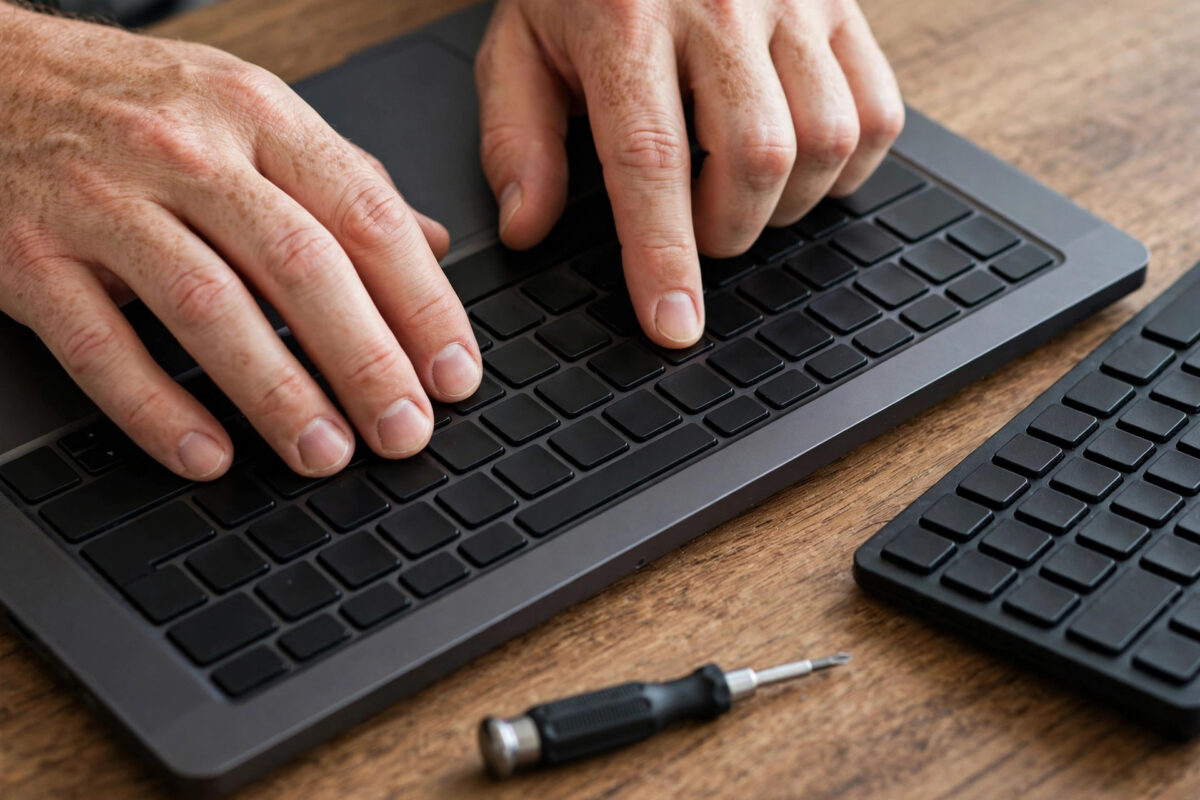
Your laptop keyboard stopping mid-sentence is one of those faults that makes the whole computer feel useless — you cannot type a password, search for help, or even log in properly. The good news is that a keyboard that has suddenly stopped typing is rarely dead. More often, a driver has hiccupped, an accessibility setting has quietly switched on, a recent update has confused Windows, or a crumb is sitting under one key. Hardware failure is on the list, but it is near the bottom.
This guide works through the fixes in a sensible order, from sixty-second checks to driver reinstalls and hardware tests. Before you start, one lifeline: Windows has an on-screen keyboard. Press Windows key + Ctrl + O to toggle it, or enable it at Settings > Accessibility > Keyboard > On-screen keyboard, and you can click letters with the mouse or touchpad while you troubleshoot. Plugging in any USB keyboard also works instantly on most laptops.
Start With the Checks That Take One Minute
First, restart the laptop properly with Start > Power > Restart. A restart clears the temporary driver state that a shutdown with Fast Startup preserves, and it genuinely revives a surprising number of “dead” keyboards. If the keyboard will not even let you reach the menu, hold the physical power button for ten seconds to force a shutdown, wait half a minute, and power on again.
Second, work out the scope of the problem. Is the entire keyboard dead, or only some keys? Does the Caps Lock or Num Lock light still toggle when pressed? Lights responding means the keyboard has power and the fault is likely in Windows. Third, try typing somewhere different — open Notepad and test there — because a single frozen app can look exactly like a keyboard failure. Fourth, look for a function-key lock: many laptops have an Fn Lock on the Esc key or a number-pad toggle that remaps part of the keyboard, and an accidental press can make whole rows appear broken, especially the number keys typing digits instead of letters on compact keyboards with an embedded numeric pad.
Test the Keyboard Outside Windows
This is the most informative test in the whole guide. Restart the laptop and enter the BIOS or UEFI setup — usually by pressing F2, Delete, or F10 as it starts; the exact key is often shown briefly on screen. Once in the setup menus, use the arrow keys to move around.
If the keyboard works perfectly in the BIOS, the hardware is healthy and your problem lives in Windows — drivers or settings — so continue with the sections below. If the keyboard is dead in the BIOS too, you are looking at a hardware issue: a loose internal ribbon cable, liquid damage, or a failed keyboard, and the final section covers your options. An external USB keyboard that works in both places confirms the diagnosis either way and keeps you productive meanwhile.
Fix Accessibility Settings That Filter Your Typing
Windows includes typing aids that, when enabled accidentally, make a keyboard feel broken. Filter Keys ignores brief or repeated keystrokes, so normal typing produces missing letters. Go to Settings > Accessibility > Keyboard and make sure Filter Keys is off. While you are there, turn off Sticky Keys and Toggle Keys for testing too — Sticky Keys in particular can be triggered by pressing Shift five times, which happens in games and fast typing more often than people realise.
On the same screen, note the On-screen keyboard toggle for your backup input method. After changing these settings, test in Notepad again before moving on; stacked fixes make it impossible to know which one worked.
Repair the Driver in Device Manager
Driver trouble is the leading cause of a keyboard that stops after an update or a sleep-wake cycle. Press Windows key + X and choose Device Manager, then expand Keyboards.
- Right-click your keyboard entry — usually Standard PS/2 Keyboard or an HID keyboard device — and choose Update driver > Search automatically for drivers.
- If that changes nothing, right-click again and choose Uninstall device. Do not panic: the keyboard is meant to disappear from the list.
- Restart the laptop. Windows detects the keyboard during startup and reinstalls a clean driver automatically.
- If your laptop maker provides a chipset or input driver for your exact model, installing that package afterwards can restore special function-key behaviour.
Also check the Power Management angle for USB-connected internal keyboards: in Device Manager, under Universal Serial Bus controllers, open each USB Root Hub > Properties > Power Management and untick Allow the computer to turn off this device to save power if the keyboard only fails after sleep. Microsoft’s official Windows support guidance on hardware and driver problems covers this uninstall-and-restart technique, which works because Windows keeps a fresh copy of the standard keyboard driver.
Undo Recent Changes and Check for Damage
If the keyboard stopped right after a Windows update, use Settings > Windows Update > Update history > Uninstall updates to remove the most recent one as a test, or use System Restore via Settings > System > Recovery > Advanced startup to roll the system back to a date when typing worked. If it stopped after a spill — even a small one — power the laptop off, leave it upside down over a towel, and do not keep testing it powered on; liquid damage spreads while current flows. Sticky or crunchy individual keys usually mean debris: power off, turn the laptop over, and tap gently, or use short bursts of compressed air held upright at an angle.
When the keyboard fails in the BIOS and an external keyboard works, the internal unit or its ribbon cable needs physical attention. On many models a replacement keyboard is inexpensive, though fitting ranges from a few screws to a full teardown depending on design. Our broader set of laptop repair guides and Windows troubleshooting walkthroughs can help you judge whether it is a home repair or a workshop job.
Common Mistakes and Useful Tips
- Assuming the keyboard is dead straight away: most sudden failures are drivers or settings. Run the BIOS test before spending money.
- Shutting down instead of restarting: Fast Startup means shutdown preserves the faulty driver state. Always use Restart for this fault.
- Stacking five fixes at once: change one thing, test, then move on. Otherwise you learn nothing and may undo the fix that worked.
- Forgetting Fn Lock and Num Lock: letters typing numbers, or function keys behaving oddly, are usually a lock key — not a breakdown.
- Skipping the on-screen keyboard: enabling it first means you can type passwords and search normally throughout the repair.
- Testing a spilled-on keyboard while powered: switch off immediately after any liquid spill. Continued power is what turns a cleanable spill into corrosion.
Conclusion
A laptop keyboard that stops typing is usually a software problem wearing a hardware costume. Restart properly, check the lock keys and accessibility settings, test the keyboard in the BIOS to split hardware from Windows faults, and reinstall the driver in Device Manager. That sequence resolves the great majority of cases without tools or spending. If the keyboard is silent even in the BIOS, an external keyboard keeps you working while you arrange a cable check or a replacement.
Frequently Asked Questions
Why did my laptop keyboard stop working after an update?
Updates can replace or corrupt the keyboard driver, or change power settings. Uninstalling the keyboard in Device Manager and restarting forces Windows to install a clean driver, which fixes most post-update cases.
How can I type if my keyboard does not work at all?
Use the on-screen keyboard — press Windows key + Ctrl + O, or enable it in Settings > Accessibility > Keyboard — and click letters with the mouse. Any USB or Bluetooth keyboard will also work straight away.
Only some of my keys stopped working. What does that mean?
Partial failures point to debris under specific keys, a Num Lock remapping letters to numbers on compact keyboards, or localised hardware wear. Test in the BIOS: if the same keys fail there, it is physical.
My keyboard works in BIOS but not in Windows. What now?
The hardware is fine, so focus on Windows: check Filter Keys in Settings > Accessibility > Keyboard, reinstall the driver in Device Manager, and consider System Restore to a date when it worked.
Is it worth replacing a built-in laptop keyboard?
Usually yes — replacement keyboards for most models are relatively inexpensive, and an external keyboard is a fine stopgap. Models where the keyboard is fused to the top case cost more, so get a quote before deciding on older machines.



Leave a Reply