
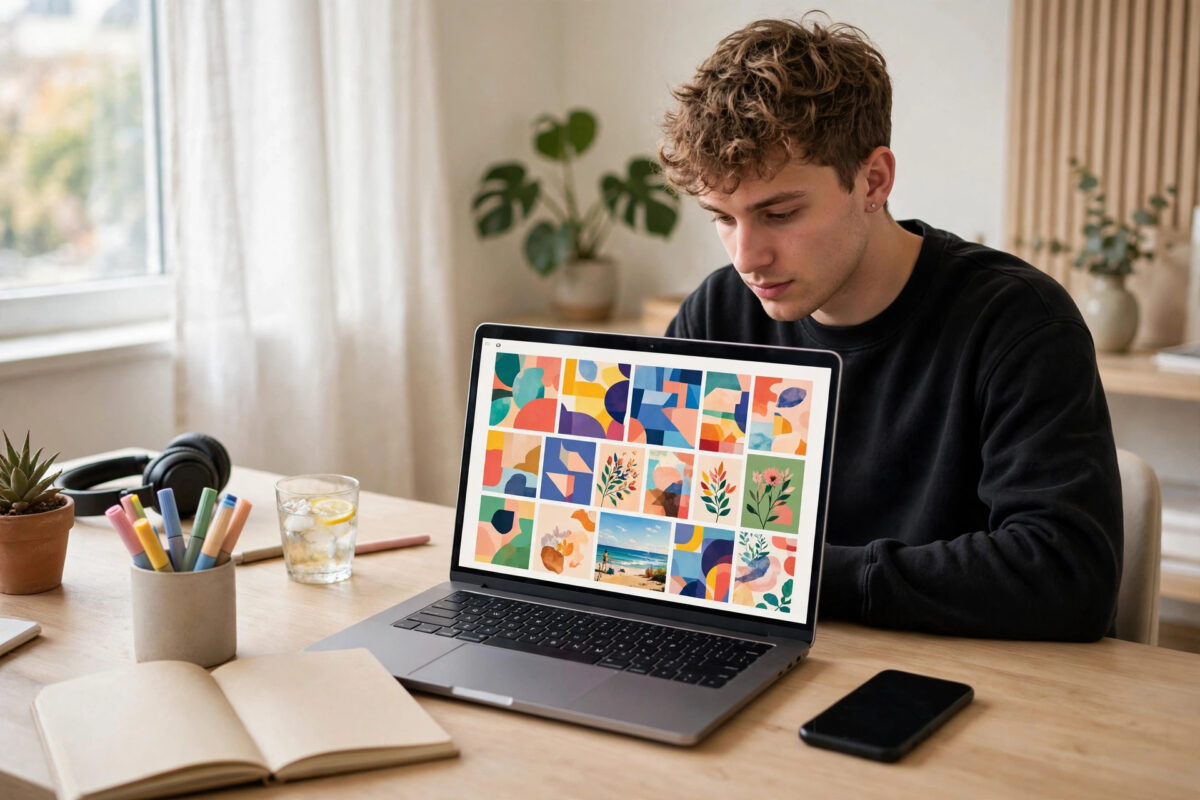
Designing a week of social media posts used to mean an afternoon of resizing images, hunting for fonts, and staring at a blank canvas. Canva’s AI tools have changed that routine. Instead of starting from nothing, you describe what you want, let the software build a first draft, and then spend your time refining rather than constructing. For small business owners, teachers, students, and solo creators, that shift saves real hours every week.
This guide walks through the practical workflow, step by step. You will learn how to generate a design from a text prompt, swap backgrounds in seconds, write and rewrite captions inside the editor, resize one post for every platform, and avoid the mistakes that make AI-assisted designs look generic. No design degree is required — just a clear idea of what you want to say.
What Canva’s AI Tools Actually Do
Canva groups its artificial intelligence features under the name Magic Studio. It is not one tool but a collection of helpers built into the normal editor, and understanding what each one does helps you pick the right one instead of clicking around hopefully.
Magic Design and Magic Media
Magic Design creates a set of ready-made layouts from a short text description or an uploaded photo. You might type “bright Instagram post announcing a weekend bakery sale” and receive several complete designs with images, headlines, and colour schemes already in place. Magic Media goes a step further and generates images and short videos from text, which is useful when you have no suitable photo and stock libraries have nothing that fits.
Magic Write, Magic Edit, and Background Remover
Magic Write is a text assistant inside the editor. It drafts captions, expands a short note into a paragraph, shortens a rambling draft, or changes the tone from formal to friendly. Magic Edit lets you select part of an image and replace it — turning a coffee cup into a teapot, for example — by describing the change. The Background Remover isolates a subject with one click, which is essential for clean product posts. Some of these features are limited or reserved for paid tiers, while free accounts get a smaller allowance to try them.
You can explore the full feature set on the official Canva website, where the free and paid plans are compared side by side.
Step-by-Step: Create a Post With AI in About Ten Minutes
Step 1: Start With the Right Size and a Clear Prompt
Open Canva and choose the format first — an Instagram square, a portrait post, a Facebook cover, or a story. Starting with the correct dimensions avoids awkward cropping later. Then open Magic Design and write a specific prompt. “Sale post” is too vague. “Warm, rustic Instagram post for a small bakery announcing 20 percent off sourdough this Saturday, space for a headline at the top” gives the AI colour, subject, purpose, and layout clues. Specific prompts consistently produce more usable results.
Step 2: Pick a Draft and Replace the Generated Image if Needed
Review the drafts and choose the one whose layout is closest to your goal, even if the image is wrong. Layouts are harder to rebuild than pictures are to swap. If the generated image looks odd — check hands, text, and faces carefully — replace it with your own photo or a stock image. AI images work best for backgrounds, textures, and simple objects; real photography still wins for your actual products and people.
Step 3: Edit the Image With Magic Tools
With your image placed, use the Background Remover if the subject needs to sit on a brand colour. Use Magic Edit sparingly for small fixes, such as removing a distracting object. Apply a filter or adjust brightness so the image matches your other posts. Consistency matters more than any single clever effect: followers should recognise your posts while scrolling quickly.
Step 4: Write the Headline and Caption With Magic Write
Click the text box, open Magic Write, and ask for options. Give it the facts: the offer, the date, and the action you want readers to take. Generate three or four headline versions, then edit the best one in your own words. AI text tends to sound enthusiastic but generic, full of words like “elevate” and “unleash.” Rewriting one line in your natural voice makes the whole post feel human. Keep headlines short — five to eight words that can be read at a glance.
Step 5: Apply Your Brand Kit and Check Alignment
Swap the draft’s colours and fonts for your own. If you post regularly, save your logo, colours, and fonts once so this step takes seconds. Check that text is not too close to the edges, that the contrast is strong enough to read on a phone in daylight, and that everything lines up. Canva’s guides and snapping make this easy if you slow down for one minute.
Step 6: Resize for Every Platform With Magic Resize
Instead of rebuilding the design for each network, use the resize feature to create copies sized for other platforms. Always review each copy afterwards: a headline that fits a square may overflow a story, and important details can end up in areas covered by platform buttons. A quick check per copy prevents embarrassing posts.
Step 7: Schedule or Download
Download in PNG for static posts or MP4 for animated ones, or schedule directly if your plan and connected accounts allow it. Batching works well here: create five posts in one sitting using the same layout family, and your feed for the week is done.
Making AI Designs Look Like Yours, Not Everyone Else’s
The biggest risk with AI design tools is sameness. Thousands of people use the same popular templates, and audiences notice. A few habits keep your content distinct. Use your own photos whenever the subject is your product, your shop, or your team. Build two or three house templates — same fonts, same colour palette, same logo position — and let AI fill them rather than inventing a new style each time. Limit yourself to two fonts and three main colours.
If you are building a wider content routine around tools like these, our guides over at Network Ustad’s AI and technology guides cover how different apps fit together in a small creator workflow.
A Simple Weekly Workflow
On Monday, list the five messages you need that week. Generate drafts for all five, choose layouts, and drop in real photos. On Tuesday, write captions with Magic Write, rewrite them in your voice, and resize for each platform. Schedule everything, then spend the rest of the week replying to comments instead of designing. Most people find this cuts design time from several hours to under one.
Common Mistakes and Practical Tips
Mistake 1: Publishing the First Draft Unchanged
AI drafts are starting points. Unedited generated text often contains factual slips, odd phrasing, or images with small errors. Read every word, zoom into every image, and check dates and prices twice.
Mistake 2: Too Much Text on the Image
Social posts are viewed quickly on small screens. If your image needs a paragraph to explain it, the message belongs in the caption instead. Keep on-image text to one headline and, at most, one short line of support.
Mistake 3: Ignoring Image Rights and Accuracy
Generated images of real people, logos, or branded products can create legal and trust problems. Use AI imagery for scenes and concepts, not to fake endorsements, reviews, or news events. When in doubt, use a photo you took or a properly licensed stock image.
Tip: Save Prompts That Work
Keep a small note of prompt wording that produced good results for your niche. Reusing a proven prompt structure with new details is faster than inventing one each time and keeps your style consistent.
Conclusion
Canva’s AI tools do not replace taste or judgement, but they remove the slowest parts of social media design: the blank page, the resizing, and the hunt for a workable layout. Start with the right size, write specific prompts, swap in real photos where it counts, rewrite generated text in your own voice, and resize carefully for each platform. Follow that routine and you can produce a week of clean, on-brand posts in a single focused session.
Frequently Asked Questions
Is Canva’s AI free to use?
Free accounts can try several AI features with a limited number of uses. Heavier features, larger allowances, and tools such as one-click background removal are generally part of the paid tiers. The free allowance is enough to learn the workflow before deciding.
Can I use Canva AI designs for commercial posts?
Generally yes for your own business marketing, but you remain responsible for checking the licence terms for any stock elements and for making sure generated images do not copy a real brand or person. Read the current terms for AI-generated content before a major campaign.
Why do my AI-generated images sometimes look strange?
Image generators still struggle with hands, text inside images, and complex scenes with many people. Use generated images for backgrounds and simple subjects, keep prompts uncomplicated, and always zoom in to inspect details before publishing.
How long does it take to make one post with this workflow?
Once your brand colours and fonts are saved, most simple posts take five to ten minutes, including resizing for a second platform. The first few posts take longer while you learn where each tool lives.
Should I write captions with Magic Write or myself?
Use Magic Write for first drafts and variations, then edit. It is good at structure and speed; you are better at accuracy, personality, and local detail. The combination is faster and sounds more natural than either alone.



Leave a Reply