
Moving to a new PC should feel exciting, not stressful. The hardware is faster, the screen is brighter, and everything feels fresh — until you realise your photos, documents, tax records, music, browser bookmarks, and years of work are still sitting on the old machine. The good news is that transferring files from an old PC to a new one is easier than it has ever been, and you do not need to be an IT professional to do it safely.
The best method depends on three things: how much data you have, how fast you want the job done, and whether both computers still work. A few documents can travel through cloud storage in minutes. Several hundred gigabytes of photos and video will be much faster on an external hard drive or over your home network. This guide walks through every reliable option, explains what to copy and what to leave behind, and shows you how to check that nothing important was lost along the way.
Before you start, take ten minutes to prepare. Connect both computers to power so neither shuts down mid-transfer, sign in to the old PC with an administrator account, and check free space on the new PC in Settings > System > Storage. If its drive is smaller, delete old installers and duplicate downloads first.
What You Should Transfer — and What to Skip
Most people store their important files in predictable places. On the old PC, open File Explorer and look through the user folders under This PC: Documents, Pictures, Videos, Music, Desktop, and Downloads. Pay special attention to the Desktop and Downloads folders, because they often hide payslips, scanned documents, and installers people forget about. Also check any folders you created yourself on the C: drive or a second drive, and look inside app-specific locations such as your accounting software data folder or your email archive.
Some things should not be copied directly. Installed programs cannot simply be dragged from one PC to another, because they place files and registry entries all over Windows. Reinstall programs on the new PC from their official sources instead, then move only their data files. Windows system folders such as C:\Windows and Program Files should also be left behind. Finally, export your browser bookmarks and saved passwords through the browser itself — in Microsoft Edge, go to Settings > Profiles > Passwords to review what is saved, and use the browser’s sync or export tools rather than copying profile folders by hand.
Method 1: Transfer Files With an External Hard Drive or USB Drive
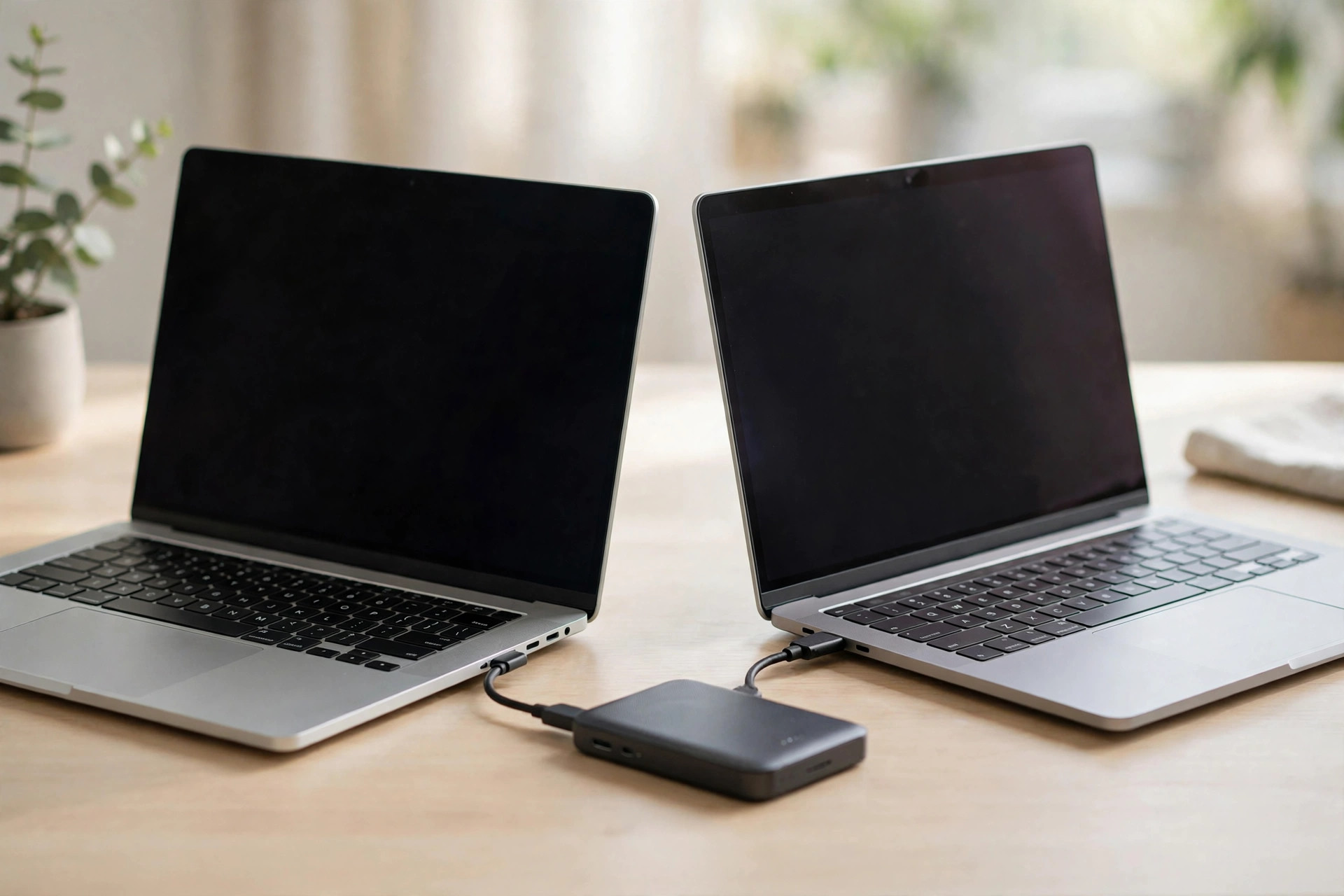
For most households, an external hard drive is the simplest and fastest option. It works offline, handles large libraries easily, and leaves you with a backup when you finish — something our guides at NetworkUstad’s practical Windows help hub recommend keeping permanently.
Step-by-step instructions
First, plug the external drive into the old PC and open File Explorer. Select the folders you want to move, right-click, and choose Copy, or press Ctrl + C. Open the external drive, create a folder called something like Old PC Transfer, right-click inside it, and choose Paste. Wait for the copy to finish completely; large video folders can take a while, and the progress window will tell you when it is done.
Next, safely eject the drive by clicking the Safely Remove Hardware icon in the notification area near the clock, then plug it into the new PC. Copy the folders from the drive into the matching user folders on the new machine — Pictures into Pictures, Documents into Documents — rather than dumping everything onto the Desktop. When the copy finishes, open a handful of files at random to confirm they work, especially documents, spreadsheets, and photos from different folders.
Microsoft explains the same copy-and-paste approach in its guidance on moving files to a new Windows PC using an external storage device, and it is worth reading if your drive is formatted in a way Windows questions.
Method 2: Use OneDrive or Another Cloud Service
If your total data is modest, or your old and new PCs are in different places, cloud storage is hard to beat. With OneDrive built into Windows, sign in to the old PC with your Microsoft account, open Settings > Accounts > Windows backup, and turn on the options to remember your apps and preferences. Then move the files you care about into the OneDrive folder in File Explorer and wait until every file shows a green tick, which means it has uploaded.
On the new PC, sign in with the same Microsoft account during setup or afterwards in Settings > Accounts > Your info, then open the OneDrive folder and your files will appear. Right-click a folder and choose Always keep on this device for a permanent local copy. Free OneDrive storage is limited, so this method suits documents and photos better than huge video collections.
Method 3: Share Files Over Your Home Network
When both PCs are connected to the same Wi-Fi or wired network, you can copy files directly between them without any drive at all. On the old PC, open Settings > Network & internet > Advanced network settings > Advanced sharing settings, and turn on Network discovery and File and printer sharing for your private network. Then right-click the folder you want to share in File Explorer, choose Properties > Sharing tab > Share, add your user account, and set the permission level to Read/Write.
On the new PC, open File Explorer, click Network in the left pane, and double-click the old PC’s name. Enter the old PC’s username and password if prompted, then copy the shared files across. Windows also offers Nearby Sharing for quick one-off transfers: open Settings > System > Nearby sharing on both machines, set it to Everyone nearby, then right-click a file, choose Share, and select the other PC. Network transfers are convenient, but Wi-Fi speeds vary, so for very large libraries the external drive is usually quicker.
Method 4: Use Windows Backup and PC Transfer Tools
Windows 11 includes a Windows Backup app that saves your folders, apps list, settings, and credentials to OneDrive; during setup of a new PC you can restore from it by signing in with the same account. Search for Windows Backup from Start on the old PC to see what it will save. Paid tools such as Laplink PCmover can also move some programs, but for most people a clean manual transfer plus fresh installs gives the most stable result.
After the Transfer: Verify Everything
Do not wipe or sell the old PC the day the transfer finishes. First, compare the size of the transferred folders on both machines: right-click a folder, choose Properties, and compare the file count and total size. Open your most important documents, check that your photo library shows recent and old pictures, and confirm your browser bookmarks and email are working on the new PC. Keep the old PC, switched off, for at least a few weeks as an insurance policy. Once you are confident, you can reset it through Settings > System > Recovery > Reset PC and choose the option to remove everything before recycling or passing it on. The background on how home networking and file sharing developed is covered in the overview of file sharing technology on Wikipedia, which is a useful read if you want to understand what is happening behind the scenes.
Common Mistakes to Avoid
The most common mistake is copying only the Documents folder and forgetting the Desktop, Downloads, and photos stored inside apps such as WhatsApp or a scanner program. Another is unplugging a drive while a copy is still running, which can corrupt the files you are trying to protect. People also forget that a transfer is not a backup: delete the originals immediately and one mistake leaves you with no copy at all. Finally, avoid transferring on battery power, and never enable sharing on a public network profile — only on your private home network.
Conclusion
Transferring files from an old PC to a new one comes down to choosing the right vehicle for the amount of data you have. An external drive is fastest for big libraries, OneDrive is effortless for documents and settings, and network sharing avoids extra hardware entirely. Whichever route you pick, prepare first, copy your user folders rather than system files, verify the results carefully, and keep the old machine untouched for a few weeks. Do that, and your new PC will feel like home on day one — with every photo, document, and memory exactly where it belongs.
Frequently Asked Questions
How long does it take to transfer files to a new PC?
It depends on the amount of data and the method. A few gigabytes through OneDrive may take minutes on fast broadband, while 500 GB over Wi-Fi can take many hours. An external USB 3 drive is usually the fastest option for large collections.
Can I transfer my programs as well as my files?
Not by copying folders. Programs must normally be reinstalled on the new PC because they rely on registry entries and system files. Paid transfer tools can move some programs, but a fresh install is cleaner and more reliable.
What if my old PC will not turn on?
A technician can remove the old drive and connect it to the new PC with a USB-to-SATA adapter, letting you copy files directly from it. If the drive itself has failed, professional data recovery may be the only option.
Do I need an internet connection to transfer files?
No. External drives and home network sharing work completely offline. Internet is only required for cloud methods such as OneDrive or Google Drive, and for downloading programs again onto the new PC.
Should I keep the files on my old PC after transferring?
Yes, for at least a few weeks. Treat the old PC as your backup until you have used the new machine daily and confirmed nothing is missing. After that, reset it securely before selling, donating, or recycling it.



Leave a Reply