
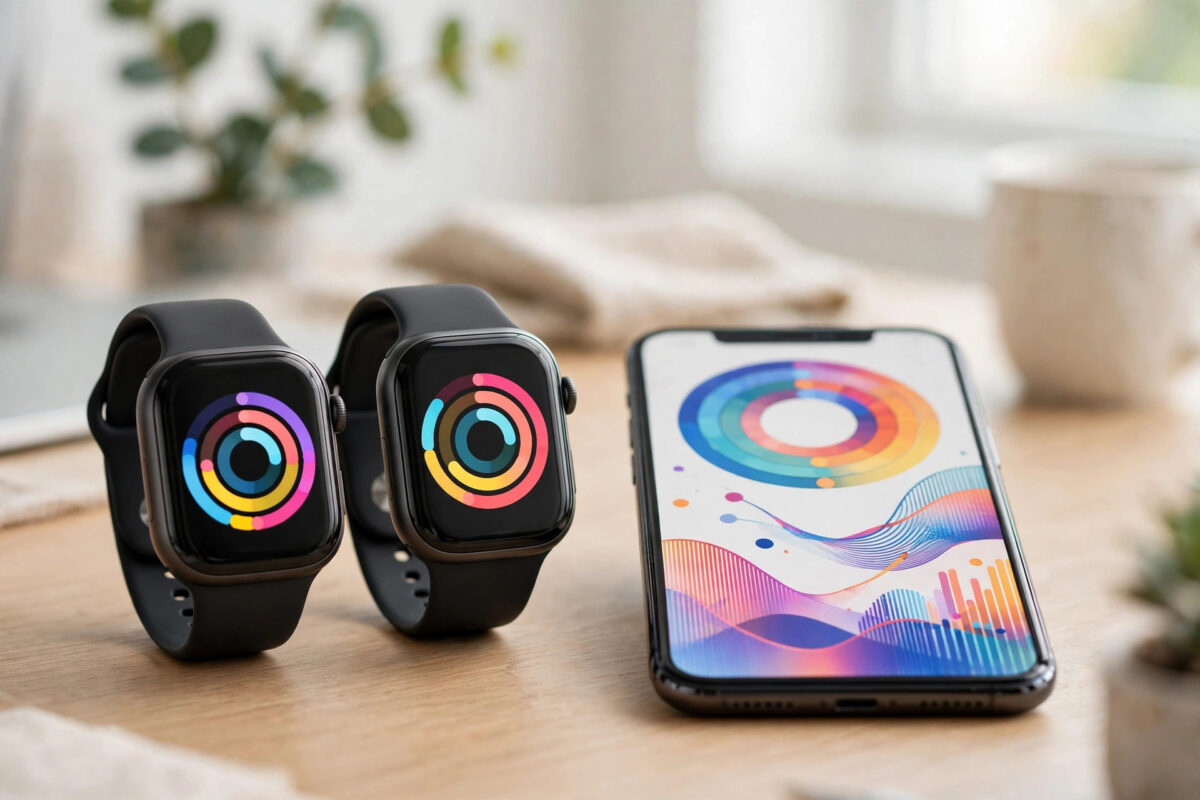
Upgrading your smartwatch should be exciting, but many people delay it because they fear losing years of health history — workout records, sleep trends, heart data, and those hard-earned streaks. The good news: your data almost never lives only on the watch. It is stored in your health account in the cloud, and with a short checklist before you unpair the old watch, everything moves across safely.
Quick Answer
Before switching, fully sync your old smartwatch with its phone app and confirm the data appears in Apple Health, Google Health Connect / Fitbit, Samsung Health, or Garmin Connect. Then set up the new watch with the same account and platform, restore or pair it, and check that your history appears. Staying within the same ecosystem is seamless; switching brands works too if you export or sync through a shared health platform first.
Where Your Health Data Actually Lives
Understanding this removes most of the fear. Your watch is a sensor; the record lives in three possible places:
- The phone’s health hub: Apple Health on iPhone, Health Connect on Android. These aggregate data from many apps and watches.
- The brand’s cloud account: Fitbit (Google), Samsung Health, Garmin Connect, Huawei Health, and similar services store your history against your account, not the device.
- The companion app on your phone: The watch app itself keeps recent data and settings, which is why a final sync matters.
Because the account holds the data, a new watch signed into the same account normally shows your full history within minutes. What does not always move automatically is watch-specific settings: watch faces, app layouts, notification preferences, and payment cards — those you set up again.
Before You Switch: The Safety Checklist
- Wear the old watch for a final sync. Open the companion app and pull to refresh or tap Sync Now. Wait until it shows the current time as the last sync.
- Verify the data landed. Open Apple Health, Health Connect, or your brand’s cloud app/web dashboard and check that yesterday’s sleep, today’s steps, and your latest workout are visible.
- Note your records. Screenshot personal records, streaks, and totals you care about. If anything goes wrong, you have proof and a reference.
- Charge both watches. Setup, updates, and data transfer drain batteries; start with both above 50%.
- Back up the phone. On iPhone, an iCloud or computer backup includes Apple Watch data. On Android, ensure the watch app data is included in your Google backup.
If your old watch has been draining unusually fast during this process, that is usually age rather than a switching problem — our guide on why smartwatch batteries drain quickly explains the common culprits.
Switching Within the Same Brand
Apple Watch to Apple Watch
Unpair the old watch from the Watch app — unpairing automatically creates a backup on the iPhone. Set up the new watch and choose “Restore from Backup”. Your health data is already in Apple Health and flows to the new watch; achievements and trends follow your Apple ID. Keep the old watch until the new one shows your history.
Fitbit to Fitbit, Garmin to Garmin, Samsung to Samsung
The pattern is identical: your history sits in your Fitbit/Google, Garmin Connect, or Samsung account. Pair the new device in the same app with the same account, sync, and everything appears. In-app challenges, friends, and long-term trends carry over because they were never stored on the watch itself.
Switching Brands: The Extra Step
Moving between ecosystems (Fitbit to Apple Watch, Garmin to Samsung, and so on) needs your data in a shared hub first:
- On iPhone: In the old brand’s app, enable its connection to Apple Health and allow all categories (steps, heart rate, sleep, workouts). Give it a day of syncing, then confirm the data shows inside the Health app. Your new watch writes to the same Health app, so your history sits side by side.
- On Android: Connect the old app to Health Connect (Settings in the app, or Health Connect > App permissions) and let it write its full history. Newer Fitbit, Samsung, and Withings apps support this. The new brand’s app then reads and writes to the same store.
- Manual export as a last resort: Most platforms offer a data export (Fitbit and Garmin via their websites, Apple Health via Export All Health Data). Files are large XML or CSV archives — more useful for records than for importing into a rival app, but worth downloading as your personal backup.
Set the new watch up only after the shared hub shows your old history. Note that some metrics do not translate perfectly — sleep stages, readiness scores, and proprietary recovery metrics are calculated differently by each brand, so those specific trends restart while raw data like workouts, steps, and heart rate carries over.
What Will Not Transfer (and What to Do About It)
- Watch faces and app installs: Re-download them; note your favourites first.
- Payment cards: Apple Pay, Google Wallet, and Samsung Pay cards must be added again on the new watch for security. This is deliberate.
- Streaks in third-party apps: Apps with their own accounts (Strava, MyFitnessPal) keep their own data — reconnect them to the new watch’s platform and history stays unified there.
- Music stored on the watch: Re-sync playlists to the new device.
Common Mistakes to Avoid
- Factory resetting or selling the old watch before verifying: Keep it until the new watch and health hub both show your full history.
- Creating a new account: A new email means an empty history. Always sign in with the same account.
- Unpairing without syncing: An unsynced week of workouts exists only on the watch; sync first, unpair second.
- Assuming brand scores transfer: Sleep and readiness scores are recalculated per brand. Raw measurements move; interpretations restart.
- Skipping the export backup: A one-time export file costs five minutes and protects years of records. Apple’s own instructions for sharing and exporting Health data show how to generate it on iPhone.
Conclusion
Switching smartwatches is safe for your health records as long as you remember where the data lives: in your account and health hub, not the watch. Sync the old watch, verify in the app or cloud dashboard, connect rival brands through Apple Health or Health Connect first, and only then unpair and move on. Do that, and your new watch starts with your whole history already on board — and if accurate tracking on the new device matters to you, our guide on tracking fitness accurately with a smartwatch helps you set it up properly from day one.
Frequently Asked Questions
Will I lose my workout history if I change smartwatch brands?
Not if you prepare. Connect the old brand’s app to Apple Health or Health Connect and let it write its history there before switching. Raw workouts, steps, and heart rate data carry across; only brand-specific scores like readiness start fresh.
How long does it take for old data to appear on a new watch?
Within the same brand and account, usually minutes after the first sync. Cross-brand hub transfers can take a few hours to appear fully, and historical syncs sometimes complete in the background over the first day.
Can I keep data from two watches at once?
Yes. Health hubs merge data from multiple sources. Many people keep an old watch for sleep and a new one for workouts; the hub combines them, though you should set a priority source to avoid double-counted steps.
What happens to my data if my old watch is broken or lost?
Everything that had synced to your account or health hub is safe and will appear on the replacement watch. Only data recorded since the last successful sync is lost, which is why regular syncing is a good habit.
Do my achievements and badges transfer?
Within the same brand account, yes — badges live in your account. Between brands they do not transfer, though the underlying activity data that earned them does move via the health hub.



Leave a Reply