
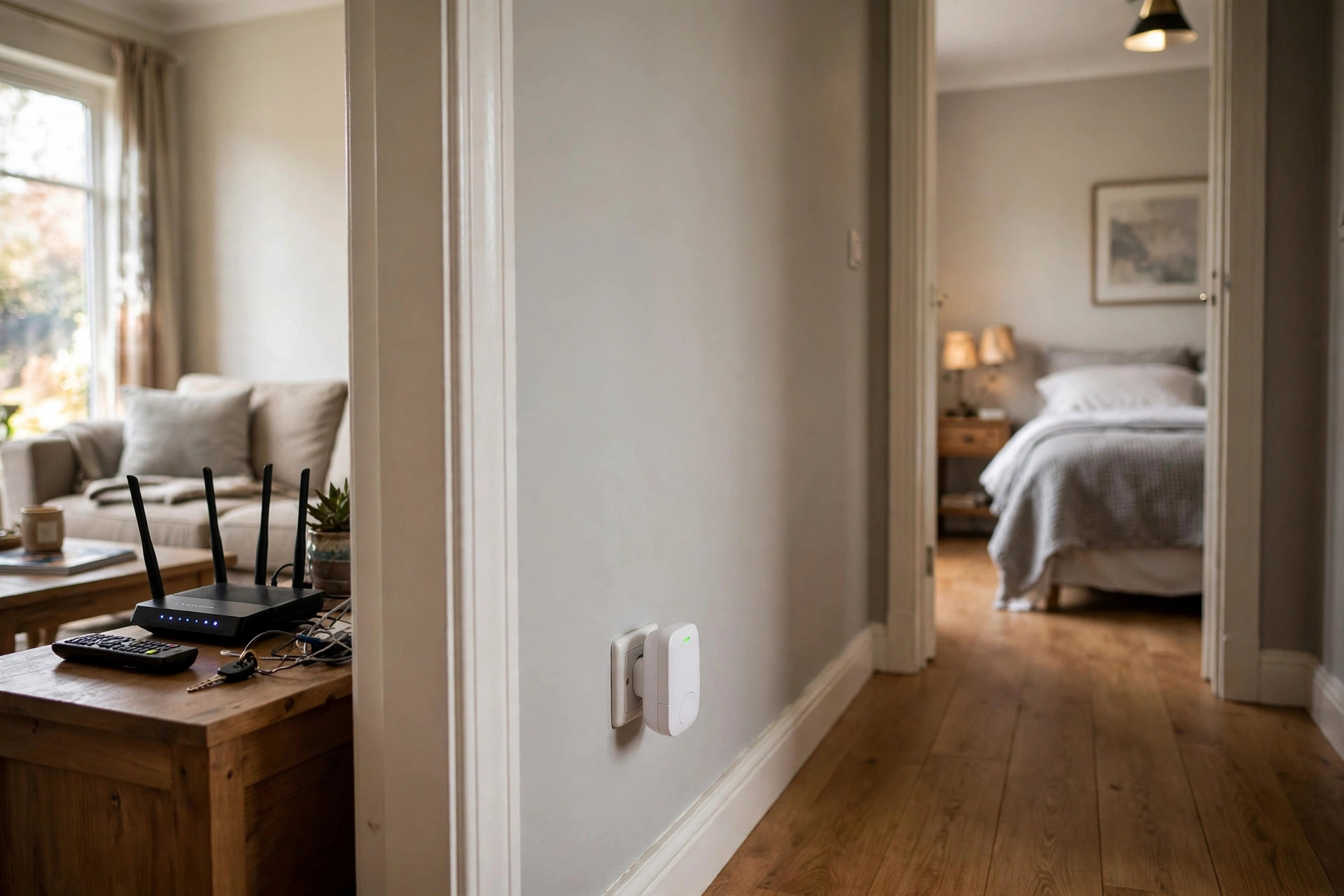
Every home has one: the bedroom where video calls freeze, the garden office where pages crawl, or the spare room where the Wi-Fi icon shows a single sad bar. When moving the router is not enough, a Wi-Fi extender is the simplest way to push coverage into those dead zones without running cables or replacing your whole network with mesh.
An extender works by listening to your existing router’s signal and rebroadcasting it further into the house, usually under the same network name or one ending in _EXT. Set it up well and a dead room becomes perfectly usable for streaming, browsing, and working. Set it up badly, plugged into the weakest spot in the house, and it will faithfully rebroadcast a terrible signal. This guide takes you through the whole process step by step, from choosing the location to testing the result.
Before You Start: What You Will Need
- Your existing router, switched on and working. An extender cannot fix a broadband fault, so confirm the internet works normally near the router first.
- Your Wi-Fi network name (SSID) and password. You will need them for the manual setup method, and it is worth having them written down before you begin.
- The extender and its quick-start guide. Brands differ in button and app names, but the process below follows the same pattern on almost all models.
- A phone or laptop for configuration and testing.
- A free power socket in the right place. Not in the dead zone itself, as explained next. Avoid extension leads if you can; a wall socket gives a more stable position.
One honest note: a basic single-band extender typically halves the speed on the extended network, because it uses the same radio to receive and retransmit. Dual-band models handle this far better. For browsing, email, and HD streaming in a far room, even a basic extender beats no signal at all.
Step 1: Choose the Right Location
Location is the step most people get wrong, so take it seriously. The extender needs two things at once: a good signal from the router to rebroadcast, and a position close enough to the dead zone to fill it. That means it belongs roughly halfway between the router and the problem area, in a spot where your phone still shows a solid two or three bars of the main network.
Never place the extender inside the dead zone itself. If the extender can barely hear the router, everything it repeats will be slow and unstable, no matter how strong its own broadcast looks on your phone. Most extenders have a signal indicator light for exactly this purpose: green or solid blue usually means a good position, amber means acceptable, and red means move it closer to the router. Finding that halfway spot is much easier once you understand where to position a router for maximum coverage in the first place, because the same walls and obstacles affect both devices.
Step 2: Plug In and Power On
For the initial setup, plug the extender into a socket in the same room as the router, even though it will not live there permanently. Wait one to two minutes for it to boot fully; the power light should become solid. Configuring it close to the router removes weak signal from the equation while you set up, so if something goes wrong you know it is a settings issue, not distance.
Step 3: Connect Using WPS (The Quick Method)
- Press the WPS button on your router. It is usually on the back or side, sometimes labelled with two circling arrows. On some routers you need to enable WPS in the admin page first.
- Within two minutes, press the WPS or RE button on the extender.
- Watch the lights. The extender’s signal light should stop blinking and turn solid, which means it has copied your network name and password and connected.
- Check the new network name. The extended network often appears as YourNetwork_EXT, or the extender may clone the original name exactly, depending on the model and its defaults.
WPS is fast, but some routers have it disabled for security. If the light does not settle after two attempts, use the manual method below instead; it takes five minutes longer and gives you full control.
Step 4: Connect Manually Through the Setup Page
- Join the extender’s temporary network. On your phone or laptop, connect to the open network in your Wi-Fi list named something like TP-Link_Extender or NETGEAR_EXT.
- Open the setup page. A configuration page may open automatically. If not, type the address from the manual into your browser, commonly http://tplinkrepeater.net, http://mywifiext.net, or a local address such as 192.168.0.254.
- Create an admin password for the extender when prompted, and keep a note of it.
- Select your home network from the list of networks the extender can see, for both 2.4GHz and 5GHz if it is dual-band, and enter your Wi-Fi password exactly.
- Name the extended network. Keep the same name as your router for simple roaming around the house, or add _EXT so you always know which signal a device is using. There are good arguments for both; the same name is tidier, while _EXT makes troubleshooting far easier.
- Save and let it reboot. The extender will restart and apply the settings, which takes a minute or two.
If your model’s menu names differ, check the TP-Link support and download centre or the Netgear support pages for extenders and routers for model-specific screenshots.
Step 5: Move the Extender to Its Real Position
Now unplug the extender and move it to the halfway location you identified in Step 1. Plug it in, wait for it to boot and reconnect, and check the signal indicator. Aim for the light that means a good connection. If it shows red or weak, move the extender one room closer to the router and test again. Small adjustments of a few metres often make a surprising difference, because a doorway or a thinner wall can transform the signal the extender receives.
Step 6: Connect Your Devices and Test Properly
Take the device that struggled, such as a laptop or phone, into the dead zone room. If your extended network has a different name, connect to it manually the first time and enter the same password as your main network unless you changed it during setup. If it shares the main name, your device should roam onto the extender automatically when its signal is stronger, though some phones cling stubbornly to the router; toggling Wi-Fi off and on usually persuades them.
Then test like you mean it. Run a speed test in the room, stream a video for a few minutes, and make a short video call if that is what the room is used for. Test where you actually sit or work, not just at the door. If the numbers disappoint, try one alternative extender position and compare.
Common Mistakes and Useful Tips
- Placing the extender in the dead zone. The most common error of all. Halfway, with a solid signal from the router, is always the rule.
- Judging by signal bars on the extended network. Full bars to the extender mean nothing if the extender itself has a weak link back to the router. Speed test results tell the truth.
- Forgetting the 5GHz band. Connect the extender to both bands if it supports them, and remember 5GHz fades faster, so the extender may need to sit closer for the faster band to work well.
- Leaving default settings forever. Set an admin password on the extender, and check for firmware updates in its settings page every few months.
- Expecting extender miracles on a failing connection. If speeds are bad even next to the router, fix the broadband or router first. An extender extends a good network; it does not repair a broken one.
- Adding extenders on top of extenders. Chaining a second extender from the first usually produces a slow, unstable result. For large or awkward homes, a mesh system is the better tool.
Conclusion
Setting up a Wi-Fi extender is genuinely a fifteen-minute job when you follow the order that matters: configure it near the router, place it halfway to the dead zone where it still receives a strong signal, and test the finished result in the room it was bought for. Whether you use WPS for speed or the manual setup page for control, the principle never changes: an extender is only as good as the signal it receives. Get that one decision right and the room that used to freeze and buffer becomes just another normal part of your home network.
Frequently Asked Questions
Will a Wi-Fi extender slow down my network?
A basic extender can halve speeds on the extended network because it receives and retransmits on the same radio. Dual-band models reduce this effect considerably. In a former dead zone, even a reduced speed is far better than an unusable connection.
Should the extender use the same network name as my router?
Using the same name is simpler and lets devices roam automatically, but an _EXT name makes it obvious which signal you are on when troubleshooting. Both work; choose based on whether convenience or clarity matters more to you.
How far from the router should I place the extender?
Roughly halfway to the dead zone, where your phone still shows two or three bars of the main network and the extender’s indicator shows a good connection. In most homes that is one room away from the router, not in the far room itself.
My extender is connected but there is no internet. What should I check?
First reboot both the router and extender. Then confirm you entered the Wi-Fi password correctly during setup, check the extender is not too far away, and log in to its setup page to verify it shows as connected to your main network.
Is an extender better than a mesh Wi-Fi system?
An extender is cheaper and perfect for fixing one or two dead rooms. A mesh system costs more but covers a whole large house more smoothly, with one network name and smarter roaming. Choose based on how many problem areas you have.



[…] connect to the 5GHz band, keep a clear line to the router, and look at our step-by-step guide on setting up a Wi-Fi extender properly — placed halfway to the router, not in the dead zone […]
[…] your home Wi-Fi is the weak point rather than the line itself, our guide on how to set up a Wi-Fi extender step by step will help you spread a stronger signal through thick-walled […]