
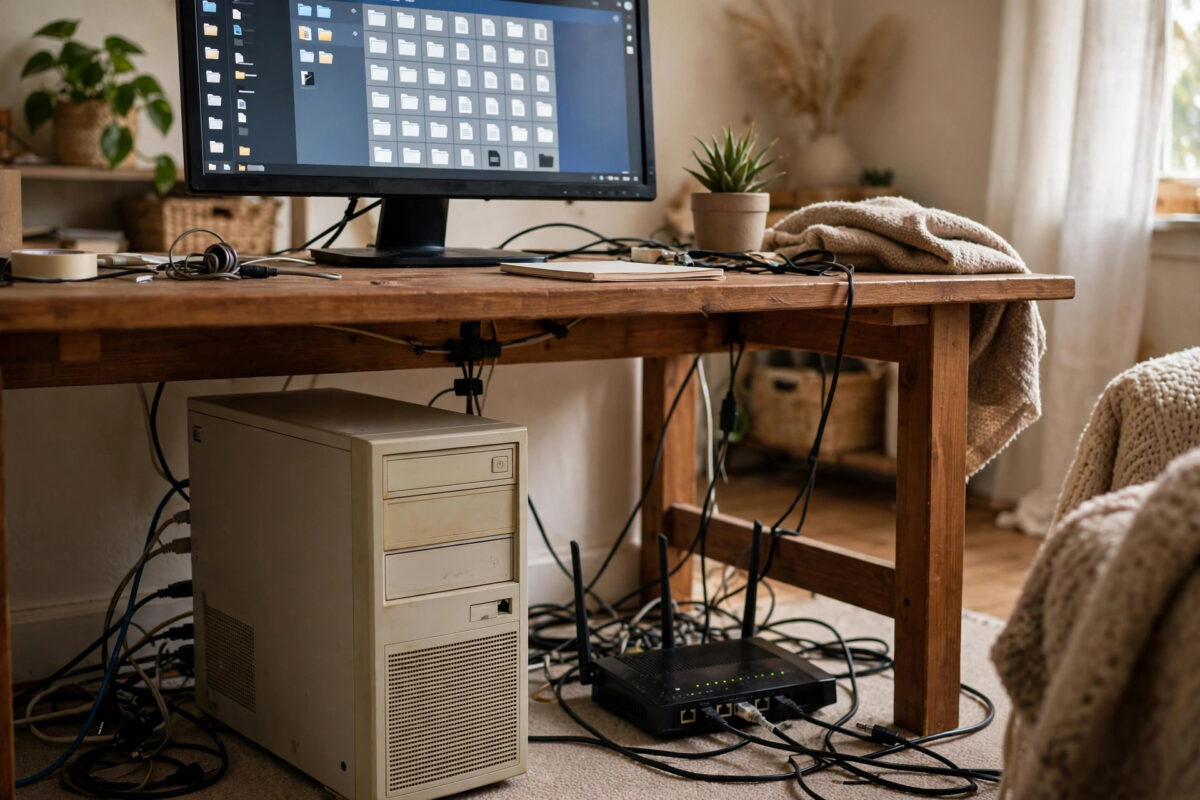
Somewhere in your home there is probably an old PC gathering dust: too slow for gaming, too good to throw away. That machine is a perfect candidate for a second life as your personal cloud, a private Dropbox that lives in your house, stores your files, and costs nothing per month.
This guide walks through the realistic route for a beginner: what the PC needs, which software to install, how to set up storage and user accounts, and how to reach your files from your phone. It also covers the two things people forget, keeping the machine safe and backing up the cloud itself.
Quick Answer
Install a free personal cloud program such as Nextcloud on the old PC (on Linux for the smoothest experience, or using the provided Windows methods), connect it to your router by cable, and create user accounts for your household. Add the biggest hard drive you have for storage, install the Nextcloud app on your phone, and your files sync to your own machine at home. Add an external drive backup of the PC’s data folder to finish the job properly.
Step 1: Check the Old PC Is Up to the Job
A personal cloud is not demanding. Almost any PC from the last decade can handle file storage and syncing for a household.
- A dual-core processor or better and at least 4 GB of memory; 8 GB is more comfortable.
- A healthy hard drive or SSD for the system, plus your largest drive for the file storage.
- A wired network connection to the router. Wi-Fi works, but a cable is faster and far more reliable for an always-on box.
- The willingness to leave it switched on, or to set it to wake on demand. Old PCs use more electricity than a dedicated NAS, so check it is not a power-hungry antique.
If the main drive is ancient, replace it with a cheap SSD for the system. The storage drive can stay mechanical, since file serving does not need SSD speed, and capacity matters more than pace.
Step 2: Choose and Install the Software
Nextcloud is the most popular choice: free, open source, and similar in spirit to Dropbox or Google Drive, with apps for every phone and computer. Alternatives include ownCloud (its close relative) and simpler file-sharing tools if you only want network folders at home.
- For the smoothest path, install a beginner-friendly Linux such as Ubuntu Server or a desktop edition if you prefer a graphical screen.
- Install Nextcloud using the official snap package or the community all-in-one Docker setup, both designed to handle the web server and database for you.
- During setup, point the data directory at your large storage drive, not the system drive.
- Create the administrator account with a strong password you have never used elsewhere.
- Open the Nextcloud address in a browser on your home network and confirm you can sign in.
The Nextcloud installation page lists the current official methods and requirements, and it is updated regularly, so follow its steps for the details that change between versions.
Step 3: Create Users and Set Up Your Devices
- In the admin settings, create one account per household member. Never share the admin login for daily use.
- Install the Nextcloud desktop app on your main computer and choose which folders to sync.
- Install the mobile app on your phone, sign in, and turn on automatic photo upload if you want your camera roll stored at home.
- Test the full circle: add a file on the computer, watch it appear on the phone, then delete a test file and find it in the app’s deleted files section.
Once the basics work, our guide on accessing your home files securely from anywhere explains the safe ways to reach this machine when you are out, which is the step that turns a home server into a true cloud.
Step 4: Keep the Personal Cloud Safe
An always-on computer holding your files deserves basic security care, especially if you later open it to the internet.
- Keep the operating system and Nextcloud updated; updates fix security holes, not just add features.
- Use strong, unique passwords for every account and turn on two-factor authentication in Nextcloud.
- If you never access it from outside home, do not forward any ports on your router. A cloud only reachable at home is very hard to attack.
- Give the machine a fixed local IP address in your router settings so its address never changes and your apps always find it.
Step 5: Back Up the Cloud Itself
A personal cloud concentrates your files in one box, so it needs the same respect as any single copy. Plug in an external drive and schedule a regular copy of the Nextcloud data folder and its database, using the backup tools of your operating system or Nextcloud’s own guidance. Weekly is a good rhythm for most homes. Store that external drive away from the PC, and your home cloud goes from a fun project to a trustworthy place for a family’s files.
Give the Machine a Sensible Home
Where the PC lives matters more than people expect. Put it somewhere cool and dust-light, near the router so the network cable run is short, and plugged into a surge protector. A small uninterruptible power supply (UPS) is a genuinely useful addition: it keeps the machine running through short power cuts and lets it shut down cleanly during long ones, which protects your drives from corruption. Label the machine and its cables, too. Six months from now, when something needs a restart, you will be glad the ‘cloud box’ is obvious and reachable instead of buried behind furniture.
Common Mistakes to Avoid
Home cloud projects usually stumble on these points:
- Storing the files on the same small system drive and running out of space within a month.
- Opening router ports to the internet before setting strong passwords and two-factor authentication.
- Using the admin account for everyday syncing instead of personal accounts.
- Never backing up the server, so one dead drive takes the whole ‘cloud’ with it.
- Running the PC on Wi-Fi in a far corner, making syncs slow and flaky for everyone.
Conclusion
An old PC, a big drive, and free software like Nextcloud are all you need for a personal cloud at home: install the software, point storage at the large drive, create household accounts, and connect your phones and computers. Keep it updated, keep it cabled to the router, and back up its data folder, and your files live under your own roof, on your own terms.
Frequently Asked Questions
How powerful does the PC need to be?
Not very. File syncing for a household runs happily on an old dual-core machine with 4 to 8 GB of memory. A faster machine helps if several people stream video from it at once, but storage size matters far more than speed.
Can I use Windows instead of Linux?
Yes, there are Windows routes using virtual machines or Docker, but Linux is the better-trodden path with the most guides and the least overhead. If the PC is spare, dedicating it to a simple Linux setup is the reliable choice.
How much electricity will an old PC use?
Older desktops can draw 40 to 100 watts idling, which adds up over a year. Measure or estimate it honestly; if the machine is very thirsty, a small dedicated NAS may be cheaper to run and the PC can stay a spare.
Is my data safe if the PC breaks?
Only if you back it up. The cloud software does not protect against a dead drive. An external drive copy of the data folder, refreshed weekly, is the minimum sensible protection for files you care about.
Can family members have private folders?
Yes. Each Nextcloud account has its own private files, and you can also create shared folders for household documents. Nobody sees another person’s files unless they are deliberately shared.



[…] you set up your home server using our guide on building a personal cloud with an old PC, keep that machine unexposed and put the VPN in front of it from day […]