
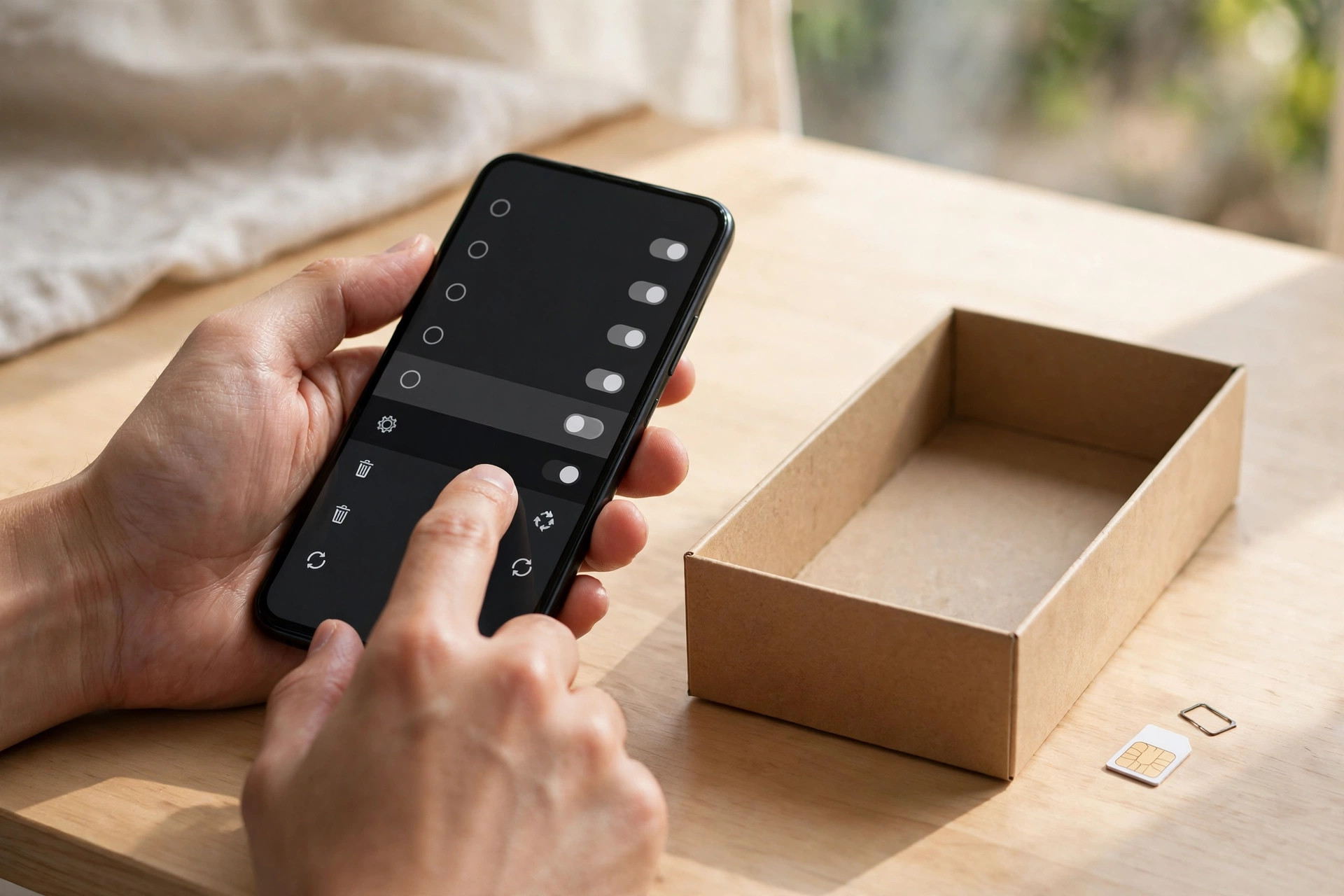
Selling an old phone is a smart way to recover some money and reduce electronic waste, but that device has probably lived in your pocket for years. It knows your photos, messages, banking apps, saved passwords, location history, and private conversations.
Simply deleting a few photos or signing out of one app is not enough. If you hand the phone to a buyer without preparing it properly, the next owner — or anyone who later handles the device — could recover far more personal information than you expect.
This step-by-step guide walks you through backing up what you need, removing every account correctly, wiping the phone the right way, and checking your work before you sell, trade in, or give the device away.
Quick Answer
Back up your photos, contacts, and messages first, then sign out of iCloud or your Google account and remove payment methods.
Next, perform a full factory reset using the built-in erase option, which encrypts and overwrites your data on modern phones.
Finally, remove the SIM and any memory card, and confirm the phone starts at the welcome setup screen with no accounts attached.
Why Deleting Files Manually Is Not Enough
When you delete a photo or message on many older devices, the system may only remove the reference to the file, not the file itself. Recovery software can sometimes bring that content back. Modern iPhones and Android phones use encryption, which makes a proper factory reset very effective — but only if you do it in the right order.
The order matters because of activation locks. If you reset an iPhone without first turning off Find My and signing out of iCloud, the phone remains locked to your Apple ID. That protects you, but it also makes the device useless to a legitimate buyer and can delay your sale. On Android, a similar Factory Reset Protection lock can keep the phone tied to your Google account.
Following the full sequence below avoids both problems: your data is properly erased, and the buyer gets a clean, usable phone.
Step 1: Back Up Everything You Want to Keep
Do not rush this stage. Once the phone is wiped, recovery is intentionally almost impossible. Take your time and verify the backup before you erase anything.
- Back up photos and videos. Sync to iCloud Photos, Google Photos, or copy the files to a computer. Open a few recent and older items from the backup to confirm they actually transferred.
- Back up contacts and calendars. Check they are synced to your iCloud or Google account rather than stored only on the device or SIM card.
- Save important messages and chats. For WhatsApp and similar apps, use their built-in backup to iCloud or Google Drive, then confirm the backup date and size look correct.
- Note your two-factor authentication apps. If you use an authenticator app, transfer accounts to your new phone or save recovery codes securely before wiping the old device.
- Export anything stored only in apps. Voice recordings, notes, health data, and files downloaded inside apps do not always sync automatically — check each important app manually.
Our practical cyber security and privacy guides include more checklists like this for protecting accounts when you change devices.
Step 3: Unpair, Sign Out, and Remove Accounts
Now disconnect the phone from your digital life, one service at a time. Skipping sign-out steps is the most common cause of both data leaks and activation lock problems.
- Unpair accessories. Unpair your smartwatch, wireless earbuds, and car Bluetooth connections, and remove the phone from your car’s saved devices if you are also selling or returning the car pairing.
- Turn off Find My (iPhone) or Find My Device (Android). This is required to release the activation lock for the next owner.
- Sign out of iCloud or your Google account. On iPhone, sign out from the top of Settings. On Android, remove the Google account from Settings > Passwords and accounts.
- Sign out of messaging services. Deregister iMessage if you are switching from iPhone to Android, otherwise texts from other iPhone users may keep going to the old device’s iMessage instead of your new phone.
- Remove payment methods. Delete cards from Apple Pay or Google Wallet and check that no transit cards or digital keys remain.
- Sign out of email, banking, and social apps. While the factory reset will remove them, signing out also invalidates active sessions immediately, which is safer if there is any delay before you wipe the phone.
Apple provides a detailed checklist in its official guidance on what to do before you sell, give away, or trade in your iPhone, and it is worth comparing your steps against that list if you use an iPhone.
For Android users, Google’s help pages on how to erase and prepare an Android device cover the equivalent account removal and reset options for most manufacturers.
Step 4: Perform a Full Factory Reset
With backups verified and accounts removed, you are ready for the actual wipe. Make sure the phone is charged or plugged in, because an interrupted reset can cause problems.
- On iPhone: Go to Settings > General > Transfer or Reset iPhone > Erase All Content and Settings, then follow the prompts and confirm the erase.
- On Android: Go to Settings > System or General management > Reset > Erase all data (factory reset), then confirm. Menu names vary slightly by brand.
- Wait for the process to finish completely. The phone should restart and display the initial welcome or “Hello” setup screen, just as it did when it was new.
- Do not sign back in after the reset. If you go past the welcome screen and enter your account again for testing, you will need to repeat the sign-out and erase process.
On modern phones with encryption enabled by default, this erase process destroys the encryption keys, making the previous data effectively unrecoverable — far stronger protection than manually deleting files one by one.
Step 5: Remove Physical Media and Check the Details
Digital wiping is only half the job. Physical items left in the phone can still contain personal data or give access to your accounts.
- Remove the SIM card using the ejector tool. Your SIM can hold contacts and is linked to your phone number and carrier account — never sell a phone with your SIM still inside.
- Remove any microSD memory card. Photos and documents saved there are not always erased by a factory reset, so keep the card or format it separately if you intend to include it.
- Clean the phone, charge cable, and case you plan to include, and photograph the device condition honestly for your listing.
- Keep a record of the sale: buyer platform, date, and the phone’s IMEI or serial number, in case of any dispute later. You can find the IMEI on the original box or receipt if the phone is already wiped.
Common Mistakes That Leak Data
The most frequent mistake is resetting the phone but forgetting the memory card, which may contain years of photos. Close behind is forgetting to transfer an authenticator app, locking yourself out of banking and email accounts after the sale.
Another error is backing up but never checking the backup. Cloud sync can pause when storage is full or Wi-Fi is off, leaving gaps people only discover after the old phone is gone. Always open the backup on another device or the cloud website and spot-check.
Finally, many people leave themselves signed into the browser, where saved passwords and autofill addresses remain. The factory reset removes these — but only if you actually complete the full reset rather than just deleting apps.
Conclusion
Safely selling an old phone takes about thirty focused minutes: back up and verify, move services to your new device, sign out of every account in the right order, perform a full factory reset, and remove your SIM and memory card.
Done properly, modern encryption makes your old data effectively unrecoverable, the buyer gets a clean phone with no activation lock frustration, and you get paid without worrying about what you left behind.
Work through the checklist in order, do not rush the backup verification, and keep a note of the sale details. That small amount of care protects your photos, accounts, and money long after the phone has left your hands.
Frequently Asked Questions
Is a factory reset really enough to protect my data?
Yes, on modern iPhones and Android phones with encryption enabled by default. Erasing all content destroys the encryption keys, so the stored data becomes unreadable. Just make sure you use the official erase option in Settings, not manual file deletion.
What happens if I forget to sign out of iCloud before resetting?
The phone will stay linked to your Apple ID through Activation Lock, and the buyer will not be able to set it up. You can usually remove the device from your account via iCloud.com’s Find My section, but it is much simpler to sign out correctly before erasing.
Should I include my SIM card or memory card in the sale?
No. Always remove your SIM card, because it is tied to your number and carrier account. Remove the microSD card too, or fully format it separately if you promised to include it, because a factory reset does not always erase external storage.
How do I stop my text messages going to my old iPhone after switching to Android?
Deregister iMessage before you wipe the phone, in Settings > Messages, or afterwards using Apple’s online deregistration tool. Without this step, messages from other iPhone users may be sent to iMessage instead of arriving as texts on your new phone.
Can I wipe my phone remotely if I already sold it without resetting?
If Find My or Find My Device was still enabled, you may be able to erase it remotely from iCloud or Google’s Find My Device page. Act immediately, also change your important passwords, and contact the buyer — but prevention is far more reliable than a remote wipe after the fact.



Leave a Reply