
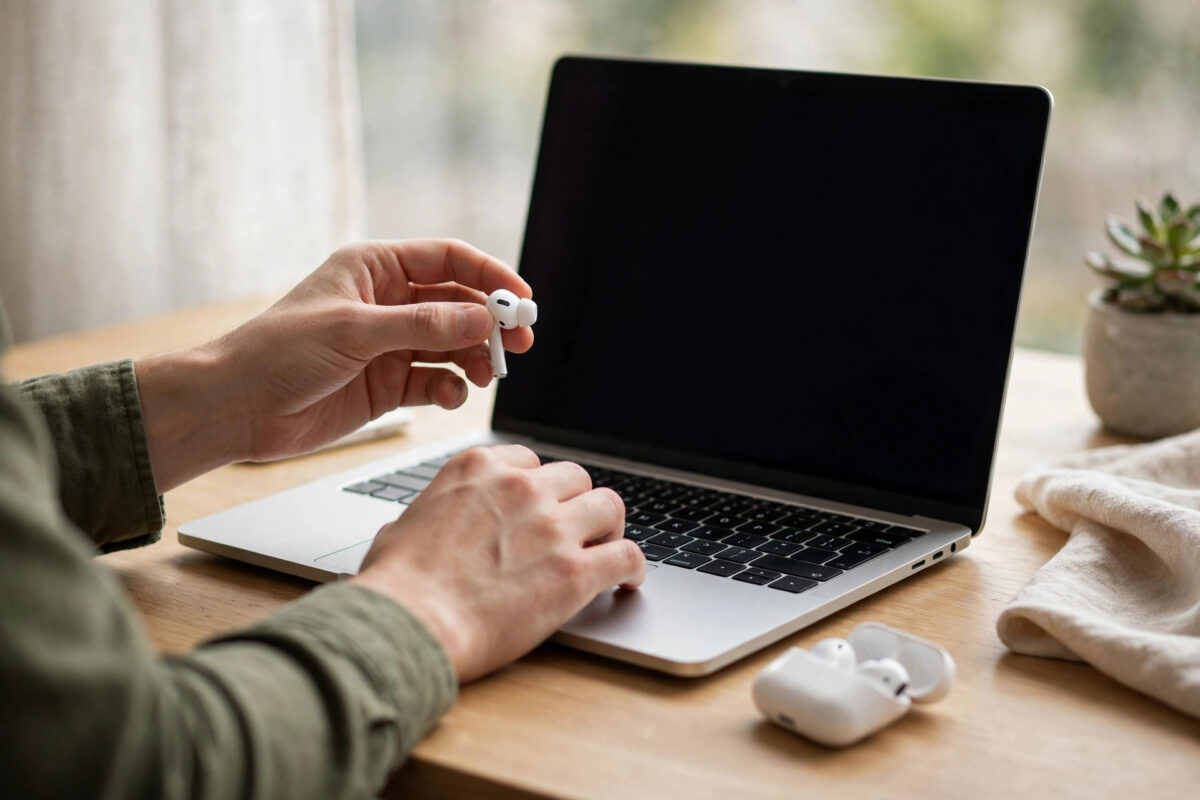
When Bluetooth on a Mac starts misbehaving — devices refuse to pair, connections drop, the Bluetooth menu itself freezes — a reset of the Bluetooth service often clears what simpler toggles cannot. Older macOS versions had a visible “Reset the Bluetooth module” button; newer versions removed it, but the same result is still achievable with a Terminal command or a preference-file reset. This guide covers every method, in the order you should try them, plus how to re-pair your accessories afterwards.
Quick Answer
First try turning Bluetooth off and on in System Settings, then restart the Mac. If problems persist, open Terminal and run: sudo pkill bluetoothd — enter your password and Bluetooth restarts, reconnecting your devices. On macOS versions that still show it, you can also hold Shift + Option, click the Bluetooth menu icon, and choose “Reset the Bluetooth module.” As a last resort, delete the Bluetooth preference file (com.apple.Bluetooth.plist) and restart.
Before You Reset: Rule Out the Simple Causes
A full reset re-pairs nothing by itself, but it does interrupt everything — so spend two minutes on the checks that solve most Bluetooth complaints without one:
- Charge the accessory. A dying battery imitates a broken connection.
- Move the device within a metre of the Mac for testing.
- Turn Bluetooth off on nearby phones and tablets so the accessory is not connecting to them instead.
- Restart the accessory itself (power it fully off and on).
- Unplug USB 3 hubs temporarily — they are a notorious source of Bluetooth interference on Macs.
If a single accessory still misbehaves after this, try forgetting and re-pairing just that device (System Settings, Bluetooth, info button, Forget This Device) before resetting the whole Bluetooth system. Our guide on fixing Bluetooth devices that keep disconnecting from a Mac works through those per-device steps in detail.
Method 1: Toggle Bluetooth Off and On
- Open System Settings, then Bluetooth.
- Switch Bluetooth off. Wait a full 20 seconds — this pause matters, because it lets the service shut down completely.
- Switch it back on and give your devices a minute to reconnect automatically.
This soft reset fixes temporary glitches like a keyboard that suddenly stops responding after sleep.
Method 2: Restart the Mac
Old-fashioned but effective: a restart reloads the Bluetooth daemon, drivers, and preferences together. Choose Apple menu, then Restart, and leave USB accessories unplugged until the desktop appears. Test Bluetooth before reconnecting docks and hubs, so you notice immediately if one of them is the interference source.
Method 3: Reset the Bluetooth Module from the Menu Bar (Where Available)
On macOS Big Sur and some earlier/later builds, a hidden debug menu still exists:
- Hold Shift + Option on the keyboard and click the Bluetooth icon in the menu bar. If the icon is missing, enable it in System Settings, then Control Center, then Bluetooth: Show in Menu Bar.
- In the expanded menu, look for Reset the Bluetooth module and click it.
- Confirm if prompted. All Bluetooth devices disconnect; your keyboard and mouse reconnect within a minute (keep a wired mouse handy on a desktop Mac, just in case).
If the option does not appear, your macOS version removed it — use the Terminal method below, which does the same job. Apple quietly retired the menu option because the underlying service restart is safer done via the daemon.
Method 4: Restart the Bluetooth Service in Terminal
This is the modern equivalent of the reset button and works on current macOS versions:
- Open Terminal (press Command + Space, type Terminal, press Return).
- Type: sudo pkill bluetoothd and press Return.
- Enter your Mac login password when asked (nothing shows as you type — that is normal) and press Return again.
- The Bluetooth icon flickers, devices disconnect, and the service relaunches cleanly within seconds. Reconnect your accessories from System Settings, Bluetooth, if they do not return automatically.
The command simply restarts the background process named bluetoothd; macOS starts a fresh copy immediately. No settings or pairings are deleted by this method. Apple’s Bluetooth support page covers related pairing and interference advice if a device still refuses to connect afterwards.
Method 5: Remove All Pairings and the Preference File (Last Resort)
When corruption is deep — Bluetooth will not turn on at all, or the device list is full of ghosts — clear the Bluetooth configuration completely:
- From that same Shift + Option Bluetooth menu (where present), choose Remove all devices, or forget each device manually in Bluetooth settings.
- In Finder, choose Go, then Go to Folder, and open /Library/Preferences/.
- Move the file com.apple.Bluetooth.plist to the desktop (you may need your admin password).
- Restart the Mac. A fresh preference file is created, and you pair each accessory again from scratch.
Because this wipes every pairing, do it only after the gentler methods fail — re-pairing a desk full of accessories takes a few minutes.
After the Reset: Pair Everything Cleanly
- Charge accessories while you work, so a flat battery does not spoil the test.
- Pair one device at a time: put it in pairing mode, click Connect when it appears, and use it for a minute before adding the next.
- Name collisions cause confusion in shared spaces — if two identical mice or keyboards appear, turn off the one you do not want before choosing.
What If Bluetooth Has Vanished from Settings Entirely?
Rarely, the Bluetooth panel itself disappears or shows a permanent “off” that will not respond. Work through three escalations before assuming hardware failure: restart the Mac (a stuck driver often returns), run the Terminal service restart, and start the Mac in Safe Mode — if Bluetooth works there, a third-party extension or login item is interfering in normal mode. On Intel Macs, resetting the SMC (the controller that manages low-level hardware) is one more software step Apple recommends for stubborn cases. Only when Bluetooth is absent in Safe Mode too does a hardware visit to Apple Support become likely.
Common Mistakes and Helpful Tips
- Resetting before checking the accessory. A reset cannot fix a mouse with a dead battery or a keyboard paired to your iPad. Test the accessory with another device when you can.
- Panicking when devices disconnect during the reset. That is the reset working. Give it a minute; devices reconnect on their own or with one click in Bluetooth settings.
- No wired fallback on a desktop Mac. If your only keyboard and mouse are Bluetooth and something goes wrong mid-reset, you are stuck. Keep a cheap wired mouse in a drawer for days like this.
- Repeating the reset daily. If Bluetooth needs resetting every morning, something else is wrong — interference, a failing accessory, or a macOS bug that an update likely addresses. Treat the pattern, not the symptom.
Conclusion
Resetting Bluetooth on a Mac is really a ladder of restarts: toggle it, restart the Mac, restart the bluetoothd service from Terminal, and only then wipe pairings and preferences. Most connection chaos settles at one of the first three rungs. Work down the ladder slowly, test after each step, and your wireless desk should settle back into quiet reliability.
Frequently Asked Questions
Will resetting Bluetooth delete my pairings?
Toggling Bluetooth and restarting the bluetoothd service do not delete pairings — devices reconnect automatically. Only the last-resort method (Remove all devices or deleting the preference file) wipes pairings, and you simply pair everything again afterwards.
Why did the “Reset the Bluetooth module” option disappear?
Apple removed it from the menu in newer macOS versions. The Terminal command sudo pkill bluetoothd achieves the same service restart and is the recommended replacement.
Bluetooth will not turn on at all. What now?
Restart the Mac first. If Bluetooth is still missing, reset the preference file as described, and on Intel Macs an SMC reset can also help. If the Bluetooth icon never returns, the Mac may have a hardware fault — contact Apple Support.
Is the Terminal command safe to use?
Yes. It restarts one background service; macOS relaunches it instantly. It does not delete files, settings, or pairings. You need an admin account because of the sudo prefix.
My device connects but drops after sleep. Is a reset the answer?
Often a simple forget-and-re-pair or toggling Bluetooth after wake sorts it. If it recurs daily, check for macOS updates — sleep/wake Bluetooth bugs are commonly fixed in point releases.



Leave a Reply