
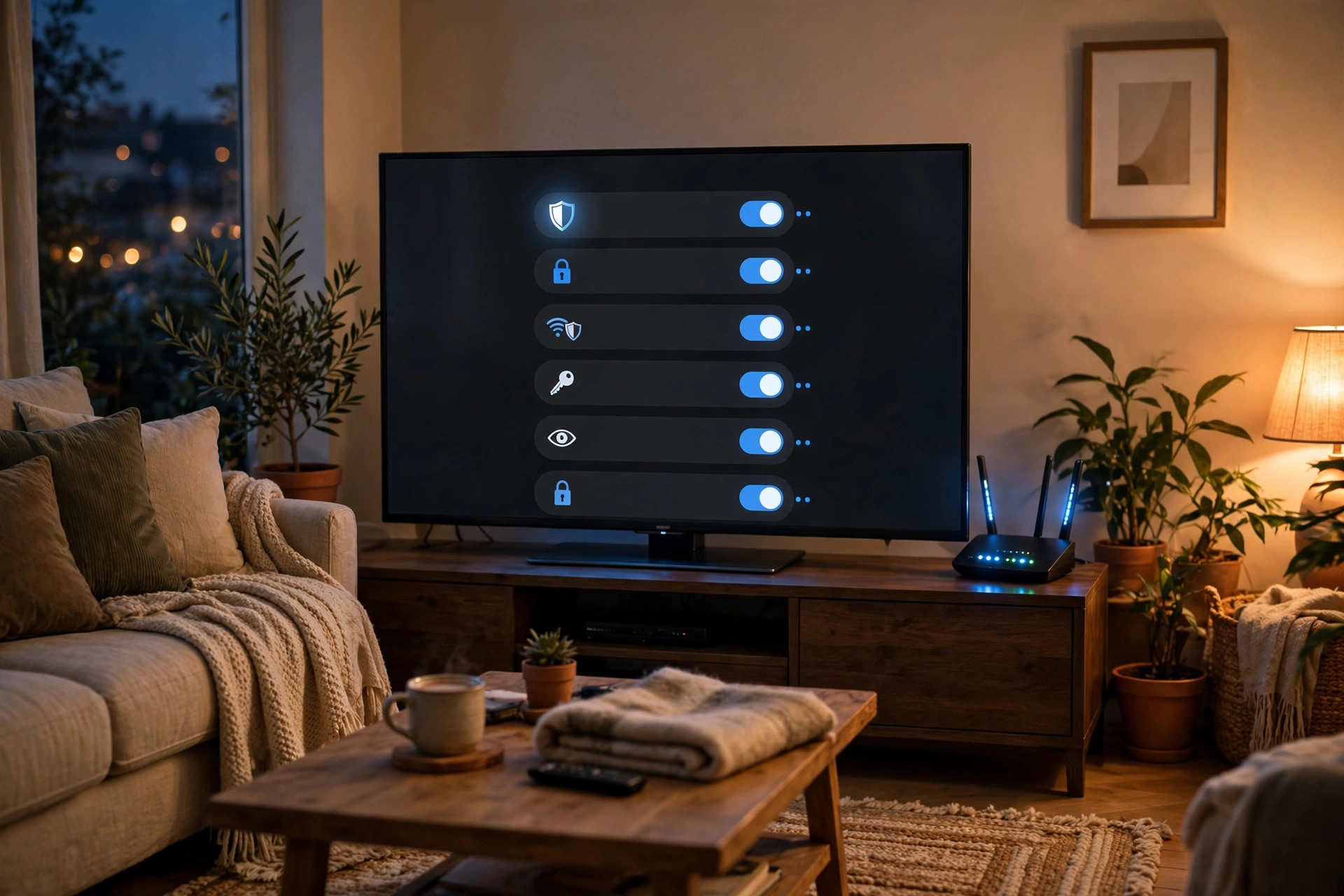
Your smart TV is really a computer with a large screen. It connects to your home Wi-Fi, runs apps, stores sign-ins for streaming services, and in many models includes a microphone, a camera, or both.
TV hacking rarely looks like it does in films. More often, problems come from weak passwords, outdated software, risky apps, and privacy settings nobody checked after unboxing. The good news is that protecting a smart TV does not require technical expertise. The ten practical steps in this guide will close the most common gaps in under an hour.
Quick Answer
To protect your smart TV from being hacked, keep its software updated, use a strong unique password for TV and streaming accounts, disable unused cameras, microphones, and remote access, install apps only from the official store, and secure your home Wi-Fi with WPA3 or WPA2 and a strong router password.
Why Smart TVs Are Targeted
Attackers like smart TVs because owners rarely think of them as computers. TVs often stay on the same software version for years, use default settings, and remain connected to the network day and night.
Privacy is the other concern. Many TVs collect viewing data to recommend programmes and serve adverts. That is not the same as hacking, but weak privacy controls still expose more about your household than most people would choose to share. Securing your TV therefore means both blocking intruders and taking control of the data the TV itself collects.
10 Security Steps to Protect Your Smart TV
- Change default passwords and set a TV PIN: If your TV or its companion app came with a default password, change it immediately to a long, unique password stored in a password manager. In settings, set a PIN for purchases, app installs, and settings changes so children or guests cannot alter security options by accident.
- Turn on automatic software updates: Open Settings, then Support or About, and enable automatic updates for the TV system software. Updates fix known security flaws that attackers actively exploit. Check manually once a month as well, because some models only update when the TV is in standby with an internet connection.
- Secure your home Wi-Fi first: Your TV is only as safe as the network it joins. Log in to your router, change the administrator password from the default, use WPA3 if available or WPA2-AES otherwise, and set a strong Wi-Fi password. See the practical advice in CISA’s guidance on securing wireless networks for router settings explained in plain language.
- Use a guest or separate network if possible: Many routers can create a guest network or an Internet of Things network. Placing the TV on a separate network limits what an attacker could reach if the TV were ever compromised, while your laptops and phones stay on the main network.
- Install apps only from the official store: Use only the TV maker’s app store or the platform store built into the TV. Avoid sideloading apps from websites or USB sticks, and delete apps you no longer use. Each extra app is extra code that needs updates and may request permissions it does not need.
- Review app permissions: In the apps or privacy menu, check which apps can use the microphone, camera, location, and local network. Revoke permissions that make no sense — a weather app does not need your microphone. Repeat this review after major updates.
- Disable or cover the camera and limit the microphone: If your TV has a built-in camera you never use, disable it in settings or cover it with a sliding cover. For voice assistants, turn off always-listening features if you do not use them.
- Turn off remote access and unused connections: Disable remote management, screen mirroring from unknown devices, and Bluetooth pairing when you are not using them. Features that let phones control the TV are convenient, but they should require approval on the TV screen before a new device can connect.
- Use strong, unique passwords for streaming accounts: Never reuse your email password for streaming services. Turn on two-factor authentication where the service offers it, and sign out of accounts on TVs in holiday rentals or shared houses before you leave. A shared viewing profile in the living room should not expose your main account settings and payment methods.
- Adjust privacy and advertising settings: Find the privacy menu — often labelled Privacy, Terms and Privacy, or Viewing Data — and turn off viewing data collection, interest-based advertising, and voice data sharing where you can. On many models this setting is called ACR, or automatic content recognition.
How to Check Your TV Settings Safely
Menu names differ between Samsung, LG, Sony, and other brands, but the layout is similar. Work through this checklist slowly and write down any settings you change so you can reverse them if a feature stops working.
- Open Settings and find About or Support: Note the model number and current software version, then run a manual update check.
- Open Network settings: Confirm the TV is connected to your correct home network and not a neighbour’s open network or an old hotspot.
- Open Privacy and Terms sections: Review data collection, advertising, and voice assistant options one by one.
- Open Apps and Permissions: Uninstall unfamiliar apps and tighten permissions for the rest.
- Restart the TV fully: Use the restart option or switch the TV off at the wall for thirty seconds so updates and settings changes apply cleanly.
For more everyday device protection ideas, browse NetworkUstad’s practical home tech security guides, which cover routers, phones, and laptops in the same plain-language style.
Signs Your Smart TV May Have a Problem
Most TV issues are bugs, not hacks, so do not panic at the first odd behaviour. Still, certain signs deserve attention: settings or apps changing without anyone in the household doing it, pop-ups asking you to call a phone number or pay to unlock the TV.
If you suspect a problem, disconnect the TV from Wi-Fi, change your streaming and email passwords from a trusted phone or computer, and then reconnect the TV only to install updates. If the behaviour continues, perform a factory reset from the settings menu, then set the TV up again using the ten steps above.
Extra Protection for Families
In family homes, the biggest risks are often accidental. Children may install games from ads, approve purchases, or accept pairing requests without understanding them.
If you use a streaming stick or box instead of built-in apps, treat it the same way. Sticks need updates, strong account passwords, and official apps too, and they should be signed out and removed when you sell or give away the TV.
Common Mistakes to Avoid
- Never updating the TV: Skipping updates leaves known flaws open for years. Turn on automatic updates on day one.
- Leaving default router and TV passwords unchanged: Default passwords are public knowledge and are the first thing attackers try.
- Installing apps from random websites: Unofficial app files are a common route for malware on TVs and streaming sticks.
- Ignoring privacy menus: Viewing data and voice settings are often set to share the most data by default.
- Using the same password for TV, email, and shopping: A single leak then exposes every account at once.
- Leaving microphones and cameras always on without need: If you do not use a feature, disable it rather than trusting it.
- Trusting pop-ups that demand payment or a phone call: Close them, disconnect the TV, and seek help from the manufacturer directly.
Conclusion
A smart TV does not need to be a weak spot in your home. Updated software, strong unique passwords, a secure Wi-Fi network, careful app choices, and sensible privacy settings remove almost all of the realistic risk. Most of the work is a one-time setup, followed by a quick settings review a few times a year.
Set aside thirty minutes this week to work through the ten steps on your main TV. Once it is done, you can get back to enjoying your programmes with the confidence that the screen in your living room is working for you — not quietly exposing your household.
Frequently Asked Questions
Can a smart TV really be hacked through Wi-Fi?
Yes, if it runs outdated software, uses weak passwords, or has risky apps and open remote features. Keeping the TV and router updated, using strong passwords, and disabling unused connections makes a successful attack much less likely.
Should I disconnect my smart TV from the internet?
You can, and the TV will still work with an aerial, cable box, or disc player. However, you will lose streaming apps and updates. For most households, keeping the TV online with the protections in this guide is a better balance of convenience and security.
Does a factory reset remove malware from a smart TV?
A factory reset removes apps and settings and resolves most suspicious behaviour. After a reset, update the software first, change your account passwords from another trusted device, and reinstall only official apps you actually use.
Is it safe to use voice control on a smart TV?
Voice control can be used safely if you review the privacy settings, delete stored voice recordings regularly, and turn off always-listening features you do not need. If you never use voice control, disabling the microphone is the simplest and safest choice.
How often should I check my smart TV security settings?
Do a full check when you buy the TV, after major software updates, and every three to four months in normal use. Privacy menus and permissions can change after updates, so a short regular review keeps your choices in place.



Leave a Reply