
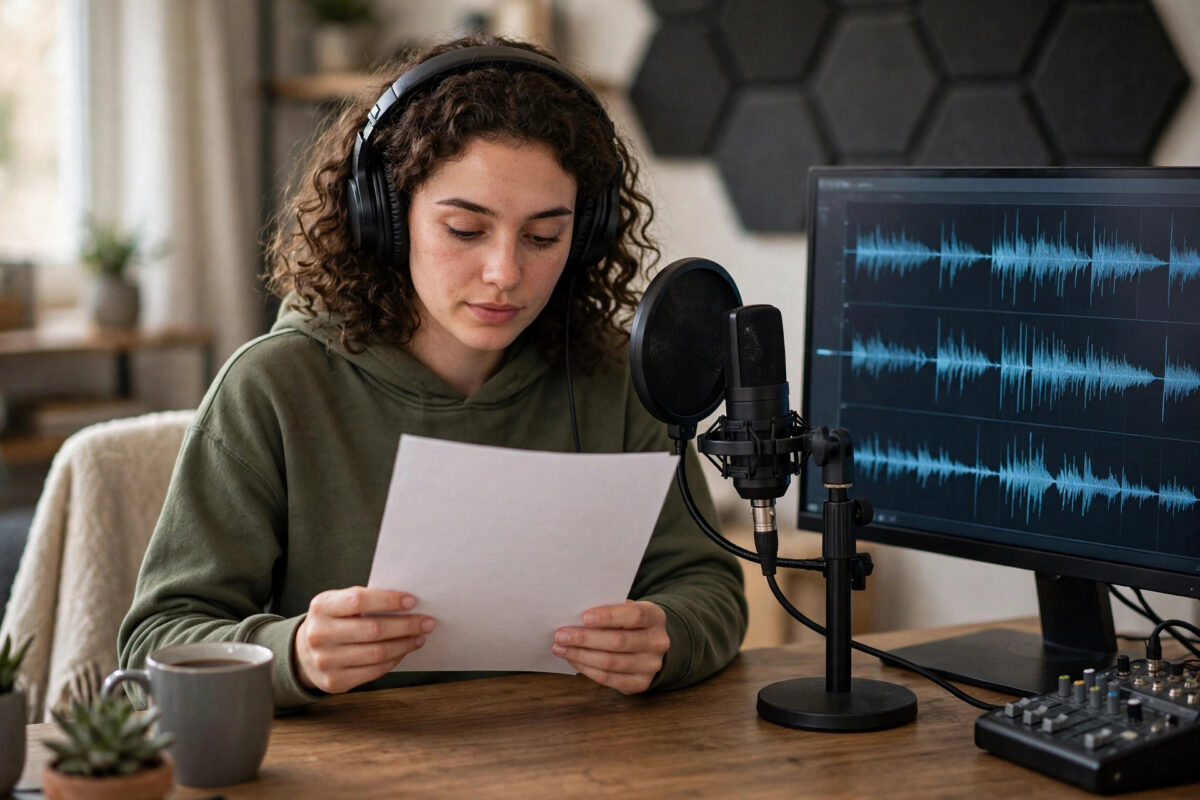
You have a finished script and no good way to voice it. Recording yourself sounds flat, hiring a voice actor is slow and expensive, and the robotic text-to-speech voices from a few years ago make listeners click away in seconds. For tutorials, explainers, ads, podcasts, and social videos, narration has quietly become the bottleneck in content production.
Suno, the company best known for AI music, is now tackling that bottleneck with Suno Speech, a text-to-speech beta that turns written scripts into natural narration. Instead of a flat, mechanical reading, the goal is speech with rhythm, emphasis, and pauses that sound like a person who understands the words.
This step-by-step guide shows how to narrate a script with Suno Speech, from preparing text that a voice model can perform well, to generating, reviewing, and exporting audio you can drop straight into your project.
Quick Answer
To narrate a script with Suno Speech, paste a clean, well-punctuated script into the text-to-speech beta, choose a suitable voice and style, generate the audio, then review and regenerate any weak sections before exporting.
Short paragraphs, clear punctuation, and phonetic spelling for tricky names produce the most natural results, and section-by-section generation gives you the most control.
What Suno Speech Is
Suno built its reputation on AI music generation, where timing, emotion, and performance matter as much as raw accuracy. Suno Speech applies that performance mindset to spoken words. It is currently a beta product, which means features, voices, and limits are still evolving, and the developers are actively gathering feedback.
The core job is simple to describe. You provide text, choose how it should sound, and the system generates spoken audio. The difference from older text-to-speech is in the delivery: natural pacing instead of metronome regularity, emphasis on important words, and breathing room at sentence boundaries that makes long passages listenable.
For creators, that opens practical doors. A YouTube tutorial can get a consistent voice without recording sessions. A training course can update one lesson without rebooking a narrator. A small business can produce a professional-sounding advert or product video on the same day the script is approved. The official Suno platform is where the beta is offered, alongside its music tools.
Before You Start: Prepare Your Script
Most bad AI narration is a script problem, not a voice problem. Text written for reading silently often fails when spoken. Long sentences run out of breath, abbreviations confuse pronunciation, and a wall of text gives the voice no natural places to pause or emphasise.
Spend ten minutes preparing and you will save an hour of regenerating. Read your script aloud once yourself, even quietly. Everywhere you stumble, the AI voice probably will too. Fix those spots first, then follow the preparation checklist below.
- Break text into short paragraphs. One idea per paragraph, roughly two to four sentences each, gives the narration natural pacing and makes section-by-section generation easy.
- Punctuate for the ear. Commas create small pauses, full stops create bigger ones, and question marks lift the delivery. Sparse punctuation produces rushed, flat speech.
- Write numbers and symbols as words. Spell out percentages, currencies, and dates the way you want them spoken, instead of trusting symbols to be interpreted correctly every time.
- Fix tricky names phonetically. For brand names, places, and technical terms, use a phonetic spelling in a test run. If the voice still struggles, respell that word the way it sounds.
- Remove stage directions from the spoken text. Notes like pause here or show slide two should not be read aloud. Keep directions in a separate copy of the script.
How to Narrate a Script With Suno Speech, Step by Step
- Open Suno Speech and sign in. Go to Suno, sign in to your account, and open the Speech text-to-speech beta. Beta features may sit in a tools, labs, or create menu, and access can depend on your plan.
- Start a new narration project. Create a fresh project for each video, lesson, or episode. Separate projects keep versions organised and make re-exporting a corrected section much simpler later.
- Paste your first section. Add one section at a time rather than the entire script. Working in sections lets you fix a single weak paragraph without regenerating twenty good ones.
- Choose a voice that fits the content. Pick a voice by tone, not just by sound: warm and steady for tutorials, energetic for adverts, calm and clear for training. Preview sample lines if the option is available.
- Set the style and pace. Adjust speed and delivery style if controls are offered. Slower suits educational material and complex terms. A slightly brighter pace suits social clips and promotions.
- Generate and listen fully. Generate the section, then listen to the whole thing without skipping. Note mispronunciations, odd emphasis, and places where the pace feels rushed or sleepy.
- Fix the text, then regenerate. Correct problems by editing the script first: add a comma, split a sentence, or respell a name. Regenerate only the affected section and compare the new take with the old one.
- Assemble and export. When every section sounds right, arrange them in order, check the joins for consistent volume and tone, and export the finished audio in the format your editor or platform needs.
That loop, generate, listen, fix the text, regenerate, is the professional habit. Beginners regenerate the same flawed script hoping for luck. Experienced creators treat the script as the instrument and the text edits as the tuning, which is why their results improve with every project.
Making the Narration Sound Human
Natural speech is varied speech. Vary your sentence lengths in the script, mix short punchy lines with longer explanations, and the voice will follow. A script where every sentence is the same length will sound monotonous in any voice, human or AI.
Emphasis comes from structure. Put the important word near the end of a sentence, where spoken emphasis naturally lands, and avoid burying your key point mid-paragraph. If a line matters, give it its own short paragraph and let the pause before it do the highlighting.
Contractions help more than people expect. Writing it is and you will instead of it’s and you’ll makes narration sound formal and stiff. Unless your brand voice is deliberately formal, write the script the way a friendly expert actually talks, which is also how the guides on AI content creation and media tools recommend preparing any voice-first material.
Matching Voice to Project
A documentary-style explainer needs authority and calm. A product demo needs clarity and warmth. A children’s story needs expression and patience. Before generating a full script, test your chosen voice on the hardest paragraph and the most emotional line. If it handles both, it will handle everything in between.
Common Mistakes to Avoid
- Pasting an unedited written article. Articles are written for the eye. Headlines, links, citations, and dense paragraphs all break narration. Rewrite for the ear first.
- Generating the whole script in one pass. One bad section forces a full regeneration and wastes time and credits. Section-by-section work is faster in practice.
- Ignoring mispronunciations until the end. Fix names and terms in the first section you generate. The same words recur, and one phonetic fix early saves repeated corrections.
- Choosing a voice that fights the content. A playful voice on a serious topic, or a flat voice on an exciting launch, undermines the script no matter how well it is written.
- Skipping the headphone check. Listen once on headphones and once on a phone speaker. Most of your audience will hear the phone version, with all its lost bass and clarity.
- Forgetting usage rights and disclosure. Check the current terms for your plan before commercial use, and follow platform rules on disclosing AI-generated audio where required. Beta terms can change, so recheck them for important projects.
Pricing and access follow the usual pattern for a beta like this: a free way to try the tool with limits, and paid tiers for heavier use, more generation time, and commercial projects. Confirm the current plan details inside Suno before a big production run, rather than relying on launch-week coverage. For background on how modern speech synthesis developed, the history and methods of speech synthesis shows how far the technology has moved from the robotic voices most people still picture.
Conclusion
Narrating a script with Suno Speech is less about finding a magic voice and more about a simple, repeatable craft. Prepare the script for the ear, generate in sections, listen honestly, fix problems in the text, and keep your voice and settings consistent across a project.
Follow that process and the beta’s natural delivery does the rest, turning scripts into narration that holds attention instead of testing it. For independent creators, teachers, and small teams, that means professional voiceover is no longer a budget line or a scheduling problem. It is an afternoon’s work, starting with the script you already have.
Frequently Asked Questions
What is Suno Speech?
Suno Speech is a text-to-speech beta from Suno, the company known for AI music. It converts written scripts into natural-sounding spoken narration, with attention to pacing, emphasis, and delivery rather than a flat robotic reading.
How do I make Suno Speech sound more natural?
Prepare the script for speaking: short paragraphs, clear punctuation, varied sentence lengths, and contractions. Generate in sections, listen fully, and fix flat or awkward lines by editing the text before regenerating.
What should I do about mispronounced names?
Respell the name or term phonetically, the way it sounds, and test that section again. Fix recurring names in your first generated section so the correction carries through the whole narration.
Can I use Suno Speech narration commercially?
Commercial use depends on your plan and the current beta terms. Check the rights attached to your tier inside Suno before publishing paid or client work, and follow any platform rules about disclosing AI-generated audio.
Why generate narration section by section?
Section-by-section generation gives you control. You can fix and regenerate one weak paragraph without redoing the whole script, keep pacing consistent, and assemble a final track whose quality is even from start to finish.



Leave a Reply