
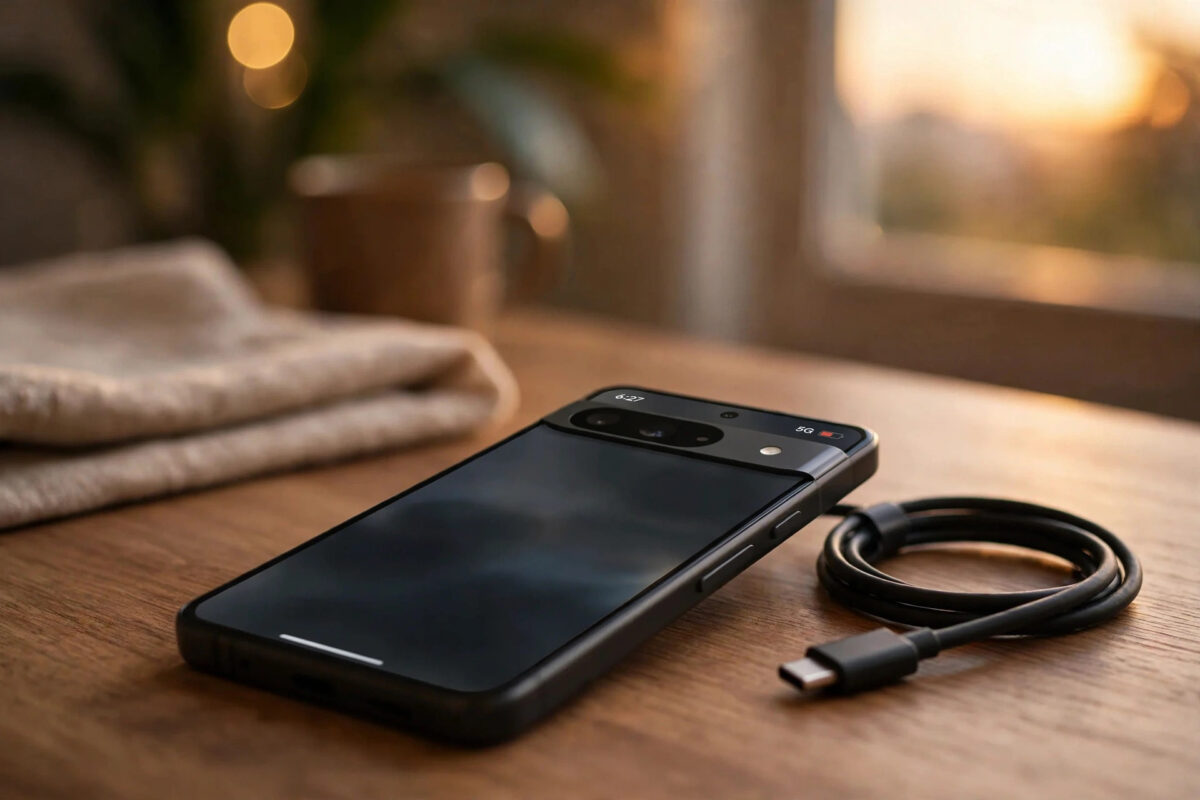
Your Pixel was fine in the morning before the update, and by the next afternoon it needed a charger before dinner. If that sounds familiar after installing Android 16 QPR2, you are not imagining it. Reports of faster battery drain on Pixel phones after the QPR2 release have been widespread, covered by outlets following the rollout closely, and they follow a pattern seen after many quarterly feature updates.
The important thing to know is that post-update drain usually has identifiable causes, and most of them settle or can be fixed without a factory reset. Some drain is temporary while the phone re-optimises apps and rebuilds caches. Some comes from a specific app misbehaving on the new software, a stuck sync, or a setting the update quietly reset. This guide works through the fixes in the right order, from the quickest checks to the deeper ones, with the exact Pixel menu paths for each step.
Quick Answer
To fix Pixel battery drain after the Android 16 QPR2 update, restart the phone, check Battery usage for a misbehaving app, update all apps and restrict the worst offenders, then give Adaptive Battery two or three days to relearn your habits.
Most QPR2 drain improves within 72 hours as optimisation finishes. If one app dominates the usage list, or drain stays severe after several days, the steps below isolate whether it is an app, a system process, or a setting causing it.
First, Understand Why Drain Spikes After a Quarterly Update
QPR2 is not a small patch. Quarterly platform releases change system services, permissions, and background rules, and after installing one your Pixel recompiles apps, re-indexes photos and files, and relearns usage patterns for Adaptive Battery. All of that work uses power, and it happens quietly in the background during the first day or two.
That is why experienced Pixel owners expect one or two rough battery days after a big update. The problem worth fixing is drain that continues beyond that window, or drain so heavy the phone becomes warm during simple tasks. Those symptoms usually point to a specific app looping, a stuck account sync, or a system service that did not settle after the update.
Step 1: Restart and Give the Phone a Clean Start
It sounds too simple, but a proper restart clears stuck processes left over from the update installation itself. Many owners install an update, the phone reboots once, and background migration tasks pile up behind each other. A second, deliberate restart often ends that pile-up.
- Press and hold the Power and Volume Up buttons together.
- Tap Restart and wait for the phone to boot fully.
- Leave the phone idle on Wi-Fi for 15 minutes so pending optimisation can finish.
- Use the phone normally for a full day before judging the battery again.
Step 2: Find the App or Service Eating Your Battery
Guessing wastes time. Android’s battery usage screen tells you exactly which app or service has used the most power since the last full charge, and after QPR2 the culprit is usually obvious, with one app taking a share it never took before.
- Open Settings > Battery > Battery usage.
- Review the app list and note anything using an unusually high percentage.
- Tap View by systems if no app stands out, to check system services instead.
- Tap the worst offender to see its foreground and background usage times.
- If background time is huge for an app you barely open, that app is your prime suspect.
Google’s own guidance in Google’s official Pixel battery troubleshooting steps follows this same approach: identify, restrict, update, or remove the problem app before changing system-wide settings. Follow that logic, because a single rogue app can account for most of an otherwise mysterious drain.
Step 3: Update Apps, Then Restrict the Worst Offenders
Apps built for the previous release sometimes behave badly until their developers ship a compatibility update. After a system update, updating your apps is not housekeeping, it is a genuine fix, and it should come before more drastic steps.
- Open the Play Store, tap your profile picture, then Manage apps and device, and install every pending update.
- Go to Settings > Apps > See all apps and open the problem app.
- Tap App battery usage and choose Restricted for apps that do not need background activity.
- For a social or news app that still drains, clear only its cache under Storage and cache > Clear cache.
- If one app remains broken, uninstall and reinstall it fresh from the Play Store.
Be selective with restrictions. Messaging apps, email, and alarms need background access to reach you in time. Restrict games, shopping apps, and rarely used tools first, and check our Pixel tips and Android troubleshooting guides for per-app suggestions if you are unsure which category an app falls into.
Step 4: Check the Settings QPR2 May Have Reset
Major updates occasionally return some preferences to defaults. A screen timeout that jumped back to two minutes, always-on display switched on, or 5G preferred in a weak-signal area can each add steady drain that looks like a software bug but is really a settings issue.
- Open Settings > Display > Screen timeout and set it back to one minute or less.
- Check Settings > Display > Lock screen and decide whether Always show time and info is worth its cost.
- Go to Settings > Network and internet > SIMs and, in poor 5G areas, test Preferred network type set to LTE for a day.
- Open Settings > Location > Location services and turn off Wi-Fi scanning and Bluetooth scanning if you do not use location-based automations.
- Review Settings > Notifications > App notifications and silence apps that wake the phone constantly.
Turn Adaptive Battery back on if it was switched off
Adaptive Battery is the system that learns which apps you actually use and limits the rest. After QPR2 it needs time to rebuild its picture of your habits, but it only works if it is enabled. Check under Settings > Battery > Adaptive preferences and make sure Adaptive Battery is on, then give it two or three ordinary days of use.
Step 5: Boot into Safe Mode to Separate Apps from System
If drain continues and the usage screen blames only the system, safe mode gives you a clean test. In safe mode, third-party apps do not run, so if the battery behaves normally there, an installed app is responsible even if the usage screen did not make it obvious.
- Press and hold Power and Volume Up, then long-press Power off on screen.
- Tap OK when prompted to reboot to safe mode.
- Use the phone lightly for several hours and watch the battery percentage.
- Restart normally to leave safe mode, then remove recently updated or suspicious apps one at a time.
Common Mistakes That Make Post-Update Drain Worse
- Installing battery-saver apps: these usually add another background process and do not fix the underlying cause.
- Force-stopping everything constantly: apps relaunch from scratch, which often uses more power than leaving them cached.
- Judging after two hours: post-update optimisation takes a day or more; early screenshots rarely reflect settled battery life.
- Factory resetting on day one: a reset should be the last resort, after app and settings checks, not the first reaction.
- Ignoring heat: a phone that stays warm while idle signals an active loop, not normal optimisation, and needs the app checks above.
One more mistake is charging habits during troubleshooting. Test drain on a normal discharge from 100 percent down through the day, rather than topping up repeatedly, because constant partial charging makes the usage statistics hard to compare between days.
When the Drain Is a Known Bug, Not Your Phone
Sometimes the honest answer is that the update itself has a fault affecting many owners, and QPR2 battery complaints have followed that pattern in community and press reporting. In those cases Google usually addresses the issue in the next monthly patch. Keep an eye on Settings > System > System update, install the follow-up patch promptly when it appears, and report persistent drain through Settings > Tips and support so the pattern is visible to Google.
Conclusion
Battery drain after Android 16 QPR2 is common, usually temporary, and most often traced to optimisation work, one misbehaving app, or a reset setting rather than failing hardware. Restart, read the Battery usage screen, update and restrict problem apps, verify your display and network settings, and allow Adaptive Battery a few days to settle. If severe drain and heat continue after that, test safe mode and watch for Google’s follow-up patch before considering a reset.
Frequently Asked Questions
How long should battery drain last after the QPR2 update?
One to three days is normal while the phone recompiles apps, re-indexes content, and relearns your usage patterns. Drain that is still severe on day four, especially with idle warmth, points to an app or setting that needs attention.
Which setting saves the most battery on a Pixel?
The display is usually the biggest consumer, so a shorter screen timeout and sensible brightness help most. After that, restricting background battery for your worst app in Battery usage delivers the largest single improvement for most people.
Should I factory reset my Pixel if drain continues?
Only as a last resort, after updating apps, restricting offenders, and testing safe mode. Back up everything first. If a reset does not help, the issue is likely a software bug that a later patch must fix, not your data.
Does Adaptive Battery really make a difference after an update?
Yes, but not instantly. Adaptive Battery limits apps you rarely use based on learned habits, and that learning restarts after a major update. Keep it enabled under Battery settings and expect its benefit to build over several days.
Can a phone case or charger cause drain after an update?
A case does not cause software drain, though heavy heat during charging can slow charging and stress the battery. Use a reliable charger, remove thick cases while charging if the phone gets very warm, and focus troubleshooting on apps and settings.



Leave a Reply