
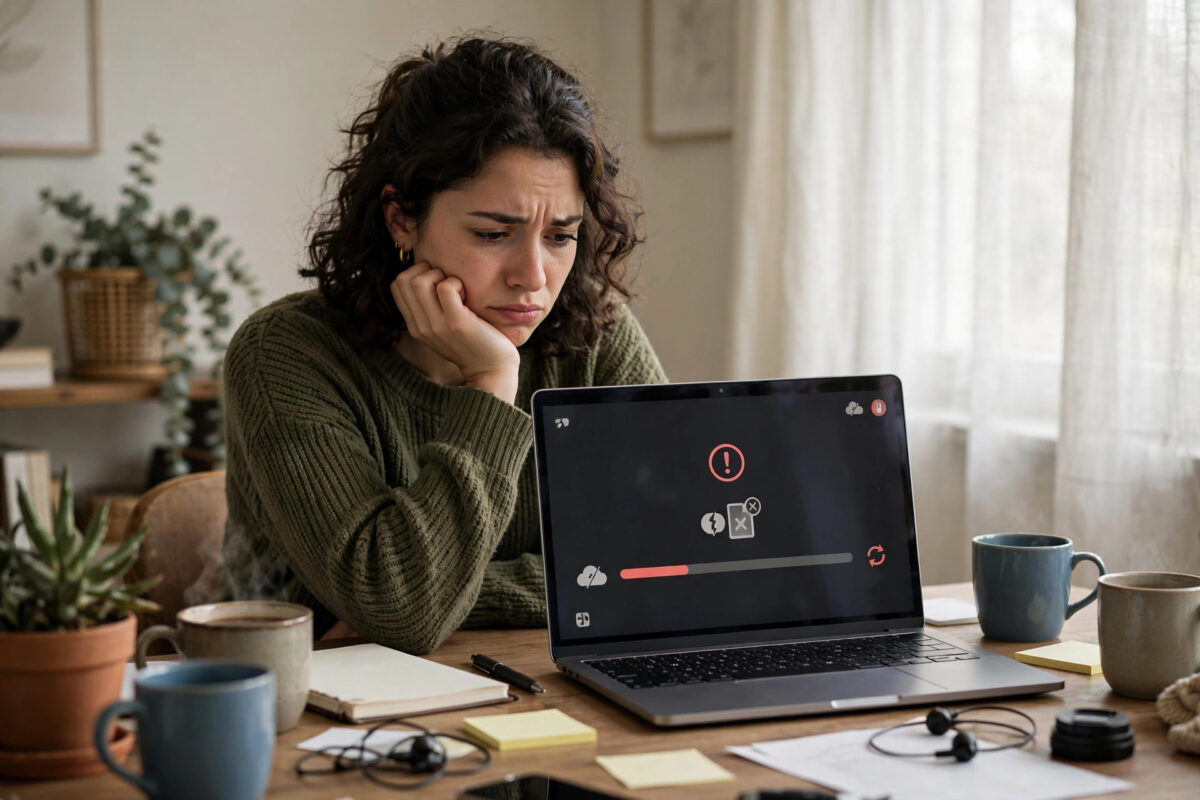
Few things are more frustrating than writing a great blog post, clicking the upload button, and watching WordPress refuse your image. You might see a vague message like “An error occurred in the uploading” or the more specific “HTTP error,” and the image simply never appears in your media library. The good news is that this problem is very common, and in most cases the cause is simple once you know where to look. This guide walks you through every proven fix, starting with the quickest checks and moving to the deeper ones, so you can get back to publishing.
Quick Answer
When images will not upload in WordPress, the most common causes are wrong file permissions on the uploads folder, an image file that is too large, a plugin conflict, or a browser issue. Start by refreshing and trying a different browser, then check that the wp-content/uploads folder has 755 permissions, reduce the image size, and deactivate plugins one by one to find a conflict. These steps fix the problem for the large majority of sites.
Step 1: Rule Out the Simple Causes First
Before changing any settings, test the basics. Many upload failures are temporary or caused by your own browser rather than the website itself.
- Refresh the page and try again. A dropped connection during upload can leave a half-finished process behind.
- Clear your browser cache or try a private window. An outdated cached script in the WordPress admin can break the media uploader.
- Try a different browser. If the image uploads fine in Firefox but not Chrome, a browser extension is the likely culprit.
- Rename the file. Remove spaces, capital letters, and special characters. A name like my-photo-2026.jpg is safe, while names with symbols such as &, %, or # can break the upload.
- Check the file format. WordPress accepts JPG, PNG, GIF, and WebP by default. Files like SVG, BMP, or TIFF will be rejected unless a plugin allows them.
Step 2: Reduce the Image File Size and Dimensions
Most shared hosting plans limit uploads to between 2 MB and 8 MB, and very large photos straight from a modern phone camera can be 10 MB or more. Even when the file passes the size limit, huge dimensions can exhaust the memory WordPress needs to create thumbnail sizes, producing the famous “HTTP error.”
Resize your images before uploading so the longest side is no more than 2000 pixels for featured images and around 1200 pixels for in-content images. If you regularly upload big batches, read our guide on how to compress images to speed up your website, because smaller files upload faster and make your pages load quicker too. After resizing, try the upload again before moving to technical fixes.
Step 3: Fix the Uploads Folder Permissions
WordPress stores media in the wp-content/uploads folder, and the web server needs permission to write new files there. If permissions got changed by a security plugin, a migration, or a server update, uploads will fail silently.
How to check permissions with FTP or your hosting file manager
- Connect to your site with an FTP program such as FileZilla, or open the file manager in your hosting control panel.
- Navigate to wp-content and find the uploads folder.
- Right-click the folder and look for “File Permissions” or “Change Permissions.”
- Set folders to 755 and files inside to 644. Apply the change to subfolders as well.
- Return to WordPress and test an upload.
Never set permissions to 777, even if a forum suggests it. That setting makes the folder writable by anyone and is a serious security risk. The official WordPress guide to changing file permissions explains the safe values in detail.
Step 4: Find and Fix a Plugin or Theme Conflict
If uploads stopped working right after you installed or updated something, that plugin or theme is the prime suspect. Image optimization plugins, security plugins, and gallery plugins are the most common offenders.
- Go to Plugins in your dashboard and deactivate all plugins.
- Try uploading an image. If it works, a plugin is causing the problem.
- Reactivate plugins one at a time, testing an upload after each one.
- When uploads break again, the last plugin you activated is the conflict. Update it, replace it, or contact its developer.
- If uploads still fail with everything deactivated, switch temporarily to a default theme such as Twenty Twenty-Five and test again.
This process is safe and reversible, and it identifies the exact cause instead of guessing. Before making bigger changes like this, it is smart to have a recent backup, so follow the steps in our guide on how to back up your WordPress website safely if you have not made one yet.
Step 5: Increase the WordPress Memory Limit
When WordPress processes a large image, it loads it into memory to create the thumbnail sizes your theme uses. If your site’s PHP memory limit is low, commonly 32 MB or 64 MB on cheap hosting, that process can crash and the upload fails with an HTTP error.
You can raise the limit by adding this line to your wp-config.php file, just above the line that says “That’s all, stop editing”:
define( 'WP_MEMORY_LIMIT', '256M' );
If you are not comfortable editing files, ask your hosting support to raise the PHP memory limit for you. Most hosts will do it in minutes, and many now let you change PHP settings directly from the hosting control panel.
Common Mistakes to Avoid
- Setting folder permissions to 777. It might fix the upload, but it opens a security hole. Use 755 for folders and 644 for files.
- Uploading raw camera photos. Huge files cause most HTTP errors. Resize and compress first.
- Ignoring the exact error message. “Sorry, this file type is not permitted” is a format problem, while “HTTP error” is usually size, memory, or permissions. The message tells you where to look.
- Deactivating plugins and forgetting to reactivate them. Work through the conflict test in one sitting so your site is not left unprotected.
- Editing wp-config.php without a backup. One wrong character can take the site down. Download a copy of the file before changing it.
Conclusion
Image upload errors in WordPress almost always come down to five causes: browser glitches, oversized files, wrong folder permissions, plugin conflicts, or a low memory limit. Work through the steps in this guide in order, testing an upload after each one, and you will find the cause quickly. Once uploads work again, build good habits — resize images before uploading, keep plugins updated, and maintain regular backups — and this problem is unlikely to return.
Frequently Asked Questions
Why does WordPress say “HTTP error” when I upload an image?
The HTTP error is a general message that usually means the server ran out of memory while creating image thumbnails, the file was too large, or the uploads folder permissions are wrong. Resize the image first, then check permissions and raise the memory limit if needed.
What is the maximum upload size in WordPress and how do I increase it?
The limit is set by your hosting and is shown on the Media upload screen. You can raise it through your hosting control panel’s PHP settings (upload_max_filesize and post_max_size) or by asking your host. Compressing images is usually a better long-term fix than raising limits.
Why does WordPress say “this file type is not permitted for security reasons”?
WordPress only allows common safe formats such as JPG, PNG, GIF, and WebP by default. Formats like SVG are blocked because they can contain code. If you truly need extra formats, a trusted plugin can enable them, but only allow types you understand.
Can a plugin really stop images from uploading?
Yes. Security plugins may block uploads that look suspicious, and image or gallery plugins can conflict with the media library. The one-by-one deactivation test in this guide is the reliable way to find which plugin is responsible.
My uploads worked yesterday and stopped today. What changed?
The usual triggers are an automatic plugin or theme update, a server change by your host, or the uploads folder filling your hosting storage quota. Check your storage usage in your hosting panel first, then review what updated most recently.



Leave a Reply