
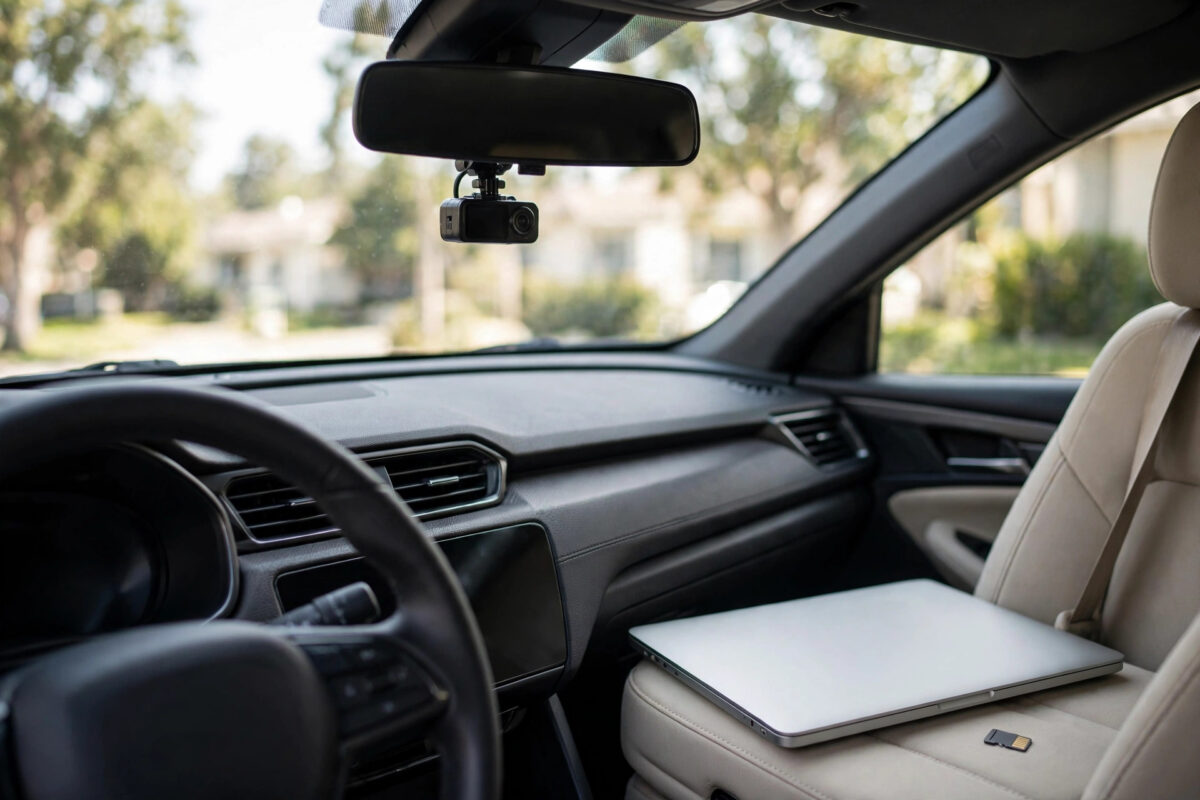
Dashcams record in the worst possible conditions for file safety. The camera writes video non-stop, and the moment power cuts — an accident, a flat battery, a loose cable — the file it was writing is left unfinished. Later, that one clip is exactly the footage you need, and it will not play in anything.
The good news is that a power cut usually damages the file’s structure, not the video itself. The camera captured the frames; it just never wrote the finishing information that players need. This guide explains what goes wrong inside the MP4, and the practical repair routes that give you the best chance of watching that clip again.
Quick Answer
A dashcam MP4 corrupted by power loss is usually missing its final index (the moov atom) or has a damaged header, while the actual video data is still on the card. First, copy the file to a computer and never record over the card. Then repair it with a tool that rebuilds the index using a healthy clip from the same dashcam as a reference — free tools like Untrunc, or recovery software that carves the raw video stream. Success rates are high for the last file recorded before the power cut, especially if the card was not used afterwards.
Why Power Loss Breaks Dashcam Files
An MP4 file has two main parts. The mdat section holds the actual video and audio data, written second by second as you drive. The moov atom is an index written at the end of recording that tells players where every frame starts, how long it is, and what settings it uses. A dashcam writes clips in loops of one, three, or five minutes, closing each file as it starts the next.
When power dies mid-clip, the current file keeps its video data but never receives its finished index. Players then report errors like “unsupported format” or “corrupt file,” or show a length of zero. The footage is sitting there; the player just has no map to read it with. This is also why the clip before and after the damaged one usually play fine — they were closed properly.
Step 1: Protect the Evidence First
Before any repair attempt, protect the source. This matters more than any tool choice:
- Remove the memory card from the dashcam and do not put it back in service. Every new recording risks overwriting the damaged file’s data.
- Copy the entire card contents to a folder on your computer, including the broken clip and at least one healthy clip recorded with the same settings.
- From now on, work only on the computer copies. Never run repair tools directly on files still on the card.
- If the card itself seems unreadable, image it first with recovery software before copying files — our tutorial on recovering files from a memory card walks through safe card handling that applies to dashcam cards too.
Step 2: Try the Simple Fixes First
Sometimes the damage is minor and free players can cope:
- Try VLC media player. VLC tolerates damaged files better than most players. Open the clip in VLC, and if it plays, use VLC’s Convert feature to save a clean copy in a new file.
- Try a different player and a renamed copy. Occasionally the issue is a bad file extension from the camera (some models save .MOV or a brand-specific extension). Copy the file, rename the copy’s extension to .mp4, and test again.
- Check the file size. A clip of 0 KB is truly empty and cannot be repaired. A clip with a realistic size — tens or hundreds of megabytes for a few minutes of HD video — almost certainly contains usable footage.
Step 3: Rebuild the File With a Reference Clip
The most reliable repair method rebuilds the missing index using a healthy file from the same camera as a template. The free, open-source tool Untrunc was built for exactly this job:
- Download Untrunc (or its friendlier fork versions) from its official project page only.
- Select the healthy reference clip — same dashcam, same resolution and frame rate settings, ideally recorded the same day.
- Select the broken clip as the file to repair.
- Run the repair and save the output as a brand-new file, never over the original copy.
- Play the repaired file from start to finish and check that picture, sound, and timestamps look continuous.
The PhotoRec documentation from the TestDisk project describes another angle: if the file system on the card is damaged, carving tools can extract raw video streams directly from the card image, bypassing broken file records entirely. That route is heavier work, but it rescues clips whose file entries are gone, not just unfinished.
Step 4: Know When to Use a Specialist
If the clip is evidence for an insurance claim or a legal case, stop experimenting early. Repeated write attempts to the card, or sloppy repairs, can complicate things. A data recovery lab can work from a bit-by-bit image of the card and document what they did. Keep the original card untouched and stored safely, because its untouched state may matter as much as the footage itself.
Mistakes That Destroy Recoverable Footage
- Putting the card back in the dashcam “just to check.” Loop recording will happily overwrite your damaged clip. This is the number one cause of total loss.
- Running repair tools on the card itself. Always copy first, repair the copy.
- Using a reference clip from a different camera or different settings. Mismatched resolution or codec settings produce garbled output or instant failure.
- Formatting the card when the car or camera suggests it. A format erases the file table and makes recovery far harder.
- Trusting one-click online “video repair” uploads for evidence. You lose control of sensitive footage, and large files often fail mid-upload anyway.
Preventing the Problem Next Time
Dashcams with a small internal battery or a supercapacitor finish writing the current file when power cuts — prefer that feature when buying. Use a high-endurance memory card made for constant recording, format it in the camera every month or two, and replace it yearly. Finally, if something happens on the road, pull the card as soon as it is safe and copy it the same day, while only one clip is at risk instead of a card full of driving.
Conclusion
A dashcam clip lost to a power cut is rarely lost forever. The video data usually survives; only the file’s finishing index is missing. Copy the card immediately, work only on copies, try VLC for light damage, and use a reference-based repair like Untrunc for the real rebuild. Treat the card as evidence from the first minute, and the footage you need will usually be watchable again.
Frequently Asked Questions
Why does the broken dashcam clip show as 0 seconds long?
Because its index was never written, the player cannot count the frames, so it reports a length of zero even though the video data inside the file is mostly complete.
Can I repair the file without another clip from the same camera?
Sometimes. Generic tools can guess common camera settings, but a reference clip with identical settings gives far better results. Any healthy clip from the same dashcam with the same settings works, even from a different day.
The repaired video plays but has no sound. Is that normal?
It can happen if the audio track’s index was damaged or the reference clip had audio disabled. Check your dashcam’s microphone setting; many owners turn audio off, in which case there was never sound to recover.
Will repairing the file change its timestamp or metadata?
The repaired copy may have fresh file dates, because it is technically a new file. Keep the original untouched alongside it so the original metadata and file record remain preserved.
How long do I have before the dashcam overwrites the clip?
Only until the card fills and loop recording reaches that file again — on a small card in daily use, possibly just a few days. That is why removing and copying the card immediately matters so much.



Leave a Reply