
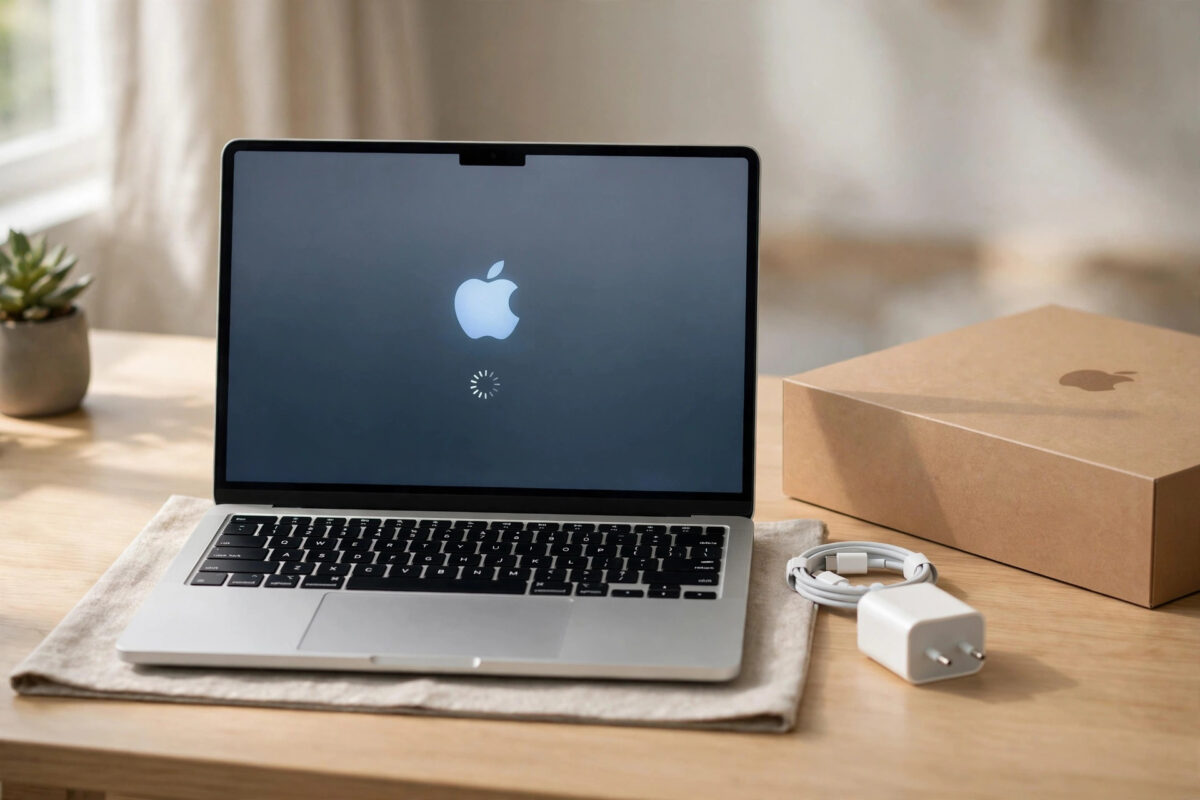
Selling, giving away, or trading in a Mac is exciting, but it comes with one serious responsibility: making sure none of your personal life goes with it. Photos, messages, saved passwords, banking tabs, and work documents can all linger on a machine that looks empty at first glance.
A proper factory reset does two jobs. It removes your accounts and data safely, and it leaves the Mac in a clean, welcoming setup state for the next owner, just like the day it was first switched on.
The exact steps depend on your Mac’s chip and macOS version. Modern Macs have a simple erase assistant. Older Macs need a manual path through recovery mode. This guide covers both.
Quick Answer
To factory reset a Mac before selling it, back up everything first, sign out of iCloud, Messages, and other accounts, then on a modern Mac use System Settings, General, Transfer or Reset, and choose Erase All Content and Settings. On older Intel Macs, erase the drive in recovery mode and reinstall macOS. The Mac should finish at the welcome setup screen, ready for its new owner.
Step 1: Back Up Everything You Want to Keep
Once the reset finishes, your data on this Mac is gone for good. That is the point of the process, so your backup is your safety net.
- Run a full Time Machine backup to an external drive and check the completion time and date.
- Copy any files stored outside the usual folders, such as items on the Desktop or in custom project folders.
- Check the Downloads folder for receipts, installers, and documents you meant to keep.
- Export photos, browser bookmarks, and password manager data if they are not already synced.
- Test the backup by opening a few important files from the backup drive itself.
- Note app licence keys and sign-in details you will need on your next computer.
If you are moving to a new Mac, keep this backup until the new machine is fully set up and you have confirmed nothing is missing. Many people erase their backup too early and regret it weeks later.
Step 2: Sign Out and Unpair Your Accounts
Modern erase tools handle most sign-outs for you, but doing these steps yourself gives you certainty and prevents activation problems for the buyer.
- iCloud and Apple ID. Signing out removes the Mac from your account and turns off Find My, which is essential. A Mac left linked to Find My can become unusable for the next owner.
- Messages and FaceTime. Sign out so your phone number and email addresses stop reaching this Mac.
- Music, TV, and Books. Deauthorise the computer if the app offers that option, so you do not lose one of your limited authorisations.
- Bluetooth devices. Unpair keyboards, mice, and headphones if they are being sold separately or staying with you.
- Work and school accounts. Sign out and remove any management profiles your employer or school added, following their rules.
Apple’s official checklist on what to do before you sell, give away, or trade in your Mac is an excellent companion to this guide and worth reviewing before the final erase.
Step 3A: Use Erase All Content and Settings (Modern Macs)
Macs with Apple silicon, and Intel Macs with a T2 chip running newer macOS versions, include a phone-style reset option. It is the fastest and safest route.
- Click the Apple menu and open System Settings.
- Click General in the sidebar.
- Click Transfer or Reset.
- Choose Erase All Content and Settings.
- Enter your administrator password when asked.
- Review the summary of what will be removed, including accounts, settings, and data.
- Sign out of your Apple ID if prompted, which also disables Find My and Activation Lock.
- Confirm the erase and let the Mac restart. It may show a progress bar and restart more than once.
- Stop when the Mac shows the welcome, or Hello, setup screen. Do not go through setup yourself.
Our guide to how to remove your Apple ID from a Mac explains the account side of this process in more detail if the buyer will be a family member and you want to double-check every sign-out.
Step 3B: Erase in Recovery Mode (Older Intel Macs)
If your Mac does not show the Erase All Content and Settings option, use the classic recovery method.
- Shut down the Mac completely.
- Turn it on and immediately hold Command and R until the Apple logo or a globe appears.
- Enter any password requested to reach the utilities window.
- Open Disk Utility.
- Choose View, then Show All Devices.
- Select the top-level internal drive, check its size to be sure it is the right one, and click Erase.
- Choose APFS for newer systems or Mac OS Extended (Journaled) for very old ones, name the drive, and confirm the erase.
- Quit Disk Utility and choose Reinstall macOS.
- Follow the prompts to install a clean system on the erased drive.
- When the welcome setup screen appears, shut the Mac down instead of setting it up. The new owner should see that first-run experience.
What About NVRAM and Extra Cleanup on Older Macs?
On older Intel machines, resetting NVRAM was once a common final step because it clears small settings such as display choices and startup disk selection. On modern Macs this is unnecessary, and the erase assistant handles settings itself. Skip deep technical extras unless Apple guidance for your exact model recommends them.
One extra that does matter is physical care. Wipe the screen and body with a soft, slightly damp cloth, include the correct charger if it was part of the sale, and photograph the Mac’s condition and serial number for your own records before it leaves.
Final Checks Before the Mac Leaves You
- The Mac starts at the welcome setup screen, not at your desktop or login window.
- Find My is off and the Mac no longer appears in your iCloud device list.
- Your backup drive is stored safely at home and was not included in the sale by mistake.
- You have removed the Mac from trusted device lists for banking and two-factor sign-ins where appropriate.
- You know the agreed accessories, charger, and any included items are packed.
- You have kept a note of the serial number, sale date, and buyer details for your records.
Common Mistakes to Avoid
- Forgetting Find My and Activation Lock. This is the biggest one. A locked Mac is a paperweight to the buyer and a guaranteed angry message to you.
- Setting the Mac up again after the reset to check it works. A quick power-on to the welcome screen is enough. Completing setup recreates accounts you just removed.
- Erasing before the backup finishes. Check the backup date and open files from it before you wipe anything.
- Leaving signed-in apps behind on a manual reset. Mail, cloud drives, and chat apps can hold years of private content.
- Selling with a linked iCloud photo or message history. The erase solves this only if Find My and iCloud were properly signed out or erased through the official flow.
- Including the wrong charger or no charger without saying so. Small surprises damage trust and can kill an otherwise good sale.
Conclusion
A careful factory reset protects you and delights the next owner. Back up and test that backup, sign out of iCloud and your apps so Activation Lock is released, then use Erase All Content and Settings on modern Macs or the recovery erase and reinstall on older ones. Finish at the welcome screen, run through the final checks, and you can hand over, sell, or trade in your Mac knowing your data stayed with you and the machine is truly ready for its new life.
Frequently Asked Questions
Does a factory reset remove my Apple ID and Activation Lock?
Yes, when you use Erase All Content and Settings and sign out of your Apple ID during the process, Find My is turned off and Activation Lock is removed. On older Macs, sign out of iCloud before erasing to achieve the same result.
How long does it take to factory reset a Mac?
The modern erase assistant often finishes in under 30 minutes. The older recovery method, which includes reinstalling macOS, usually takes one to two hours, depending on your internet speed and the age of the Mac.
Should I reset the Mac if I am giving it to a family member?
Yes. A reset protects your accounts and gives them a clean start with their own Apple ID. It also prevents your messages, photos, and passwords from mixing with theirs, which avoids confusion later.
What if I forgot to sign out of iCloud before selling the Mac?
You can remove the Mac from your account using Find My on another device or through iCloud on the web, by selecting the Mac and choosing Remove from Account. Apple’s guidance through Activation Lock removal and device management explains the current steps, and the buyer may need your help to complete activation.
Can the new owner recover my files after a factory reset?
On modern Macs with encrypted storage, erasing destroys the keys that make the data readable, so recovery is effectively impossible in practice. This is one reason the official erase process is strongly preferred over simply deleting files by hand.



Leave a Reply