
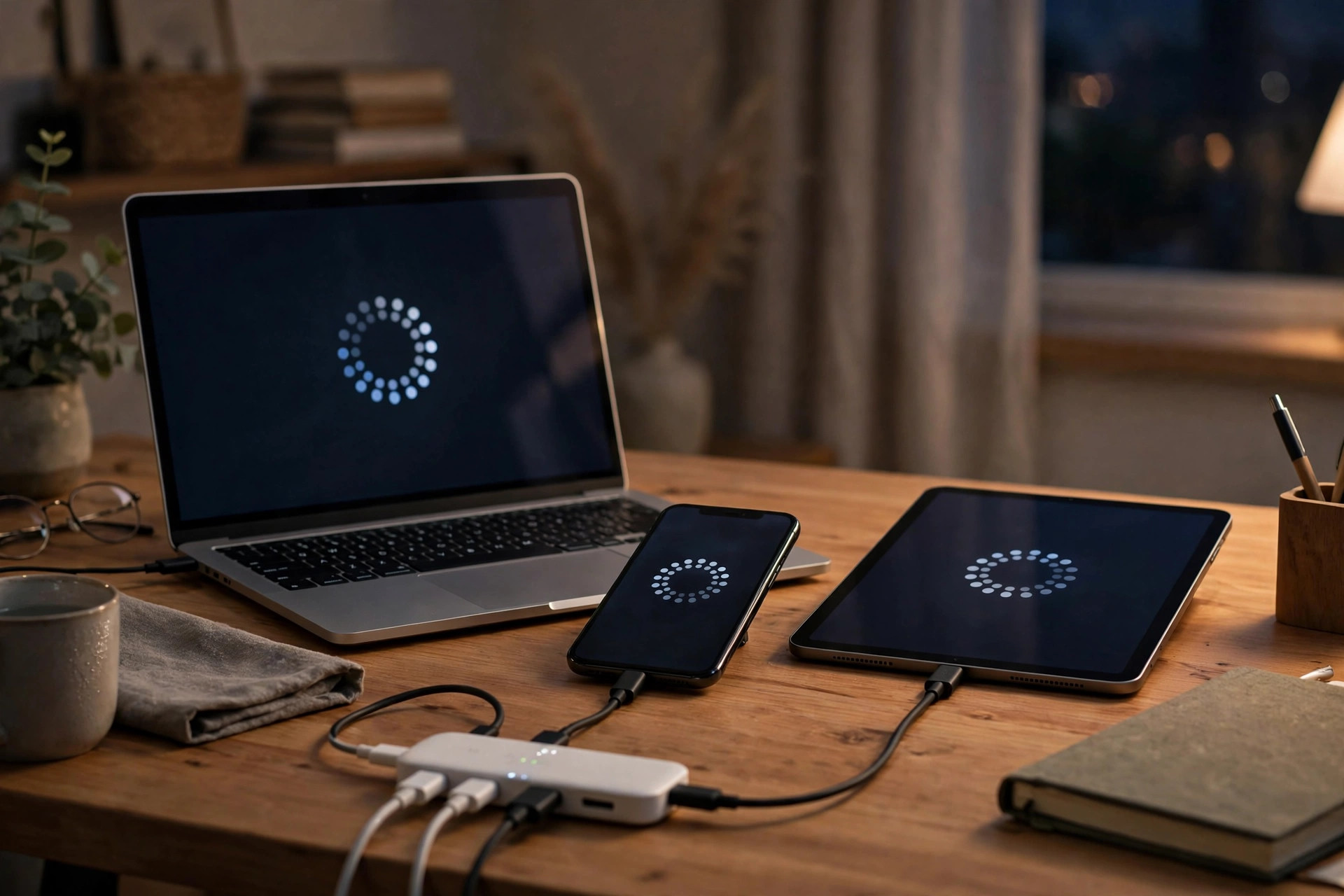
Many major attacks share a frustrating detail: a fix already existed. The compromised device simply had not installed the security patch released days or months earlier. Updates are the main way security flaws get closed before criminals exploit them.
Many people postpone updates, worried they will break something or restart at the wrong moment. Leaving patches uninstalled is far riskier. The solution is automatic updates: let security patches install promptly, while keeping control over timing and major feature changes.
This guide explains how to enable automatic updates on Windows, Mac, iPhone, Android, browsers, and common apps, how to check that the settings are actually working, and how to avoid the few genuine pitfalls so your devices stay protected without disrupting your day.
Quick Answer
Turn on automatic updates in each device’s main settings — Windows Update, macOS Software Update, iPhone and Android system settings, and each browser’s settings — and enable auto-update for apps in the App Store or Play Store. Keep devices plugged in and connected to Wi-Fi overnight, restart them regularly, and check monthly that no update is stuck or waiting for manual approval.
Why Security Patches Cannot Wait
When a flaw that allows unauthorised access is found, the developer publishes a patch — and that announcement tells attackers where to look on unpatched devices. Automatic updates shrink that window of exposure from months to hours.
Feature updates change how things look and can wait a few days. Security patches are small, urgent, and should install automatically — enable every automatic security option you are offered.
How to Enable Automatic Updates on Windows
Windows Update handles the operating system, drivers, and many Microsoft products, and recent versions of Windows are designed to keep you current with limited effort. Verify the settings rather than assuming they are on, especially on a work or second-hand computer.
- Open Windows Update. Go to Settings, then Windows Update. Click Check for updates and install anything pending, restarting if prompted, so you start from a fully current system.
- Confirm automatic behaviour. Windows installs updates automatically by default. In Advanced options, turn on Receive updates for other Microsoft products and Notify to schedule restart if you want warning before a reboot.
- Set active hours. In Advanced options, set your Active hours to the times you normally use the computer. Windows will avoid restarting during those hours while still installing patches promptly outside them.
- Update Microsoft Store apps. Open the Microsoft Store, click your profile, open Settings, and turn on App updates so installed apps patch themselves as well.
- Check optional updates carefully. Review optional driver and feature updates separately. Install security-related items, but feel free to research a major feature update for a few days before accepting it.
How to Enable Automatic Updates on Mac, iPhone, and iPad
Apple groups most controls in Software Update settings, with separate app controls in the App Store. The steps are nearly identical across recent macOS and iOS versions, though menu names differ slightly.
- On a Mac, open Software Update. Go to System Settings, General, then Software Update. Click the information icon next to Automatic Updates.
- Turn on all automatic options. Enable downloading and installing macOS updates, installing app updates from the App Store, and, most importantly, installing Security Responses and system files.
- On iPhone or iPad, open Software Update. Go to Settings, General, Software Update, then Automatic Updates. Turn on iOS Updates, Security Responses and System Files, and App Store downloads as offered on your version.
- Enable automatic app updates. Go to Settings, App Store, and turn on App Updates. This keeps banking, messaging, and browser apps patched without relying on the system update alone.
- Leave devices ready overnight. Automatic installation usually happens when the device is locked, charging, and on Wi-Fi. Making that your nightly routine is what makes the whole system work.
Apple details each toggle on its official Mac software update support page, including how Rapid Security Responses differ from full system updates. Checking that page for your exact macOS version removes any guesswork about menu names.
How to Enable Automatic Updates on Android and Browsers
Android splits updates into system patches from your manufacturer, Google Play system updates, and individual app updates. Browsers on all platforms have their own update systems that should never be disabled, because the browser is your main window to potentially hostile websites.
- Check Android system updates. Go to Settings, Security and privacy, then System and updates — the exact path varies by brand — and install any pending security update. Enable auto-download over Wi-Fi where offered.
- Update Google Play system components. In the same area, open Google Play system update and install if a newer version is waiting. These deliver important security fixes independently of your manufacturer.
- Auto-update apps in the Play Store. Open the Play Store, tap your profile, go to Settings, Network preferences, then Auto-update apps, and choose Over Wi-Fi only to save mobile data.
- Let Chrome update itself. Chrome updates automatically when you close and reopen it. If a coloured update icon appears in the toolbar, restart the browser that day rather than dismissing it for weeks.
- Check other browsers manually once. In Firefox, Edge, or Safari settings, confirm automatic updates are enabled. Safari updates arrive through macOS or iOS Software Update, which is another reason those toggles matter.
- Do not forget routers and smart devices. Log in to your router occasionally and enable automatic firmware updates if supported. Check companion apps for smart TVs, cameras, and speakers for similar firmware auto-update options.
See Google’s official Android update help page for your patch level under About Phone.
If you look after devices for family members as well as yourself, combine this update check with the broader routines in our home technology and digital safety guides for non-technical users so phones, laptops, and routers all get reviewed in one short session.
How to Make Sure Automatic Updates Are Actually Working
A monthly two-minute verification catches updates stuck waiting for a restart, full storage, or changed settings.
- Look at the last installed date. Each update screen shows recent history or your current version. If your security patch is several months old, investigate rather than assuming silence means safety.
- Restart devices weekly. Many patches finish installing only after a restart. A weekly reboot also clears temporary faults and is healthy for phones and computers alike.
- Keep free storage available. Updates fail silently on completely full devices. Keep at least a few gigabytes free on phones and around ten percent free on computers.
- Watch for repeated failure messages. The same update failing repeatedly can signal a deeper problem. Search the exact error on the manufacturer’s official support site or contact their support before ignoring it.
- Keep chargers and Wi-Fi in your routine. Most systems delay installation on low battery or metered connections. Overnight charging on home Wi-Fi removes both obstacles.
Common Mistakes to Avoid
- Turning off updates after one annoying restart. Adjust active hours and restart notifications instead. Disabling updates entirely leaves known flaws open indefinitely.
- Updating the operating system but ignoring apps and browsers. Attackers happily enter through an old browser or office app. Enable store auto-updates and browser updates too.
- Postponing restarts for weeks. A downloaded patch that never installs provides no protection. Restart at least weekly, or the same day for urgent security fixes.
- Using end-of-life devices for sensitive tasks. If a manufacturer no longer releases security patches for a phone or computer, no setting can fix that. Plan a replacement for banking and email use.
- Installing updates from pop-ups or email links. Genuine updates come through system settings or official stores. Close suspicious update warnings and check through settings yourself.
- Forgetting the router. An unpatched router undermines every protected device behind it. Check its firmware and auto-update option at least a few times a year.
Conclusion
Enabling automatic updates is the closest thing in personal technology to free insurance. It takes ten minutes to set up across your computer, phone, browser, and apps, and from then on critical security patches install themselves while you sleep, dramatically shrinking the time your devices spend exposed to known flaws that attackers actively exploit.
Do not try to perfect every device in one exhausting session. Start tonight with the phone and computer you use most, turn on every automatic security option, plug them in on Wi-Fi, and restart them in the morning. Then add your browser, apps, and router to the same monthly check, and your update problem is solved for good.
Frequently Asked Questions
Can automatic updates break my computer or phone?
Problems are uncommon, and security patches are deliberately kept small and focused to minimise risk. The danger of running unpatched software with known, publicly documented flaws is far greater. Keeping a recent backup gives you a recovery path in the rare case an update causes trouble.
What is the difference between a security patch and a feature update?
A security patch fixes vulnerabilities that could allow unauthorised access, malware, or data theft, and should be installed immediately. A feature update changes appearance or adds capabilities and can reasonably wait a few days while early issues are reported and resolved.
Why does my device say it is up to date but still feels old?
It may have reached the end of its support life, meaning the manufacturer no longer releases updates for that model, or it may only be receiving security patches rather than new feature versions. Check the manufacturer’s support policy, and plan a replacement if security updates have ended.
Should I update over mobile data or wait for Wi-Fi?
For large feature updates, Wi-Fi is cheaper and more reliable. For a small, urgent security patch, installing promptly matters more than the connection type. Setting app auto-updates to Wi-Fi only, while allowing system security responses more freely, is a sensible balance.
How do I know if an update warning is fake?
Real system updates never arrive as a browser pop-up demanding urgent action, a phone call, or an email asking for your password. Close the warning, open your device’s official Settings update screen yourself, and check there. If nothing is listed, the warning was a scam.



Leave a Reply