
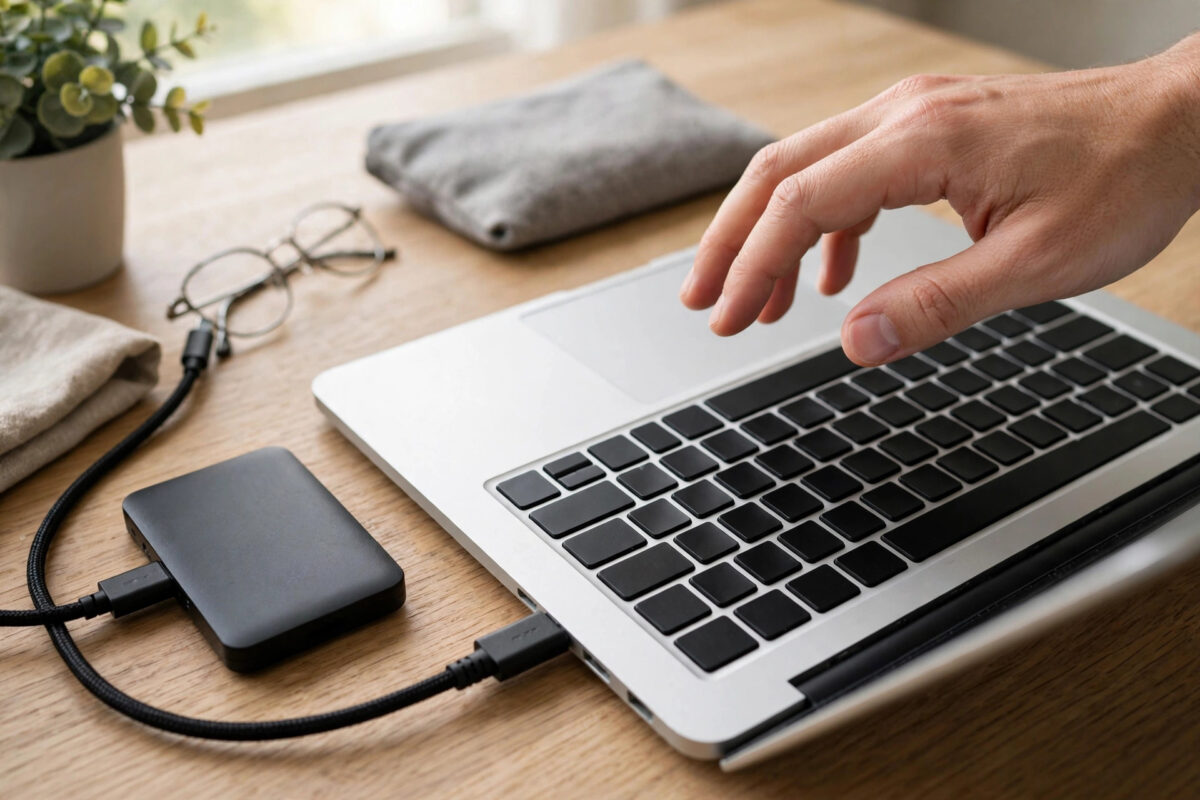
You are in a hurry, you click eject on your external drive, and your Mac replies that the disk “wasn’t ejected because one or more programs may be using it” — even though, as far as you can tell, everything is closed. Pulling the cable anyway risks corrupting the drive, so what do you do? This guide explains why a Mac refuses to let go of a disk, how to find the app or process holding it, and the safe ways to release it — from a simple Finder relaunch to checking exactly which program has a file open, plus the last-resort options and how to avoid the problem in future.
Quick Answer
When a disk refuses to eject on a Mac, first close every app that might be using it — including Finder windows, media players, photo apps, and backup tools — and try again. If it still refuses, log out and back in, or restart the Mac, which releases every file safely. To find the exact culprit, open Terminal and run “sudo lsof /Volumes/DriveName” to see which process is using the disk. Only use Force Eject as a last resort, and understand it can still damage open files; never simply pull the cable from a drive that is in use.
Why Your Mac Refuses to Eject a Disk
macOS will not eject a disk while any process has a file open on it, is writing to it, or is using it as its current working location. The usual hidden holders are Spotlight, which may be indexing the drive; Time Machine, which may be partway through a backup; Photos or Music, which keep libraries open in the background; a Finder window or Quick Look preview you forgot about; a terminal window whose current folder is on the drive; and apps that crashed while holding files. Even a file that finished copying minutes ago can keep the disk busy if an app still has it open for reading. The warning is your Mac protecting the drive’s directory from the exact kind of damage that Disk Utility First Aid then has to repair — so treat it as a favour, not an annoyance.
Safe Ways to Eject, From Gentle to Firm
- Close related apps properly. Quit — do not just close the window of — Finder windows showing the drive, plus Photos, Music, media players, editors, and any app that opened a file from it. Then click eject again.
- Wait for background work. If Time Machine’s menu shows a backup in progress to that drive, or the drive light is busy, give it a few minutes and try again.
- Relaunch Finder. Hold Option and right-click (or Control-click) the Finder icon in the Dock, choose Relaunch, then try ejecting. This clears stuck Finder previews and windows.
- Log out and back in. From the Apple menu, log out. Every process in your session closes, releasing all files. Log back in and eject — this works almost every time.
- Restart the Mac. The guaranteed method. A normal restart closes everything in an orderly way, and you can unplug the drive as soon as the machine is off or back at the login screen.
- Eject from Disk Utility. Open Disk Utility, select the volume, and click the Eject button there. Occasionally it succeeds where Finder argues.
Find the Exact Process With Terminal
If you want to know precisely who is holding the disk, Terminal can tell you:
- Open Terminal from Applications, then Utilities.
- Type sudo lsof /Volumes/ followed by your drive’s name (use quotes around the name if it contains spaces), then press Return and enter your password.
- The results list every process with an open file on that volume, with the app’s name in the first column.
- Quit that app normally, or if it has frozen, note its number in the PID column and quit it from Activity Monitor.
- Click eject again — with the holder gone, the disk releases immediately.
Spotlight shows up in these results as “mds” or “mdworker.” If Spotlight is the holder, you can simply wait for indexing to finish, or add the drive to the Spotlight privacy list in System Settings under Siri & Spotlight if it is a drive you never search. Apple also notes in its support guidance on safely ejecting storage devices that logging out is the reliable fallback when an app will not let go.
About Force Eject — And Simply Unplugging
When macOS gives up asking nicely, it may offer a “Force Eject” button. Force Eject tells the system to release the disk even though something claims to be using it. If the holder was only reading or had a forgotten preview open, no harm is done. If anything was writing — a copy, a save, an export — that file can be left incomplete or the disk’s directory can be damaged. Treat Force Eject as the last step before a restart, not a habit. Simply yanking the cable is worse: with no warning at all, it carries the same risks plus possible corruption of the exact file being written, which is one common reason a Mac later refuses to read an external drive properly.
Preventing Eject Problems in Future
- Close documents before the apps that made them, and quit apps fully when you finish with a drive.
- Let Time Machine backups finish before disconnecting a backup drive; check its menu icon first.
- Exclude drives you never search from Spotlight indexing to stop the most common background hold.
- Turn off “Put hard disks to sleep” is unrelated — instead, build the habit: eject, wait for the icon to vanish, then unplug.
- If one particular app always holds the drive, update it; stuck file handles are a known bug pattern in older versions.
Common Mistakes to Avoid
- Unplugging in frustration. One impatient yank can corrupt a directory that held years of files.
- Force-quitting random processes. Identify the holder with lsof first; killing system processes blindly can crash your session.
- Assuming the drive is faulty. A disk that will not eject is almost always being held by software, not failing.
- Ejecting during a copy. Check the drive’s activity light and any copy progress windows before ejecting, every time.
Special Cases: Disk Images, Network Volumes, and Memory Cards
The same rules cover more than USB drives. A mounted disk image (.dmg or .iso) is a virtual disk — eject it from the Finder sidebar like any drive, and remember that an image file sitting on an external drive keeps that drive busy until the image itself is ejected first. Network volumes release when their server disconnects or when you log out, and a sleeping or crashed server can make ejection hang for a minute before macOS gives up gracefully; patience beats force here. Memory cards deserve one extra warning: cameras and card readers write index files the moment a card mounts, so a card can be “in use” by the system itself for a few seconds after you plug it in. Wait for the drive light and the Finder to settle before copying, and eject with the same care as any other disk.
Conclusion
A disk that refuses to eject is your Mac telling you something is still using it — and it is nearly always right. Close the real culprits, relaunch Finder, or simply log out to release everything safely, and use Terminal’s lsof command when you want the exact name of the process holding on. Force Eject exists for rare stubborn cases; pulling the cable should never be the plan.
Frequently Asked Questions
Is it ever safe to just unplug a drive without ejecting?
If the drive has been idle, no apps have files open on it, and its activity light is off, the risk is low — but “low” is not zero, and ejecting takes two seconds. Always eject.
Why does my backup drive refuse to eject every evening?
Time Machine is likely backing up or cleaning old backups. Check the Time Machine menu; once it finishes, the drive ejects normally.
What does “the disk is in use by Spotlight” mean?
The system is indexing the drive’s contents for search. Wait for it to finish, or add the drive to the Spotlight privacy list if you do not need to search it.
Force Eject disappeared as an option. What else can I do?
Restart the Mac. It is the guaranteed release, and you can unplug the drive while the Mac is off or at the login window.
Can a disk image (.dmg) block ejection of my drive?
If the image file lives on the external drive and is still mounted, yes. Eject the disk image from the Finder sidebar first, then eject the physical drive.



Leave a Reply