
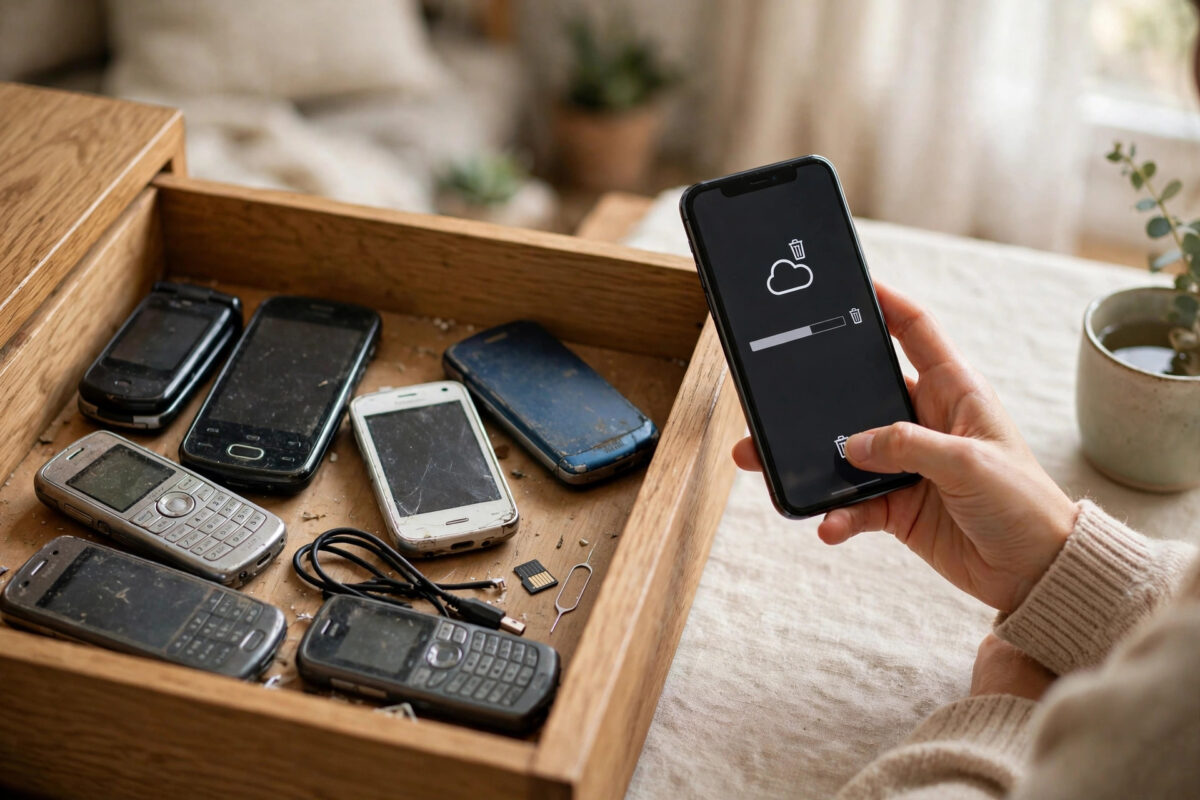
Every iPhone and iPad you have owned may still have a backup sitting in your iCloud account, quietly holding gigabytes hostage. When you upgrade phones, the old backup does not remove itself — it stays until you delete it, and on a 5 GB free account, one stale backup is enough to block your current phone from backing up at all.
This guide shows how to find every device backup on your account, how to tell the safe deletions from the dangerous ones, and how to delete them from iPhone, Mac, or a Windows PC.
Quick Answer
On iPhone, go to Settings → [your name] → iCloud → Manage Account Storage → Backups, tap the backup belonging to a device you no longer use, and choose Delete & Turn Off Backup. The space is freed almost immediately. Only delete backups for devices you no longer own or no longer need to restore — never delete the current backup of the phone in your hand unless you are about to make a fresh one.
Finding All Your Device Backups
- Open Settings and tap your name.
- Tap iCloud → Manage Account Storage.
- Tap Backups. You will see a list: this device, plus every other device that has backed up to this account — old phones, an iPad, sometimes a long-forgotten device from years ago.
- Tap each entry to see its size and, importantly, the last backup date. A backup last updated two years ago belongs to a device that is gone or unused.
If you are not sure what is consuming your iCloud overall, check the full breakdown first with our guide on seeing exactly what is taking space in iCloud storage.
Which Backups Are Safe to Delete?
Safe: Devices You No Longer Own
If you sold, traded in, lost, or recycled the phone or tablet, its backup serves no purpose — you will never restore it. Delete freely. The same applies to a device you still own but have fully replaced and already restored onto its successor: the old backup is a snapshot of a setup that now lives elsewhere.
Dangerous: Your Current Device’s Only Backup
Deleting the current backup of the phone you use daily leaves you unprotected until the next automatic backup runs (usually the next night on Wi-Fi while charging). If you must delete it — for example, because a corrupted backup is suspected — do it when you can immediately run a fresh backup afterwards: Settings → [your name] → iCloud → iCloud Backup → Back Up Now.
Think First: A Spare Device You Still Use
An iPad you use weekly still wants its backup. If it backs up rarely, its backup may look old but still be the only restore point for that device. Check the device itself before deleting.
Deleting a Backup: Step by Step
- Go to Settings → [your name] → iCloud → Manage Account Storage → Backups.
- Tap the device backup you want to remove.
- Tap Delete & Turn Off Backup (for the current device it reads “Turn Off and Delete from iCloud” in newer versions).
- Confirm. The backup is deleted and, if the device is still active, its automatic iCloud backup is switched off — for old devices, irrelevant; for a spare device, remember to turn backup back on if you still want it protected.
Deleting From a Mac or Windows PC
On Mac
Open System Settings → [your name] → iCloud → Manage, select Backups, choose the backup, and click the delete (minus) button. Confirm, and the space frees up.
On Windows
Open the iCloud for Windows app, click Storage, select Backups in the list, choose the device backup, and click Delete. Apple’s iCloud storage support page confirms these routes and notes that deleting a backup also turns off backup for that device until re-enabled.
After Deleting: Protect the Devices That Remain
- Confirm your current phone’s backup is on and recent: Settings → [your name] → iCloud → iCloud Backup shows the last successful backup time.
- Run a manual backup now if the last one is old — tap Back Up Now while on Wi-Fi.
- Re-check your storage total after a few minutes to enjoy the reclaimed gigabytes.
- If one device keeps producing huge backups, open its backup details and exclude bulky apps — a fix covered in our guide on stopping iCloud from backing up large app data.
How to Recognise Each Backup When Names Look Identical
Families and long-time Apple users often see confusing lists: two entries both called “iPhone”, with no obvious way to tell them apart. Three clues separate them. First, the last backup date — your current phone backed up within the last day or two, while stale entries show dates months or years old. Second, the entry for the device you are holding is labelled “This iPhone” or “This iPad” in the backup detail screen, which anchors the list. Third, size trends: your current backup usually grows over time, while a dead device’s backup is frozen at whatever size it reached the day it was last used. When in doubt, check each physical device you still own under its own Settings → [your name] → iCloud → iCloud Backup, note the “last backup” time it reports, and match it to the list before deleting anything.
Mistakes and Tips
- Do not delete a backup just before restoring that device. Sounds obvious, happens often: people clean up the night before setting up a replacement phone and delete the very backup they needed. Restore first, delete after.
- Remember deletion also turns backup off for that device. If the device is still in use in the family, re-enable iCloud Backup on it afterwards.
- Check the date, not just the name. Two devices can share a name (“Ali’s iPhone”). The last-backup date tells you which one is current.
- Sold devices sometimes keep backing up if never signed out. If an old phone still updates its backup after you sold it, remove it from your account’s device list and change your Apple ID password.
How Often Should You Review Your Backups?
Make backup review a habit tied to events rather than the calendar: every time a device enters or leaves the household, spend sixty seconds in the Backups list. Bought a new phone? Restore it, confirm it works, then delete the old one’s backup a week later. Sold an iPad? Its backup goes the same day. This event-based rhythm keeps the list permanently clean without a big annual purge, and it guarantees the “storage full” surprise never traces back to hardware you no longer own.
Conclusion
Old device backups are the safest gigabytes you will ever free: find them under Manage Account Storage → Backups, confirm the device is gone or replaced by checking the date, and delete. Protect your current phone by verifying its backup is on and recent afterwards. A two-minute tidy here often solves a “storage full” problem that photos never caused.
Frequently Asked Questions
Will deleting an old backup delete anything on my current phone?
No. Each device backup is independent. Deleting another device’s backup — or even an old backup of the same physical phone — does not touch the data currently on your phone.
What does “Delete & Turn Off Backup” actually do?
It deletes that backup from iCloud and switches off automatic iCloud backup for that device. For a device you no longer own, nothing else matters. For one you still use, turn backup back on in its settings if you want it protected.
How much space does a device backup use?
It varies widely — from under 1 GB to well over 10 GB depending on apps and data. The Backups list shows each one’s exact size before you delete anything.
I deleted the backup but my phone says backup failed last night. Why?
If you deleted the backup belonging to the phone you are using, its backup was also turned off. Re-enable it under Settings → [your name] → iCloud → iCloud Backup and tap Back Up Now.
Can I delete backups from iCloud.com?
The web interface shows storage totals but not full backup management. Use an iPhone, iPad, Mac, or iCloud for Windows to delete device backups.



Leave a Reply