
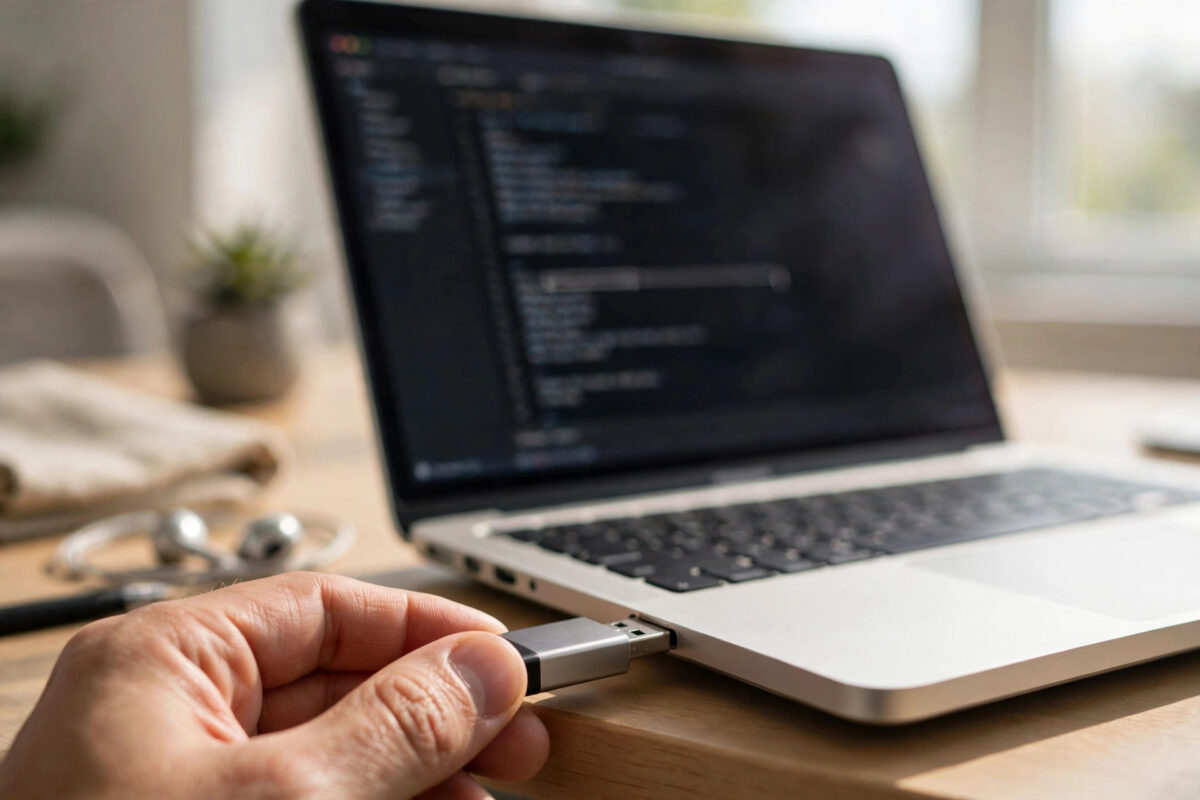
A bootable macOS USB installer is one of the most useful tools a Mac owner can have. It lets you install macOS on an empty drive, recover a Mac that will not start properly, downgrade to an older version, or set up several Macs without downloading the same huge file again and again.
The good news is that Apple provides the tool for the job for free. It is called createinstallmedia, and it lives inside the macOS installer itself. The process needs a little care, especially in Terminal, but no special skills.
This guide walks you through what you need, how to download the right installer, and how to build and test your USB drive step by step.
Quick Answer
To create a bootable macOS USB installer, download the full macOS installer into your Applications folder, plug in a USB drive of at least 16 GB, erase it in Disk Utility, then run the createinstallmedia command for that macOS version in Terminal. Wait until Terminal confirms the install media is ready, then you can start any compatible Mac from the USB drive by selecting it in the startup options.
What You Will Need
- A USB flash drive or external drive of at least 16 GB. A 32 GB drive gives comfortable room for newer installers. Everything on it will be erased.
- A Mac with an internet connection. The installer download is usually 12 GB or more.
- An administrator account. Terminal will ask for an admin password during the process.
- Time and power. Keep a laptop plugged in. Downloading, erasing, and copying can take 30 to 60 minutes in total.
- The right macOS version for your target Mac. A Mac cannot normally install a version older than the one it shipped with.
Speed matters more than brand. A decent USB 3 drive finishes far faster than an old, slow stick. Avoid using a drive that holds your only copy of anything important, because the next steps erase it completely.
Step 1: Download the macOS Installer
The bootable drive is built from the full installer app, so that download comes first. Apple’s official guidance on downloading and installing macOS versions lists where each release can be found.
- Open the App Store or the link for the version you want from Apple’s support page.
- Download the installer for your chosen version, such as Sequoia, Sonoma, or Ventura.
- Wait for the download to finish completely. Do not interrupt it, even if progress looks stuck for a while.
- If the installer opens by itself when the download ends, quit it with Command and Q. You do not want to install yet.
- Open your Applications folder and confirm the file is there, named Install macOS followed by the version name.
If Software Update only offers you a small update rather than a full installer, use the App Store route or Apple’s download links instead. The createinstallmedia tool only exists inside the full installer app.
Step 2: Erase and Prepare the USB Drive
Preparing the drive correctly prevents the most common errors. Our related walkthrough on how to format a USB drive on a Mac explains each Disk Utility option in more depth if you want background reading.
- Plug the USB drive into your Mac.
- Open Disk Utility from Applications, then Utilities.
- Click View and choose Show All Devices so you can see the physical drive, not just its volumes.
- Select the USB drive itself in the sidebar. Check its size carefully so you do not pick the wrong disk.
- Click Erase.
- Choose Mac OS Extended (Journaled) as the format and GUID Partition Map as the scheme, unless the instructions for your version say otherwise.
- Give the drive a simple name with no spaces, such as MyVolume. You will type this name in Terminal, so make it easy.
- Click Erase and wait for the process to finish, then close Disk Utility.
Step 3: Run the createinstallmedia Command
This is the heart of the process. Terminal looks technical, but you are only running one command. Apple publishes the exact command for each version in its guide on creating a bootable installer for macOS, so compare your typed command against that page before pressing Return.
- Open Terminal from Applications, then Utilities.
- Type the command for your version. The pattern is: sudo, then the path to createinstallmedia inside the installer app, then –volume, then the path to your USB drive.
- For example, for an installer named Install macOS Sonoma and a drive named MyVolume, the command follows that pattern with those two names in the right places.
- Press Return and type your administrator password. The cursor will not move as you type. This is normal.
- When Terminal warns that the drive will be erased, type Y and press Return.
- Wait while Terminal erases the drive, copies the installer files, and makes the disk bootable. Progress percentages appear as it works.
- Do not unplug the drive or close the laptop lid during this stage.
- When Terminal says the install media is now available and shows your drive name, the process is complete.
Why the exact names matter
The command fails if the installer name or volume name does not match exactly. Spaces in names need special handling, which is why a short name like MyVolume for the USB drive, and the installer’s exact default name, make life easier. If you renamed the installer, change it back before running the command.
Step 4: Test the Bootable Installer
A USB installer you have never tested is a hope, not a tool. Test it now while everything is fresh in your mind.
- Leave the USB drive plugged in and restart the Mac.
- On an Apple silicon Mac, press and hold the power button until the startup options screen appears.
- On an Intel Mac, hold the Option key immediately after restarting.
- Look for your USB drive in the list of startup options, shown with the installer name.
- Select it once to confirm the Mac can start from it and the utilities or installer screen loads.
- If you were only testing, quit back to macOS without installing or erasing anything.
If the drive does not appear, the Mac may be blocking external startup, or the copy may have failed. Recheck the drive format, try a different USB port, and rebuild the drive if needed.
What You Can Use the Installer For
- Clean installs. Erase a Mac and install a fresh system with no leftover clutter.
- Recovery. Start a troubled Mac, run Disk Utility, and repair or reinstall.
- Downgrades. Install an older supported version after erasing a newer one.
- Multiple Macs. Set up family or office Macs without repeating a 12 GB download for each one.
- Empty drives. Install macOS onto a brand-new or fully erased internal drive where no recovery system exists.
Helpful Tips
- Label the physical drive. A small sticker with the macOS version and date saves confusion months later.
- Keep the installer app. If disk space allows, keeping the downloaded installer lets you rebuild the drive quickly.
- Use a known-good drive. Cheap, failing sticks cause errors that look like software problems.
- Plug laptops into power. A battery running out mid-copy can corrupt the installer.
- Store the drive safely. Treat it like a house key: small, valuable, and annoying to replace in an emergency.
- Rebuild it after major releases. An installer from several years ago is less useful than a current one.
Conclusion
Creating a bootable macOS USB installer takes one download, one careful erase, and one Terminal command. Prepare the drive with the right format and a simple name, copy the createinstallmedia command exactly, let it finish without interruption, and test that your Mac can start from it. Do those things and you own a reliable recovery and installation tool that will save you time and stress whenever a Mac needs a fresh start.
Frequently Asked Questions
How big does the USB drive need to be for a bootable macOS installer?
Use at least 16 GB, which covers current installers comfortably. A 32 GB drive is a sensible choice if you are buying one, because it leaves room for future, larger releases and tends to be faster.
Can I use the USB drive for other files after making it bootable?
It is best not to. Adding or moving files can confuse the installer, and the drive’s space is largely taken by the install media anyway. Keep a separate everyday drive for normal files.
Why does Terminal say command not found or could not find the installer?
This usually means the installer app is not in the Applications folder, its name does not match the command, or the download was a small update rather than the full installer. Check the name carefully and download the full version again if needed.
Does creating a bootable installer erase my Mac?
No. The process erases only the USB drive you target. Your Mac’s internal drive is untouched. The danger is choosing the wrong drive in Disk Utility or Terminal, so always verify names and sizes before confirming.
Can one USB installer work on both Intel and Apple silicon Macs?
Yes, a properly made installer for a supported macOS version can start both kinds of Mac, as long as that Mac model supports the version on the drive. The startup key steps differ slightly between the two.



Leave a Reply